Verveインテグレーション
LevelPlay SDK を使用して、React ネイティブ アプリケーションに Verve をメディエーションネットワークワークとして統合します。
読み終わるまでの所要時間 4 分最終更新 1ヶ月前
このガイドでは、LevelPlayでVerveを広告ネットワークとして設定する方法についてステップ バイ ステップで説明します。
前提条件
Verveアカウントの作成
LevelPlay Mediation を通じて Verve 広告インベントリを有効にするには、承認済みの Verve アカウントが必要です。アカウントをお持ちでない場合は、Verve ironsourcebidding@verve.com に連絡してアカウントの取得方法を確認してください。
Verveアカウントのアクティベート
登録プロセスが正常に完了すると、VerveからアカウントのアクティベートのためのEメールが送信されます。アクティベーションが完了すると、以下のような重要なインテグレーション情報を含む別のEメールが送信されます。
- アプリケーショントークン
- ゾーン リファレンス
- App-ads.txt List
- SKAdNetwork ID(iOS アプリの場合)
LevelPlay プラットプラットフォームで Verve をアクティベートする
- LevelPlay アカウントにログインし、LevelPlay サイドのナビバー> 設定> SDK Networks に移動します。
- Manage Networks を選択し、使用可能な広告ネットワークのリストから Verve を選択します。
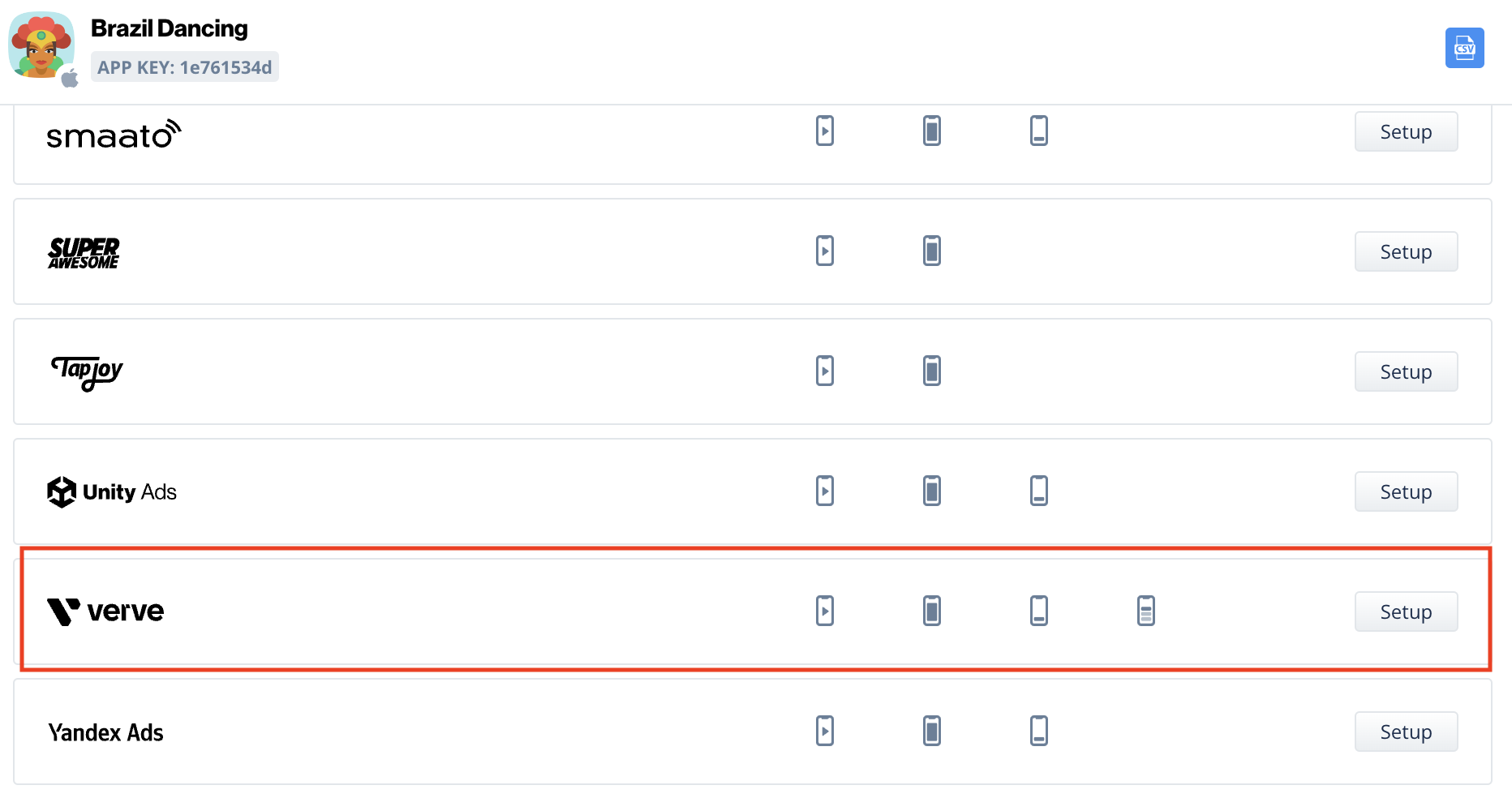
- 次に、LevelPlay の Mediation を Verve 入札で実行するアプリケーションを選択します。
- Ad Networks の設定リストから Verve を選択し、設定 を選択します。
- 次に、Interstitial、Rewarded Video、Banner、ネイティブ設定にアプリケーション トークンとゾーンID(ステップ2)を入力します。次に、Save (保存) を選択します。
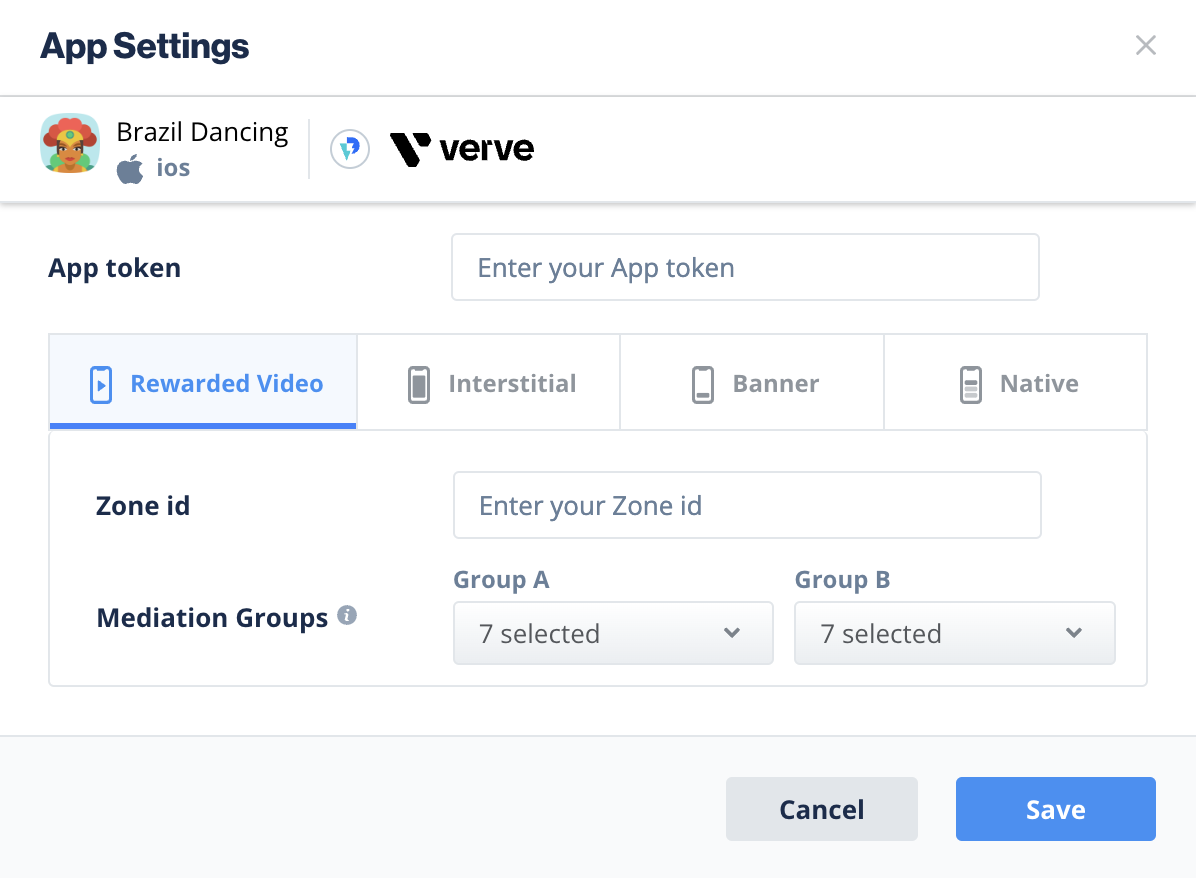
Verveネットワークはアプリケーションに対してアクティブになります。
Verve Adapter をビルドに追加する
これで、アプリケーション内で Verve を提供する準備が整いました。