ドキュメント

サポート

LevelPlay SDK - React Native

Mintegral integration

Integrate Mintegral as a mediation network in your React Native app using the LevelPlay SDK.
読み終わるまでの所要時間 4 分最終更新 3日前

This guide will instruct you step-by-step on how to set Mintegral live as an Ad Network on LevelPlay Mediation. For the Mintegral network, the auto setup tool is available to use when you complete step 1. The auto setup tool will create an application and bidder placement and pull placement details from Mintegral—so you don't need to switch between the LevelPlay and Mintegral platforms. Alternatively, you can complete the whole setup manually.

Prerequisites

Make sure you have correctly integrated LevelPlay's Rewarded Video, Interstitial, or Banner ads into your application.

Create a Mintegral Account

  1. Create an account with Mintegral. You can do so here.
  2. When your account has been verified, you can login at their partner login here.
When you've completed step 1, you can skip to step 3 and use the auto bidder setup tool to get up and running with the Mintegral bidder on LevelPlay. If you'd rather continue with a manual setup, continue with step 2.

Create an Application in Mintegral

Already set up your application(s) at Mintegral? Skip to here.

First Time Setup Process

If this is your first time setting up a Mintegral account, continue below.
  1. Login
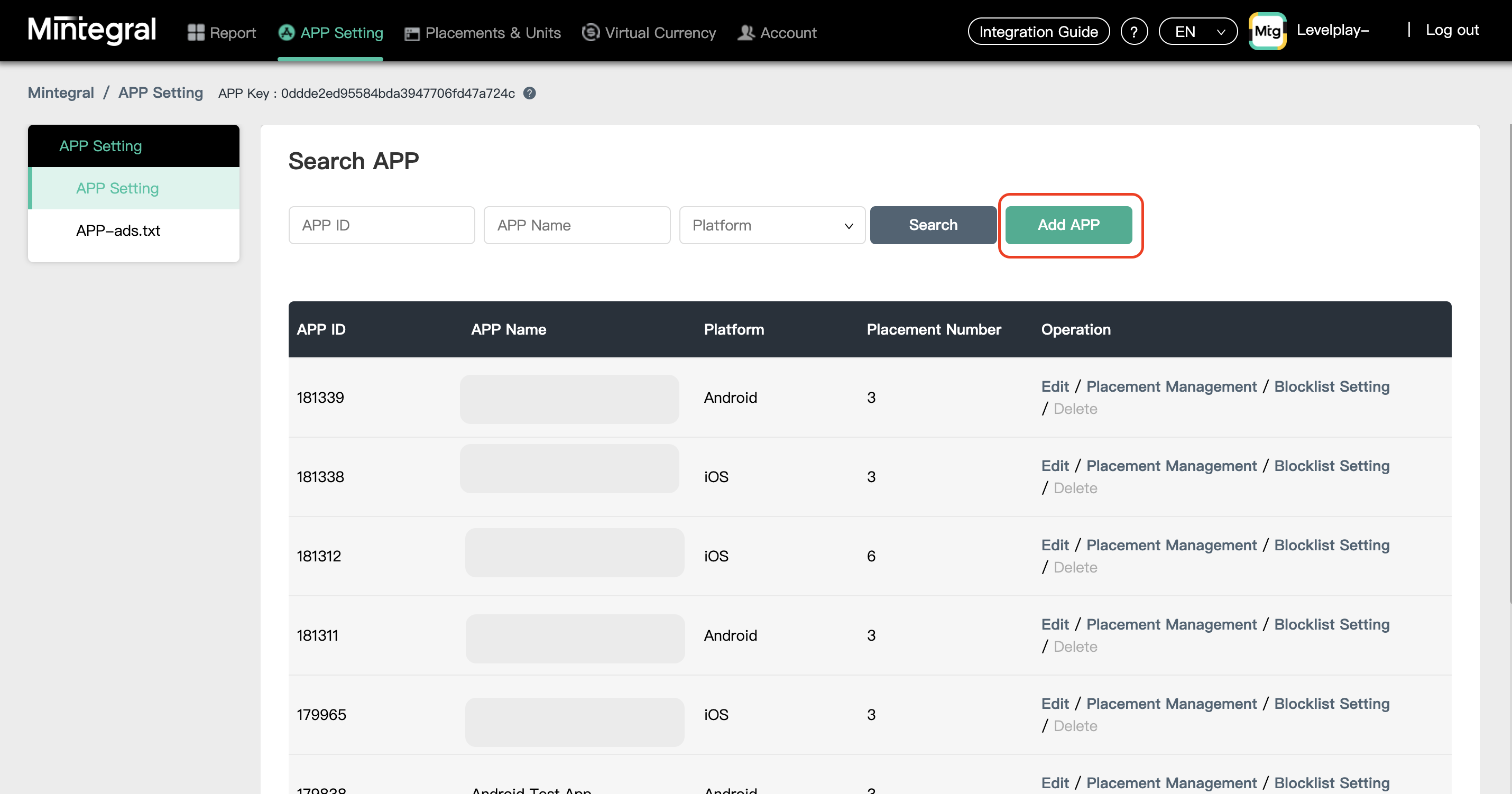
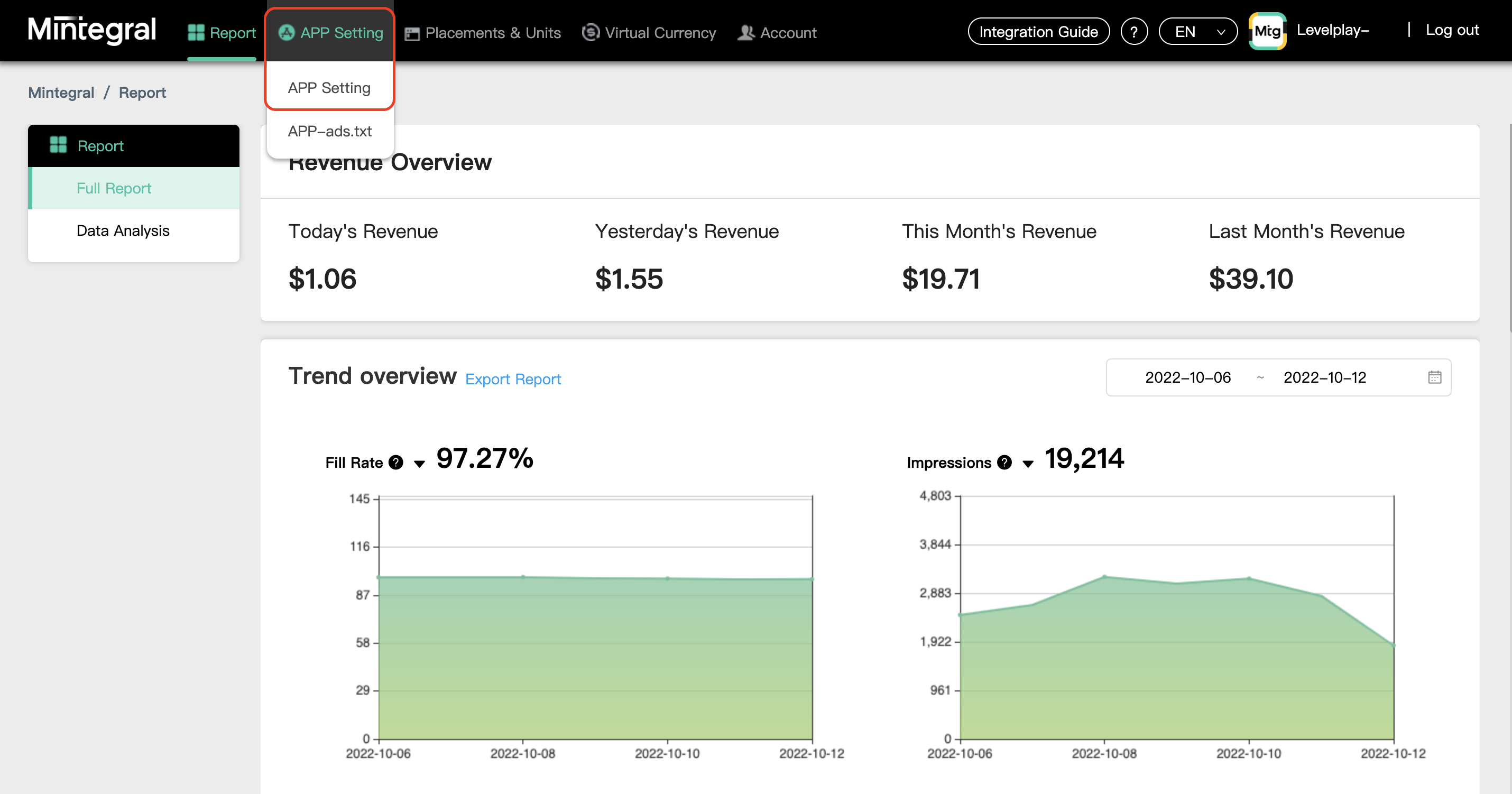
    • When you log in for the first time, select APP Setting
  2. Add Your App
    • Upon selecting + Add APP, a setup module will appear, Configure your app settings (Choose LevelPlay as mediation platform)
    Step 2 - Add APP
    Step 2 - APP Setting screen
    You will need a unique Mintegral application per platform (iOS + Android) just like you do with your LevelPlay account.
  3. After you defined the settings, you can choose to check the ad types you DO NOT wish to be delivered to your application.
    Step 2 - Ad type configuration
  4. Add Placements
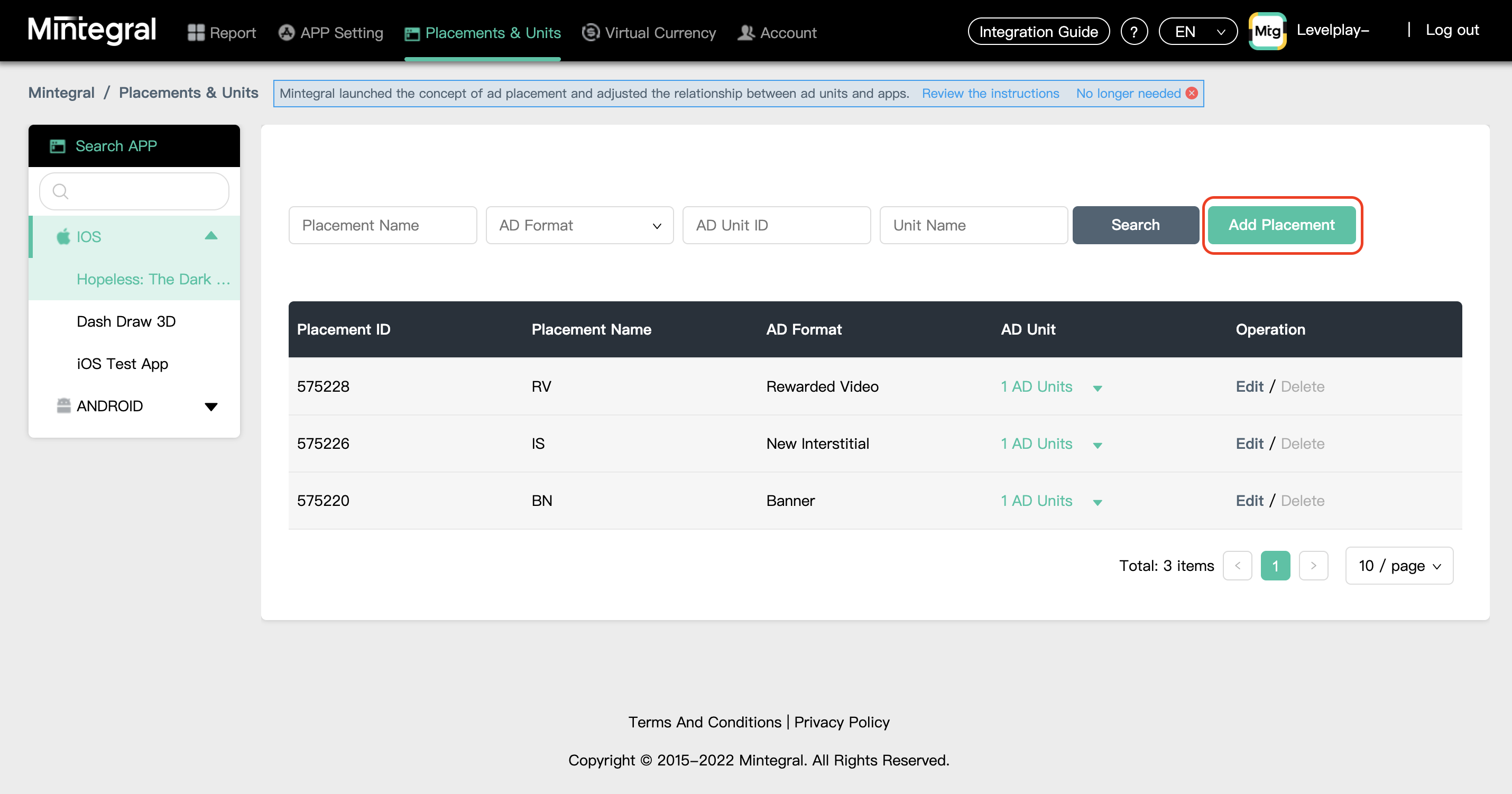
    1. After you defined the Applications settings, select the relevant Apps through dashboard and select Placement Management
    Step 2 - Placement Management button
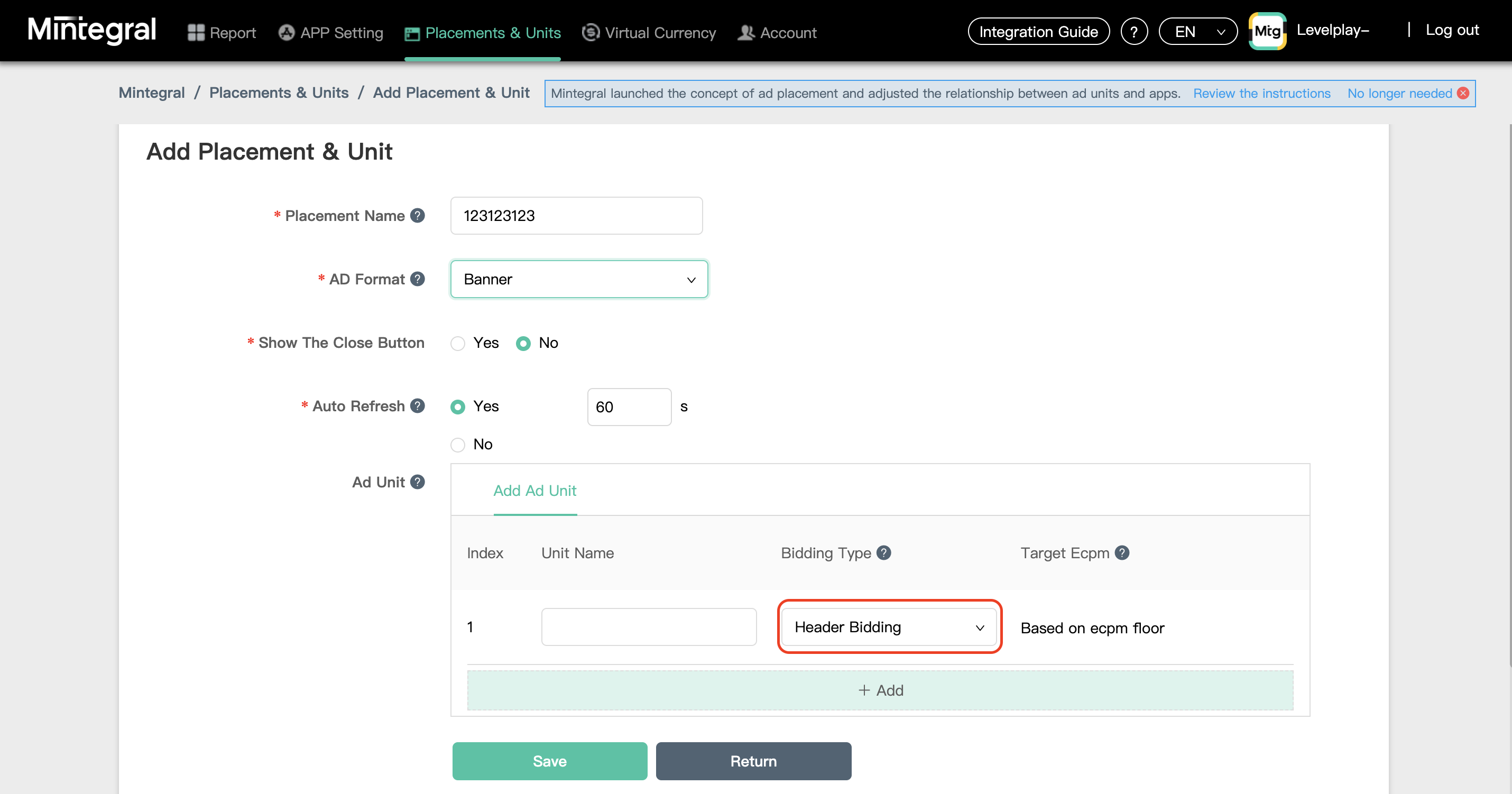
    1. Select Add Placement button for adding new placements
    Step 2 - Add Placement
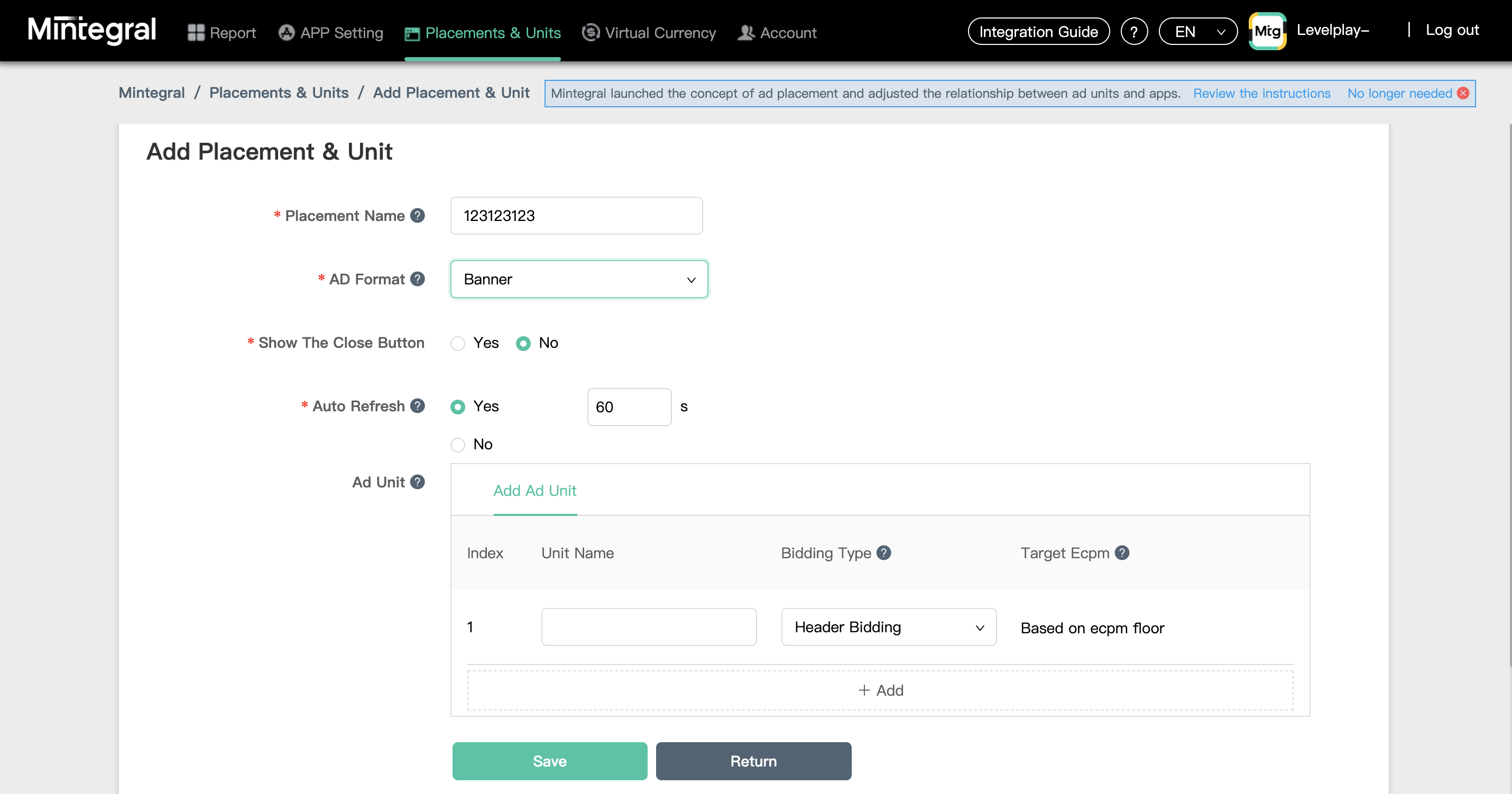
    1. Mintegral adapters can serve Rewarded Video, Interstitial and Banner. Choose the AD format according to your needs
    For Banner, it is highly recommended to set the Auto Refresh value for No, since you can control the refresh rate on the mediation platform.
    1. Define your ad unit. As Mintegral network is a bidder only, you must choose Header Bidding as the Bidding Type

Activate Mintegral in Your LevelPlay Network Setup Module

Step 3 - SDK Networks selection
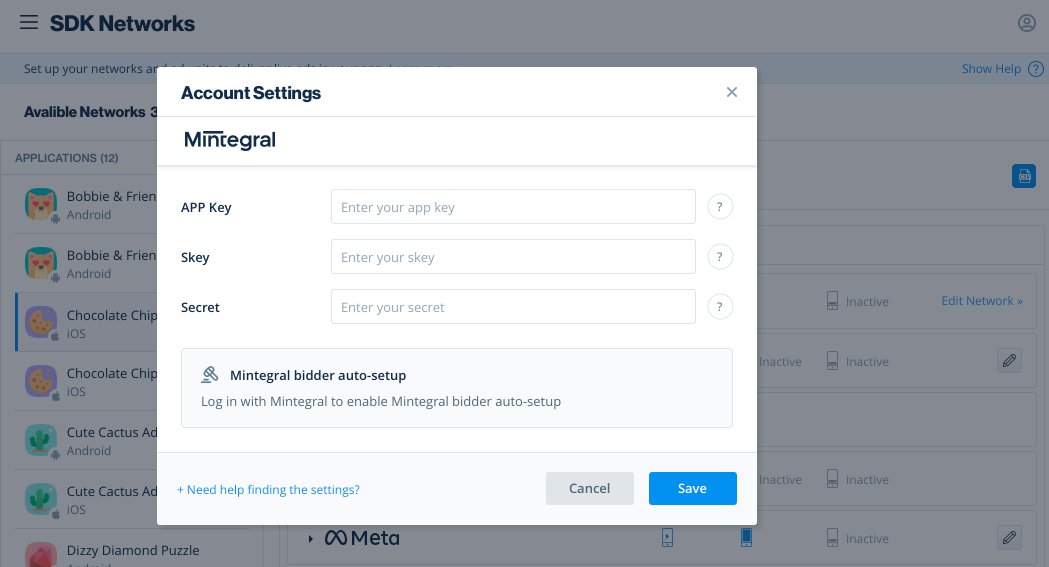
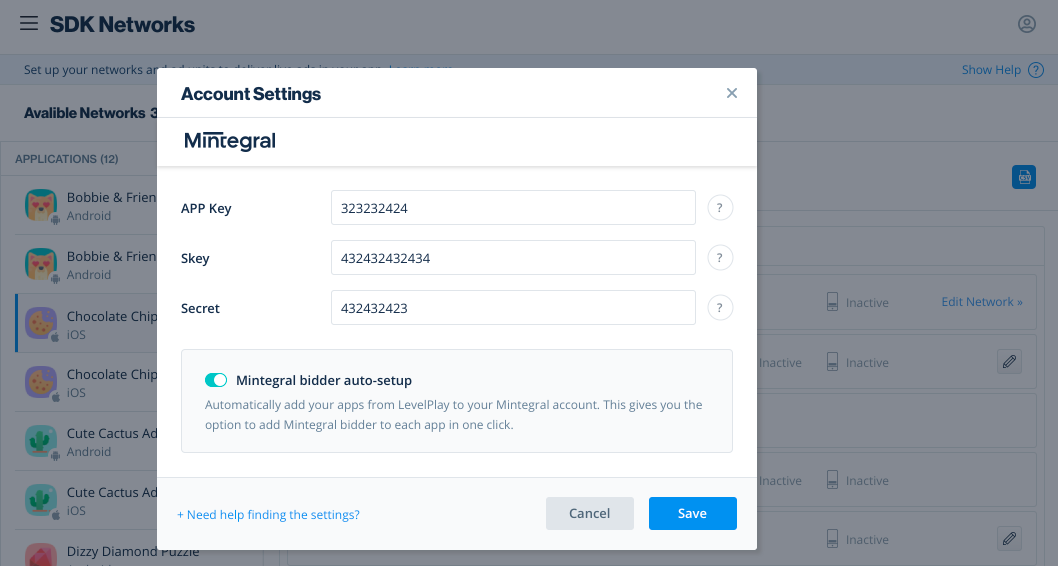
There are values from your Mintegral account that need to be inserted into your LevelPlay network setup module:

Parameter

Description

App KeyThe unique ID assigned to your app on Mintegral's dashboard.
SKeyAPI key for reporting
SecretThe unique ID assigned to your Mintegral user.
When you obtain this information, you must configure Mintegral's Parameters in your LevelPlay Account. By adding the above information correctly, you will be able to take full advantage of Mintegral's ad inventory and reporting data on LevelPlay mediation platform.
If you don't find the SKey or Secret values, feel free to contact developer@mintegral.com or your account manager on Mintegral.

Retrieve Mintegral Parameters

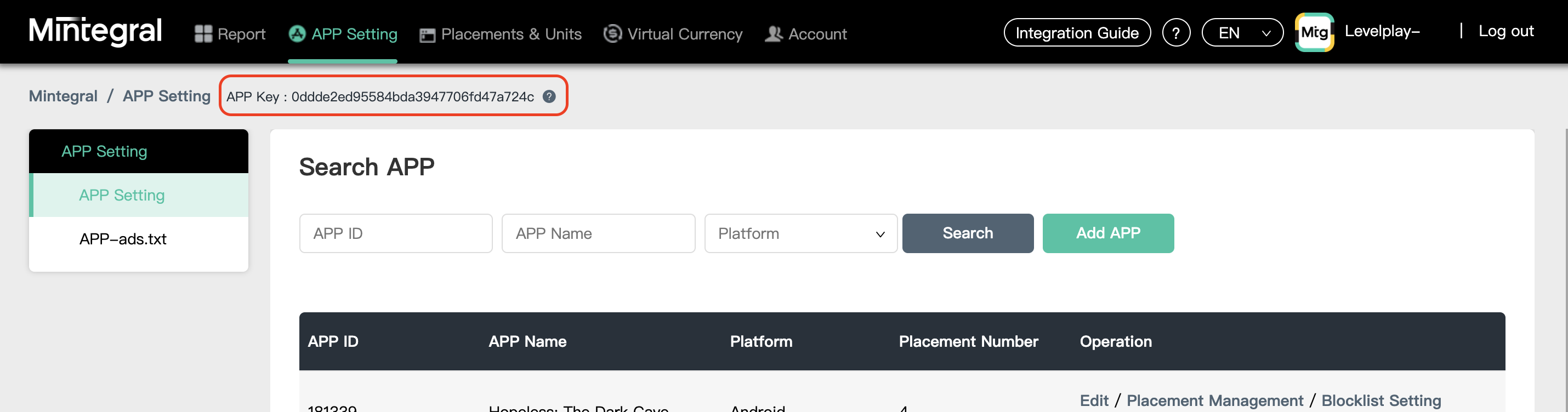
App Key
Step 3 - App Key location
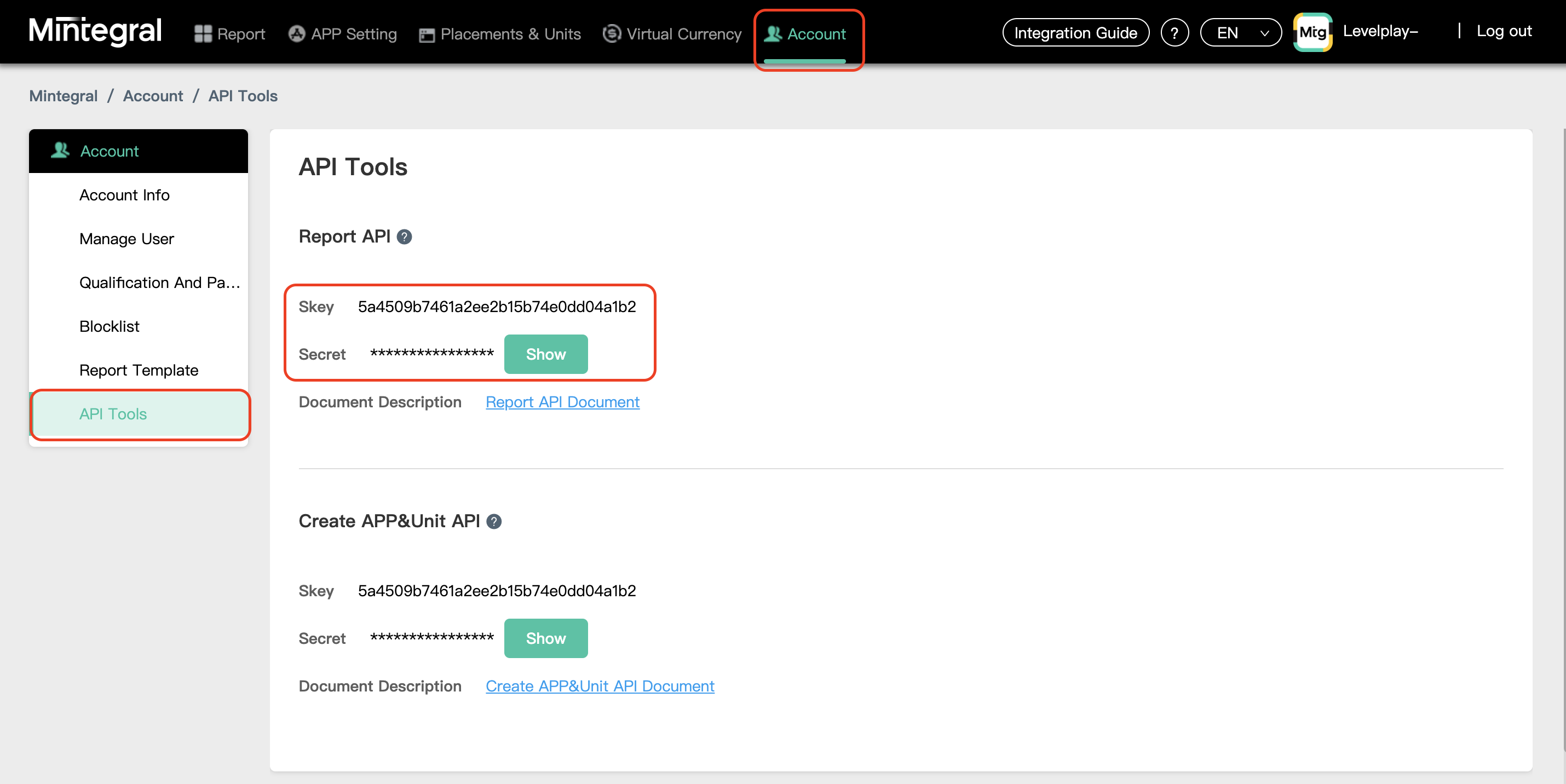
SKey + Secret When you're logged into your Mintegral account (as described in step 1), select API Tools under the Account tab in the upper menu. At the bottom of the page, you can find your SKey and Secret.
Step 3 - SKey and Secret

Configure Mintegral in LevelPlay

  1. Select SDK Networks in the left side nav bar. Then select Available networks at the top of the page and select Mintegral from the list of supported networks.
Step 4 - Auto-setup toggle
If you toggle the auto setup tool on, you can still configure Mintegral bidding manually later in LevelPlay.
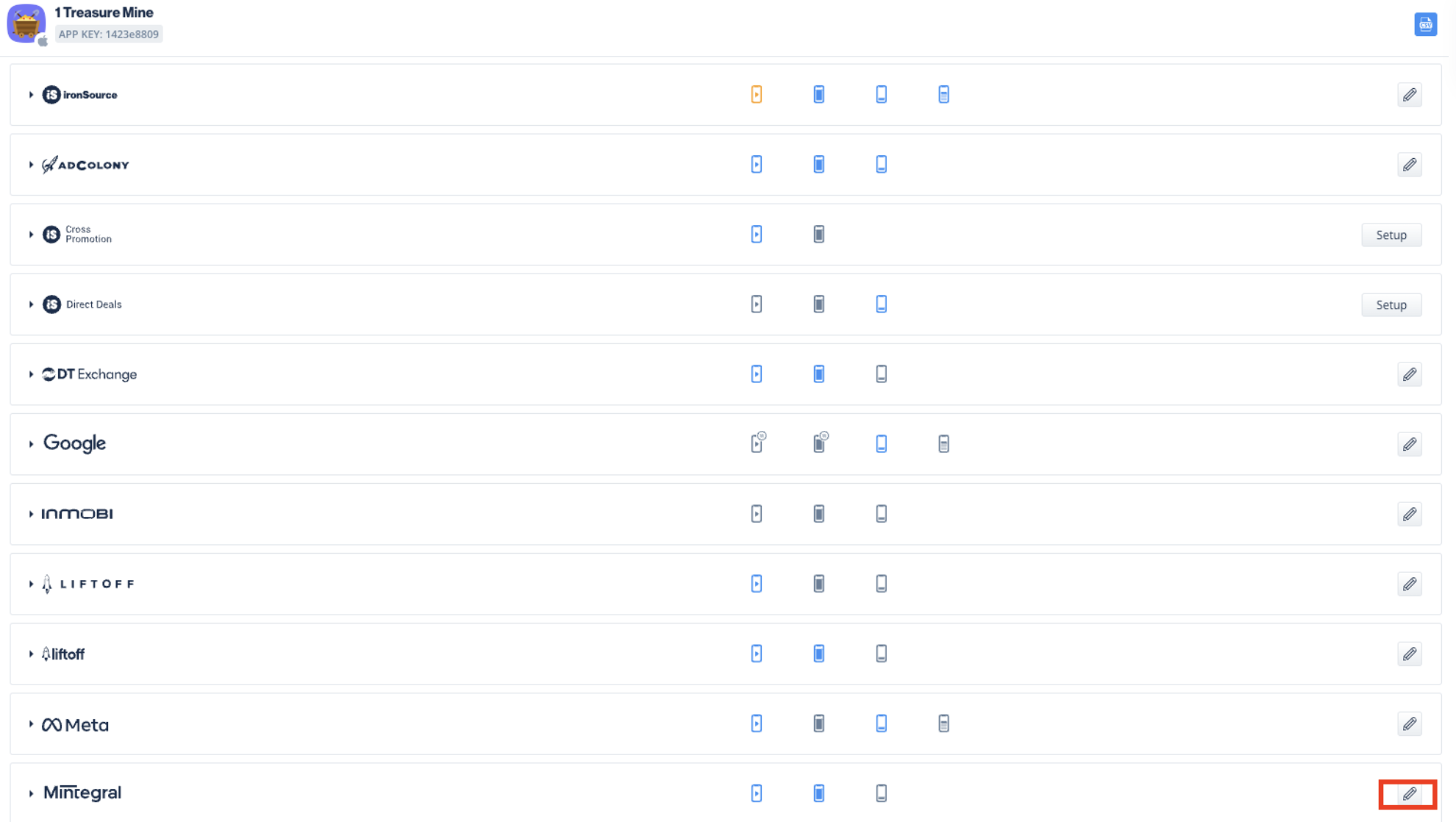
  1. Select the app where you'd like to run interstitial, rewarded video, or banner ads from Mintegral. Then select the define icon in the Mintegral row.
Step 4 - Select app and define icon
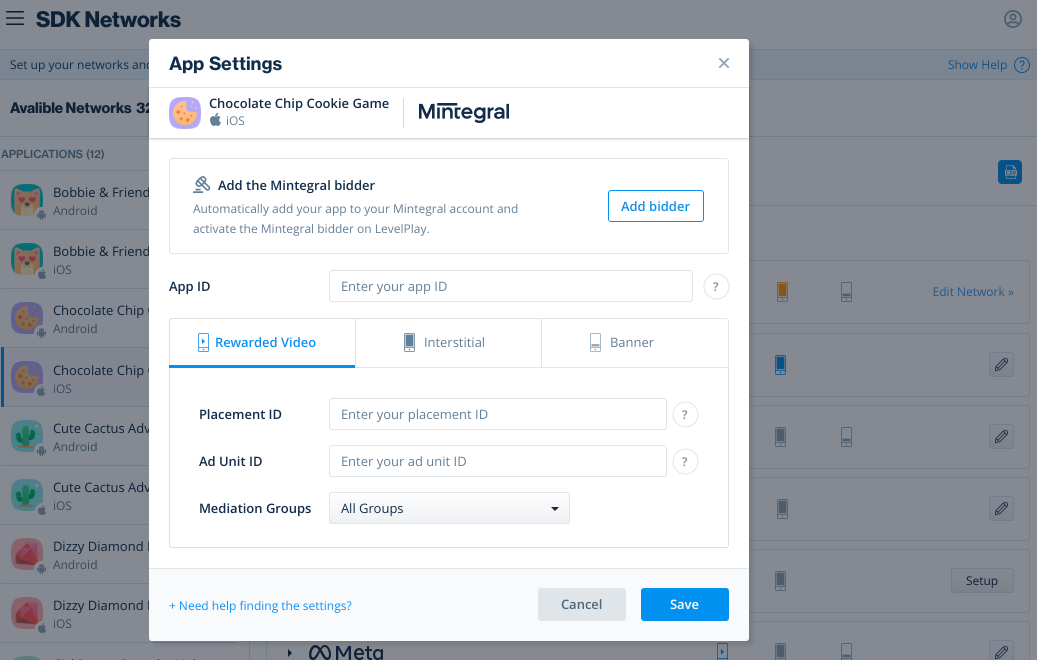
  1. Select the Add bidder button to automatically create new application and bidding placements on the Mintegral platform, and import the, App ID, Placement ID and Ad unit ID.
Step 4 - Add bidder button
  1. To activate the auto setup feature toggle on the bidder auto-setup tool. This will enable you to automatically create an application and bidder placement on the Mintegral platform and allow LevelPlay to pull placement details from Mintegral.
If you toggle the auto setup tool on, you can still configure Mintegral bidding manually later in LevelPlay.
  1. Select the app where you'd like to run interstitial, rewarded video, or banner ads from Mintegral. Then select the define icon in the Mintegral row.
  2. Select the Add bidder button to automatically create new application and bidding placements on the Mintegral platform, and import the, App ID, Placement ID and Ad unit ID.
  3. Select Save to approve and accept all configurations. If you close the module without saving, the assets will be created on the Mintegral platform without importing the data onto the LevelPlay platform.
The status of Mintegral bidder instances will be according to the ad units you have activated for the LevelPlay Ads bidder. For example, if you're not using the LevelPlay bidder for rewarded videos, it will not automatically be activated for the Mintegral network. To activate the Mintegral bidding instance for rewarded videos, select the Mintegral row and toggle on the ad unit.

Manual Setup

  1. On SDK network page, choose the application you would like to configure, and select Setup under Mintegral bidder
  2. Enter your App ID, then add your Placement ID and Ad Unit ID for each ad unit you want to use with the Mintegral bidder.
  3. You can retrieve these parameters from your Mintegral account:
    • App ID
    • Placement ID
    • Ad Unit ID

Add the Mintegral Adapter to Your Build

You are now all set to deliver Mintegral ads within your application!