Pangleインテグレーション
LevelPlay のメディエーションプラットプラットフォームを使用して、Pangle を React ネイティブ アプリケーションに広告ネットワークワークとして統合します。
読み終わるまでの所要時間 3 分最終更新 2ヶ月前
このガイドでは、Unity LevelPlay メディエーションで Pangle をライブに設定する方法をステップごとに説明します。
前提条件
Pangle は、以下のユーザーに広告を配信します。日本、韓国、台湾、タイ、フィリピン、シンガポール、カンボジア、ベトナム、マレーシア、サウジアラビア、アラブ首長国連邦、エジプト、トルコ、インドネシア、カナダ、アルゼンチン、チリ、ペルー、コロンビア、ブラジル、メキシコ、ベラルーシ、ウクライナ、イスラエル、カザフスタン、ロシア、オーストラリア、ニュージーランド、南アフリカ、パキスタン、クウェート、イラク、モロッコ、カタール、ヨルダン、オマーン、バーレーン、ウルグアイ、エクアドル、レバノン、ケニア、スリランカ、アルジェリア、アゼルバイジャン、セルビア、パラグアイ、ボリビア**(iOS & Android**、入札および非入札)
ステップ 1. Pangle アカウントの作成
Unity LevelPlay を通じて Pangle の広告インベントリにアクセスするには、Pangle のアカウントを作成する必要があります。ここで行うことができます。
ステップ 2. Pangle でのアプリケーションの作成
次に、Pangle アカウントにアプリケーションを追加します。
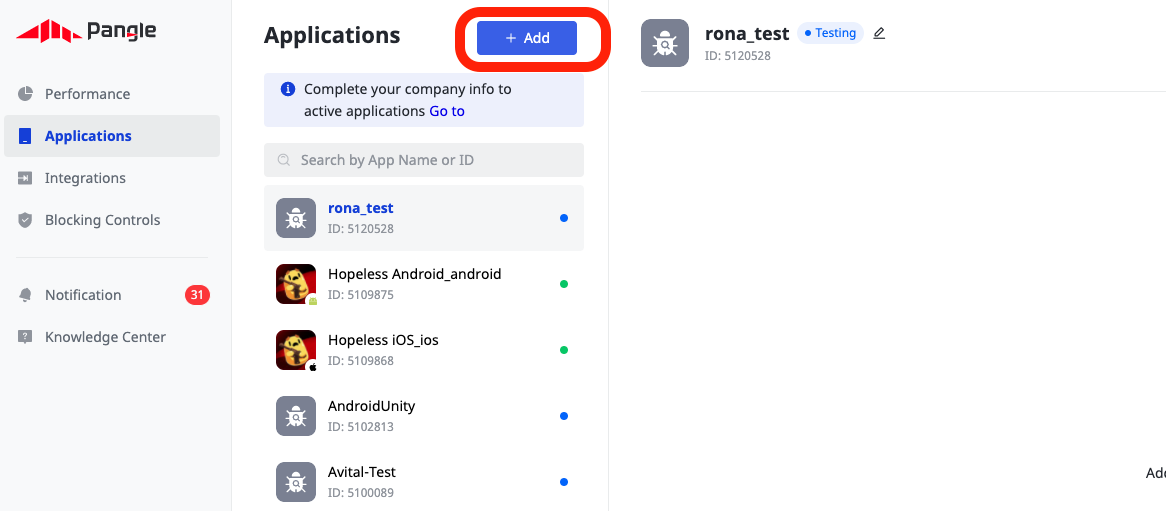
アプリケーションの追加
-
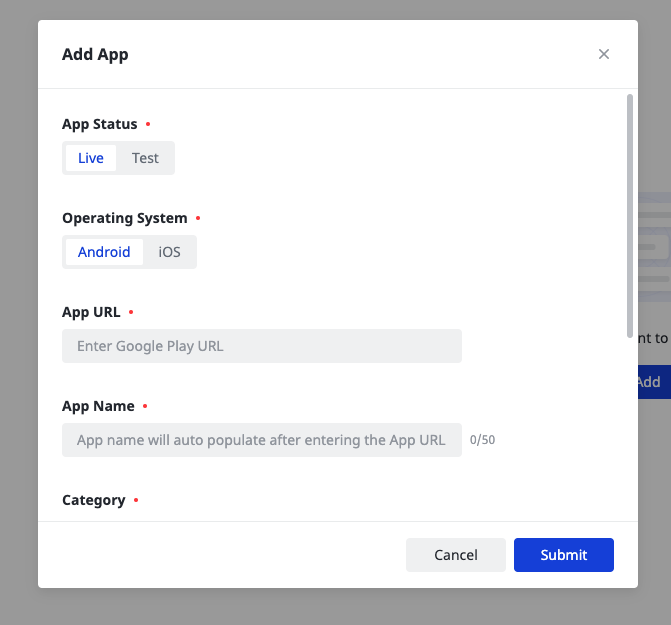
Pangle アアカウントにログインします。ダッシュボードで、Applications**'**にカーソルを合わせ、Addを選択します。2。アプリケーションを追加するか、収益化する既存のアプリケーションを選択します。
ステップ 3. LevelPlay ネットワーク 設定 モジュールで Pangle をアクティベートする
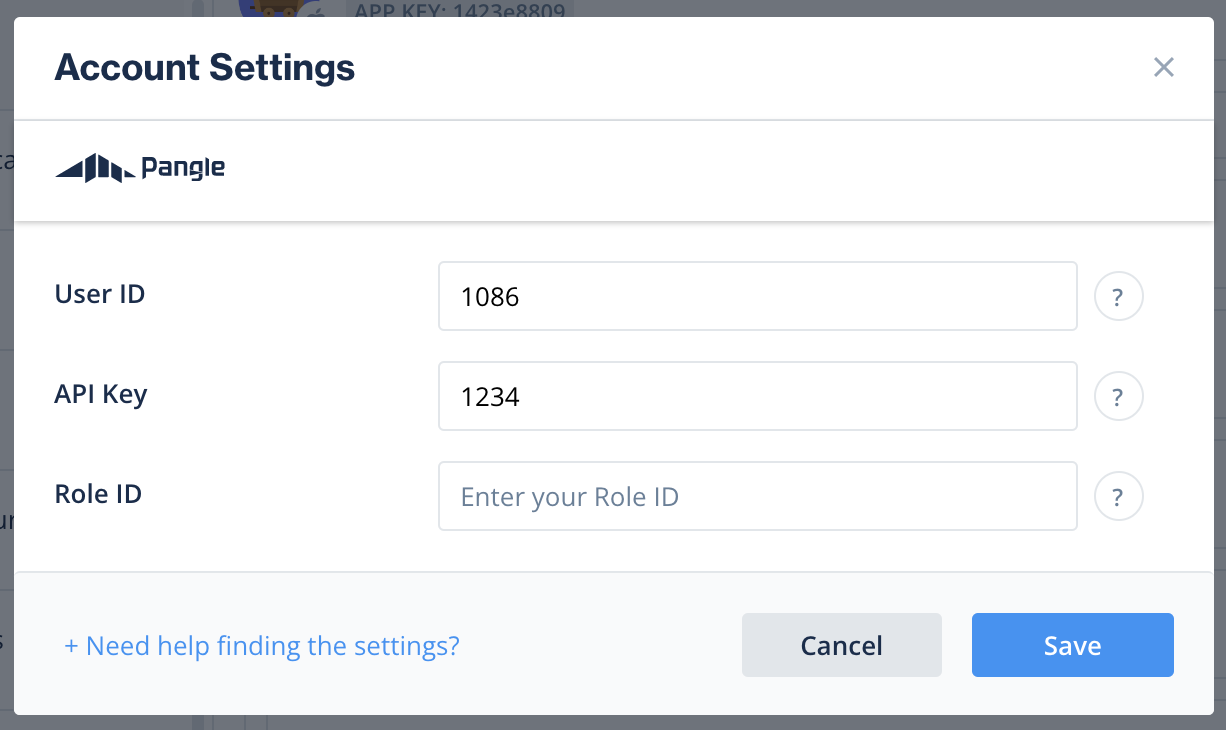
Unity LevelPlay を通じて Pangle の広告の配信がこれほど簡単になったことはありません。LevelPlay SDK Networks 設定ページで Pangle を設定するときに Pangle アカウントにサインインし、Pangle インタースティシャル広告とリワード広告を実行するために必要なすべてのパラメータを挿入します。
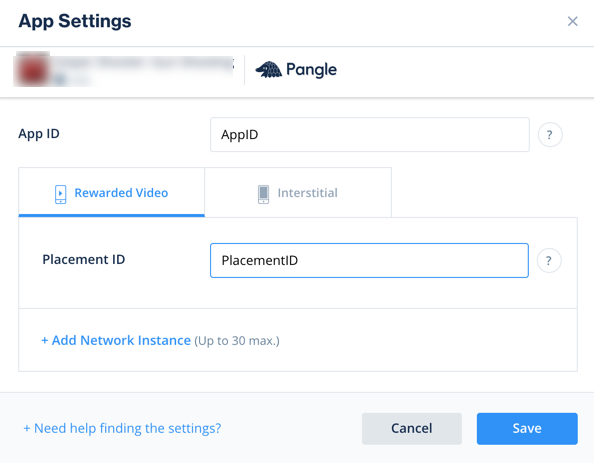
アプリケーション設定
ユーザー ID | Pangle のダッシュボードでユーザーに割り当てられた一意の ID。 |
|---|---|
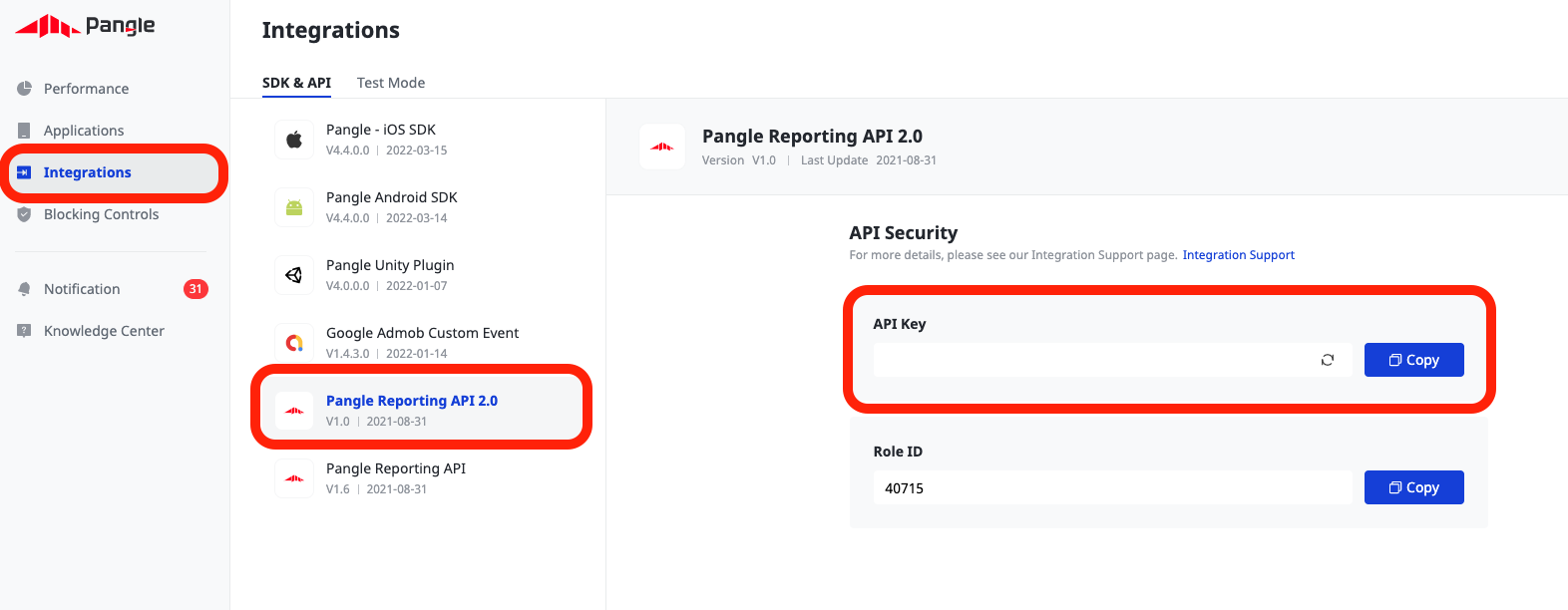
| APIキー | レポート API のために Pangle によって生成されたキー (Pangle プラットフォームでは API キーと呼ばれます) ******** |
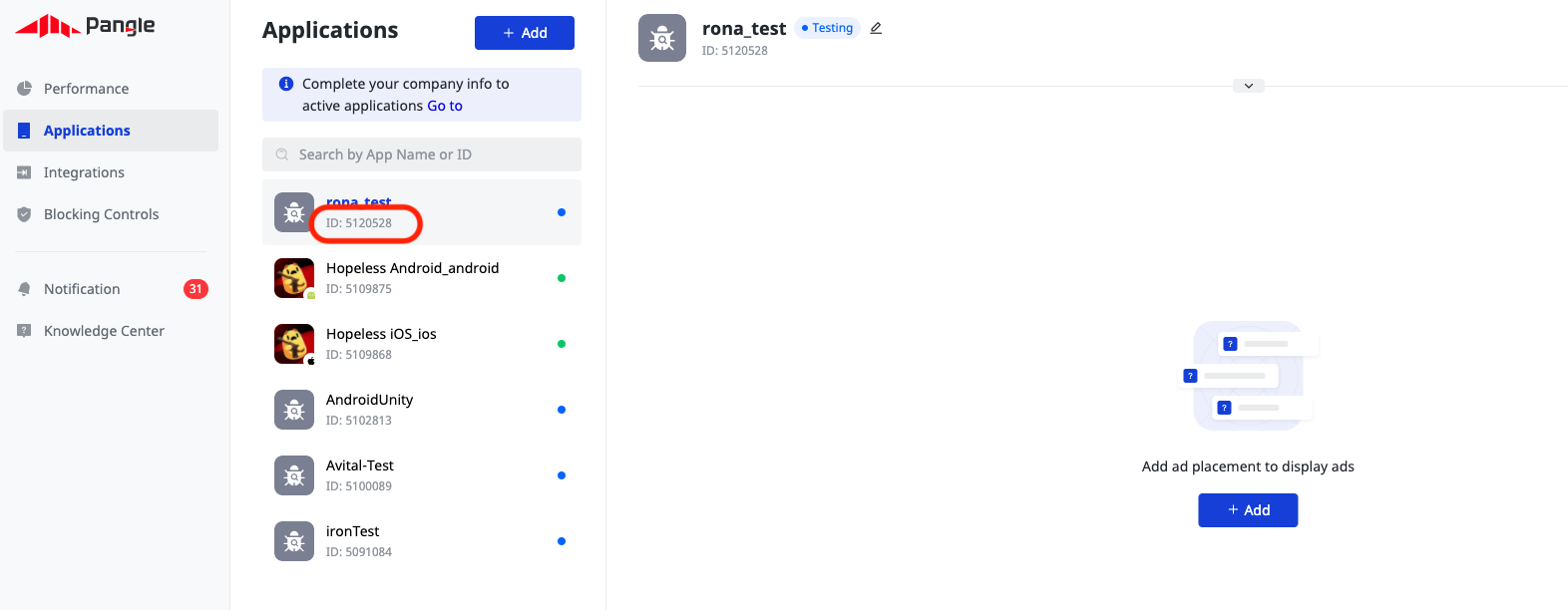
| アプリケーションID | Pangle の****ダッシュボードでアプリケーションに割り当てられた一意の ID |
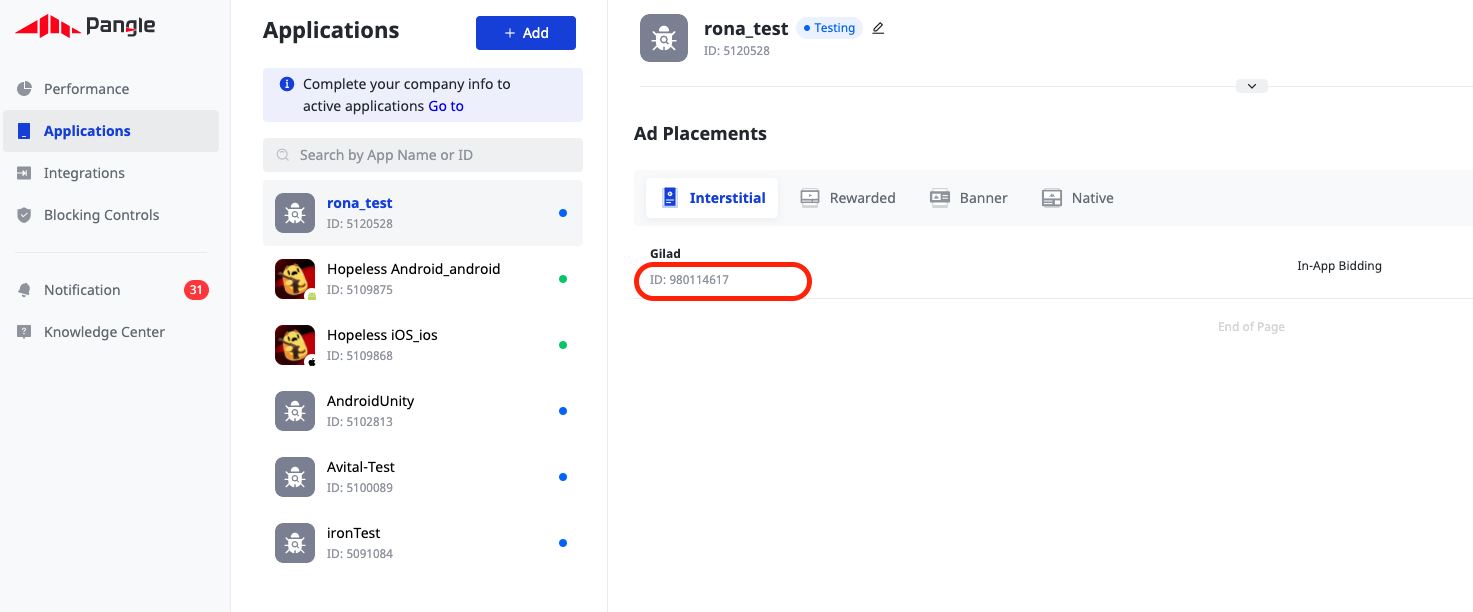
| プレースメント ID | Pangle のダッシュボードで作成した広告に割り当てられた一意の ID |
この情報を取得したら、LevelPlay アカウントで Pangle のパラメータを設定します。上記の情報を正しく追加することで、LevelPlay プラットフォームで Pangle の広告インベントリとレポートデータを最大限に活用できるようになります。
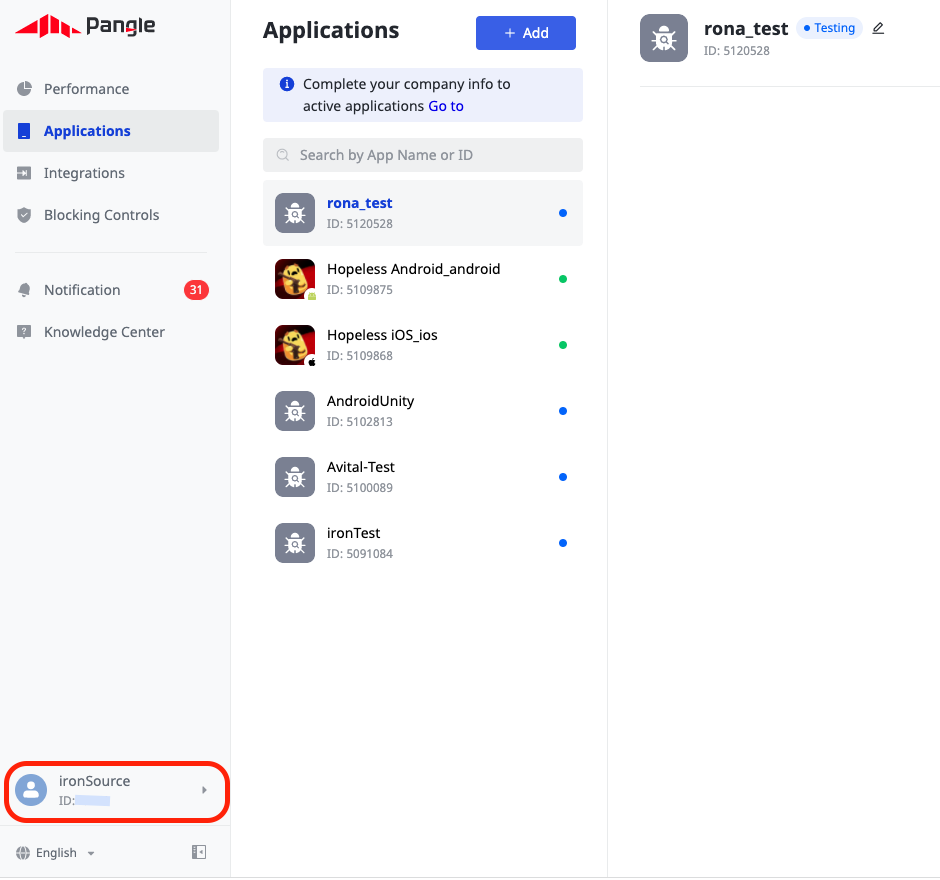
ユーザー ID
Pangle アカウントにサインインすると、ダッシュボードの右上にユーザー ID が表示されます。
API キー
アプリケーションID
Pangle ダッシュボードでアプリケーションを作成すると (ステップ 2 で説明)、Apps (Applications**'** にカーソルを合わせ、Apps を選択) の下にアプリケーション ID が表示されます。
プレースメント ID
Pangle ダッシュボードでアプリケーションを作成したら、広告を含める必要があります。アプリケーション**'にカーソルを合わせ、Ad placements'** を選択します。配置を手動で追加するか、既存の配置を選択して配置 ID を取得します。
ステップ 4. Pangle アダプタをビルドに追加します。
ステップ 5.Pangle の追加設定
COPPA の設定
LevelPlay を使用すると、パブリッシャーは Pangle COPPA 設定を Pangle ネットワークに直接通信できます。この特徴は LevelPlay SDK 6.17.0 以降、Pangle アダプター 4.1.2 以降 (Android) / 4.1.5 以降 (iOS) を使用して有効化されます。
以下の構文を使用して、Pangle COPPA を値 1 に設定し、子をレポートします。
「Unity-levelplay-mediation」からのインポート{ LevelPlay }LevelPlay.setMetaData('Pangle_COPPA', ['1'])
以下の構文を使用して、Pangle COPPA に値 0 を設定し、成人をレポートします。
「Unity-levelplay-mediation」からのインポート{ LevelPlay }LevelPlay.setMetaData('Pangle_COPPA', ['0'])
LevelPlay SDK を初期化する前に を呼び出します。
LevelPlay.setMetaData広告ネットワークインテグレーションの確認
LevelPlay SDK とその他の広告ネットワークのインテグレーションを検証するには、このドキュメントに従ってください。
開発ビルドでは、LevelPlay SDK を初期化する前に以下のメソッドを呼び出してアダプターのデバッグを有効にします。
「Unity-levelplay-mediation」からのインポート{ LevelPlay }LevelPlay.setAdaptersDebug(true)
これで、アプリケーション内で Pangle を配信できます。
次のステップ
Unity LevelPlay を通じて追加の広告ネットワークを活用するには、アダプタを統合し、インテグレーションガイドに従ってください。