SaveFilePanelInProject
Displays the "save file" dialog in the Assets folder of the project and returns the selected path name.
Read time 5 minutesLast updated 7 days ago
Definition
- Type: Method
- Namespace: UnityEditor
- Assembly: UnityEditor
SaveFilePanelInProject(string, string, string, string)
Displays the "save file" dialog in the Assets folder of the project and returns the selected path name.
public static string SaveFilePanelInProject(string title, string defaultName, string extension, string message)
Parameters
The title of the window to display.
The placeholder text to display in the "Save As" text field. This is the name of file to be saved.
The file extension to use in the saved file path. For example, enter "png" to save an image in the PNG format.
The text summary to display in the dialog window.
Returns
Type | Description |
|---|---|
| string | A string path to the saved file. If the dialog was canceled or the save failed, it returns an empty string. |
Remarks
The returned string is always a project-relative path under the folder. It starts with , for example:
AssetsAssets/Assets/MyFolder/MyFile.assetThe dialog always opens to the root of the folder, regardless of where the user has browsed or saved things to earlier in the session.
AssetsThe value of is only used to prefill the file name field. Passing a full path in does not change the initial folder.
defaultNamedefaultNameYou can include the extension in (e.g., ) and it won't be duplicated if you also include it in the parameter. In general, the extension should be specified at least once, preferably using the parameter.
defaultNameMyFile.assetextensionextensionProvide the without the dot, for example or . Unity normalizes and enforces the extension based on this argument. If the user types a different extension, Unity may append or correct it to match the provided extension.
extensionassetpngThe string is shown in the dialog UI as helper text or a prompt under the filename field, though presentation can differ between platforms.
messageUnity generally does not throw exceptions for typical invalid inputs to this dialog such as bad , empty , or unusual characters. Instead, the dialog still opens, potentially ignoring or sanitizing bad values.
defaultNameextensionIf the user cancels or the operation can't complete, the return value is an empty string. Common cases where this can happen include:
- The user clicks Cancel.
- The chosen path would be invalid or outside and Unity rejects it.
Assets/ - The extension enforcement conflicts and Unity can't resolve it.
There is no structured error object; you only get an empty string.
Additional Resources: EditorUtility.SaveFilePanel function.
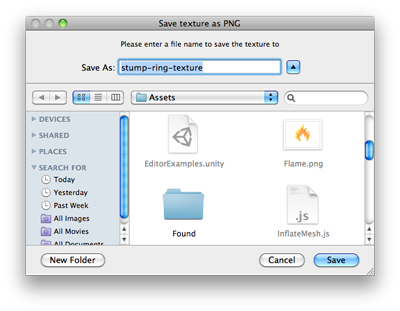
Save File panel in project.
Examples
using UnityEngine;using UnityEditor;using System.IO;public class SaveFilePanelInProjectExample : EditorWindow{ [MenuItem("Example/Save Texture In Project")] static void Apply() { Texture2D texture = Selection.activeObject as Texture2D; if (texture == null) { EditorUtility.DisplayDialog("Select Texture", "You must select a texture first!", "OK"); return; } string path = EditorUtility.SaveFilePanelInProject("Save png", texture.name + "png", "png", "Please enter a file name to save the texture to"); if (path.Length != 0) { byte[] pngData = texture.EncodeToPNG(); if (pngData != null) { File.WriteAllBytes(path, pngData); // As we are saving to the asset folder, tell Unity to scan for modified or new assets AssetDatabase.Refresh(); } } }}
SaveFilePanelInProject(string, string, string, string, string)
Displays the "save file" dialog in the Assets folder of the project and returns the selected path name.
public static string SaveFilePanelInProject(string title, string defaultName, string extension, string message, string path)
Parameters
The title of the window to display.
The placeholder text to display in the "Save As" text field. This is the name of file to be saved.
The file extension to use in the saved file path. For example, enter "png" to save an image in the PNG format.
The text summary to display in the dialog window.
The working directory for this dialog to open in. The default value is "Assets.".
Returns
Type | Description |
|---|---|
| string | A string path to the saved file. If the dialog was canceled or the save failed, it returns an empty string. |
Remarks
The returned string is always a project-relative path under the folder. It starts with , for example:
AssetsAssets/Assets/MyFolder/MyFile.assetThe dialog always opens to the root of the folder, regardless of where the user has browsed or saved things to earlier in the session.
AssetsThe value of is only used to prefill the file name field. Passing a full path in does not change the initial folder.
defaultNamedefaultNameYou can include the extension in (e.g., ) and it won't be duplicated if you also include it in the parameter. In general, the extension should be specified at least once, preferably using the parameter.
defaultNameMyFile.assetextensionextensionProvide the without the dot, for example or . Unity normalizes and enforces the extension based on this argument. If the user types a different extension, Unity may append or correct it to match the provided extension.
extensionassetpngThe string is shown in the dialog UI as helper text or a prompt under the filename field, though presentation can differ between platforms.
messageUnity generally does not throw exceptions for typical invalid inputs to this dialog such as bad , empty , or unusual characters. Instead, the dialog still opens, potentially ignoring or sanitizing bad values.
defaultNameextensionIf the user cancels or the operation can't complete, the return value is an empty string. Common cases where this can happen include:
- The user clicks Cancel.
- The chosen path would be invalid or outside and Unity rejects it.
Assets/ - The extension enforcement conflicts and Unity can't resolve it.
There is no structured error object; you only get an empty string.
Additional Resources: EditorUtility.SaveFilePanel function.
Save File panel in project.
Examples
using UnityEngine;using UnityEditor;using System.IO;public class SaveFilePanelInProjectExample : EditorWindow{ [MenuItem("Example/Save Texture In Project")] static void Apply() { Texture2D texture = Selection.activeObject as Texture2D; if (texture == null) { EditorUtility.DisplayDialog("Select Texture", "You must select a texture first!", "OK"); return; } string path = EditorUtility.SaveFilePanelInProject("Save png", texture.name + "png", "png", "Please enter a file name to save the texture to"); if (path.Length != 0) { byte[] pngData = texture.EncodeToPNG(); if (pngData != null) { File.WriteAllBytes(path, pngData); // As we are saving to the asset folder, tell Unity to scan for modified or new assets AssetDatabase.Refresh(); } } }}