Documentation

​
​

Development

User Acquisition

Monetization

Industry

Asset Transformer Studio

2026.5.0

Supported
​

User Manual

Python API

Changelog

Asset Transformer Studio

2026.5.0

Supported
​

​
​
Get started
  • About Asset Transformer Studio
  • Getting started
  • Additional Resources
User Interface
  • Overview
  • Menu Bar
  • Toolbars
  • Window
    • History
    • Inspector
    • Output
    • Product Structure (Tree)
    • Scripting
    • Tools
      • Selection Tool
      • Cutting Plane
      • Exploded View
      • UV Projection Tool
    • Variants and PMI
    • Viewer
    • Visualization
  • Customizing the User Interface
Data Preparation Fundamentals
  • Overview
  • General Information
  • Typical Data Preparation Workflow
  • About 3D Models Types
  • About the Product Structure (Tree)
  • About Occurrences
  • About Instances & Prototypes
  • About Face and Vertex Normals
  • About UVs
  • About Tessellation
  • About Decimation
  • About Animation
  • Glossary
Working With Asset Transformer Studio
  • Overview
  • Videos and Tutorials
  • Supported File Formats
  • Importing Files
  • Exporting Files
  • Scripting With the Python API
  • Interrupting a Process
  • Plugins
  • Errors in Asset Transformer Studio
Python API Reference
  • Overview
Changelog
  • Changelog
  1. Asset Transformer Studio
  2. User Interface
  3. Window
  4. Tools

Cutting Plane

Using the Cutting Plane tool in Asset Transformer Studio
Read time 1 minute
Last updated a day ago

Cutting Plane
The Cutting plane tool allows you to visualize the internal parts of your models.
When the tool is activated, all parts contained in the scene will be affected by the cutting plane.

Tool parameters

Use the Toggle button to activate the tool.
Choose the cutting axis and slide the Translation cursor to move the cutting plane.
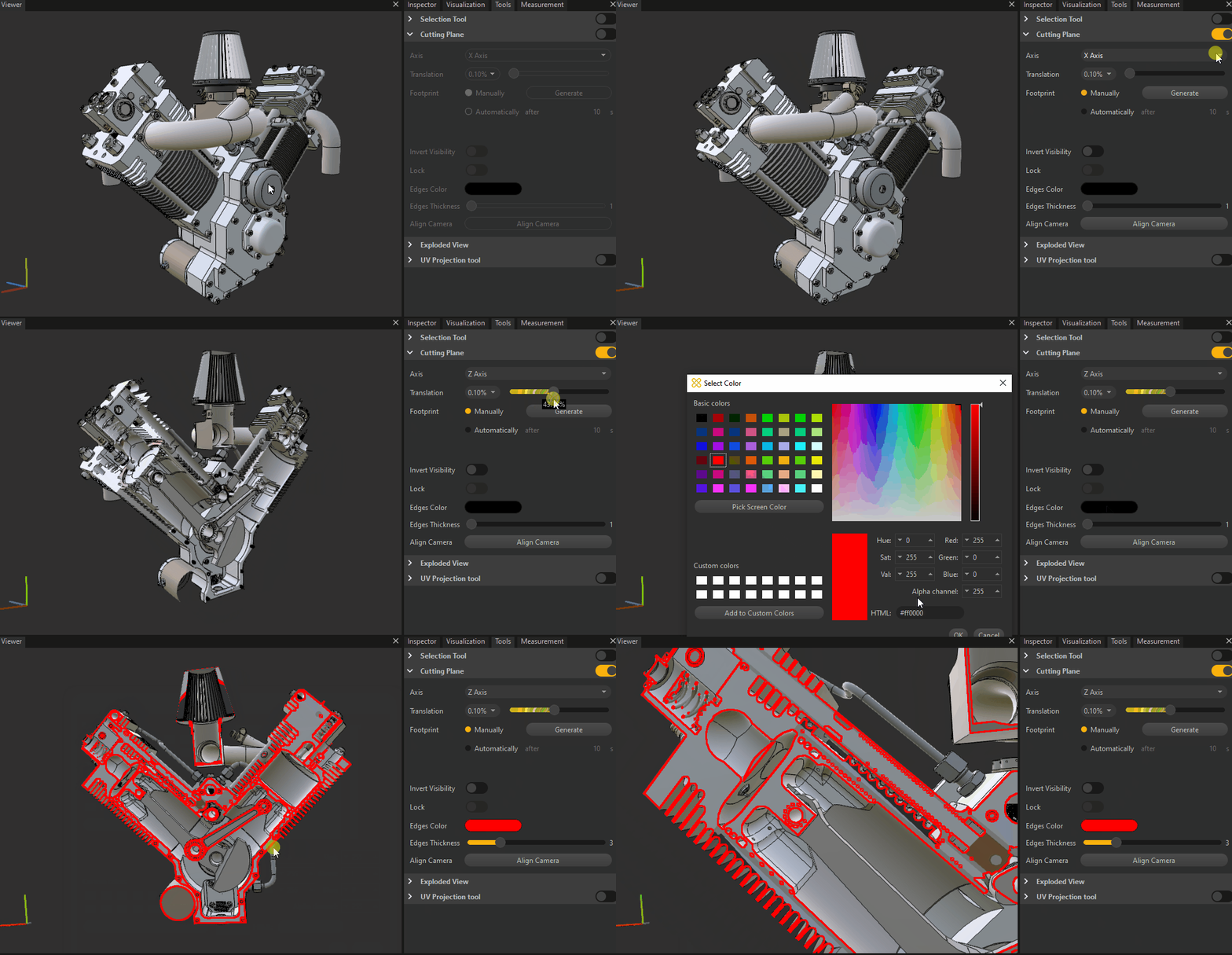
Cutting Plane demo
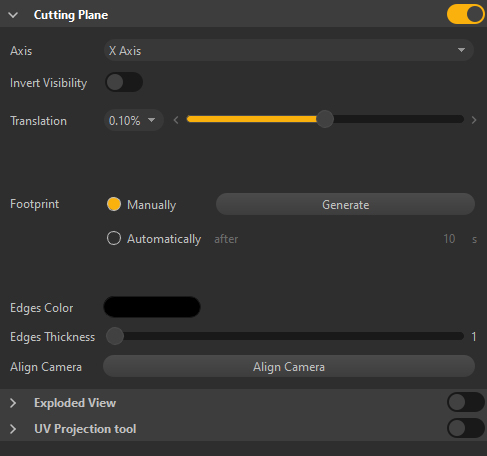
The Cutting plane tool comes with a list of parameters to fine-tune the cutting plane.

Item

Description

AxisDefines the axis of the plane used for cutting the scene parts
Invert VisibilityDefines the direction towards which scene parts visibility is kept. Toggle to invert the direction.
TranslationTranslates the cutting plane along the defined axis. The increment parameter defines the translation threshold.
TIP: Use the keyboard arrow keys (left/right) to increment the cutting plane position
FootprintAllows you to generate a plain cross-section, or footprint, either Manually or Automatically (when enabled a footprint will be automatically created after the time defined by the setting). The generated footprint is created as an occurrence in the Product Structure, where its visibility can be modified or can be deleted. Translating the cutting plane again hides the footprint.
Edge ColorDefines the color of the generated footprints contour.
NOTE: Use after generating a footprint
Edge ThicknessDefines the thickness of the generated footprints contour (in pixels).
NOTE: Use after generating a footprint
Align CameraAligns the Viewport camera with the footprint.
NOTE: Use after generating a footprint. Consider switching to orthographic camera (
P
key)

Copyright © 2026 Unity Technologies
LegalPrivacy PolicyCookiesDocumentation Terms of UseDo Not Sell or Share My Personal InformationYour Privacy Choices (Cookie Settings)

"Unity", Unity logos, and other Unity trademarks are trademarks or registered trademarks of Unity Technologies or its affiliates in the U.S and elsewhere (more info here). Other names or brands are trademarks of their respective owners.

Some pages are machine-translated for convenience, and may contain inaccuracies. In the event of conflicting information, the English version is authoritative.

  • On this page
    • Tool parameters