Moloco 集成
通过 Unity LevelPlay 将 Moloco 设置为 Flutter 应用程序中的广告网络,涵盖帐户创建、app 注册、广告单元配置和 SDK 集成。
阅读时间1 分钟最后更新于 25 天前
本指南将逐步说明如何在 Unity LevelPlay 上将 Moloco Live 设置为广告网络。
先决条件
-
确保将奖励广告服务、插页式广告服务或横幅广告服务正确集成到应用程序中。请参阅以下指定的于平台的指南以了解集成说明:
-
Moloco 支持使用 iOS 13+ 的设备。
步骤 1.创建 Moloco 帐户
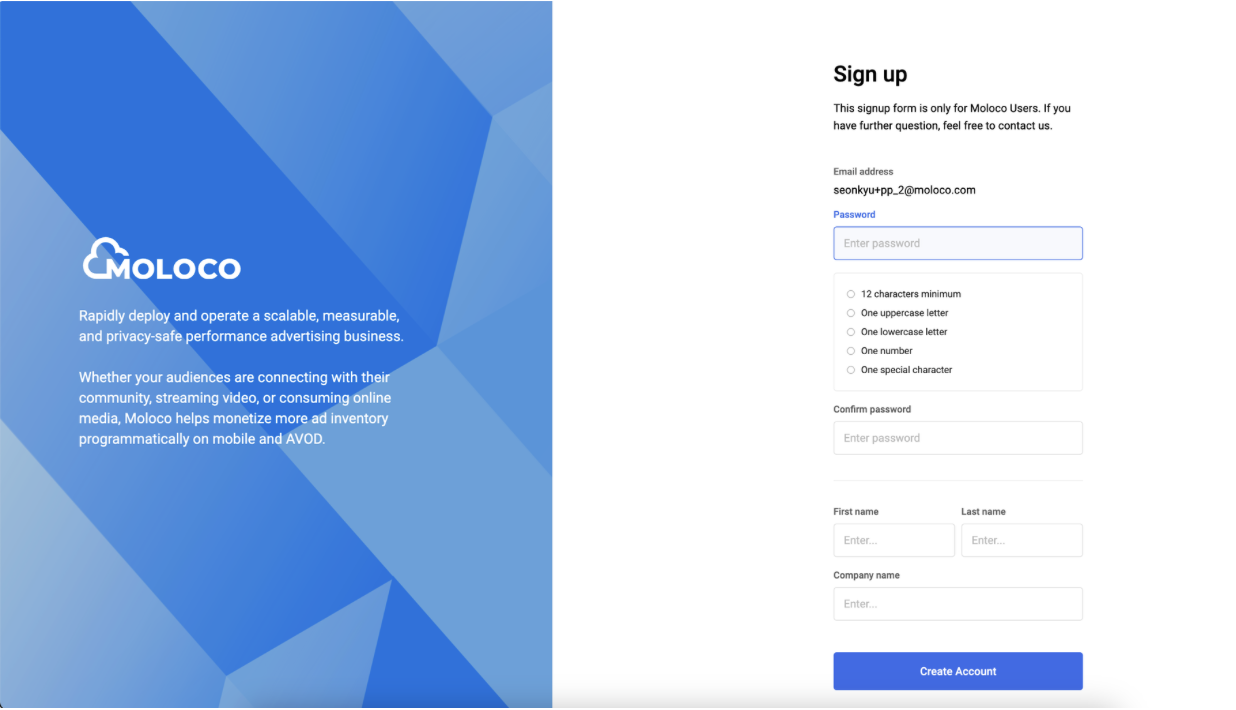
Publisher Portal 目前只能在邀请的基础上访问。要获取访问权限,请联系您的 Moloco 销售联系人或在此处提交表单。收到邀请电子邮件后,选择电子邮件中的链接(Create your password)以完成帐户创建。
步骤 2.在 Moloco 中创建 app
-
在此处登录 MolocoPublisher Dashboard
-
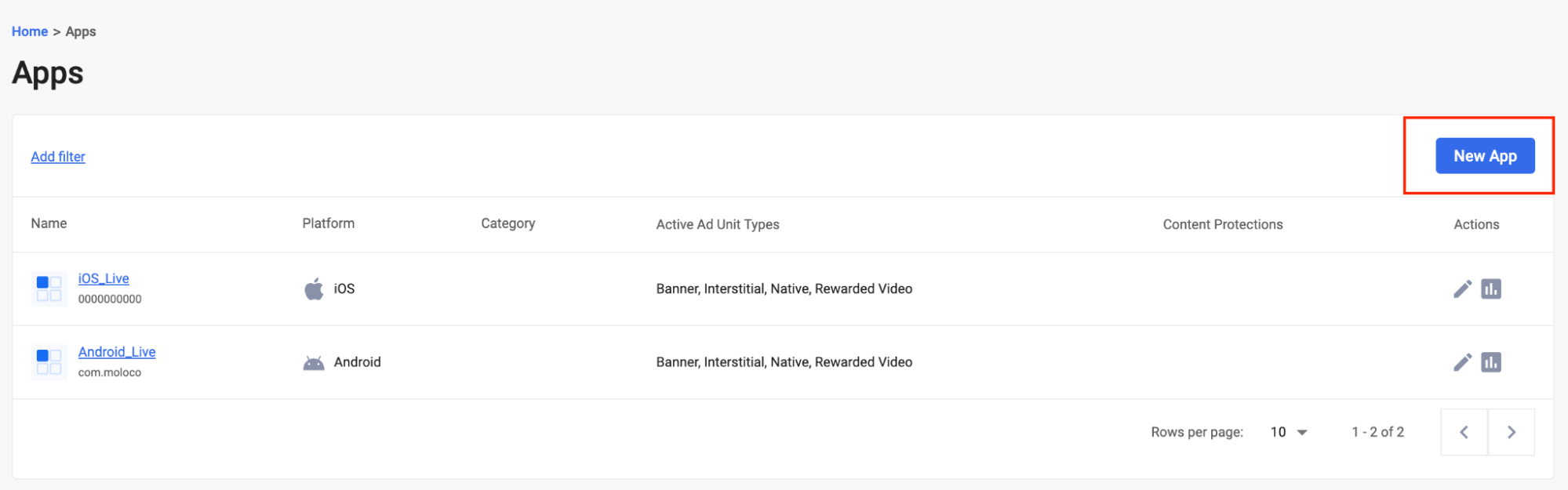
通过单击 Apps 页面中的 New app 来创建新 app
-
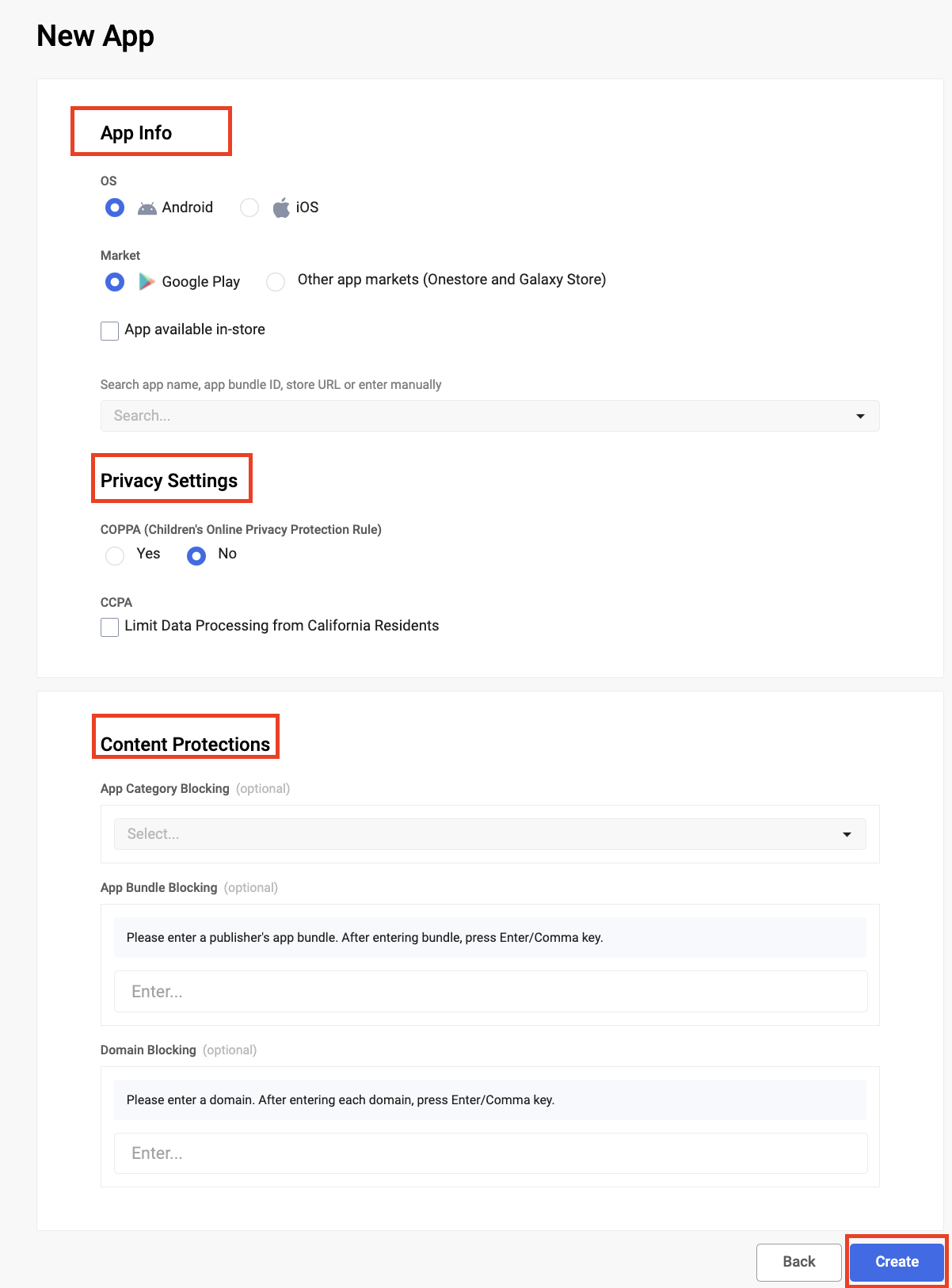
按如下方式输入 app 详细信息:
- app 信息
- 选择操作系统类型
- 选择市场类型
- 如果 app 公开下载,请选择“app is available in-store”
- 搜索app名称、app捆绑包 ID、商店 网址 或手动输入:找到app后,将自动填充 app 作品/游戏作品、app Market 网址、Bundle ID 和 IAB 类别。
- app 信息
-
内容保护:您可以使用每个app的内容保护来代码块某些类型的广告。有三种内容保护:
- app 类别阻挡:基于 IAB 定义的类别
- App Bundle 阻挡:输入 app Bundle ID,对于 Apple App Store 中列出的应用程序,请使用数值
- 域阻挡
-
点击“Create”以创建 app
-
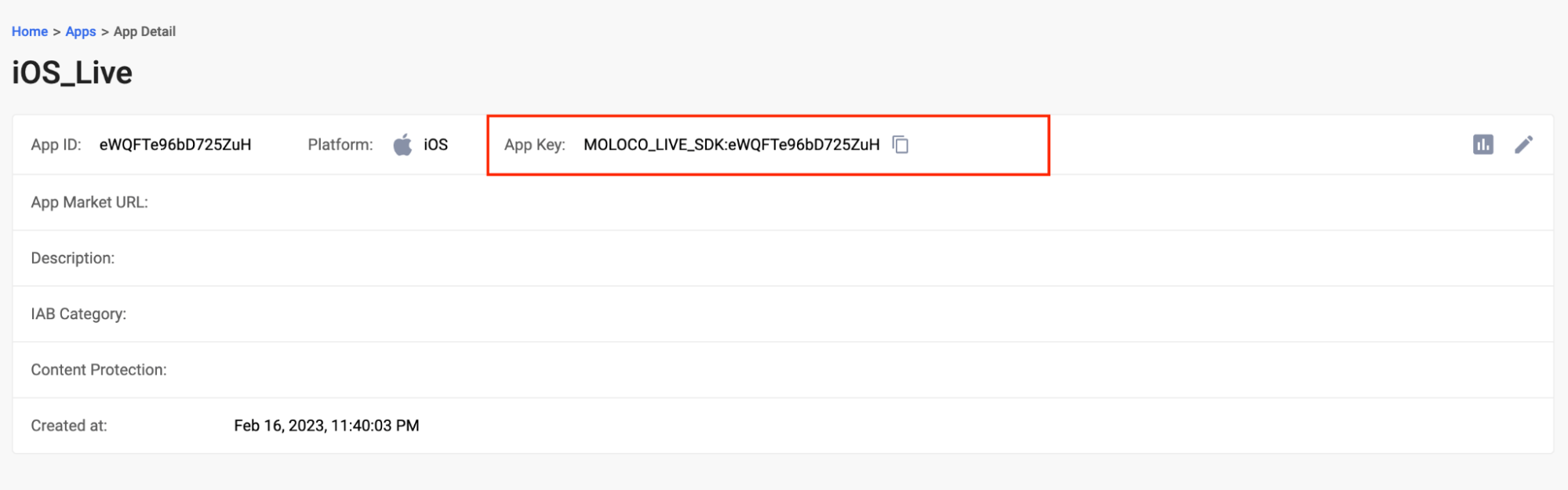
创建 app 后,您需要 Moloco app Key 才能从聚合平台初始化 Moloco SDK:
- 导航到 app 部分
- 选择 app(以蓝色突出显示)
- 在 app 详细信息页面上,将显示 Moloco app Key。
- 复制并保存 app Key ID 以便在 LevelPlay 平台上进行设置
步骤 3.创建广告单元
导航到 Moloco 平台上的广告单位部分,然后:
-
从列表中选择 app
-
选择“New Ad Unit”

-
输入广告单元的名称
-
输入描述(可选)
-
选择拍卖类型
- 仅支持app内竞价
-
选择清单类型
-
输入出价地面:Moloco 仅支持 Bid 地面(美元)
-
选择 Create(创建)以创建广告单元
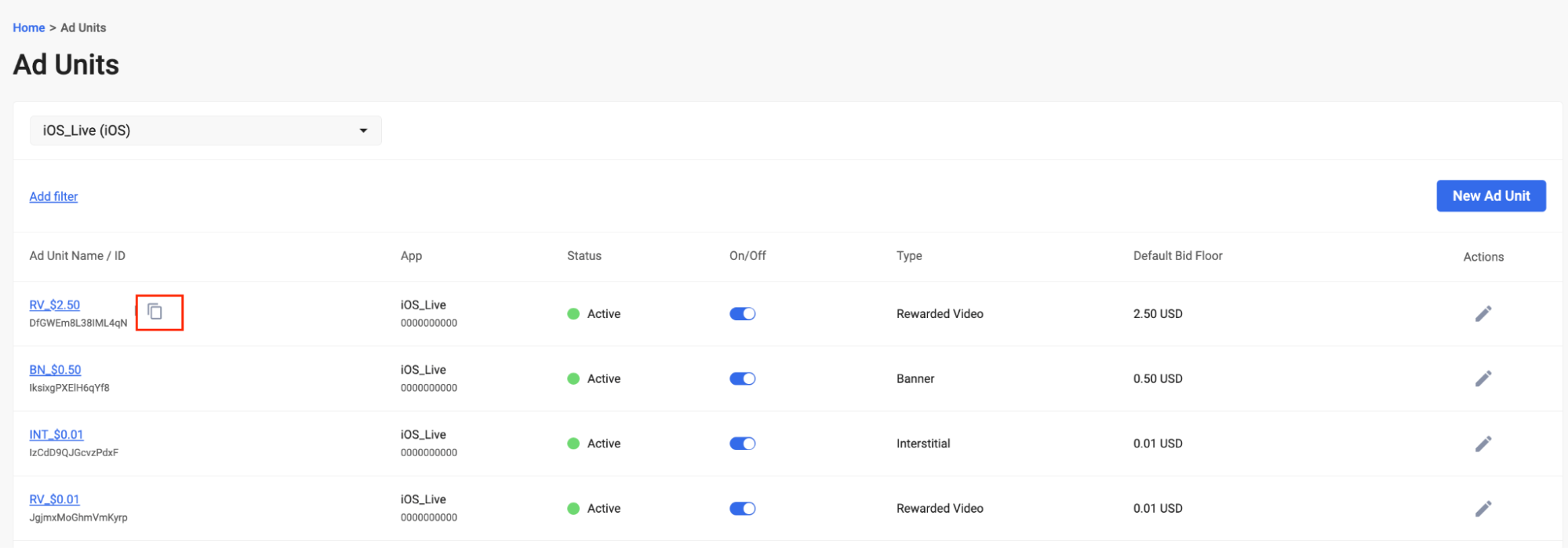
步骤 4.在 LevelPlay 上激活 Moloco
-
登录 LevelPlay 帐户,然后转到 LevelPlay 侧导航栏 > Setup > SDK Networks
-
选择 Manage Networks(管理网络)
-
从可用广告网络列表中选择 Moloco
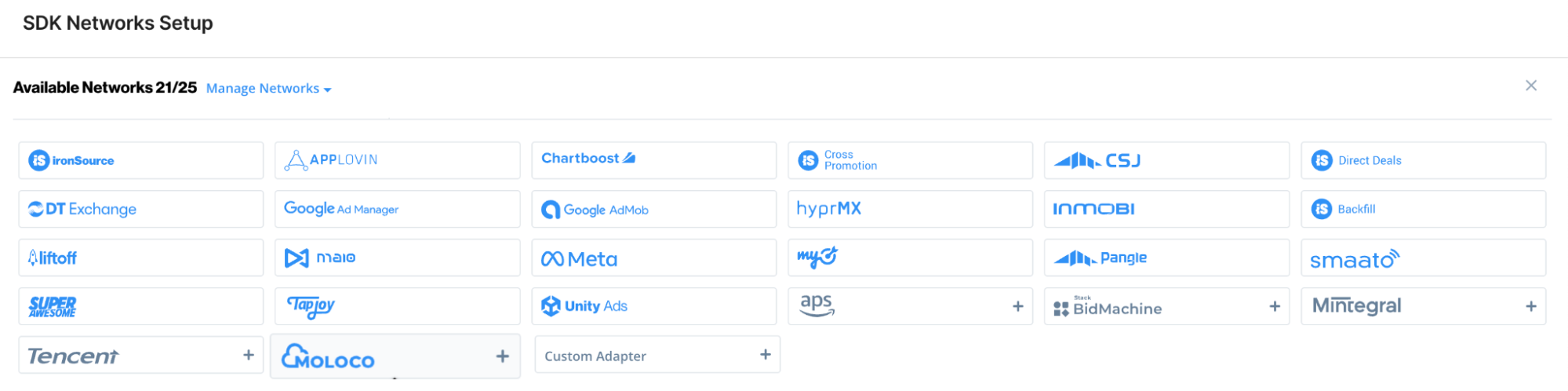
-
在 帐户设置 模式中输入相关详细信息
- 电子邮件
- 密码
- Platform ID(平台 ID):
- 发布者 ID
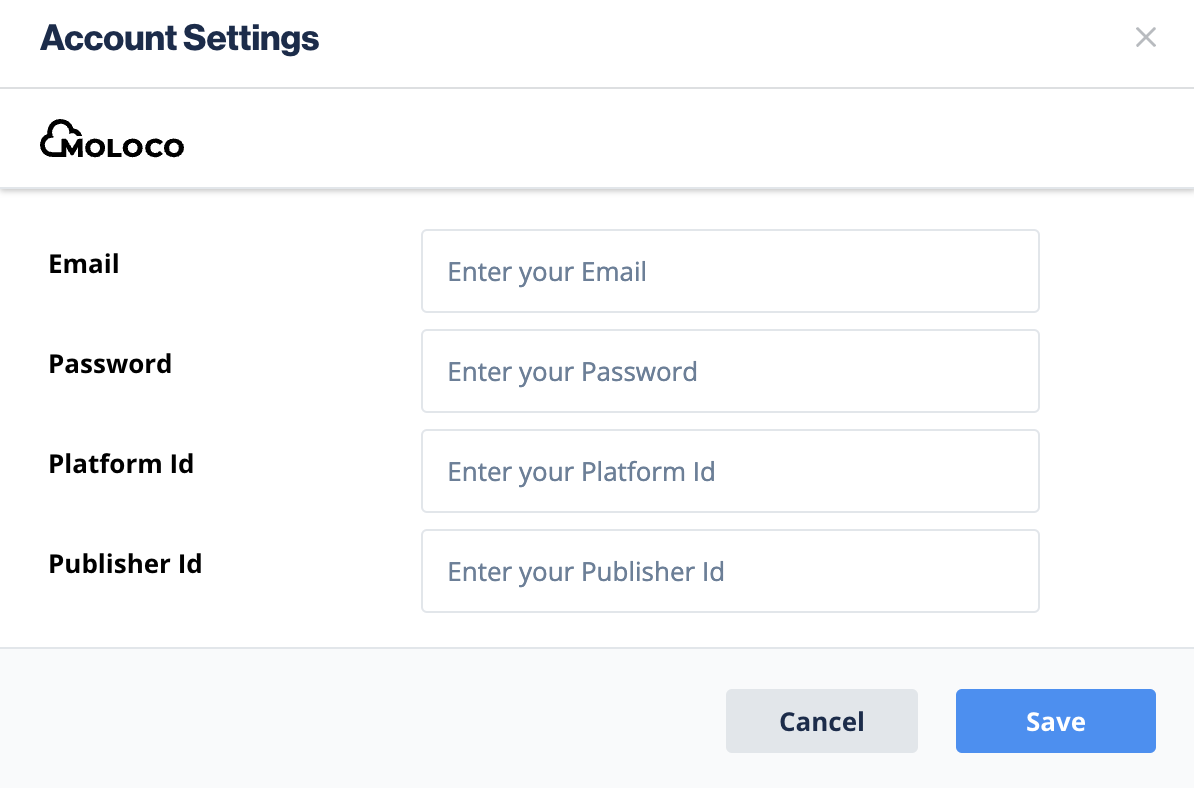
-
接下来,选择要在哪个 app 上运行 Unity LevelPlay 的 Mediation with Moloco bid。
-
从 Ad Networks 的设置列表中选择 Moloco,然后选择工具设置图标。
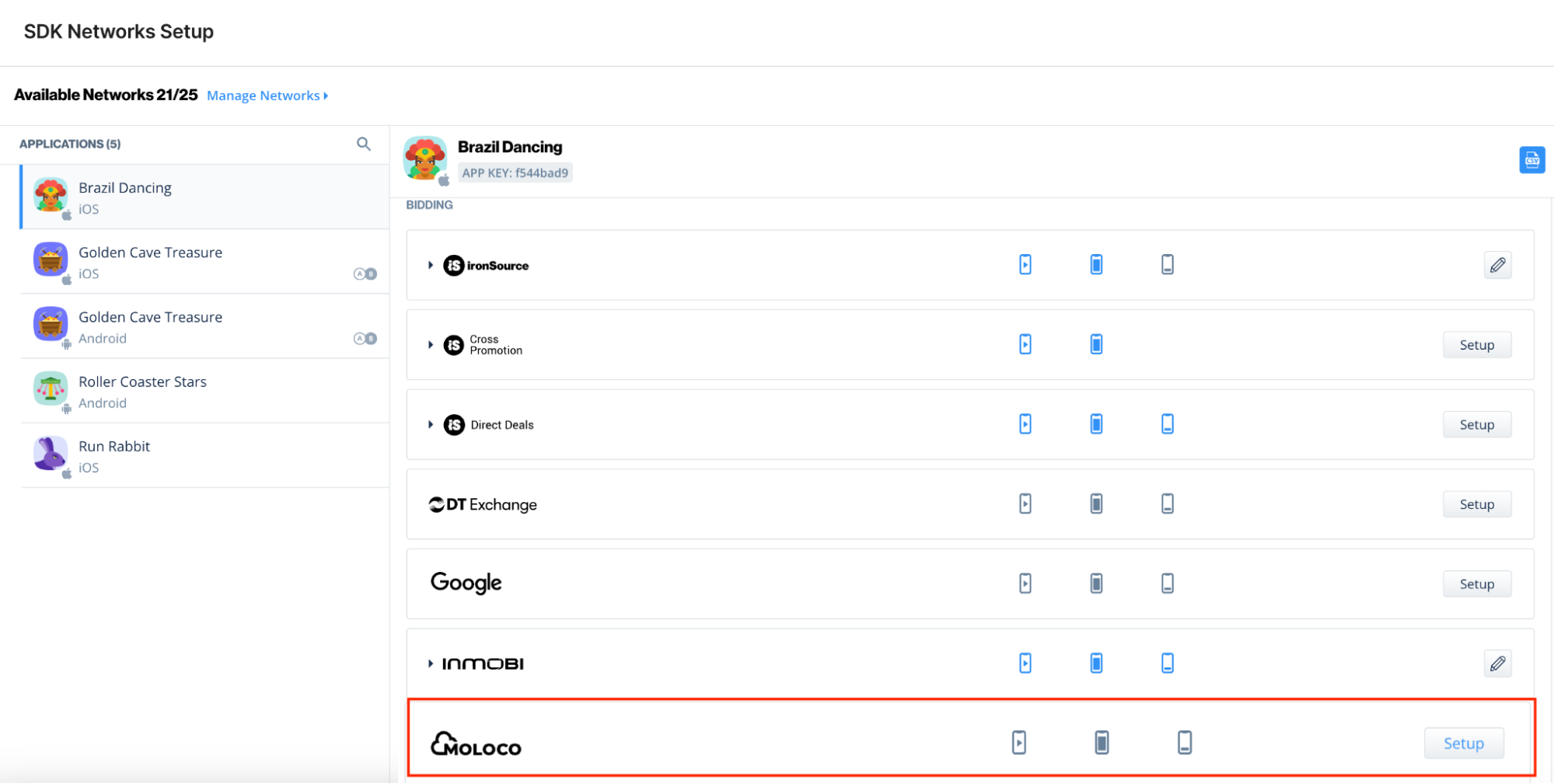
-
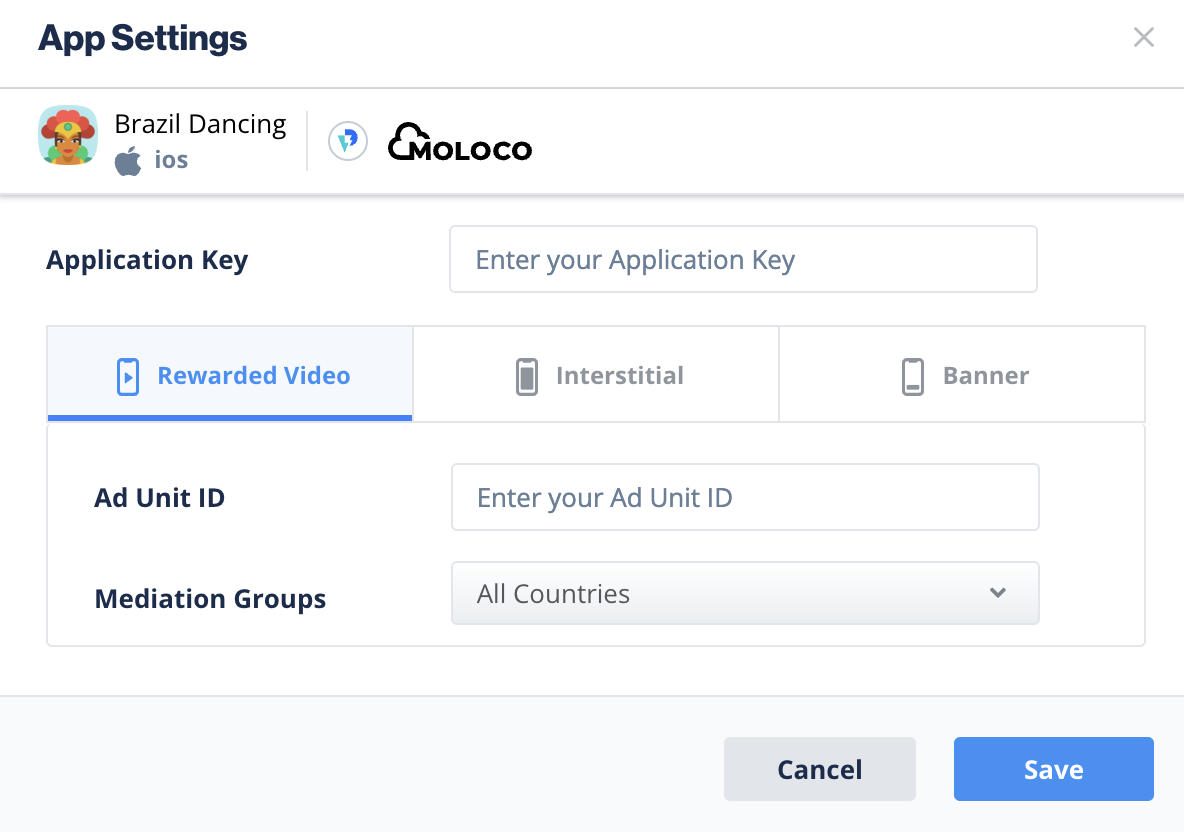
然后在 Interstitial、Rewarded ad 或 Banner Settings 下插入 Appliocation Key(步骤 3)和 Ad Unit ID(步骤 4)。
步骤 5。将 Moloco 适配器添加到构建中
步骤 6。Moloco 附加设置
用户级别 COPPA
Unity LevelPlay 允许发行商将 Moloco 用户级别的 COPPA 设置直接传达给 Moloco 网络。此功能是使用 LevelPlay SDK 8.0.0+、Moloco Android 适配器 4.3.0+ 已启用的。
使用语法 Moloco COPPA 设置为 true:
LevelPlay.setMetaData({"Moloco_COPPA": ["true"]});
使用语法 Moloco COPPA 设置为 false:
LevelPlay.setMetaData({"Moloco_COPPA": ["false"]});
现在可以在应用程序中交付 Moloco。