文档

支持

Smaato integration

Integrate Smaato as an ad network in your Flutter application via Unity LevelPlay, detailing account creation, app registration, ad unit setup, and SDK integration.
阅读时间1 分钟最后更新于 4 天前

This guide will instruct you step-by-step on how to set Smaato live as an ad network on the LevelPlay Mediation platform.

Prerequisites

Ensure that you correctly integrate Banner ads into your application. Refer to the following platform-specific guides for integration instructions:

Step 1. Create a Smaato account

To access Smaato ad inventory through ironSource‘s mediation platform, you must create an account with Smaato. You can do so here.

Step 2.Retrieve Your Smaato Account ID's and Report Keys

Follow these steps to retrieve your Smaato account key's which need to be inserted into your ironSource Network Setup Module in order for Smaato to work correctly in connection with ironSource:
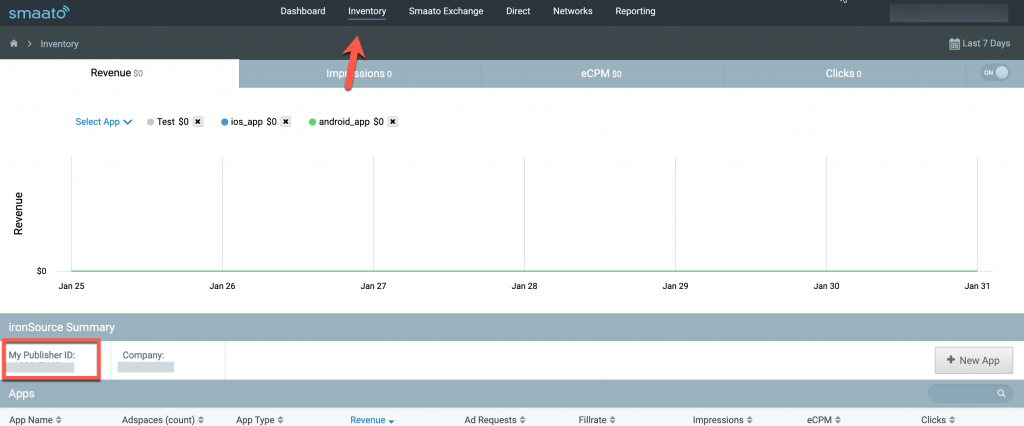
  1. Publisher ID - In your Smaato account go to  Inventory > Publisher id
    Publisher ID location
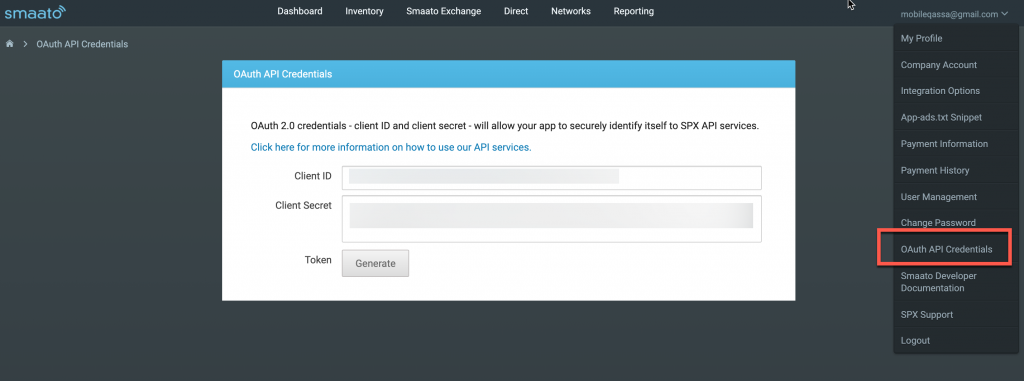
  2. Client ID and Client Secret - Go to QAuth API Credentials > Client ID and Client Secret
    Client ID and Client Secret

Step 3. Create an application in Smaato Network

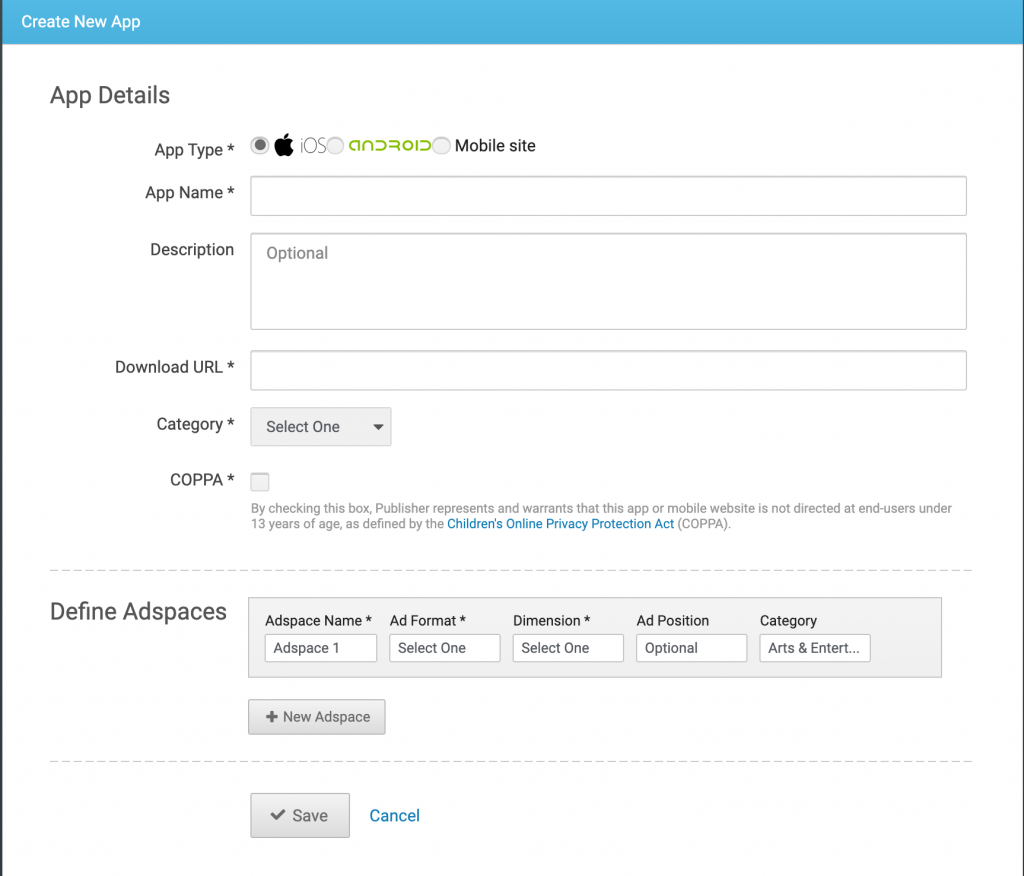
Follow these steps to create your Smaato application:
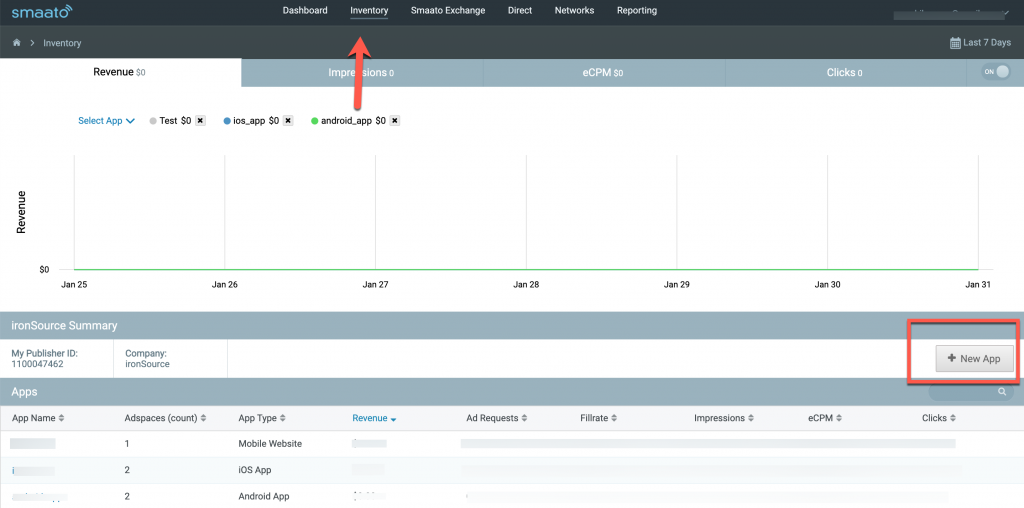
  1. In your Smaato account go to  Inventory > New App
    New App button
    Create new app form

Step 4. Activate Smaato Network

Inside the ironSource platform, access the SDK Networks setup to configure Smaato parameters into your LevelPlay account.
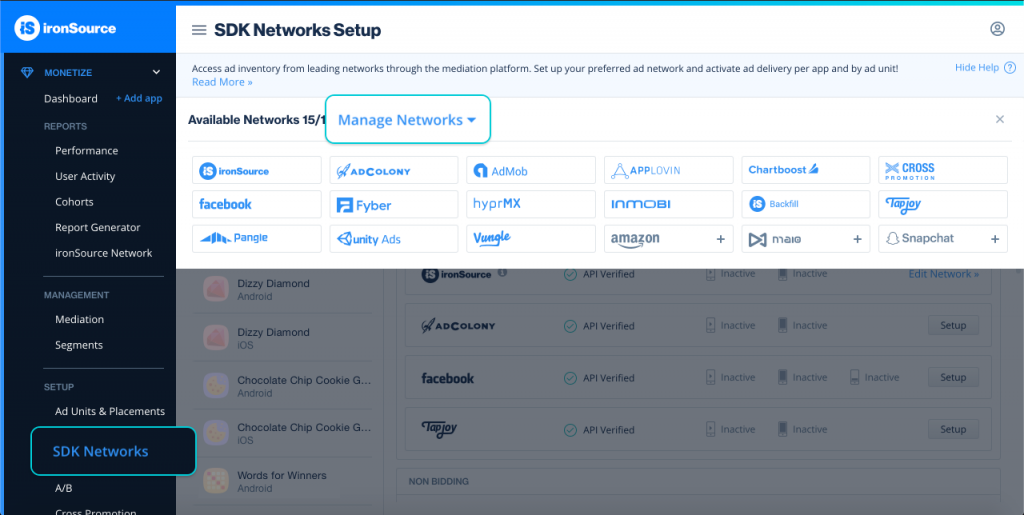
  1. After you have all the required parameters, log in to your LevelPlay account and go to Monetize > Setup > SDK Networks
    SDK Networks page
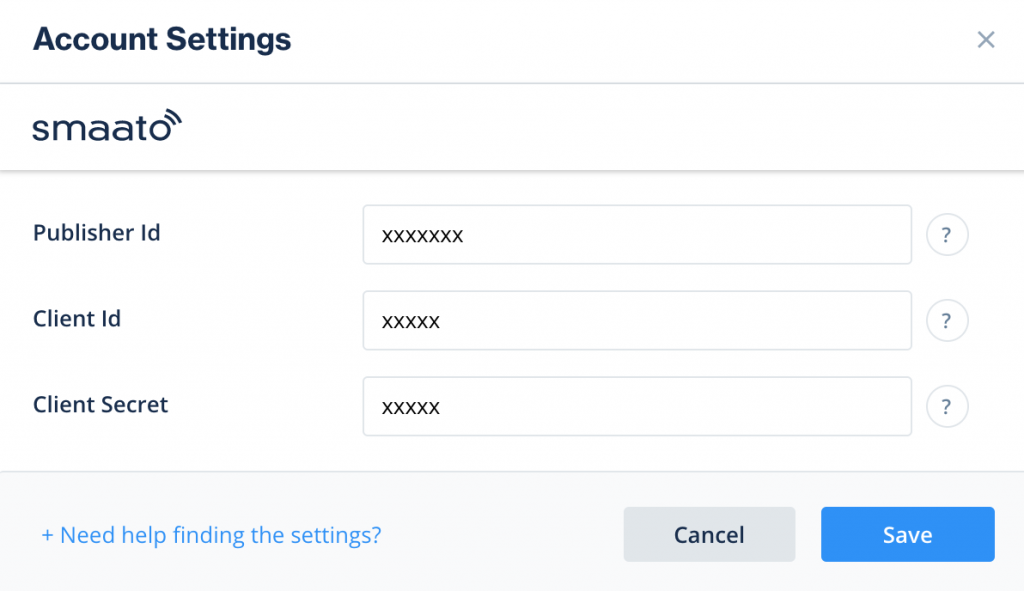
  2. Select Smaato from the table of Available Networks , add the parameters, and click on the Activate button. Then click Save.
    Smaato Account Settings
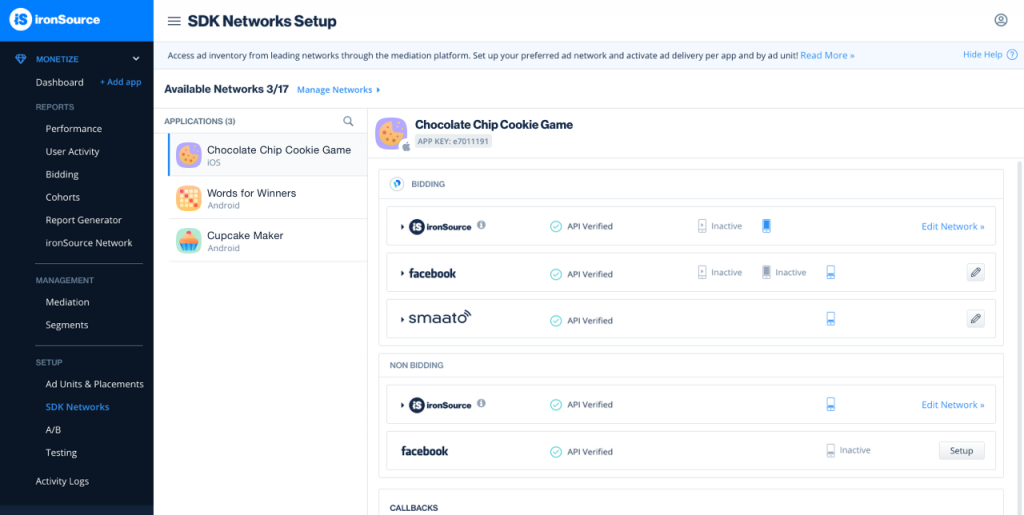
  3. Select Smaato from the list of ad networks and click Setup.
    Smaato in ad networks list
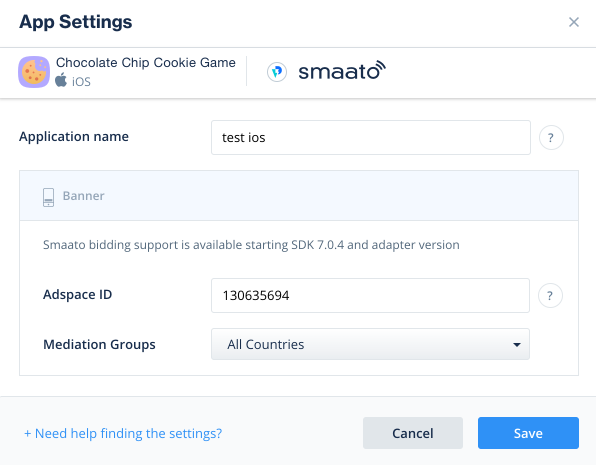
  4. Enter your app's Smaato App name and Adspace ID. Set the status to Active and click Save.You'll see Smaato listed as Active for Mediation on your Setup dashboard.
    Configure Smaato app settings

Step 5. Add the Smaato adapter to your build

Continue your integration using native adapters for Android and iOS.