VK Ad Network integration
Integrate VK Ad Network into your Flutter application using Unity LevelPlay, including account setup, app registration, and SDK configuration.
阅读时间1 分钟最后更新于 7 个月前
This guide will instruct you step-by-step on how to set VK Ad Network live as an ad network on Unity LevelPlay.
Prerequisites
- The required Gradle Build Tool is 3.5.4+
Step 1. Create a VK Ad Network account
1. To create an account in VK Ad Network, go here.
2. After your account has been verified, login to your partner account here.
Step 2. Create an application in VK Ad Network
Follow these steps to create your VK Ad Network application:
-
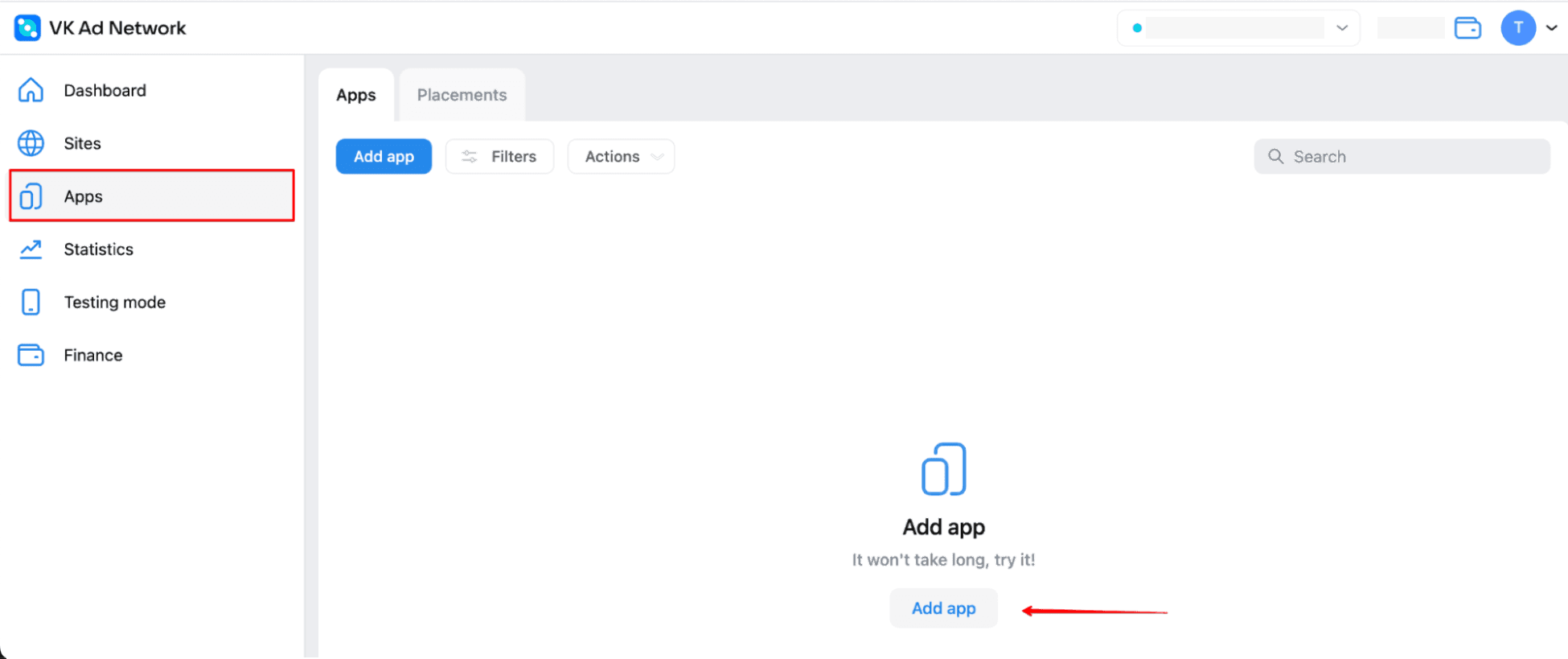
In your VK Ad Network account go to Apps > Add app
-
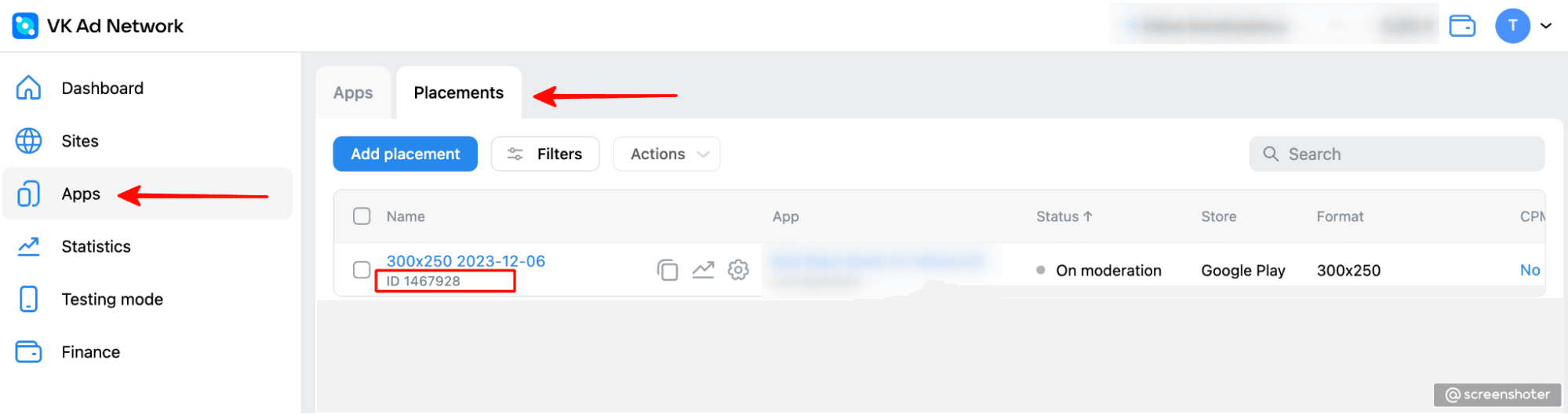
After you set a new app, you'll be able to retrieve your 'Placement id' – In order to set in Unity LevelPlay.
Step 3. Retrieve Your VK Ad Network Access key
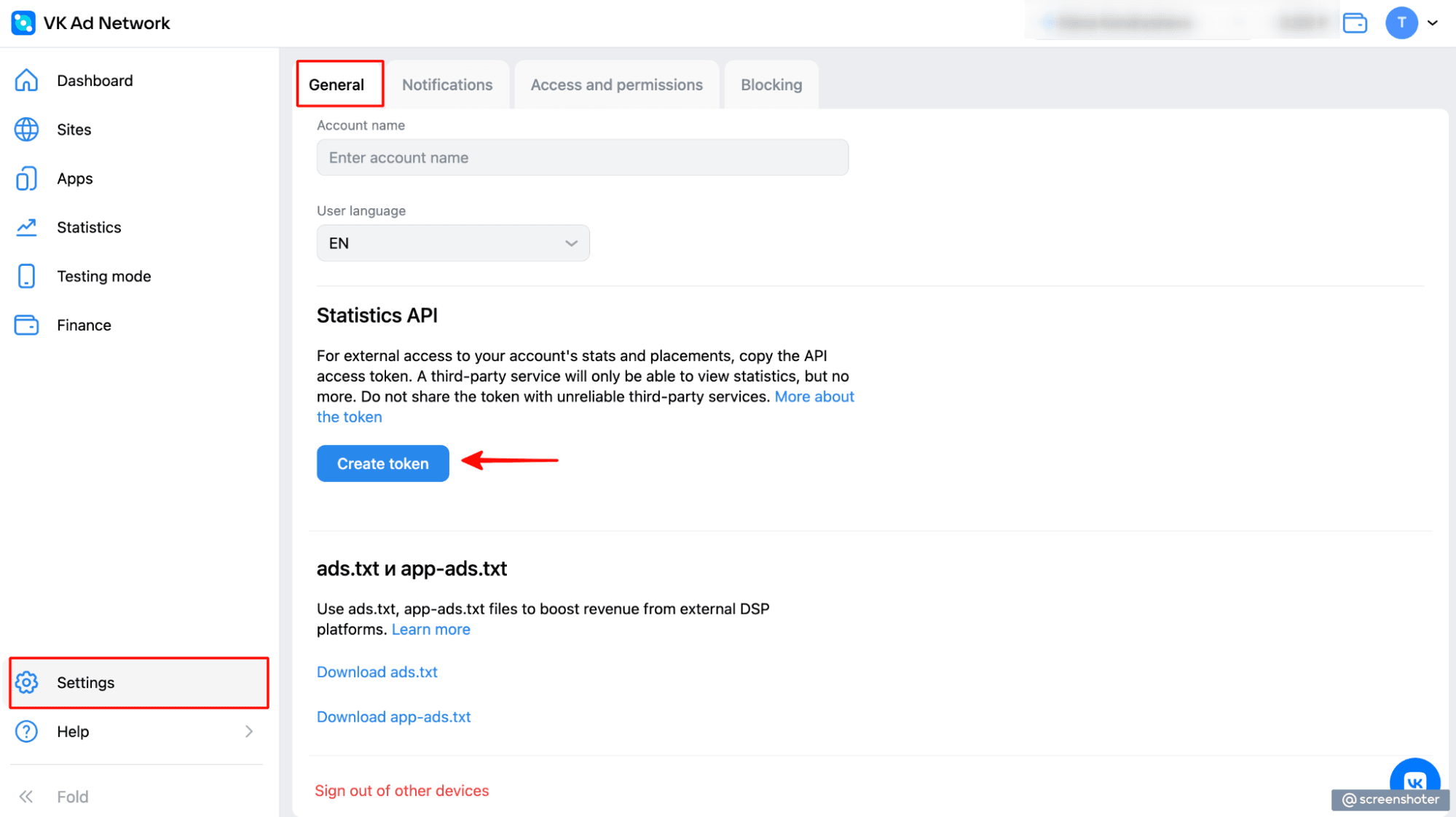
In your VK Ad Network account go to Settings > General
Step 4. Activate VK Ad Network in your mediation setup module
Inside the ironSource platform, access the SDK Networks setup to configure myTarget parameters into your LevelPlay account.
-
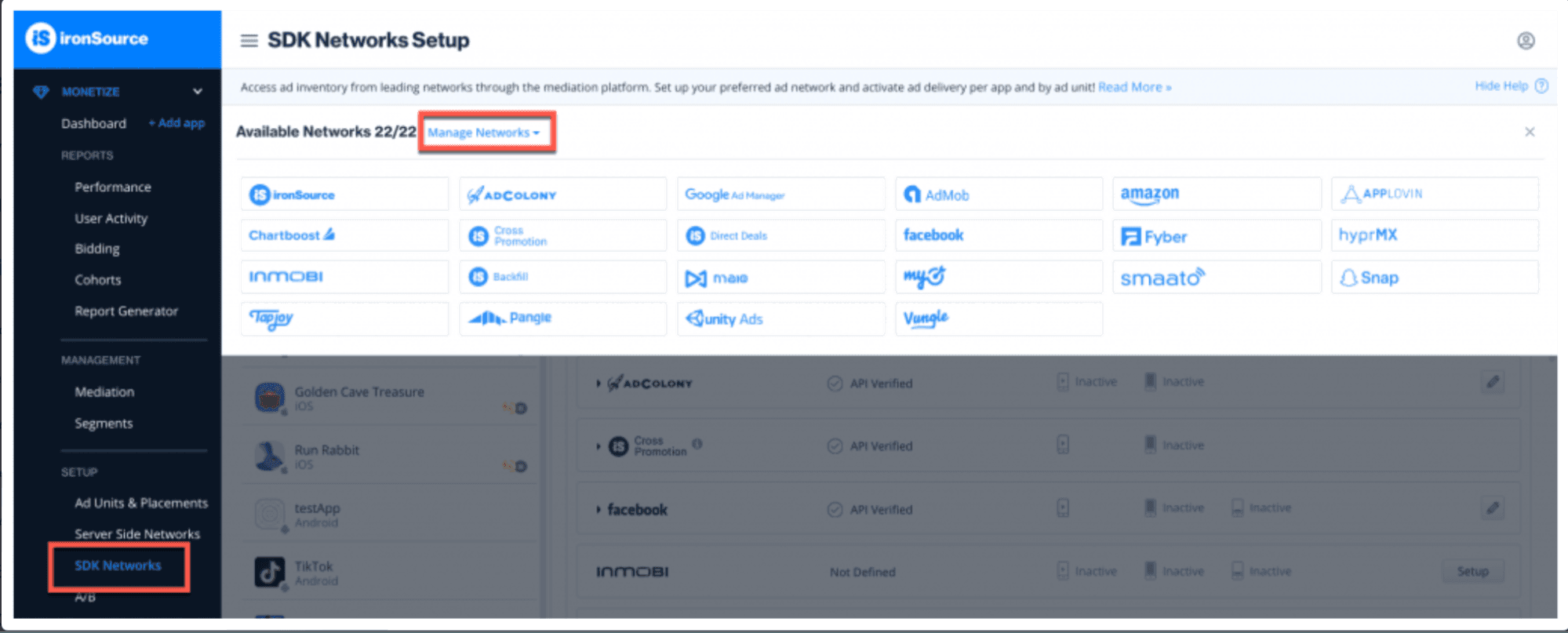
After you have all the required parameters, log in to your LevelPlay account and go to Monetize > Setup > SDK > Networks.
-
Select myTarget from the table of Available Networks, add the parameters, and select Activate. Then select Save.
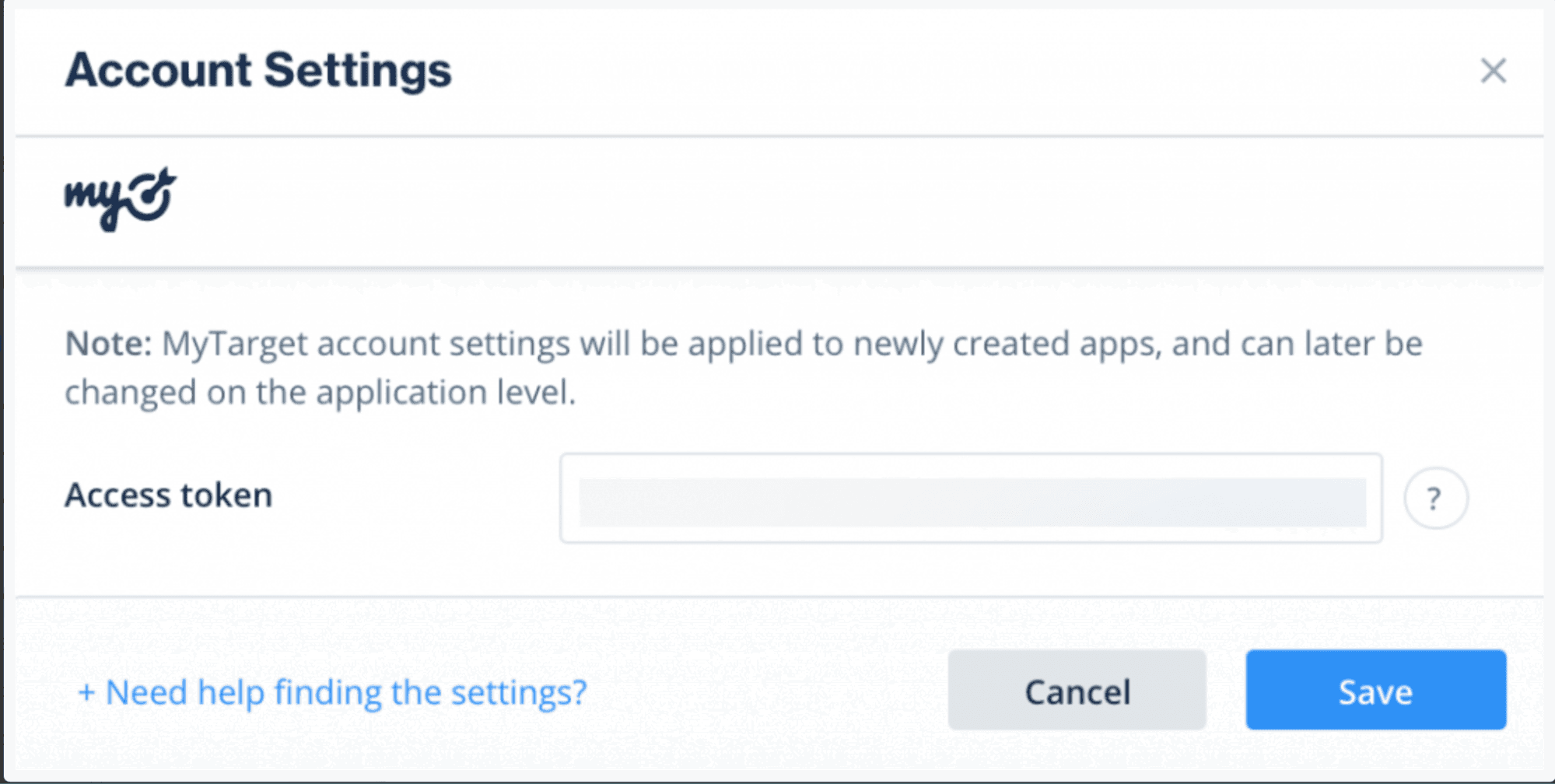
-
Select myTarget from the list of ad networks and select Setup.
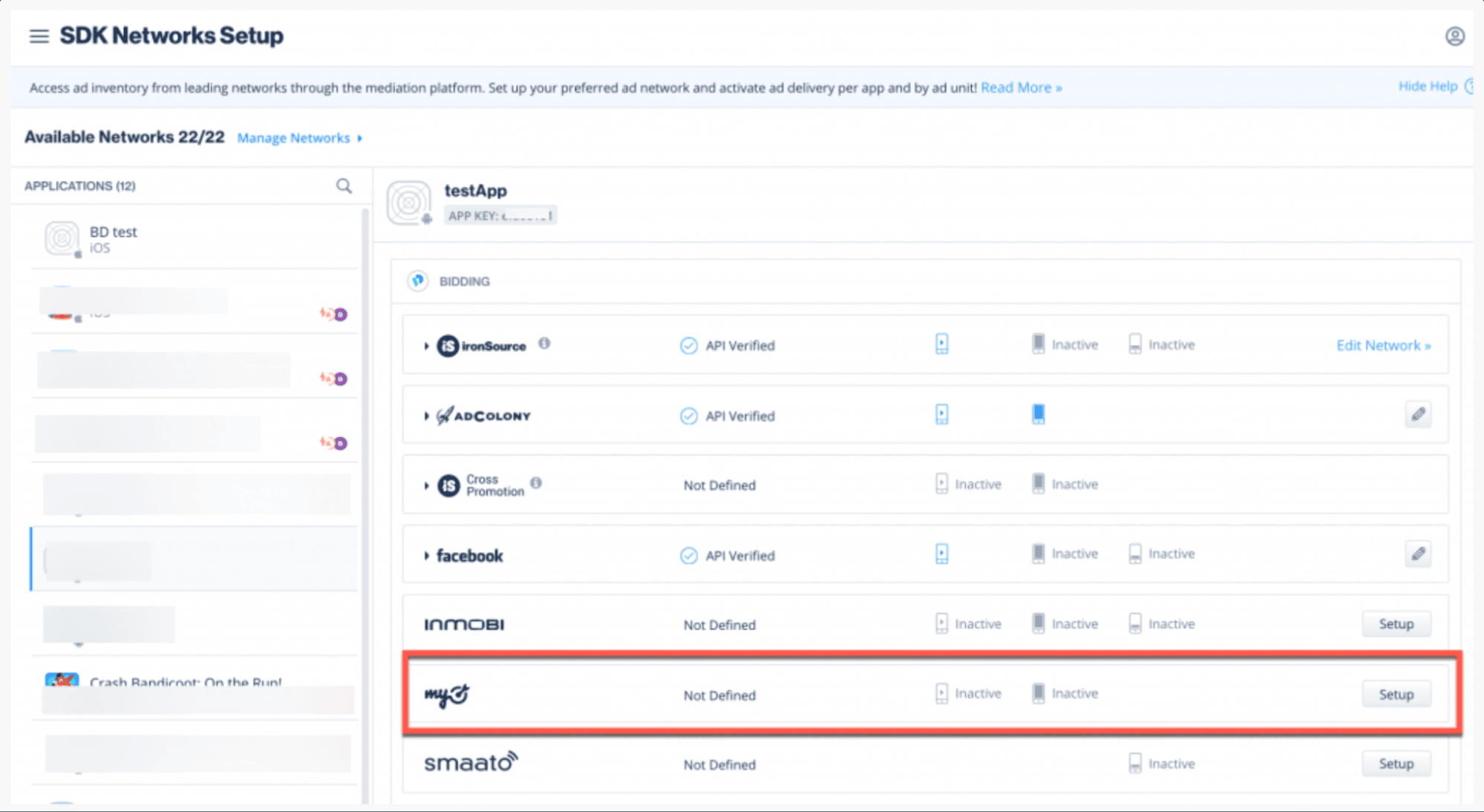
-
Enter your VK Ad Networkd app's 'Generated token', then add for each adunit the 'ID' from Step 1 (point 2) twice. Set the status to Active and select Save. You'll see myTarget listed as Active for Mediation on your Setup dashboard.
Step 5. Integrate the LevelPlay Mediation Network Adapters
You can now deliver VK Ad Network ads within your application.
Next steps
To leverage additional ad networks through LevelPlay Mediation, integrate the adapters and follow our integration guides.