Fleet workflow
Follow this workflow to create and manage fleets using the API.
Read time 2 minutesLast updated 3 days ago
The fleet workflow covers getting a build configuration, getting (or creating) a fleet, and updating a fleet.
Before using the Build workflow, you must have a CCD API key and a UGS service account with the following roles:
- Multiplay API Viewer
- Multiplay API Editor
The following diagram shows a simplified version of the workflow:
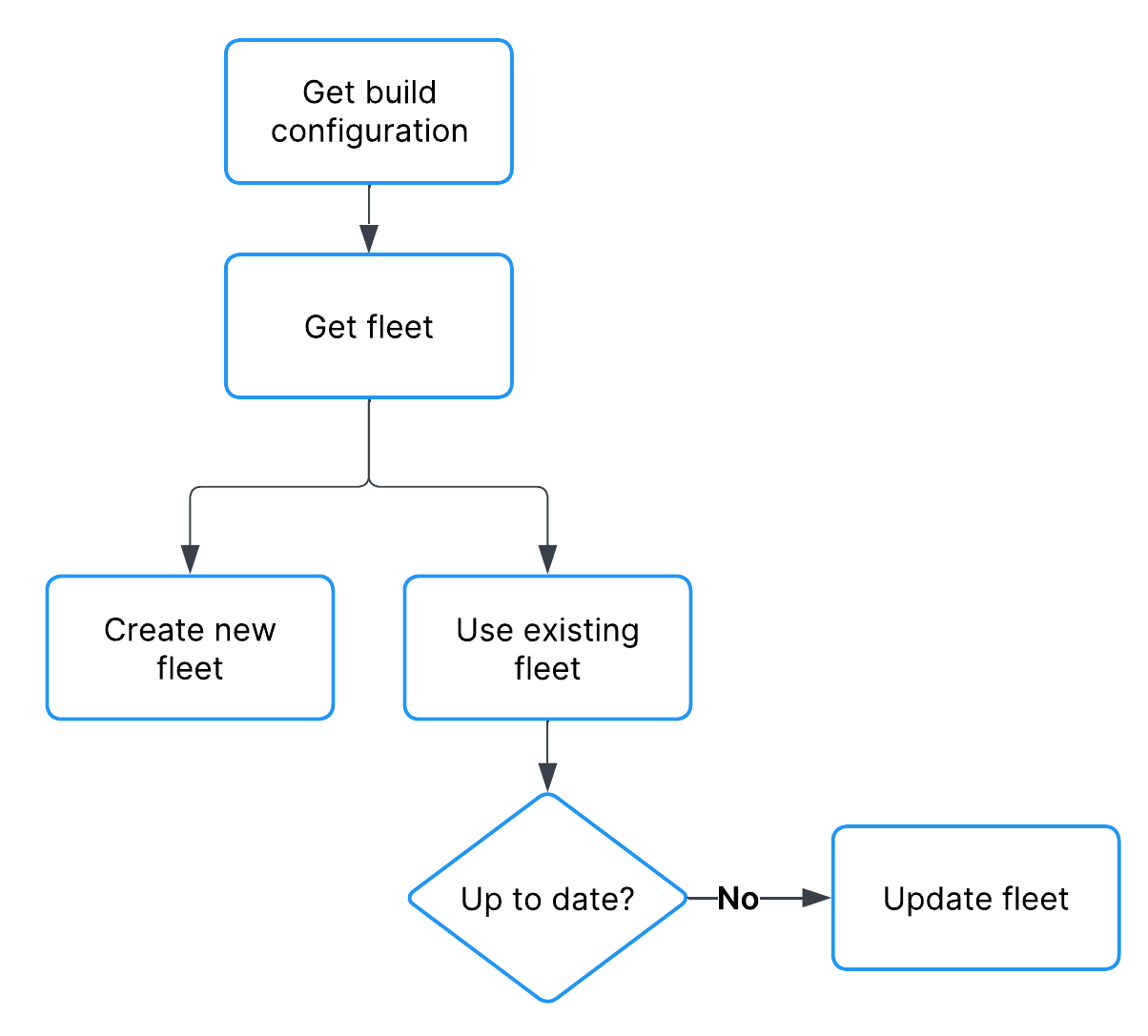
fleet workflow diagram
Get a build configuration
You can get a build configuration using the List build configurations API. Refer to Build configuration workflow.
The following code sample shows how to get an existing build configuration using curl:
Refer to the List build configurations API documentation for example response bodies and parameter documentation.curl -X GET \-H "Authorization: Basic <SERVICE_ACCOUNT_CREDENTIALS>" \https://services.api.unity.com/multiplay/build-configurations/v1/projects/{projectId}/environments/{environmentId}/build-configurations
Get a fleet
The process for getting a fleet varies depending on whether you want to use an existing fleet or create a new one. If you opt to use an existing fleet but want to update it, refer to Update a fleet.Get an existing fleet
You can get a fleet ID by its name using the List fleets API. If you already know the fleet ID, and you want to update the fleet, continue to Update a fleet. The following code sample shows how to get an existing fleet using curl:Refer to the List fleets API documentation for example response bodies and parameter documentation.curl -X GET \-H "Authorization: Basic <SERVICE_ACCOUNT_CREDENTIALS>" \https://services.api.unity.com/multiplay/fleets/v1/projects/{projectId}/environments/{environmentId}/fleets
Create a new fleet
You can create a fleet using the Create a fleet API. When creating a fleet, you need to configure the regions in which to place your game servers. You can find the valid region IDs from the List Template Fleet Regions API. You can call this API with curl:The following code sample shows how to create a new fleet using curl:curl -X GET \-H "Authorization: Basic <SERVICE_ACCOUNT_CREDENTIALS>" \https://services.api.unity.com/multiplay/fleets/v1/projects/{projectId}/environments/{environmentId}/fleets/regions
Refer to the Create a fleet API documentation for example response bodies and parameter documentation.curl -X POST \-H "Authorization: Basic <SERVICE_ACCOUNT_CREDENTIALS>" \-H "Content-Type: application/json" \-d '{"buildConfigurations": [<BUILD_CONFIG_ID>], "name": "Example Fleet", "osFamily": "LINUX", "osID": "1111a1a1-a11a-11a1-a1a1-1a111aa11111", "regions": [{"maxServers": 10, "minAvailableServers": 10, "regionID": "<REGION_ID>"}]}' \https://services.api.unity.com/multiplay/fleets/v1/projects/{projectId}/environments/{environmentId}/fleets
Update a fleet
You can update an existing fleet using the Update a fleet API.
The following code sample shows how to update a fleet using curl:
Refer to the Update a fleet API documentation for example response bodies and parameter documentation.curl -X PUT \-H "Authorization: Basic <SERVICE_ACCOUNT_CREDENTIALS>" \-H "Content-Type: application/json" \-d '{"buildConfigurations": [<BUILD_CONFIG_ID>], "deleteTTL": 604800, "disabledDeleteTTL": 604800, "name": "Example Fleet", "shutdownTTL": 900}' \https://services.api.unity.com/multiplay/fleets/v1/projects/{projectId}/environments/{environmentId}/fleets/{fleetId}