Container build workflow
Follow this workflow to create and deploy container-based builds using the API.
Read time 2 minutesLast updated 3 days ago
The container build workflow includes the following steps:
- Prepare the container
- Get (or create) a build
- Tag the container image
- Push the image to the container registry
- Create a build version
- Multiplay API Viewer
- Multiplayer API Editor
- Multiplay Registry Editor
The following diagram shows a simplified version of the workflow:
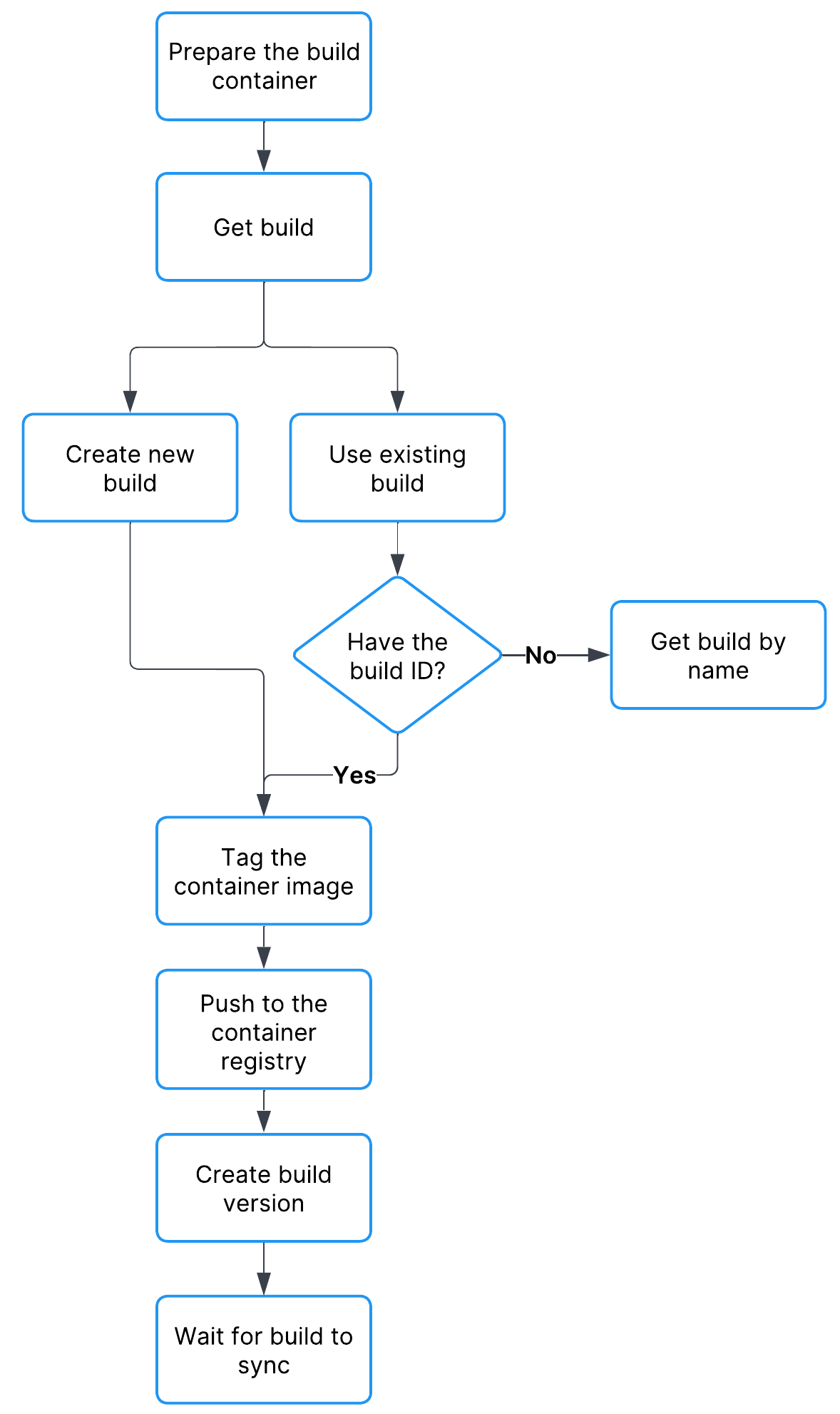
container workflow diagram
Prepare the build container
- Build the container image (using an out-of-band process).
- Take note of your Unity project ID and environment ID.
- Log into the Multiplay Hosting container registry.
- Use your Key ID for the username and Secret Key for the password. Refer to Authentication.
docker login registry.multiplay.com -u <KeyID>
Get or create a build
The process for getting a build varies depending on whether you want to use an existing build or create a new build.Get an existing build by name
You can retrieve an existing build ID by name using the List Builds API. Remember to make note of thebuildIDAfter finding the build you want to use, make a note of thecurl -X GET -H "Authorization: Basic <SERVICE_ACCOUNT_CREDENTIALS>" https://services.api.unity.com/multiplay/builds/v1/projects/{projectId}/environments/{environmentId}/builds
buildIDCreate a new build
You can create a new build using the Create build API. The following code sample shows how to create a build using curl:After creating the new build, make a note of thecurl -X POST -H "Authorization: Basic <SERVICE_ACCOUNT_CREDENTIALS>" -H "Content-Type: application/json" \-d '{"buildName":"Dev Build A", "osFamily": "LINUX"}' \https://services.api.unity.com/multiplay/builds/v1/projects/{projectId}/environments/{environmentId}/builds
buildIDTag the container image
The first time you push to a new build, usev1MultiplayTagv2ImageNameImageTagdocker tag <ImageName>:<ImageTag> registry.multiplay.com/<ProjectID>/<EnvironmentID>/<BuildID>:<MultiplayTag>
Push the image to the container registry
After tagging the container, push it to the Multiplay Hosting container registry. Use the following code snippet as a template:Once you push a tag, you cannot use that tag again for the same build; Multiplay Hosting prevents pushing the same tag more than once for a build to ensure that the exact same container is pulled during scaling. Refer to Zero downtime releases for more information.docker push registry.multiplay.com/<ProjectID>/<EnvironmentID>/<BuildID>:<MultiplayTag>
Create a build version
You can create a build version with the Create a new build version API. The following code sample shows how to create a build version using curl:curl -X POST -H "Authorization: Basic <SERVICE_ACCOUNT_CREDENTIALS>" -H "Content-Type: application/json" \-d '{"container": {"imageTag": "v1"}, "forceRollout": false}' \https://services.api.unity.com/multiplay/builds/v1/projects/{projectId}/environments/{environmentId}/builds/{buildId}/versions