开始使用
Install and configure the Unity Gaming Services Software Development Kit plug-in for Unreal Engine.
阅读时间4 分钟最后更新于 3 个月前
参考以下说明了解如何安装和配置 Unity Gaming Services SDK 插件。为您的项目安装和配置 Unity Gaming Services SDK 后,您可以对 Unity Matchmaker 使用 C++ 或 Blueprint。
包含的内容
Unity Gaming Services SDK 将 Unity 的以下三个服务内置到一个插件中:
要求需知
适用于 Unreal Engine 的 Matchmaker SDK 插件支持 Unreal Engine 版本 4.27 到 5.3。
下载 Matchmaker SDK
通过 Unreal Engine Marketplace 网站
-
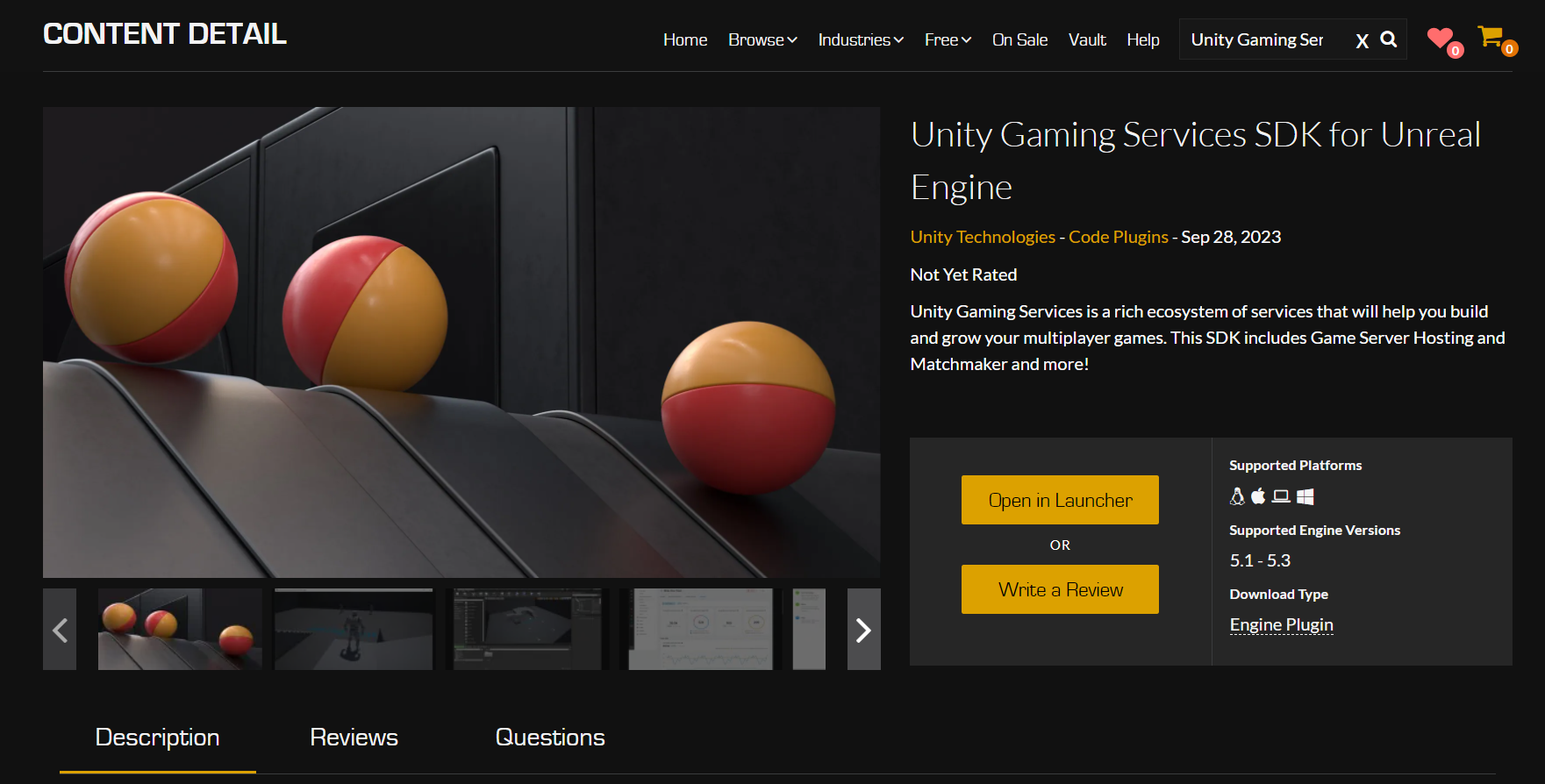
-
选择 Open in Launcher(在启动器中打开)。
-
跳至通过 Epic Games Launcher 中的步骤 4。
通过 Epic Games Launcher
- 登录您的 Epic Games Launcher。
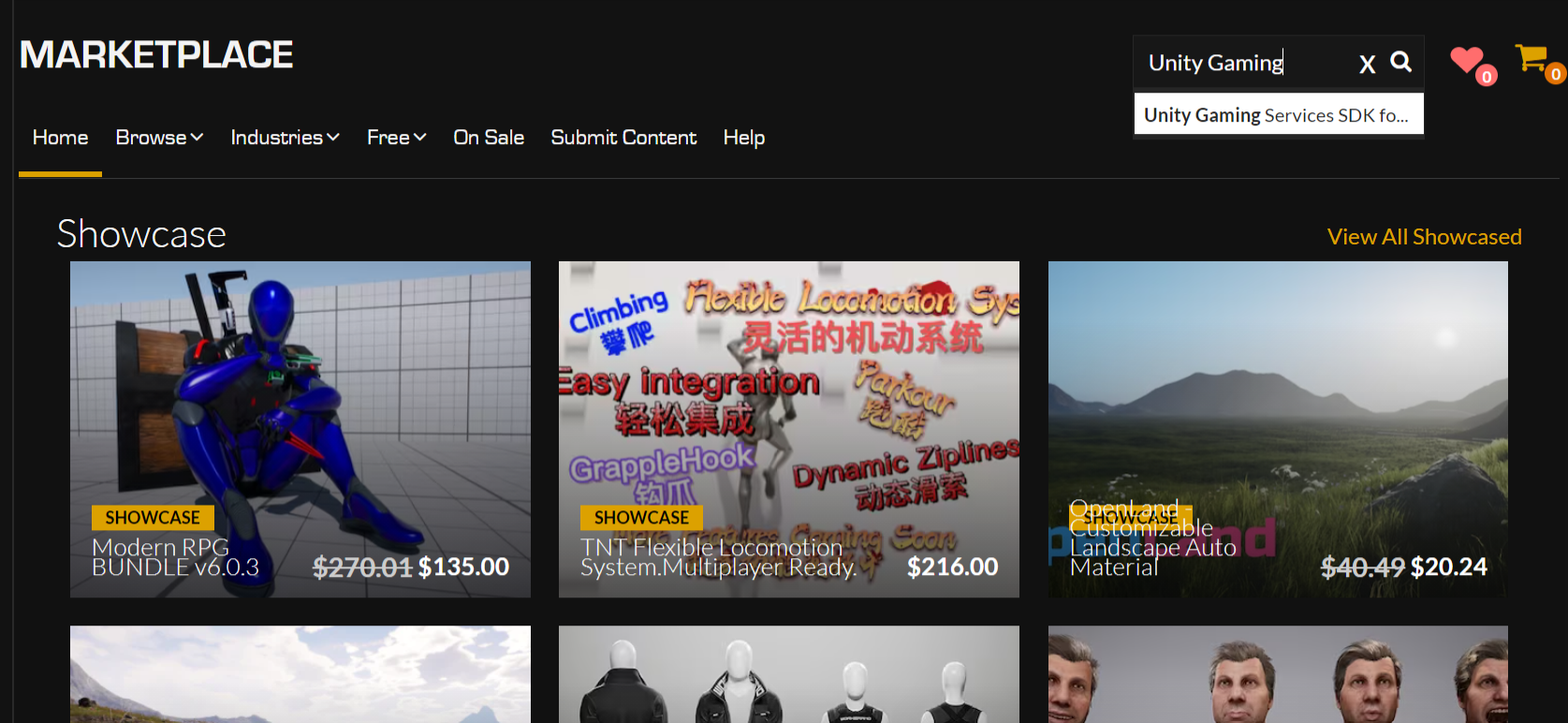
- 在 Epic Games Launcher 中搜索 Unity Gaming Services SDK for Unreal Engine。
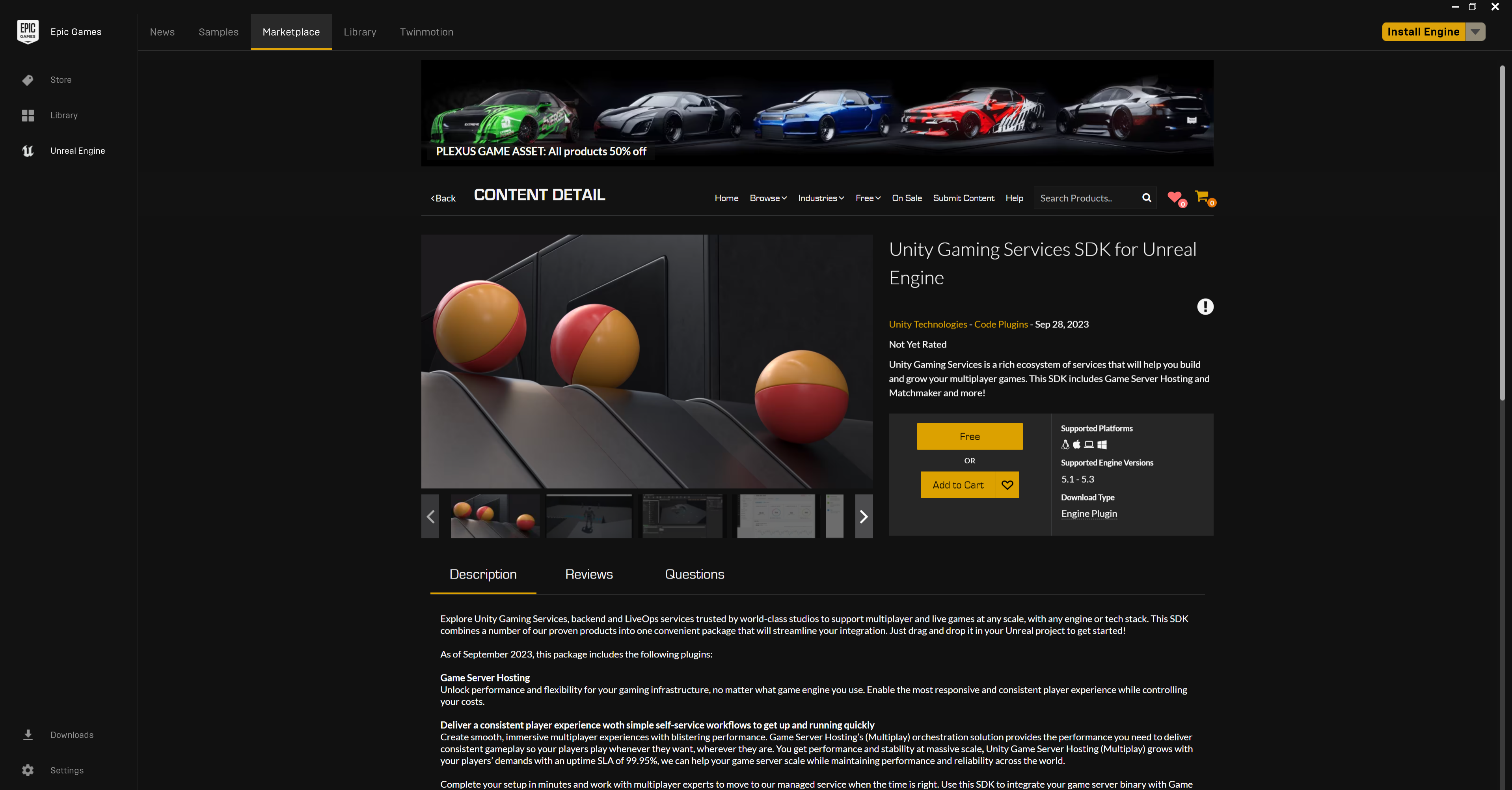
- 访问 Unity Gaming Services SDK for Unreal Engine 页面,然后选择 Free(免费)。
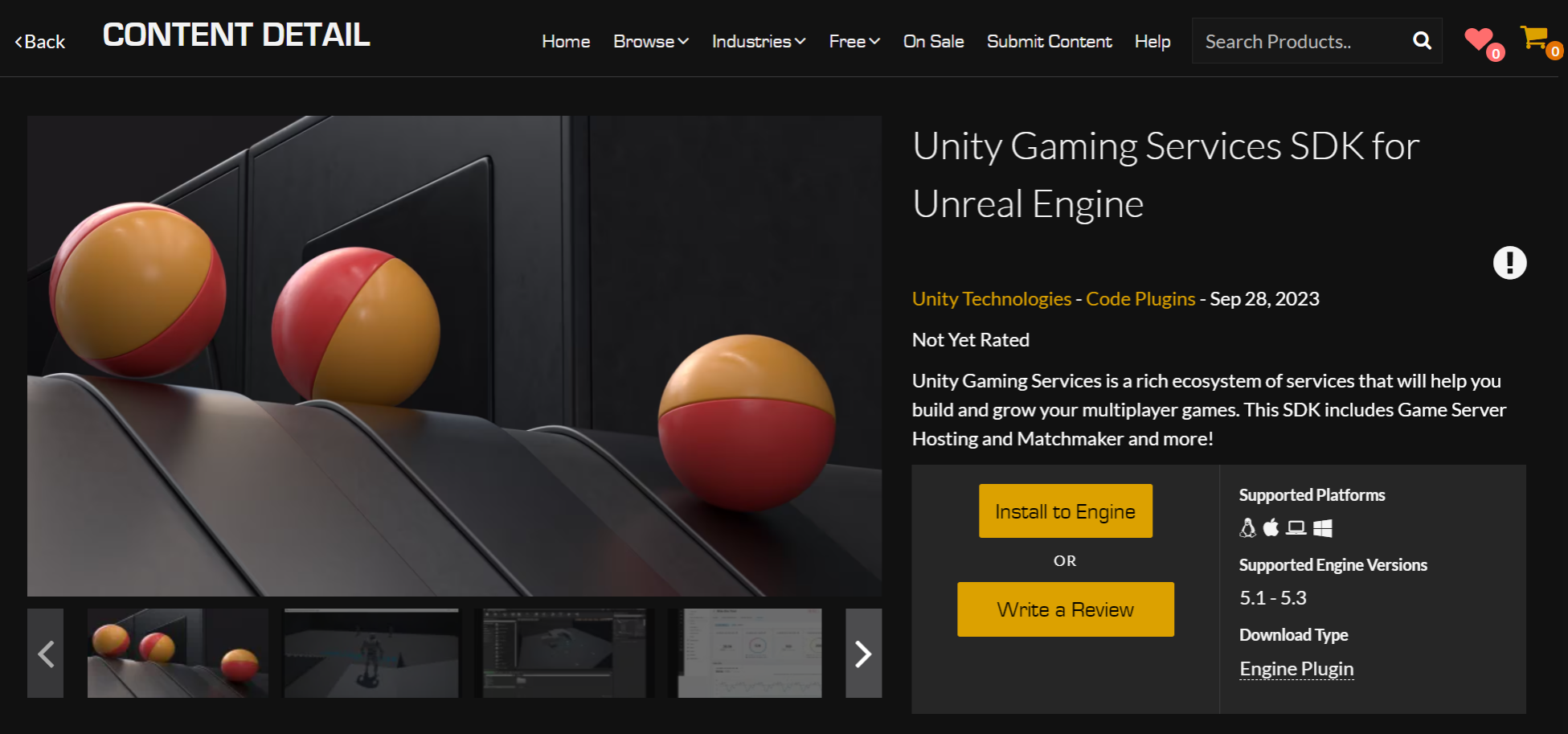
- 在 Epic Games Launcher 中选择 Install to Engine(安装到引擎)。
- 打开一个新项目或现有项目。
- 导航到 Plugins(插件)窗口并选中 Unity Gaming Services SDK for Unreal Engine 旁边的复选框。

- 重新启动 Unreal Engine。
配置 Matchmaker SDK
Unity Matchmaker 依赖于包含在 Unity Gaming Services SDK 中的 Unity Authentication 服务。
在开始调用 Matchmaker API 并开始使用 Matchmaker 分配玩家之前,请在 Unity Dashboard 上配置 Unity Matchmaker 设置。否则,所有匹配请求都会失败。Unity Matchmaker 至少需要一个带有默认池的队列。
配置回填
通过回填可以将玩家放入低于最大玩家数量的现有匹配中。请参阅回填文档以了解更多信息。
在使用回填之前,请确保在 Unity Dashboard 上为您的队列启用回填。
- 访问 Unity Dashboard 并选择您的项目。
- 转到 Multiplayer 选项卡。
- 转到 Matchmaker 选项卡,然后选择 Queues(队列)。
- 选择您的 Queue(队列)。请参阅创建池和队列。
- 转到 **Pools(池)**选项卡,然后选择要在队列中使用的池。
- 转到 **Rules(规则)**选项卡,找到已启用 Backfill(回填)的字段,确保其设置为 True。
下一步
继续进行以下集成之一: