CSJ インテグレーション
LevelPlay SDK を使用して、CSJ をメディエーションネットワークとして Flutter アプリケーションに統合します。
読み終わるまでの所要時間 6 分最終更新 1ヶ月前
このガイドでは、Unity LevelPlay メディエーションで CSJ をライブに設定する方法をステップごとに説明します。
前提条件
CSJ が中国のユーザーに広告を配信する(iOS、非入札のみ)
CSJ アカウントの作成
Unity LevelPlay を使用して CSJ の広告インベントリにアクセスするには、CSJ でアカウントを作成する必要があります。ここで行うことができます。
CSJ でのアプリケーションの作成
次に、CSJ アカウントにアプリケーションを追加します。
アプリケーションの追加
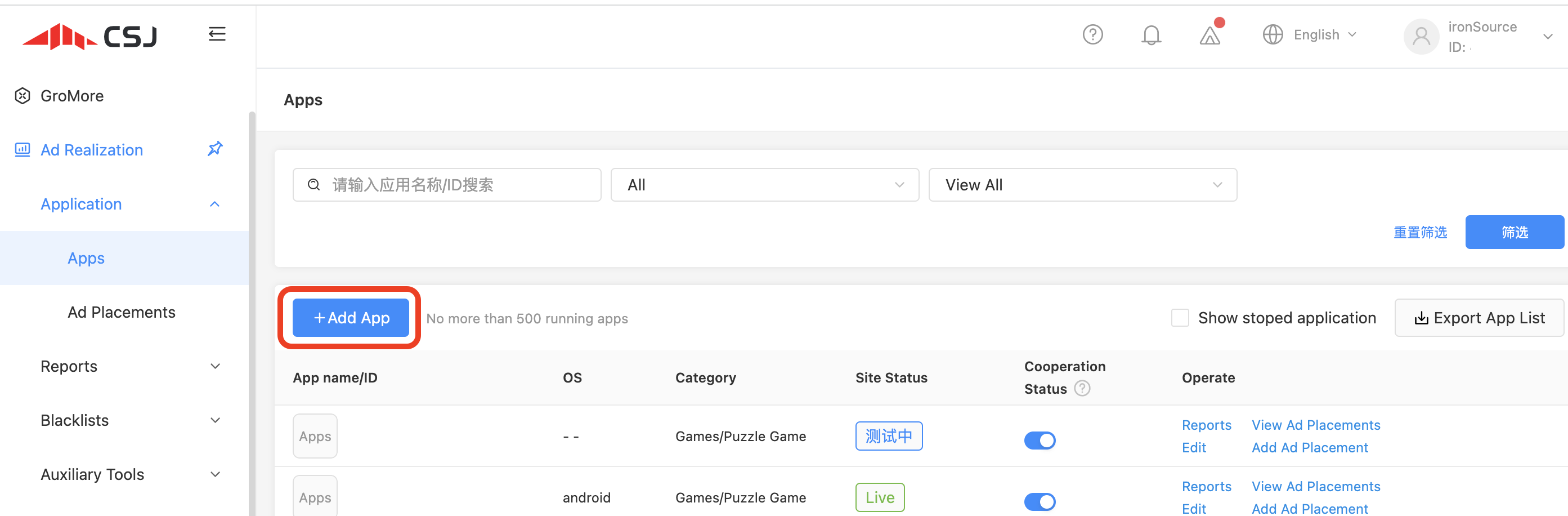
- CSJ アカウントにログインします。ダッシュボードで、Applicationsにカーソルを合わせ、Addを選択します。
- アプリケーションを追加するか、収益化する既存のアプリケーションを選択します。
LevelPlay ネットワーク設定モジュールで CSJ をアクティベート
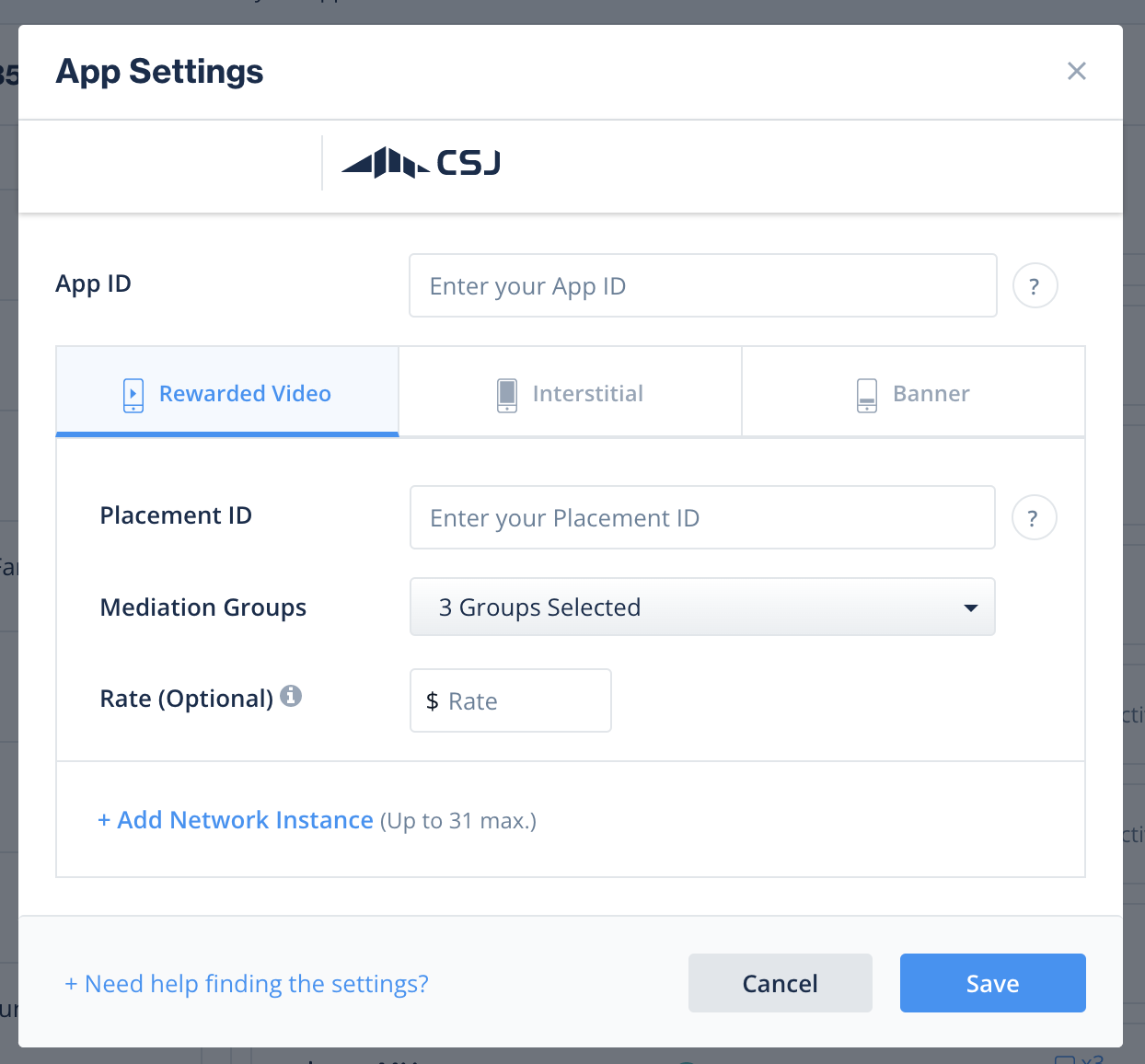
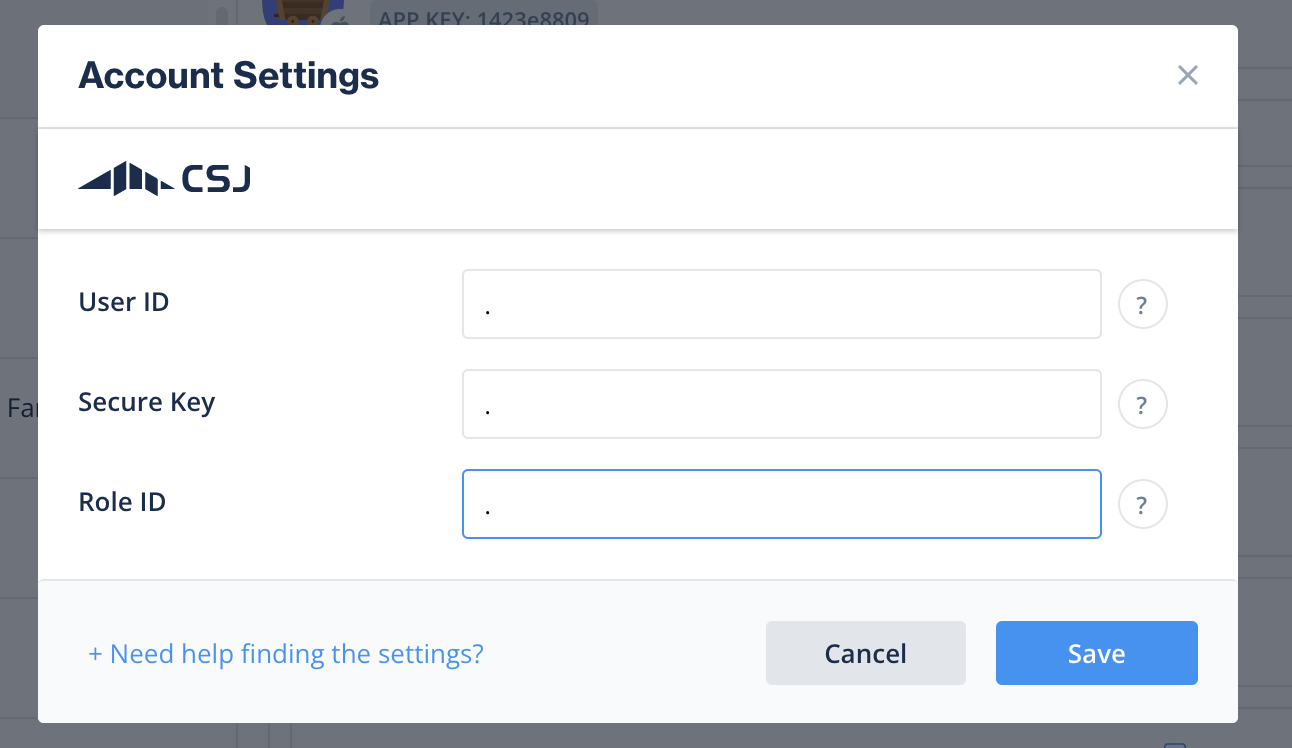
LevelPlay SDK Networks 設定ページで CSJ を設定するときに CSJ アカウントにサインインし、CSJ インタースティシャルとリワード型動画を実行するために必要なすべてのパラメータを挿入します。
CSJ アカウントから、CSJ が LevelPlay に接続できるように LevelPlay ネットワーク設定モジュールに入力する必要があるパラメータがあります。
パラメーター | 説明 |
|---|---|
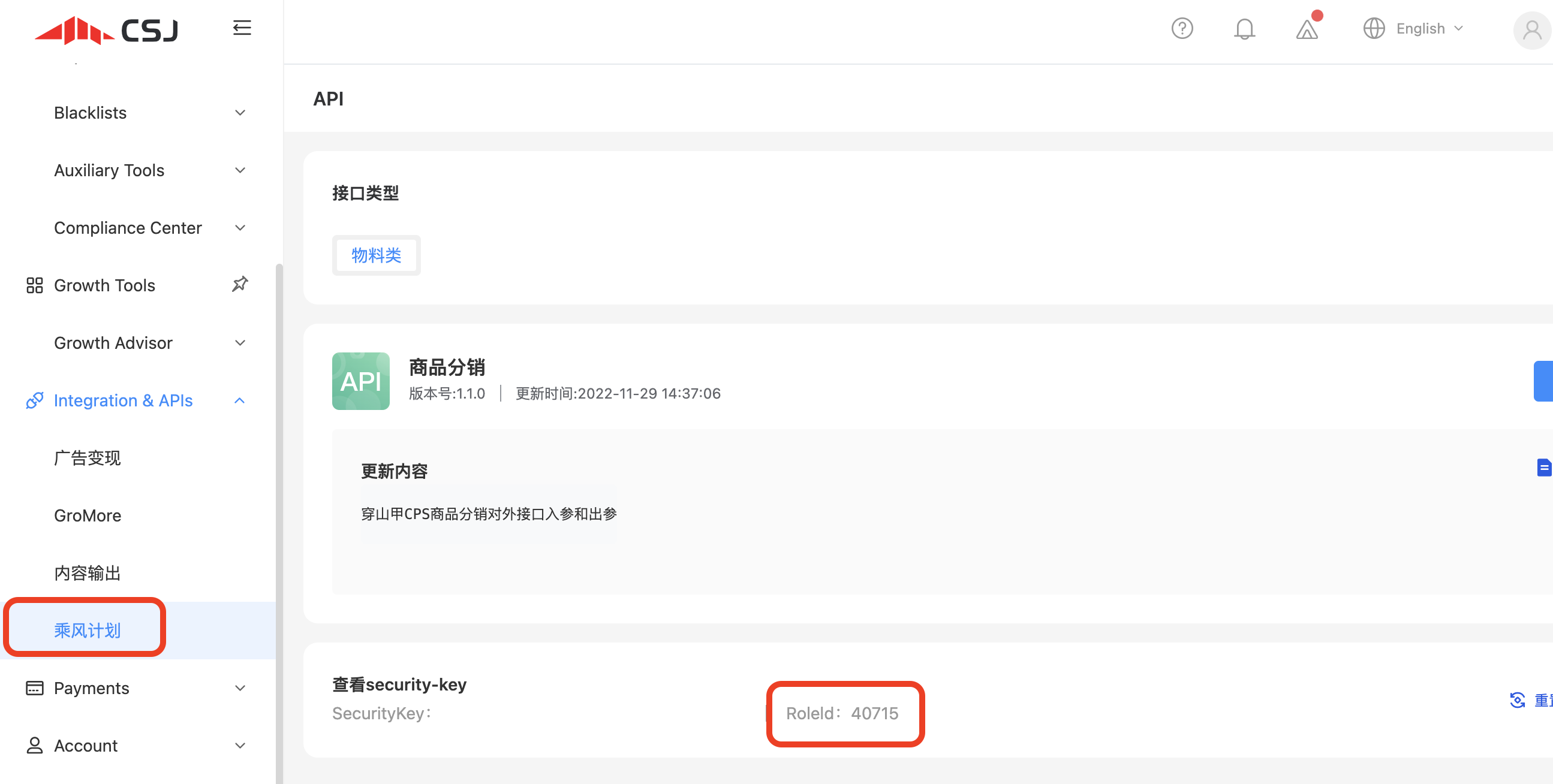
| ユーザー ID | CSJ ダッシュボードでユーザーに割り当てられた一意のの ID。 |
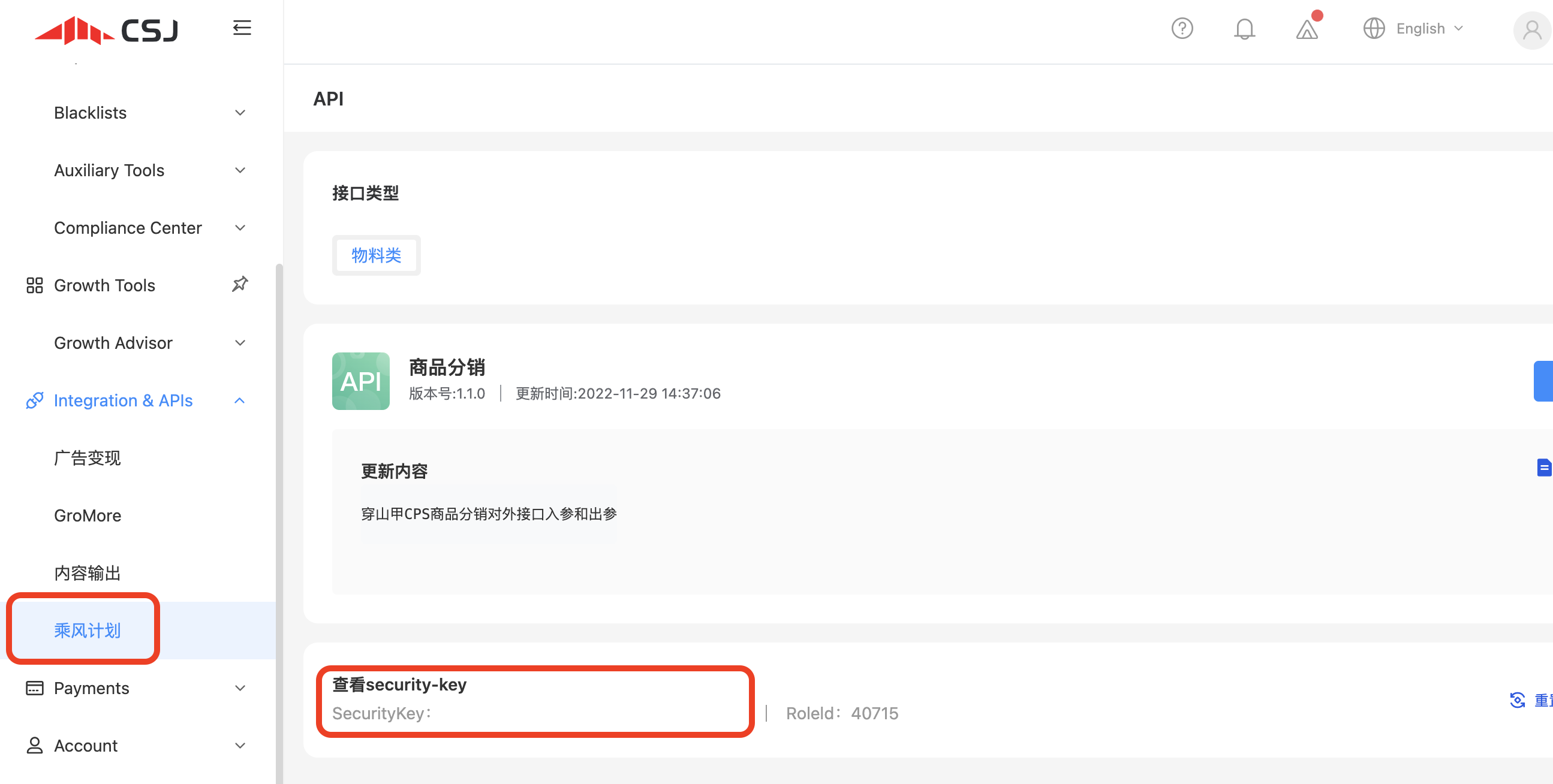
| APIキー | CSJ によってレポート API 用に生成されたキー (CSJ プラットプラットフォームではキーと呼ばれます) |
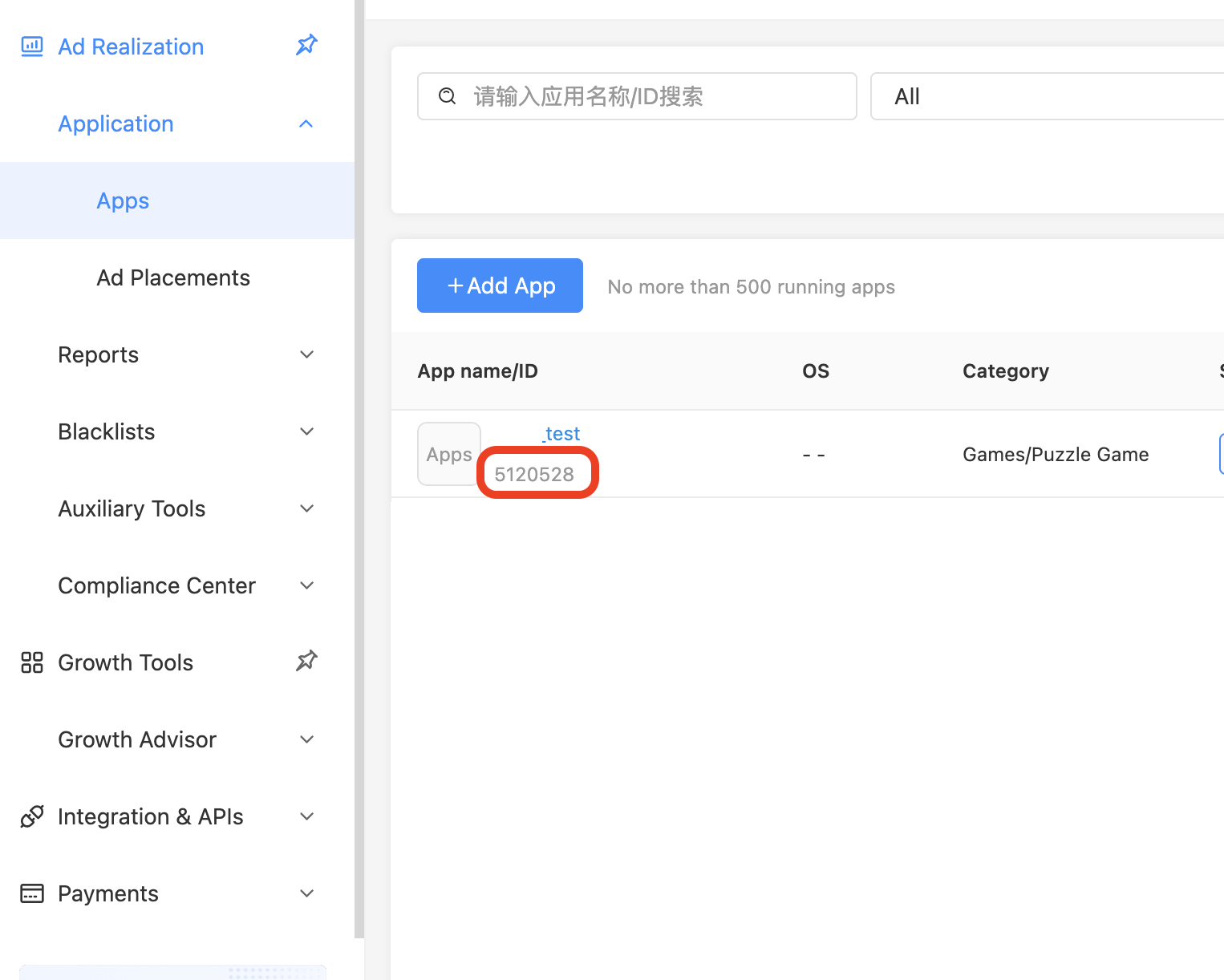
| アプリケーション ID | CSJ ダッシュボードでアプリケーションに割り当てられた一意のの ID。 |
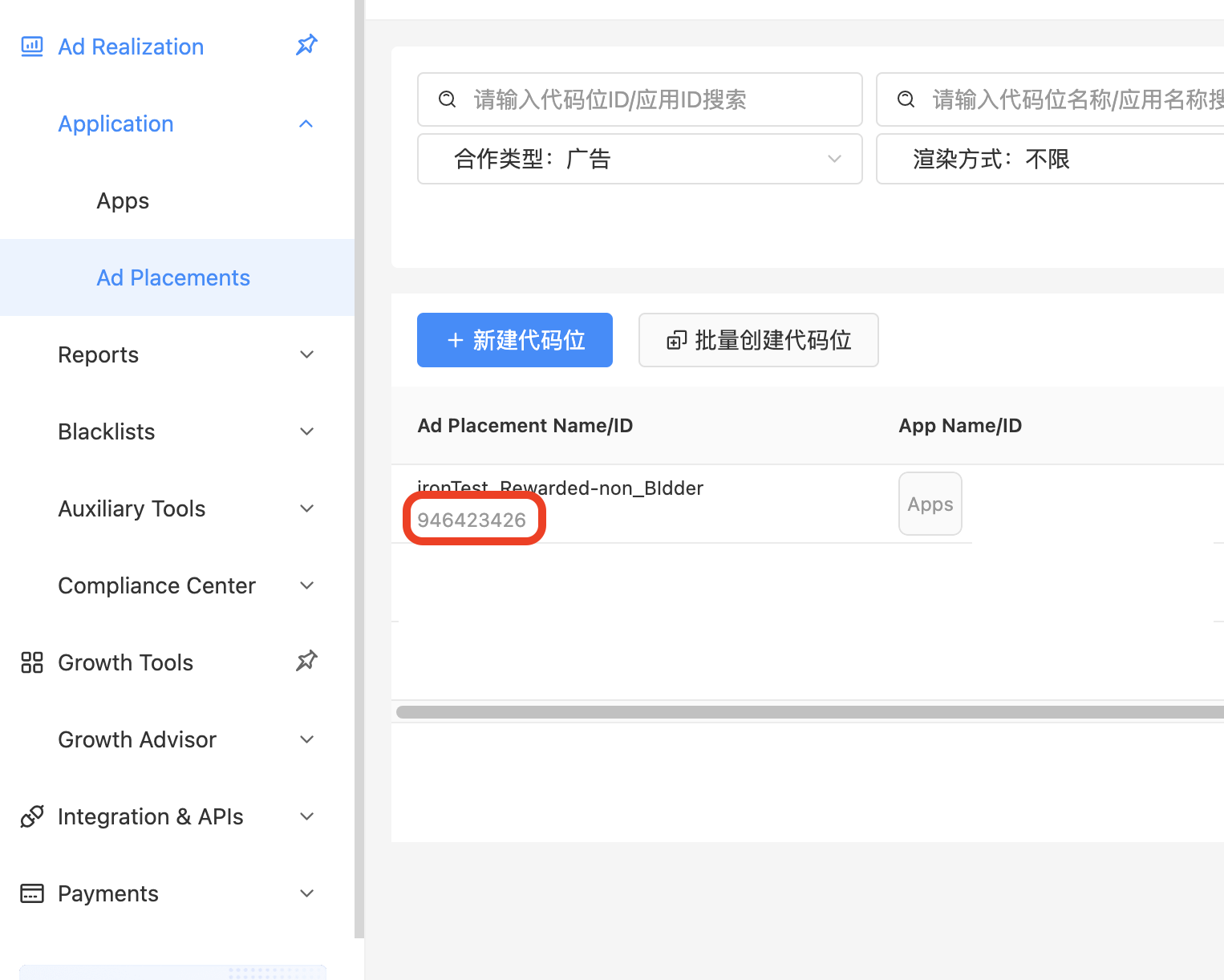
| プレースメント ID | CSJ ダッシュボードで作成した広告に割り当てられた一意のの ID。 |
この情報を取得したら、LevelPlay アカウントで CSJ のパラメータを設定します。上記の情報を正しく追加することで、LevelPlay プラットフォームで CSJ の広告インベントリとレポートデータを最大限に活用できるようになります。
ユーザー ID
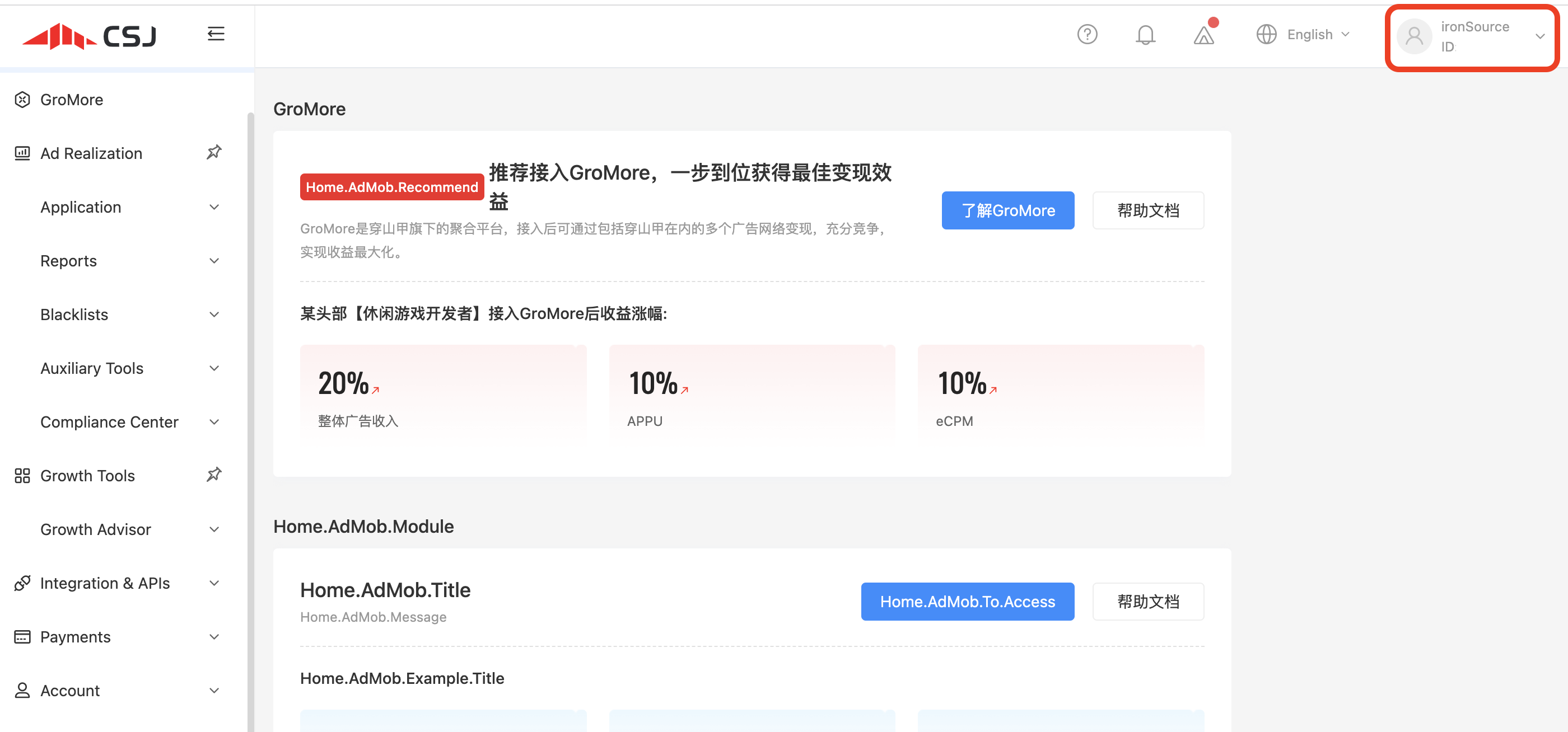
CSJアカウントにログインすると、ダッシュボードの右上隅にユーザーIDが表示されます。
APIキー
アカウント設定の下の CSJ アカウントダッシュボードにあります。
アプリケーション ID
CSJ ダッシュボードでアプリケーションを作成したら(ステップ 2 で説明)、Apps の下にアプリケーション ID があります(Applications にカーソルを合わせ、Apps を選択します)。
プレースメント ID
CSJ ダッシュボードでアプリケーションを作成したら、広告を含める必要があります。アプリケーションにカーソルを合わせ、Ad placements (広告プレースメント) を選択します。配置を手動で追加するか、既存の配置を選択して配置 ID を取得します。
CSJ アダプタをビルドに追加します。
iOS 用のネイティブアダプタを使用してインテグレーションを継続します。
広告ネットワークインテグレーションの確認
LevelPlay SDK を使用すると、メディエーションのインテグレーションが正常に完了したことを簡単に確認できます。LevelPlay とその他の広告ネットワークのインテグレーションを検証するには、このドキュメントを参照してください。
これで、アプリケーション内で CSJ を提供する準備が整いました。