Ogury インテグレーション
LevelPlay SDK を使用して、Ogury を Flutter アプリケーションにメディエーションネットワークワークとして統合します。
読み終わるまでの所要時間 8 分最終更新 1ヶ月前
このガイドでは、Unity LevelPlay で Ogury を広告ネットワークとして稼働させる方法についてステップバイステップで説明します。
前提条件
Ogury アカウントの作成
Unity LevelPlay Mediation を通じて Ogury の広告インベントリをアクティベートする前に、Ogury で承認済みのMonetizationアカウントが必要です。アカウントを持っていない場合は、Ogury サイトでサインアップするか、application-all@ogury.co に接触してください。
Ogury ダッシュボードでアセットと広告ユニットを作成する
すでに Ogury の Monetization (収益化) ダッシュボードで広告ユニットを作成済みの場合は、ステップ 3 にスキップで LevelPlay 広告ユニットで Ogury をアクティベートします。
アプリケーションの追加
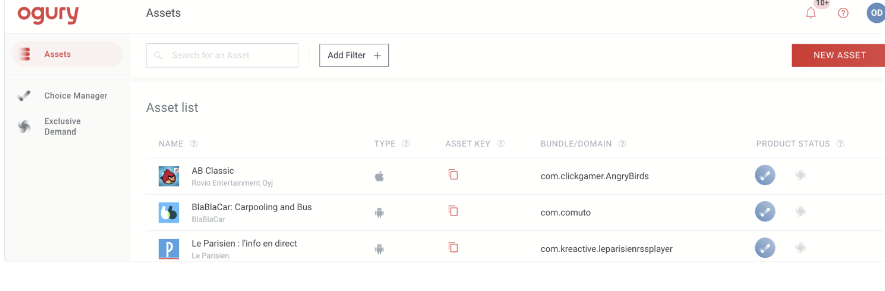
Ogury収益化ダッシュボードでアセットを直接登録するか、パブリッシャーマネージャーに連絡して作成してもらうことができます。
- 独自に作成する場合は、まず画面の右上にある新しいアセットを選択し、AndroidまたはiOSアプリケーションを選択
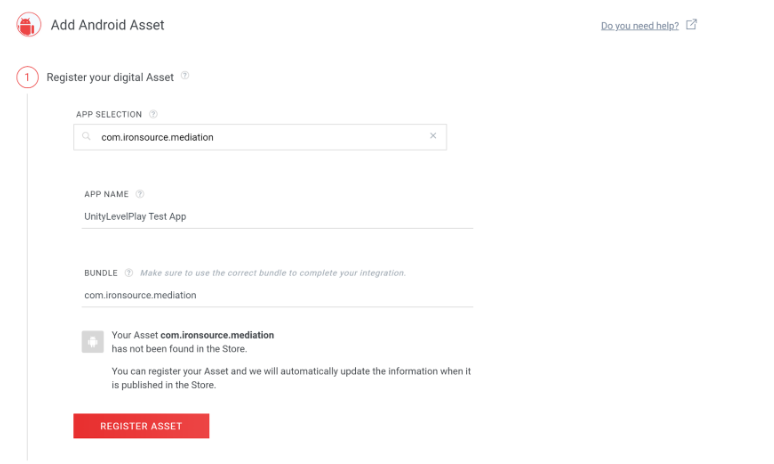
- [APP SELECTION] フィールドにアプリケーション名を検索するか入力し、[APP NAME] フィールドと [BUNDLE] フィールドにアプリケーションのパッケージ名とバンドル名を入力します。
- REGISTER アセットを選択します。
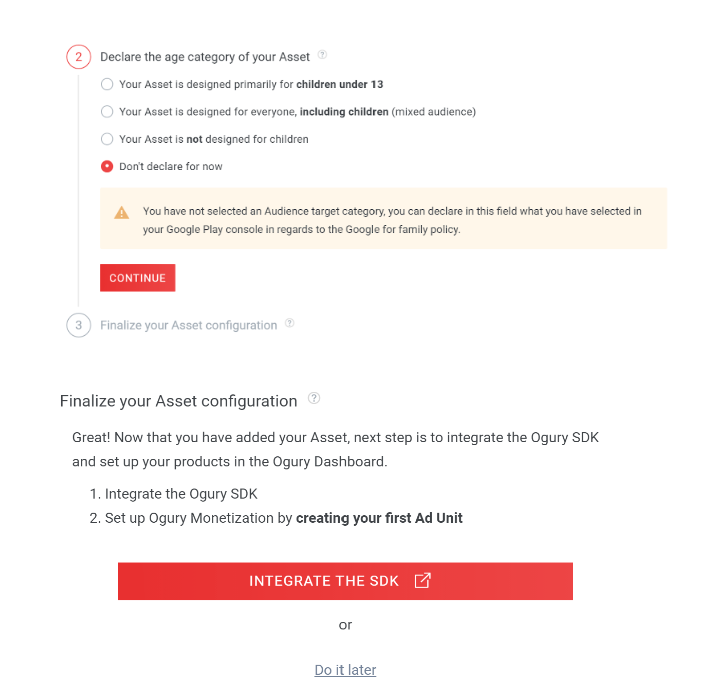
- Android アプリケーションの場合は、アセットの年齢カテゴリを宣言し (これは後で行うことができます)、Continue (継続) を選択します。
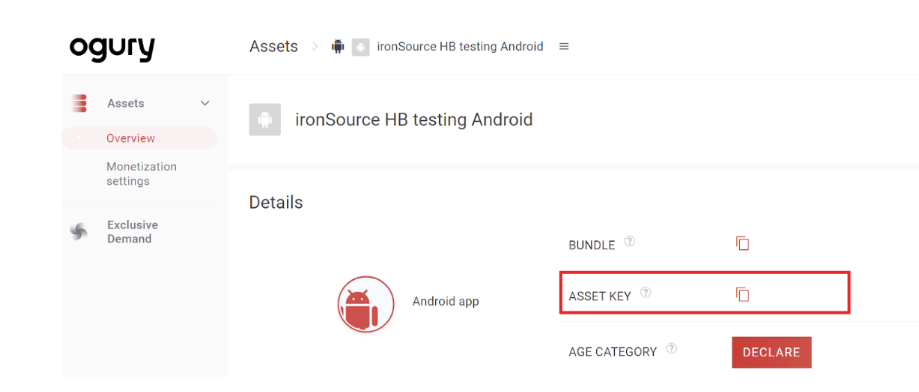
- アセット キーは、Ogury収益化ダッシュボードのAssets >Overviewセクションから取得できます。この情報は、後の Unity LevelPlay プラットフォームで Ogury ネットワークを有効にするために必要です。
広告ユニットの作成
- Oguryのパブリッシャープラットフォームに移動し、設定するアセットを選択します。
- 画面の左側のメニューで収益化設定を選択します。
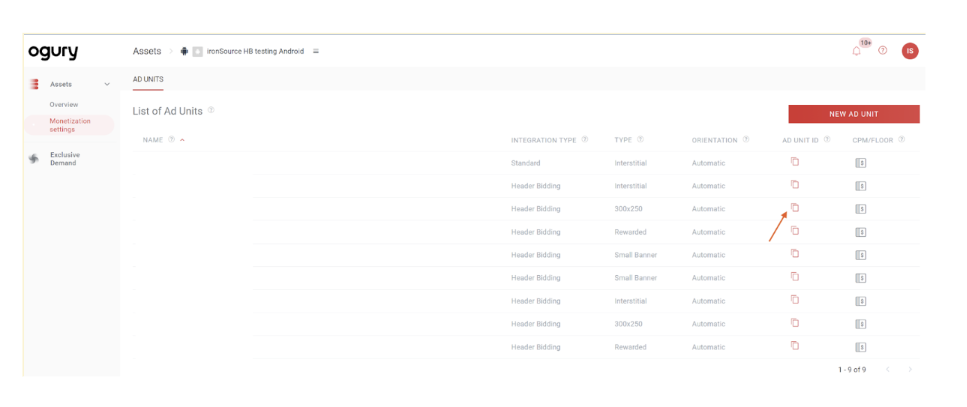
- 画面右上の NEW AD 単位を選択
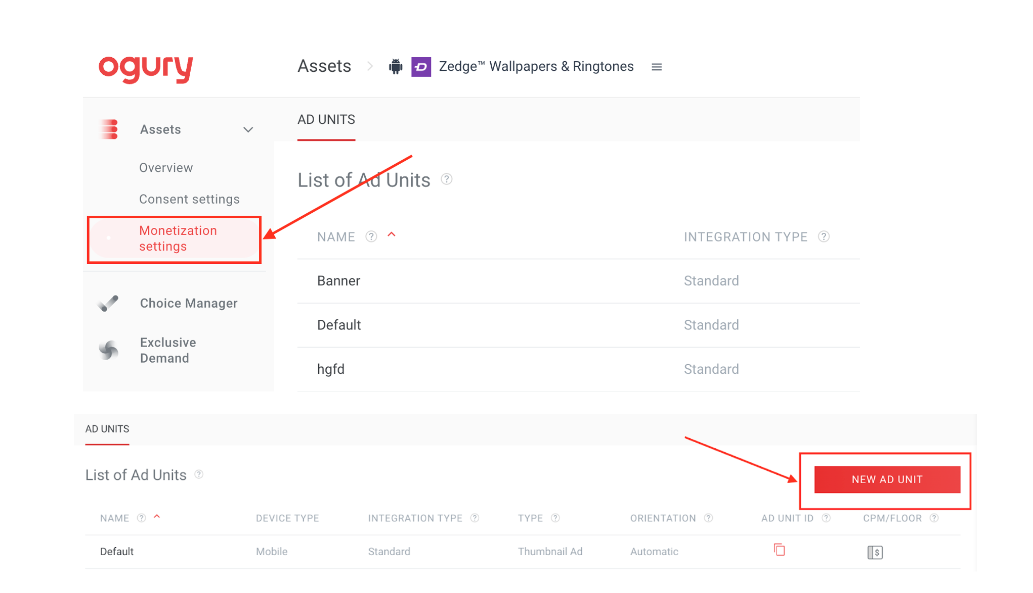
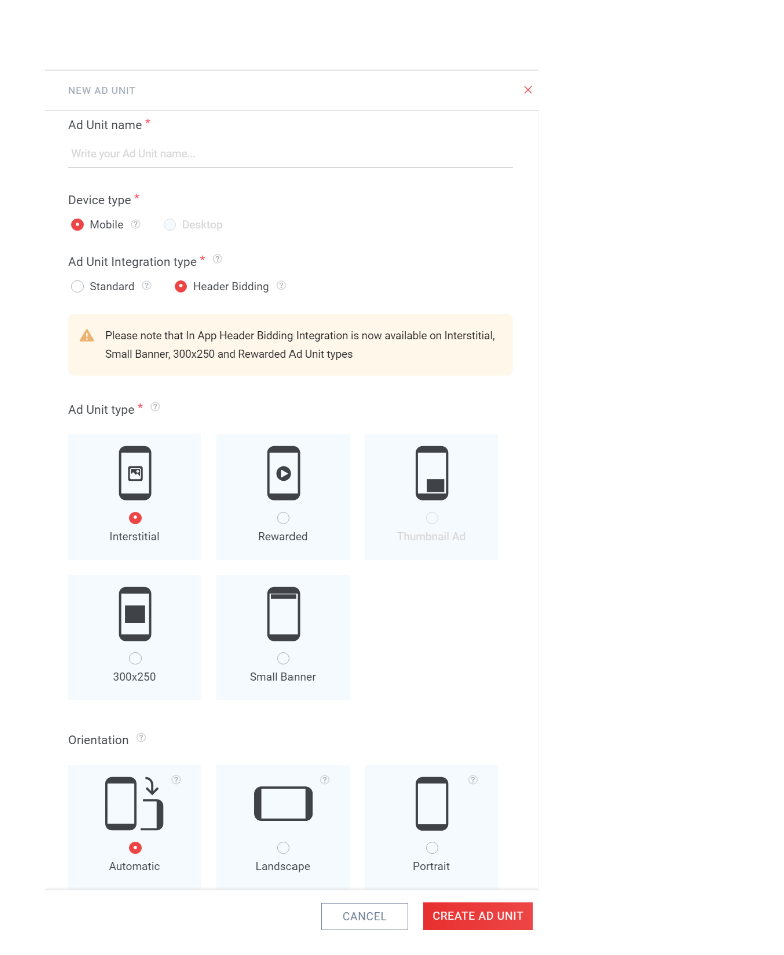
- 画面の右側にポップアップ パネルが表示され、必要な情報を入力できます。
- 広告ユニット名
- インテグレーションタイプ
- 広告単位タイプ(形式のタイプ):
- 固定 (横向き/縦向き) または柔軟な向き
- 広告ユニットが作成されたら、Ogury収益化ダッシュボードからそれらの広告ユニットのサマリーをビューできます。
- 広告単位IDは、Ogury Monetizationダッシュボードの「Assets(資産)」>「Monetization settings(収益化設定)」セクションで取得できます。これを行うには、ID を取得する広告単位に関連付けられている広告単位 ID 列でコピーアイコンを選択します。この情報は、後で Unity LevelPlay プラットフォームで Ogury ネットワークを有効にするために必要になります。
Reporting API トークンの作成
- Ogury パブリッシャー ダッシュボードに移動します。右上の名前を選択し、アカウント設定を開きます。
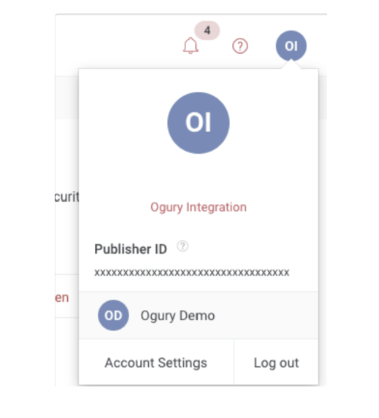
- API トークンに移動
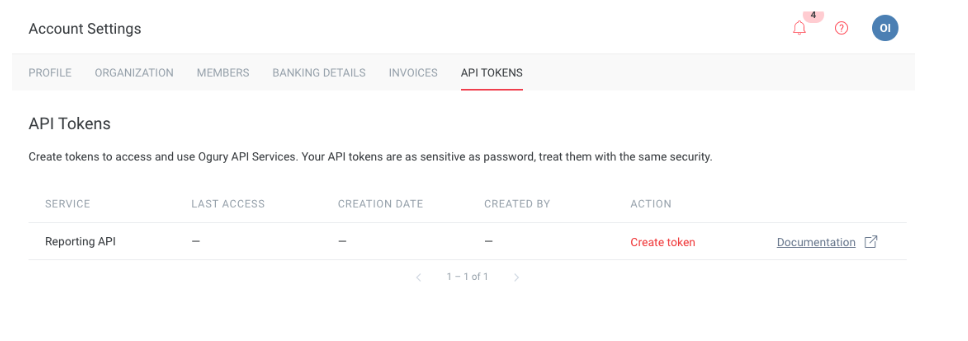
- テーブルで Reporting API を検索し、Create Token を選択します。
- トークンをコピーして LevelPlay プラットフォームに貼り付け、後で Ogury ネットワークを有効にします。
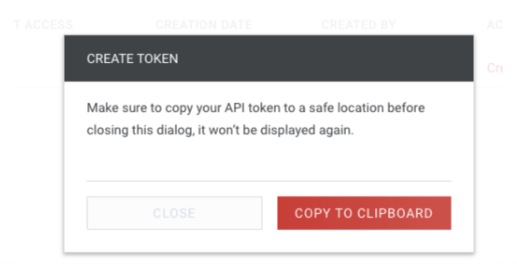
トークンを安全に保管してください!トークンを紛失した場合は、トークンを取り消して再度作成する必要があります。古いトークンは即座に動作を停止します。
LevelPlay プラットプラットフォームで Ogury をアクティベートする
- LevelPlay アカウントにログインし、LevelPlay サイドのナビゲーション バー> 設定> Networks に移動します。
- Manage Networks を選択し、使用可能な広告ネットワークのリストから Ogury を選択します。Reporting API トークンを入力します。
- 次に、Unity LevelPlay の Mediation を Ogury 入札で実行するアプリケーションを選択します。
- Ad Networks の設定リストから Ogury を選択し、設定 を選択します。
- インタースティシャル、リワード、バナー、ネイティブ設定の関連情報を挿入します。次に、Save (保存) を選択します。
ネットワークはアプリケーションに対してアクティブになります。
Ogury Adapter をビルドに追加する
これで、アプリケーション内で Ogury を表示する準備が整いました。