BIGO Ads インテグレーション
LevelPlay SDK を使用して、BIGO Ads を Flutter アプリケーションにメディエーションネットワークワークとして統合します。
読み終わるまでの所要時間 5 分最終更新 1ヶ月前
このガイドでは、Unity LevelPlay で BIGO Ads を広告ネットワークとして稼働させる方法をステップごとに説明します。
前提条件
BIGO Ads アカウントの作成
BIGO Ads のアカウントはこちらから作成してください。
BIGO Ads プラットフォームにアプリケーションを追加する
- BIGO Ads開発者管理プラットフォームにログインします。
- インベントリに移動し、左側のナビゲーション バーでApps and Sitesを選択します。
- Add (追加) を選択します。
- アプリケーションの情報を入力し、Submit (送信) を選択します。
入札スロットの作成
- インベントリを操作し、左側のサイドバーで広告スロットを選択します。
- Add (追加) を選択します。
- アプリケーションと広告形式を選択します。
- 広告スロット名を入力します。
- **Auction Type (**オークションタイプ) で、**Server Bidding (**サーバー入札) を選択します。
- Submit (送信) を選択します
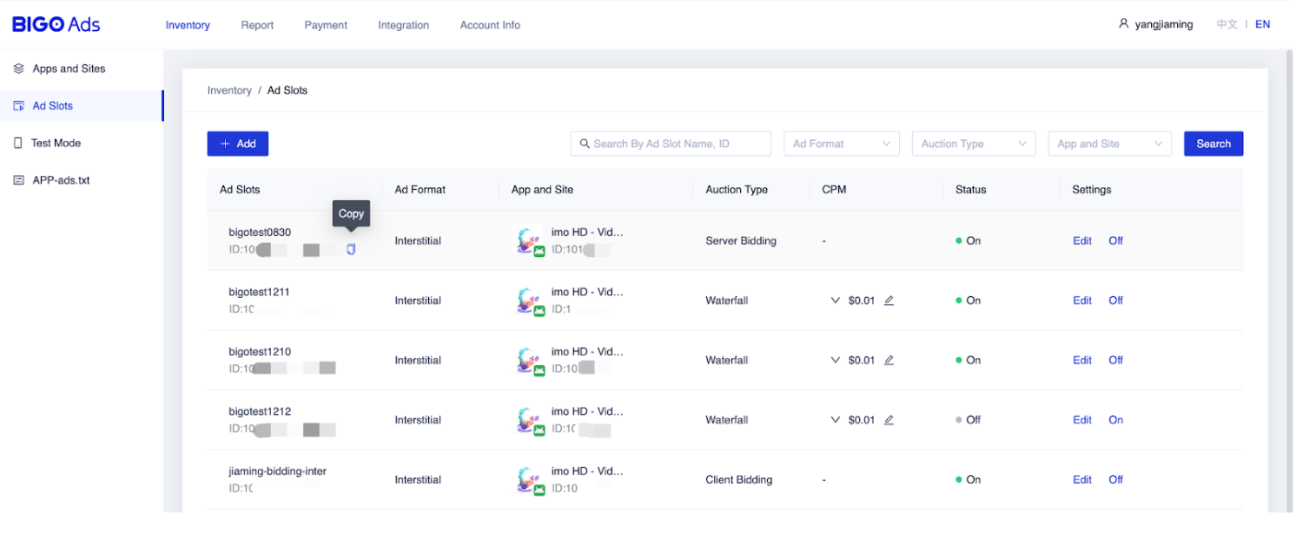
広告スロットを作成すると、BIGO Ads によって対応する広告スロット ID が生成されます。BIGO Ads開発者管理プラットフォームのAd Slotsセクションにあります。
以下のパラメータは、サーバ入札インテグレーションで必須です。
BIGO Ads パラメーター | 説明 |
|---|---|
| App ID (アプリ ID) | BIGO Ads プラットフォームでのアプリケーションの一意の ID |
| 広告スロット ID | BIGO Ads プラットフォームの広告配置の一意の ID |
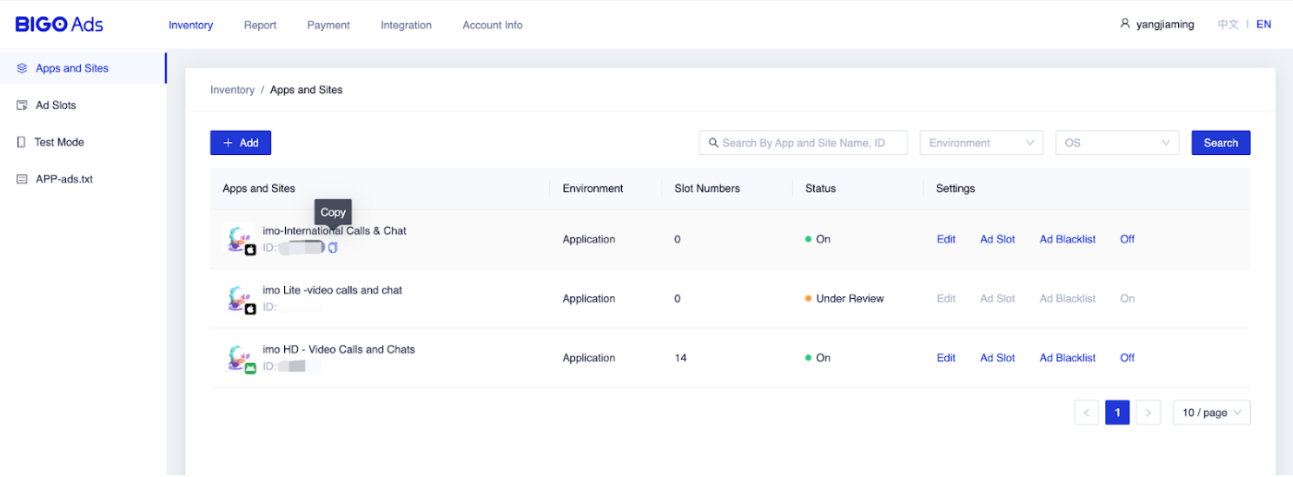
アプリケーションを見つけてアプリケーションの App ID をコピーするには、次の手順に従います。
- BIGO Adsダッシュボードで、Apps and Sitesを選択します。
広告スロット ID を確認します。
- BIGO Adsダッシュボードに移動し、左側のナビゲーション バーで広告スロットを選択します。
LevelPlay プラットプラットフォームで BIGO Ads をアクティベートする
- LevelPlay アカウントにログインし、LevelPlay サイドのナビゲーション バー> 設定> Networks に移動します。
- 使用可能な広告ネットワークのリストからBIGO Adsを見つけ、設定を選択します。次に、関連情報を入力します。
- 次に、「Instances(インスタンス)」ページに移動し、Unity LevelPlayのメディエーションをBIGO Ads入札で実行するアプリケーションを選択します。
- BIGO Adsを選択し、インタースティシャル、リワード、バナー、ネイティブ設定の関連情報を入力します。次に、Save (保存) を選択します。
ネットワークはアプリケーションに対してアクティブになります。
BIGO Ads アダプタをビルドに追加する
これで、アプリケーション内で BIGO Ads を配信する準備が整いました。