Button(Vector3, Quaternion, float, float, CapFunction)
Make a 3D Button.
Read time 1 minuteLast updated 4 days ago
Definition
- Type: Method
- Namespace: UnityEditor
- Assembly: UnityEditor
public static bool Button(Vector3 position, Quaternion direction, float size, float pickSize, Handles.CapFunction capFunction)
Parameters
The position to draw the button in the space of Handles.matrix.
The rotation of the button in the space of Handles.matrix.
The visual size of the handle. Use HandleUtility.GetHandleSize if you want a constant screen-space size.
The size of the button for the purpose of detecting a click. Use HandleUtility.GetHandleSize if you want a constant screen-space size.
The draw style of the button.
Returns
Type | Description |
|---|---|
| bool | True when the user clicks the button. |
Remarks
This button works like one drawn with GUI.Button, but it has a 3D position and is drawn by a handle function.
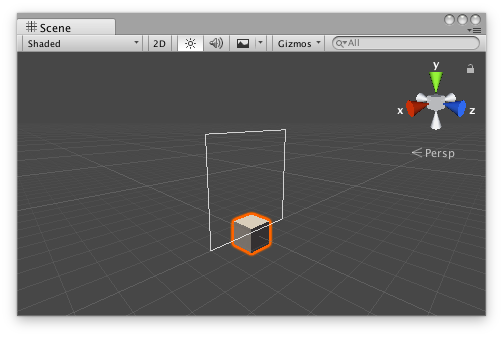
Button Handle as a rectangle in the Scene View.
Add the following script to your Assets folder as ButtonExample.cs and add the ButtonExample component to an object in a Scene.
using UnityEngine;public class ButtonExample : MonoBehaviour {}
Add the following script to Assets/Editor as ButtonExampleEditor.cs and select the object with the ButtonExample component.
using UnityEditor;using UnityEngine;[CustomEditor(typeof(ButtonExample)), CanEditMultipleObjects]class ButtonExampleEditor : Editor{ protected virtual void OnSceneGUI() { ButtonExample buttonExample = (ButtonExample)target; Vector3 position = buttonExample.transform.position + Vector3.up * 2f; float size = 2f; float pickSize = size * 2f; if (Handles.Button(position, Quaternion.identity, size, pickSize, Handles.RectangleHandleCap)) Debug.Log("The button was pressed!"); }}