Documentation

Asset Transformer Studio


User Manual

Python API

Changelog

Asset Transformer Studio


License Activation and Management

How to activate and manage your Asset Transformer Studio license
Read time 2 minutesLast updated 24 days ago

The license, required to run Asset Transformer Studio, must be activated from the License Manager.
The license activation procedure is different whether a floating or a node-locked license is used:

Floating License

To use a floating license, a FlexLM license server is required. See here for the procedure.

Node-locked License

Depending on your internet connection, please use either of the following activation modes:
  • Online mode: your computer is connected to the Internet.
  • Offline mode: your computer is not connected to the Internet (for example your company blocks internet connection on your computer).
Important
  • The activation procedure is the same for a trial license and a purchased license.
  • You can bind a node-locked license to only one computer (each computer has a unique ID). Meaning you cannot use the same license on multiple computers, at the same time.
  • You can release this license once to use it on another computer: read more.

Online Mode

If your computer is connected to the Internet, follow this procedure:
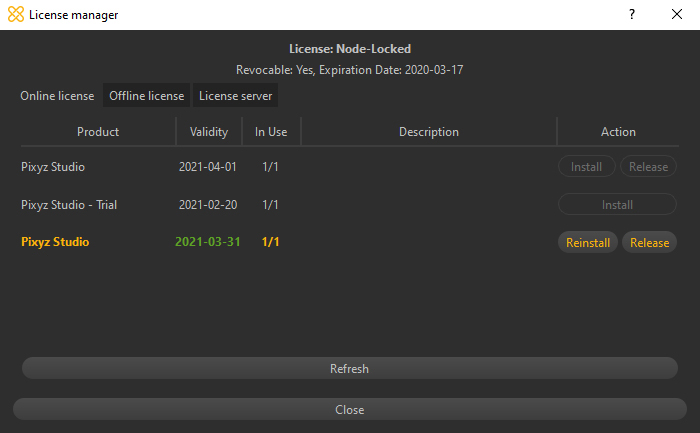
  1. Run Asset Transformer Studio with administrator rights
  2. Click Help (?) > License Manager
  3. In the Online activation tab, enter your Login and Password (the same you used to create your account on the Asset Transformer website)
  4. The license is listed, click on the Install button
  5. You might be asked to run an installation executable, click Yes
Online License Manager

Offline Mode

If your computer is not connected to the internet, follow this procedure:
  1. Run Asset Transformer Studio with administrator rights
  2. Click Help > License Manager
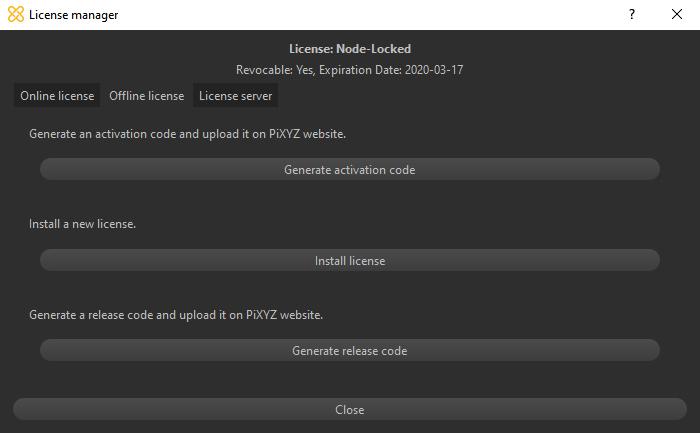
  3. In the Offline license tab, select Generate activation code
  4. Save an Activation code (as a *.bin file)
  5. Copy the Activation file (*.bin file), go to a computer with Internet connection and connect to your account on the Asset Transformer website
  6. Go to the LICENSE MANAGEMENT tab, and to the row of your new license
  7. Click on the Offline request button and follow the procedure to upload the Activation code (*.bin file) you just saved
  8. Once the procedure is over, your new valid license will be automatically downloaded. If not, click the Download button in the row of your new license (column Offline Activation)
  9. Save your new
    license.bin
    file and go back to your computer on which you installed Asset Transformer Studio
  10. Click Help > License Manager
  11. In the Offline license tab, select Install license and browse to the
    license.bin
    file you downloaded from the website
  12. Click on Activate
  13. You might be asked to run a Windows installation executable, click Yes
Offline License Manager