Decimate To Quality
How to use the Decimate To Quality function in Asset Transformer Studio
Read time 4 minutesLast updated 9 hours ago
The Decimate To Quality function is used to efficiently reduce a model's polycount, whilst preserving as much as possible its visual quality.
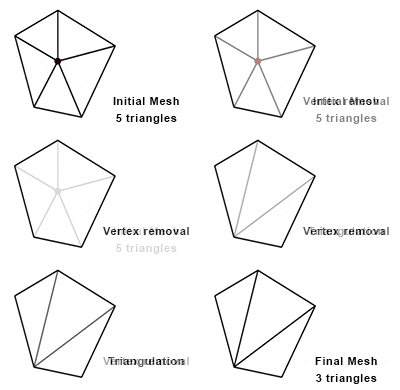
It works by smartly deleting vertices of the meshes (Vertex removal technique), using quality criteria to prevent smoothing artifacts and topological irregularities.
The function is available from the Optimize Mesh menu.
Parameters
The algorithm uses a combination of 4 main parameters, which are geometrical tolerances to obtain the lightest model possible whilst keeping acceptable quality:
Parameter | Description |
|---|---|
| Surfacic tolerance | Defines the maximum distance between vertices of the original model and resulting simplified surfaces. 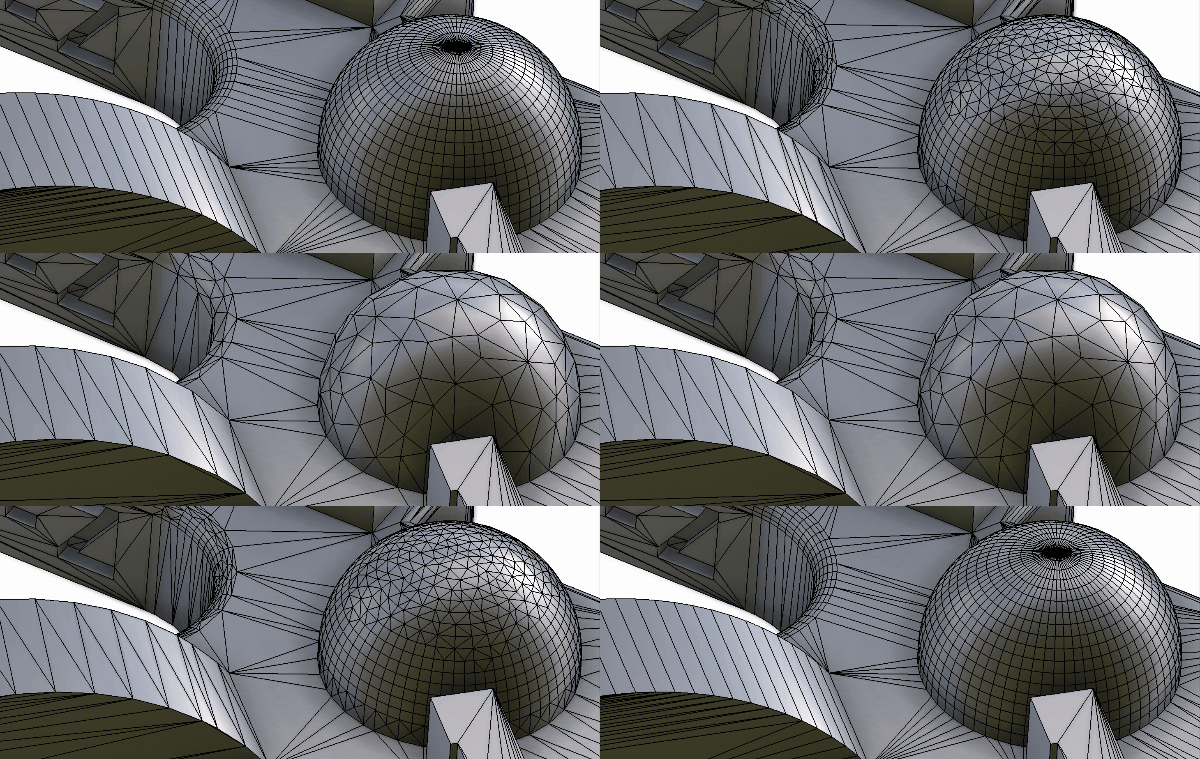 |
| Lineic tolerance | Defines the maximum distance between lineic vertices of the original model and resulting simplified lines. The 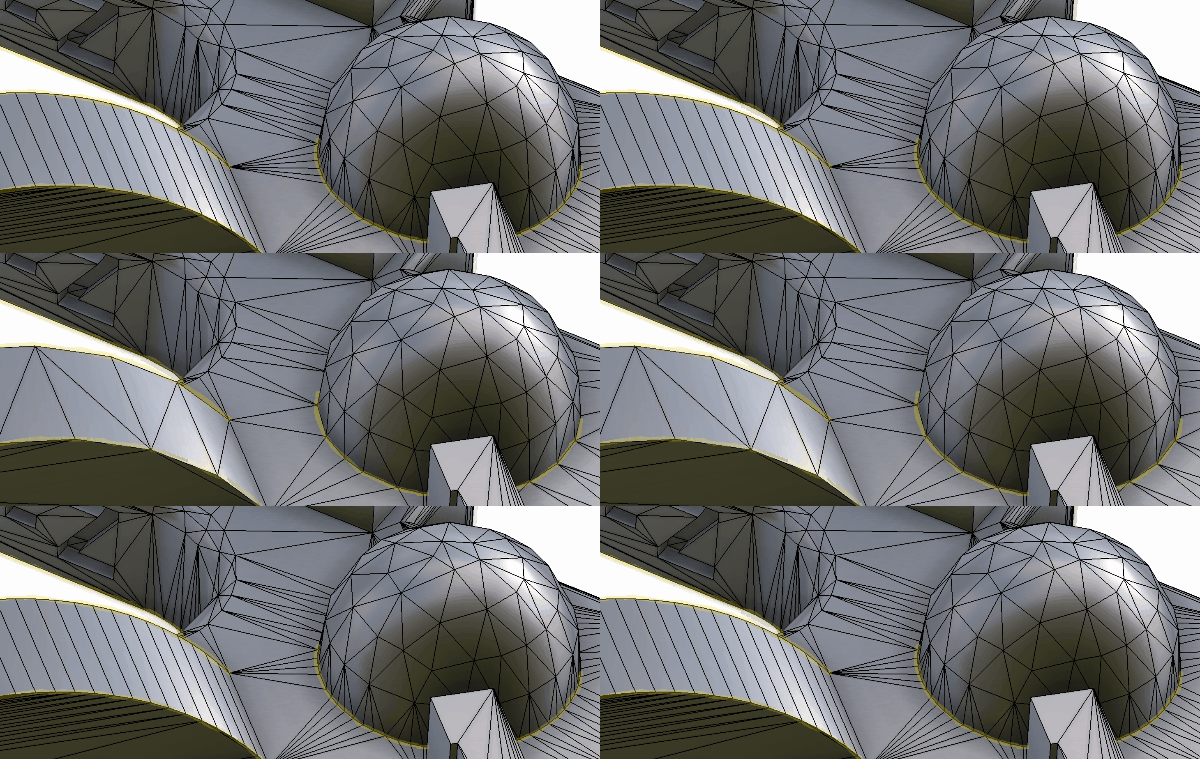 |
| Normal tolerance | Defines the maximum angle existing between the original normals and those interpolated on the simplified surface. The 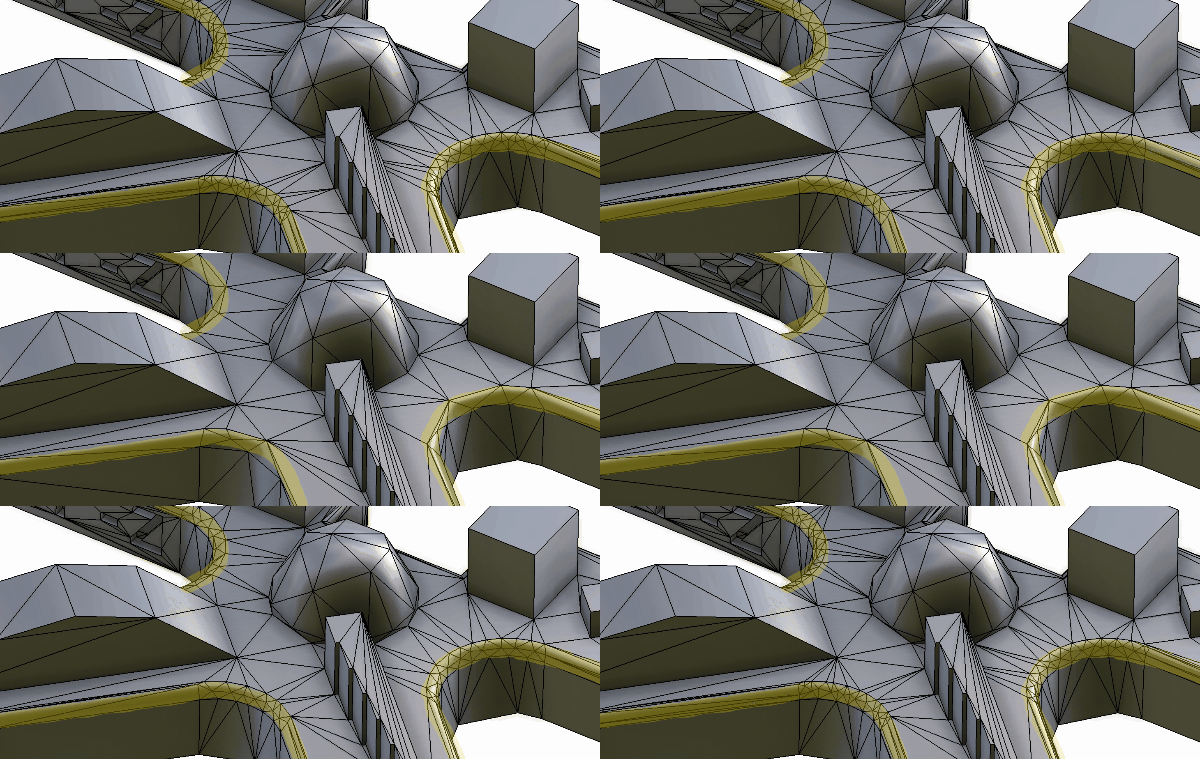 |
| Texture Coordinates tolerance | Preserves the UV (or Texture Coordinates) whilst decimating a mesh (0.01 is a good value). The higher the value, the more aggressive the decimation. Use 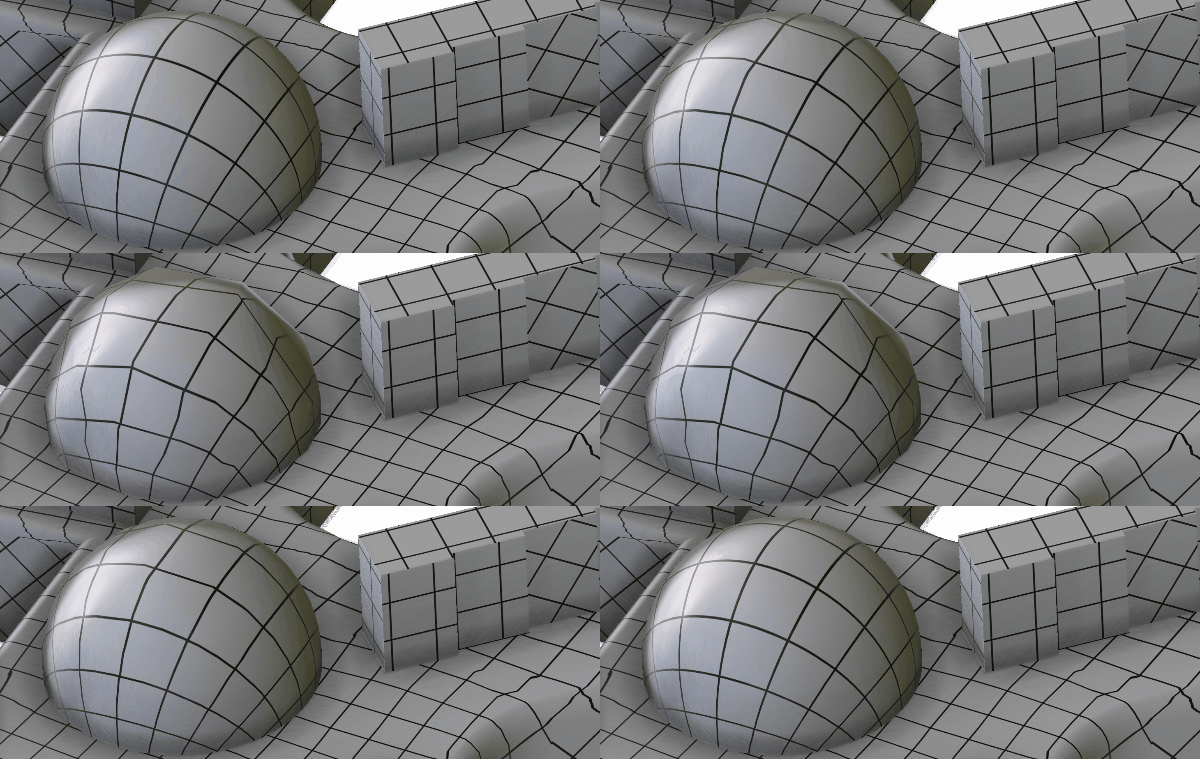 |
Presets
Preset | Description |
|---|---|
| Low (default) | The meshes will not be much decimated. Good for removing some useless polygons left behind after a Remove Holes process for example. |
| Medium | The meshes will be more decimated. Visible consequences might start showing but the result will be acceptable for meshes not visible from a reasonable distance. |
| Strong | The meshes will be heavily decimated. They might show some artifacts: good to use for objects far from the camera. |
Example
Let's see a practical example with the Buggy model below (3DXML model, courtesy of Dassault Systèmes), which contains 140,846 triangles:
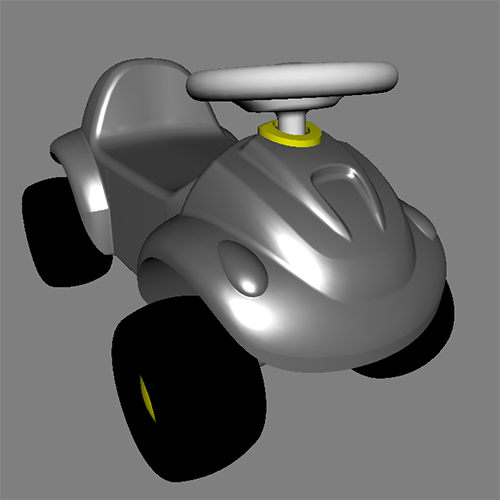
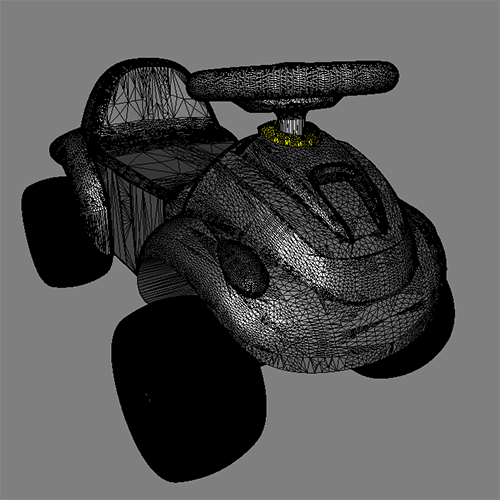
Surfacic Tolerance
The surfacic tolerance is the maximum distance between the original model and the simplified one.
The higher the tolerance, the lower the quality, but the higher the polygon reduction.
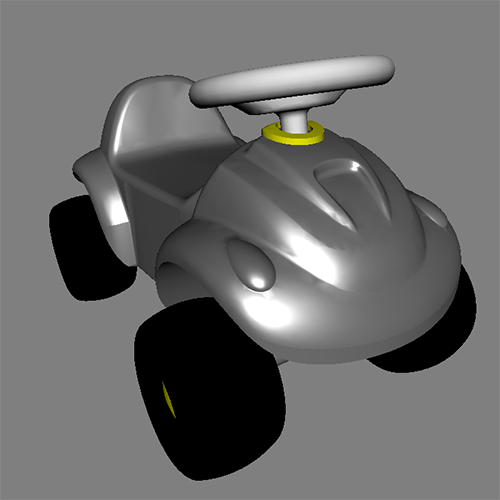
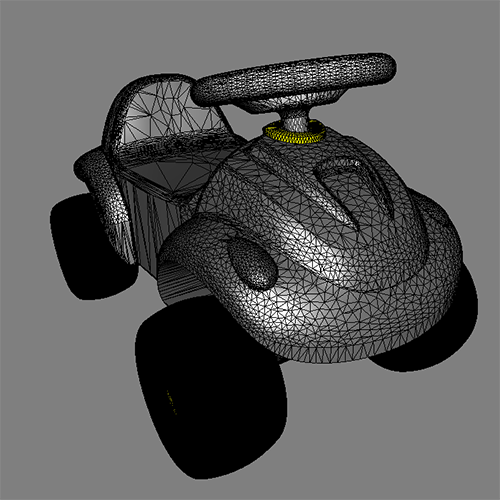
Decimation with surfacic tolerance = 0.1 mm: the polycount is reduced to 66,636 but the quality is quite good:
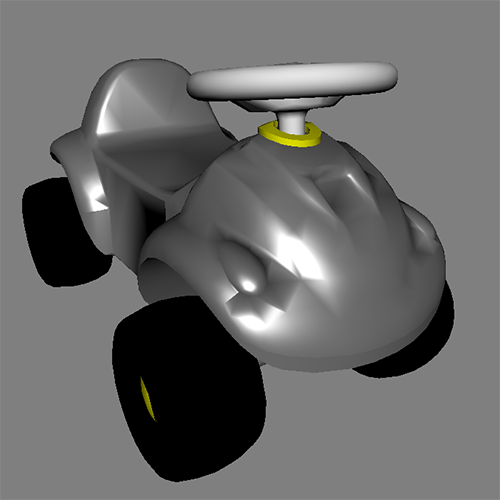
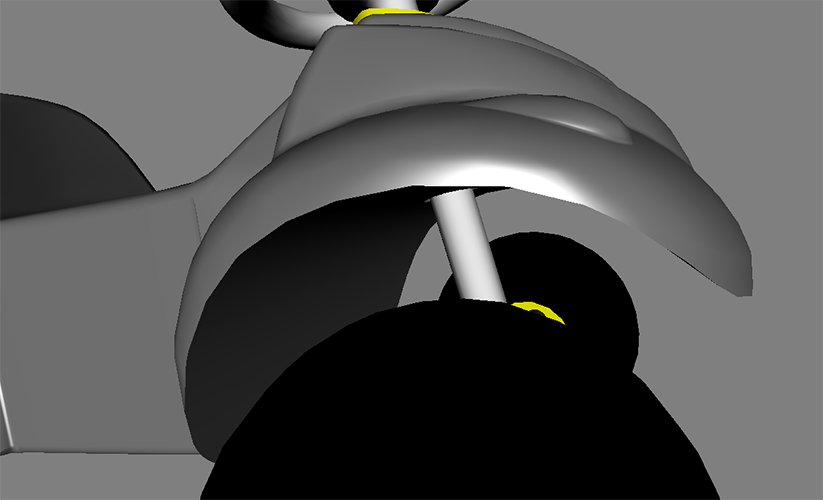
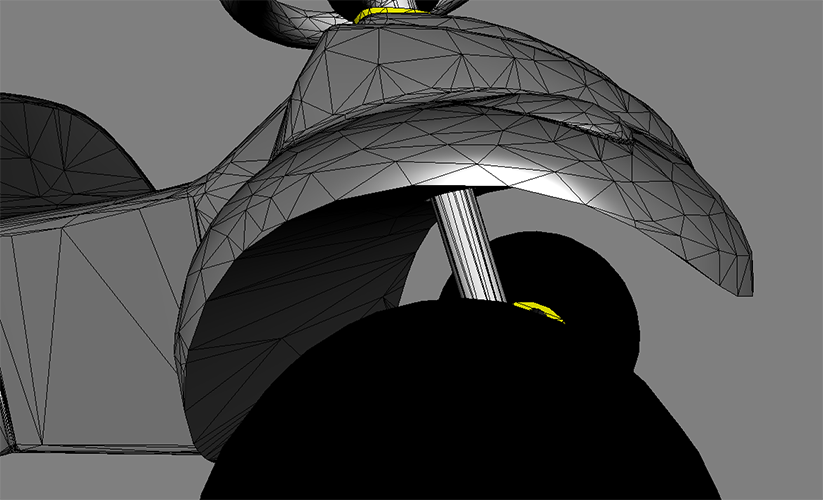
Decimation with surfacic tolerance = 1 mm: the polygon count is now reduced to 7,155 but the quality is poor, and causes a lot of lighting problems:
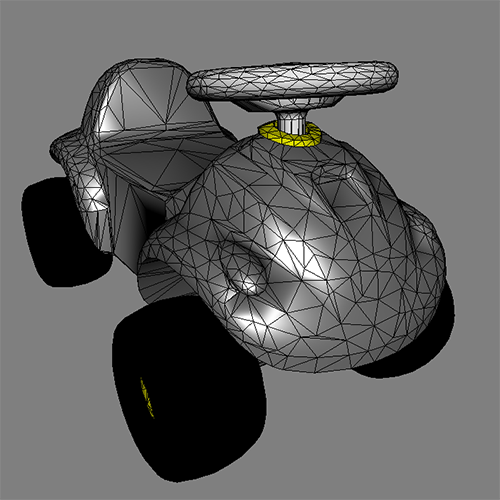
To obtain a very low polycount without destroying visual quality, the algorithm can control normal distortion during the decimation process.
Normal Distortion Tolerance
The normal distortion tolerance is the maximum angle between a normal at each vertex of the original model and its corresponding normal on the simplified one.
Decimation with surfacic tolerance = 1 mm and normal distortion tolerance = 5 degrees: the polycount is reduced to 9,525 with an almost imperceptible quality loss:
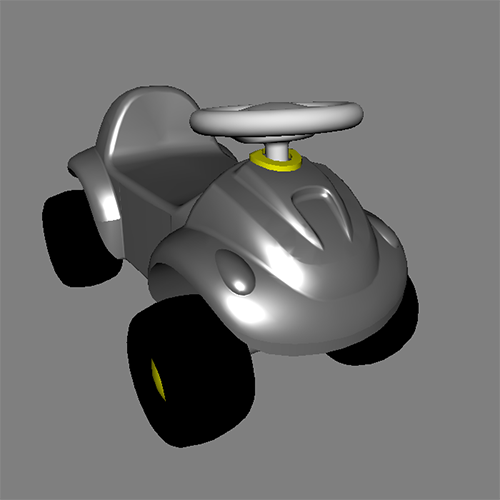
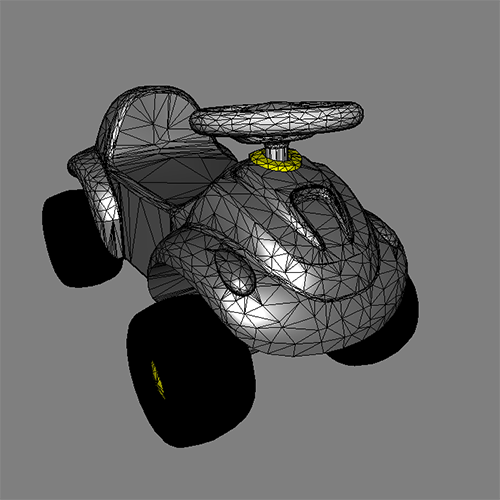
Finally, the high surfacic tolerance (1mm) produces a significant aliasing visible on sharp edges:
Lineic Tolerance
This tolerance is equivalent to the surfacic tolerance but it is applied only on sharp edges (or hard edges) or on lines of interest.
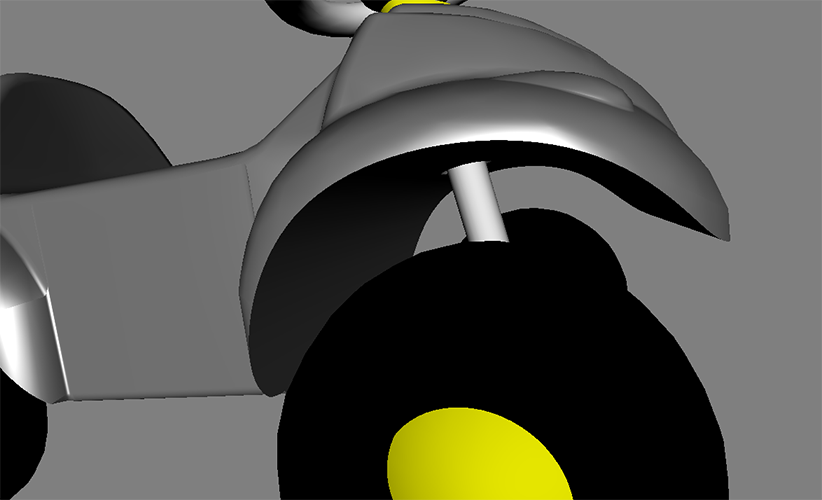
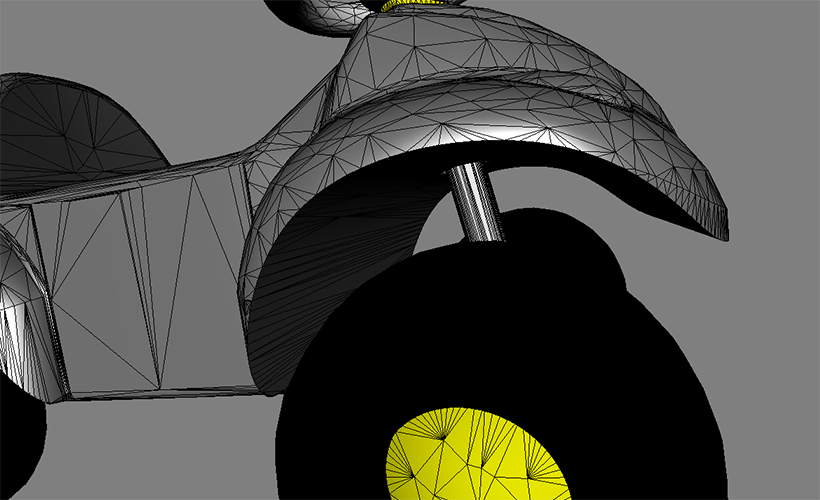
Decimation with surfacic tolerance = 1 mm, normal distortion tolerance = 5 degrees and lineic tolerance = 0.1 mm: the polycount is reduced to 13,126 with an almost imperceptible quality loss, even on sharp edges. The quality is better than using only a surfacic tolerance of 0.1 mm with a triangle count widely inferior (13,126 against 66,636):
Summary
The best way to decimate a model using the Decimate To Quality function is to combine the 3 main parameters to obtain the lightest model while keeping an acceptable quality.
Parameters combination | Quality | Triangles | Reduction % |
|---|---|---|---|
| Surfacic 1mm | - | 7,155 | 94 |
| Surfacic 0.1mm | + | 66,636 | 52 |
| Surfacic 1mm + Normal 5° | ++ | 9,525 | 93 |
| Surfacic 1mm + Normal 5° + Lineic 0.1mm | +++ | 13,126 | 90 |
| Original Mesh | ++++ | 140,846 | 0 |
About the Texture coordinates tolerance
As explained above, this parameter prevents the UVs from being too distorted at decimation.
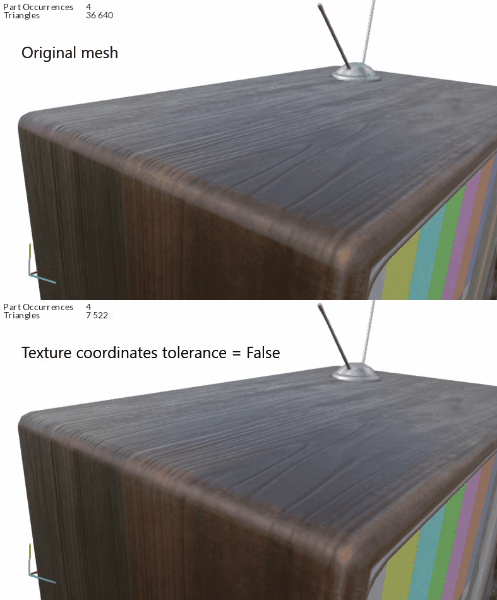
Decimation without texture coordinates tolerance: the wooden textures move because the underlying UVs get distorted:
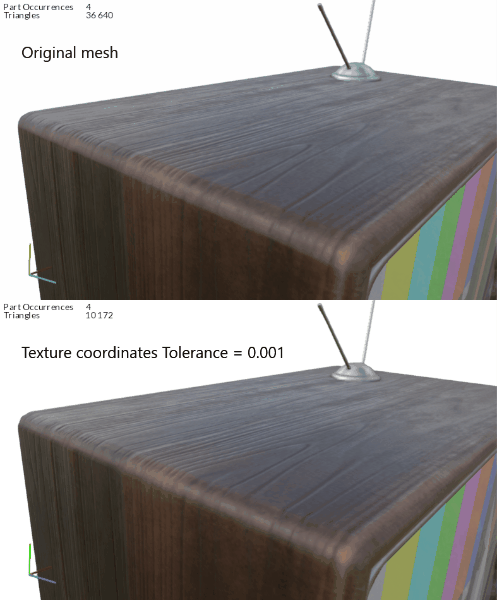
Decimation with texture coordinates tolerance = 0.001: the wooden texture moves far less because the underlying UVs are preserved:
API function parameters
Check the API Reference to learn how to use this function in Python code.