文档

Integrate PubMatic with LevelPlay

Learn how to integrate PubMatic with your LevelPlay-enabled Unity app
阅读时间1 分钟最后更新于 1 天前

重要
The following documentation discusses products or services (“Third-party Products”) not developed, owned, or operated by Unity. This information might be outdated or incomplete and is provided for your convenience. Your use of any Third-party Product is subject to its own terms. Unity makes no warranties regarding these products and isn't liable for any damages or losses arising from their use, including issues related to content, advertising, or materials from Third-party providers.
Learn how to integrate PubMatic with your LevelPlay-enabled Unity app through account setup, app configuration, ad unit creation, adapter installation, and network activation in LevelPlay. Follow the steps below to ensure your ad placements are correctly configured for PubMatic bidding.
注意
To view the adapter changelog for this mediation network, refer to Mediation Networks for Unity.

Prerequisites

Make sure you have correctly integrated LevelPlay's Rewarded Video, Interstitial or Banner into your application.

Create a PubMatic account

  1. Go to the PubMatic website and create an account.
  2. Wait for your account to be approved.
  3. Sign in to the PubMatic monetization dashboard.

Create an app and ad units

Add your app

Add your app and configure your ad units in the PubMatic dashboard before you can activate PubMatic in LevelPlay.
  1. Log in to the PubMatic monetization dashboard.
  2. Select Set Up > Apps.
  3. Select Add App.
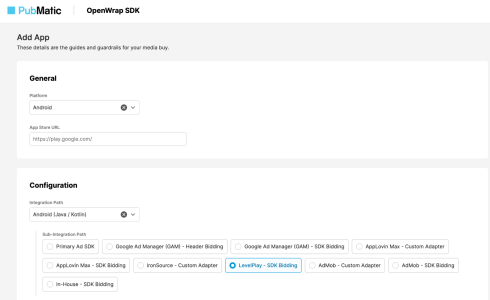
The Add App form in the PubMatic dashboard.
  1. In the General section:
    • Select your target platform (iOS or Android).
    • Enter a valid App Store or Google Play URL.
    • Review or edit the auto-generated app name.
  2. In the Configuration section:
    • Select your Integration Path.
    • Set Sub-Integration Path to LevelPlay – SDK Bidding.
  3. In the Advanced section:
    • Ensure the currency is set to USD.
  4. Select Add App.
The app configuration settings in the PubMatic dashboard.

Create ad units

After adding your app, create individual ad units that LevelPlay will request during bidding.
  1. Select Set Up > Ad Units.
  2. Select your app to view its ad units.
  3. Select Create Ad Unit.
The Create Ad Unit button in the PubMatic dashboard.
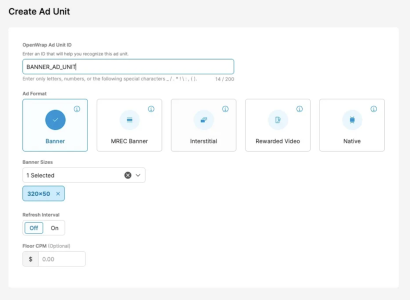
  1. Enter an ad unit ID.
  2. Select an ad format and complete any required fields.
  3. Select Save or Save & Create Another.
The ad unit creation form in the PubMatic dashboard.
PubMatic generates an ad unit ID, which appears in the Ad Units section.

Manage bidder partners

Review which bidder partners have access to your ad units.
  1. Select Set Up > Bidder Partners.
  2. Select your app.
  3. Enable or disable ad units for each bidder partner using the toggles.

Activate PubMatic in your LevelPlay setup

After configuring your app and ad units in PubMatic, activate the PubMatic network inside LevelPlay to connect your PubMatic credentials to your placements.
  1. In LevelPlay, open Monetize > Setup > SDK Networks.
  2. Select PubMatic from the list of available networks.
  3. Enter the required parameters, select Activate, then Save.
  4. Select PubMatic again from your configured networks and select Setup.
  5. Enter the following values from your PubMatic dashboard:
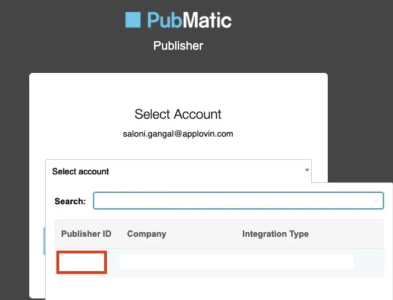
    • Publisher ID: found in your PubMatic publisher account
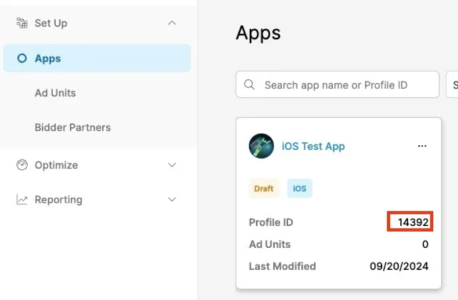
    • Profile ID: found on the Apps page
    • Ad Unit ID: found in the Ad Units section
The Publisher ID location in the PubMatic dashboard.
The Profile ID location in the PubMatic dashboard.
  1. Set the status to Active and select Save.
PubMatic now appears as active for mediation on your Setup dashboard.

Add the PubMatic Adapter to Your Build

LevelPlay Unity Network Manager (Recommended)

After you’ve completed SDK integration, you can download PubMatic Adapter, using the LevelPlay Network Manager. In your Unity Development platform, go to Ads Mediation > Network Manager. To comply with GDPR and other privacy frameworks, ensure your app provides the correct consent information to the PubMatic SDK.
  • PubMatic SDK retrieves GDPR values using the IAB TCF 2.0 standard through shared preferences or user defaults, ideally via a CMP SDK.
  • PubMatic also supports the IAB GPP standard for retrieving GPP consent signals.
  • Refer to the PubMatic SDK Advanced Topics for information on passing consent values.