文档

LevelPlay SDK - React Native

Ogury integration

Integrate Ogury as a mediation network in your React Native app using the LevelPlay SDK.
阅读时间3 分钟最后更新于 2 天前

This guide will instruct you step-by-step on how to set Ogury live as an ad network on LevelPlay.

Prerequisites

Make sure you have correctly integrated LevelPlay's Rewarded, Interstitial, or Banner ads into your application.

Create an Ogury Account

Before activating Ogury ad inventory through LevelPlay Mediation, you need to have an approved monetization account with Ogury. If you do not have an account, sign up at the Ogury site or contact app-all@ogury.co

Create Your Assets and Ad Units in Ogury Dashboard

If you already have ad units created in your Ogury monetization dashboard, skip to Step 3 to activate Ogury in your LevelPlay ad units.

Add Your App

You can either register your asset directly in Ogury Monetization dashboard or reach out to your publisher manager to create it for you.
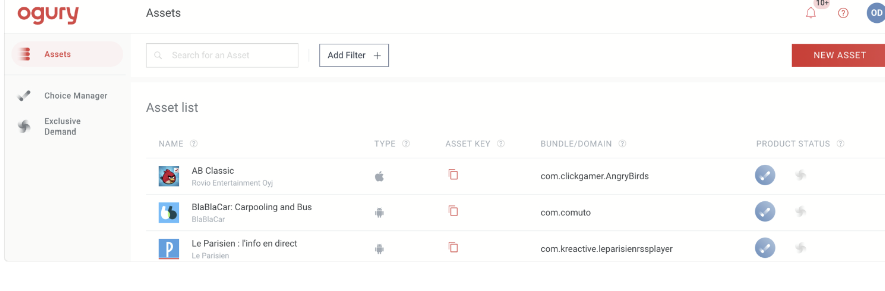
  1. To create it on your own, select first on NEW ASSET on the top right corner of your screen, Select Android or iOS App
The New Asset button in the Ogury dashboard.
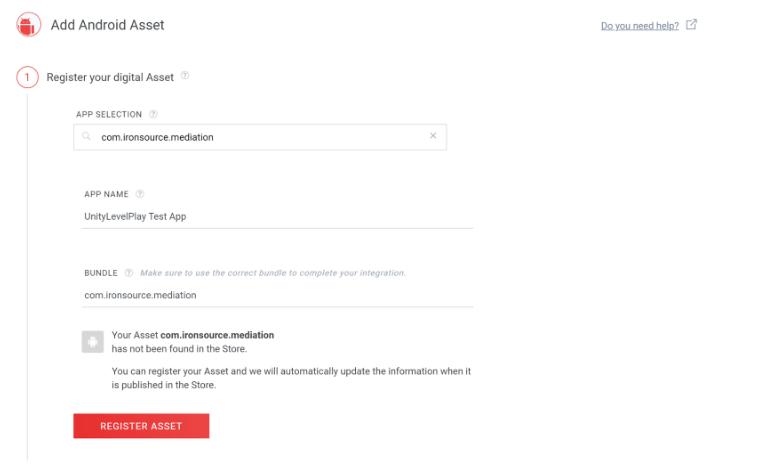
  1. Search for or type your application name in the APP SELECTION field, and type the package name and bundle name for your application in the APP NAME and BUNDLE fields.
The app selection and registration form in the Ogury dashboard.
  1. Select REGISTER ASSET.
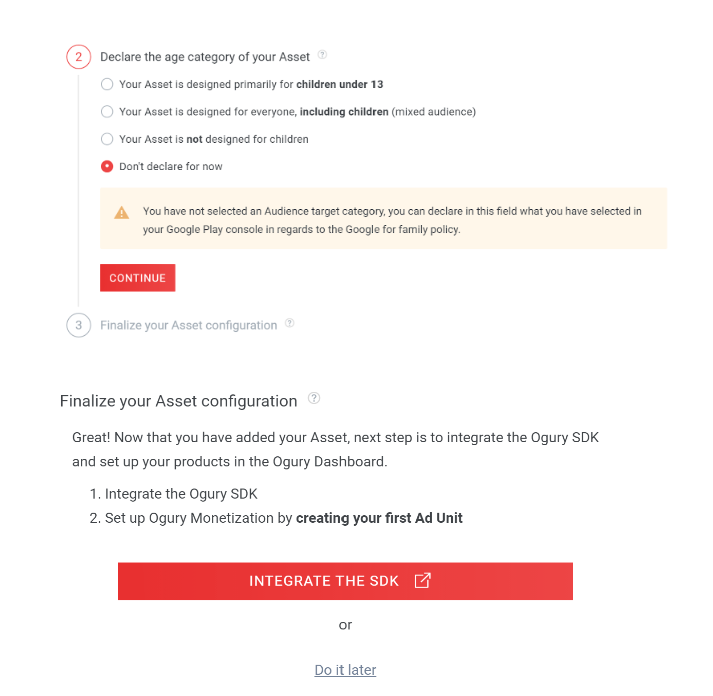
  2. For Android apps, you can declare the age category of your asset (this can be done later), select CONTINUE
The age category declaration options in the Ogury dashboard.
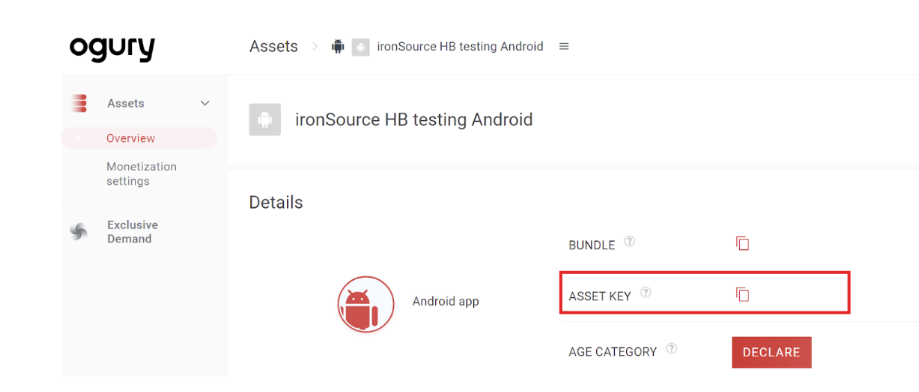
  1. You can retrieve the Asset Key from the Assets > Overview section of your Ogury Monetization dashboard. This information will be needed to enable Ogury network later in LevelPlay platform.
The asset overview page showing the Asset Key in the Ogury dashboard.

Create Your Ad Units

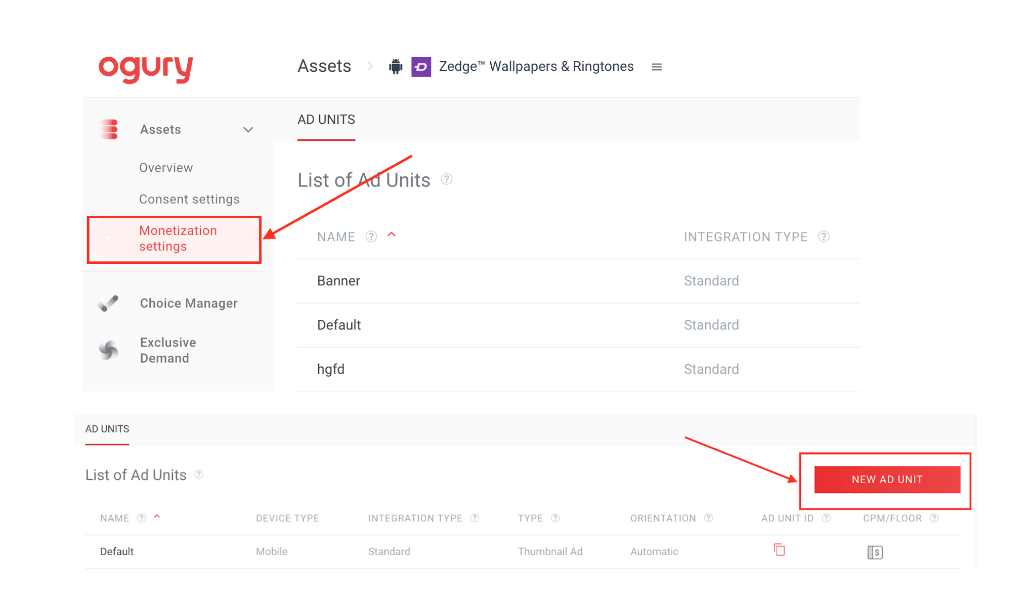
  1. Go on Ogury's publishers platform and select the asset you are setting up
  2. Select Monetization Settings on the menu on the left side of your screen
The monetization settings in the Ogury dashboard.
  1. Select NEW AD UNIT at the Top right of the screen
The New Ad Unit button in the Ogury dashboard.
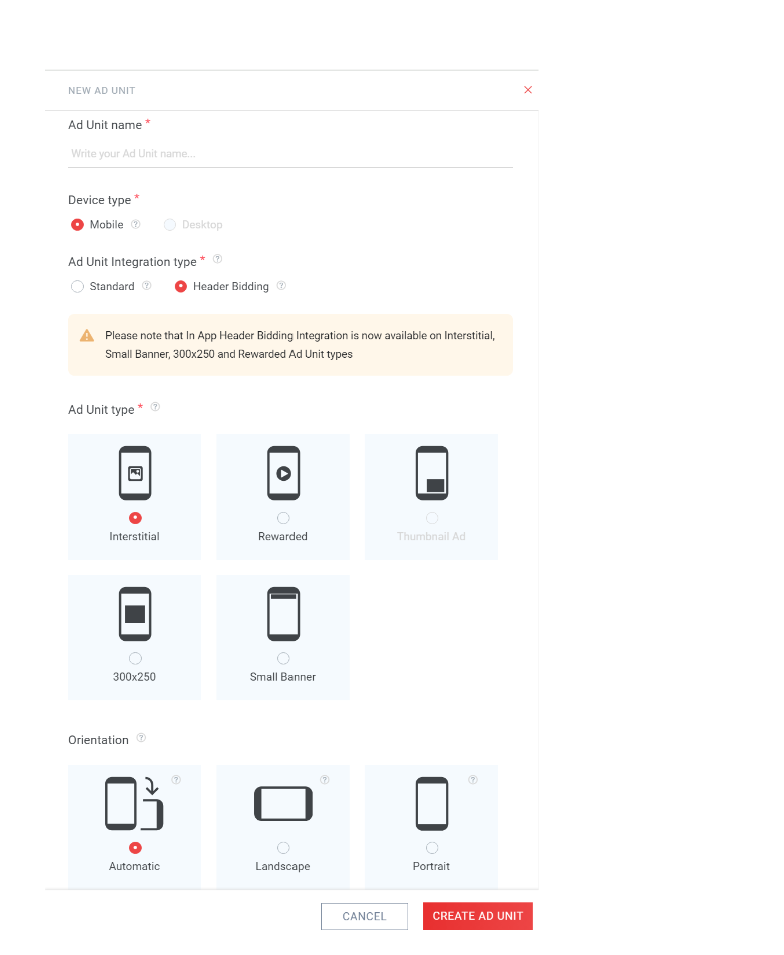
  1. A pop-up panel appears on the right side of your screen where you can enter the required information:
    • Ad unit name
    • Integration type
    • Ad unit type (type of format)
    • Fixed (Landscape/Portrait) or Flexible orientable
The ad unit configuration form in the Ogury dashboard.
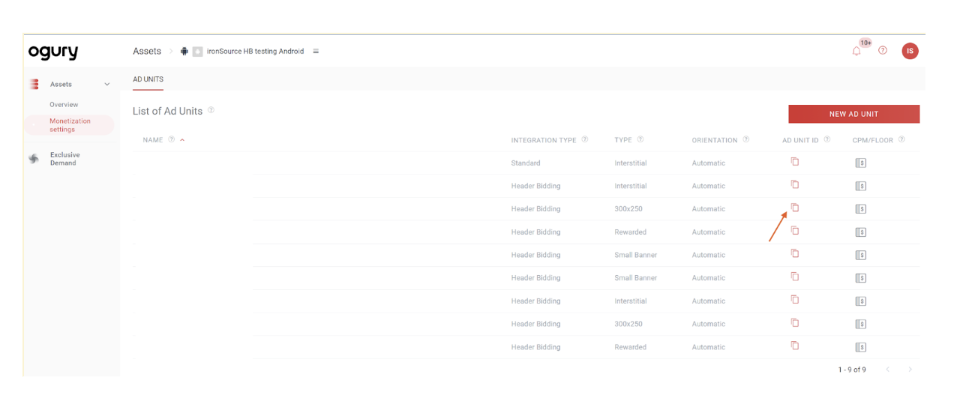
  1. When the ad units are created, you can view a summary of those ad units from your Ogury Monetization dashboard.
  2. You can retrieve an ad unit ID from the Assets > Monetization settings section of your Ogury Monetization dashboard. To do so, select the copy icon in the AD UNIT ID column associated with the ad unit whose ID you want to retrieve. This information will be needed to enable the Ogury network later in the LevelPlay platform.

Create Your Reporting API Token

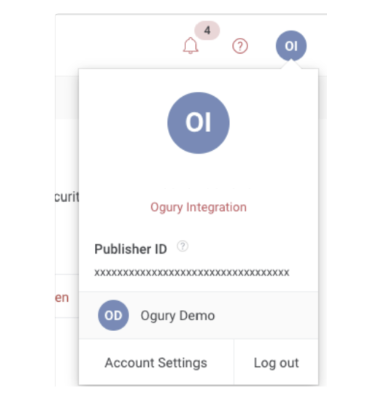
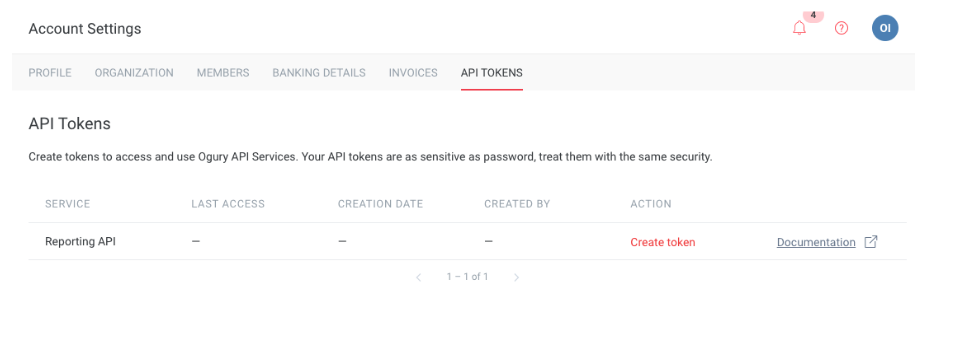
  1. Go to your Ogury Publisher Dashboard. Select your name in the top right corner and open the Account Settings
The Account Settings page for API tokens in the Ogury dashboard.
  1. Go to API Tokens
The API Tokens page in the Ogury Account Settings.
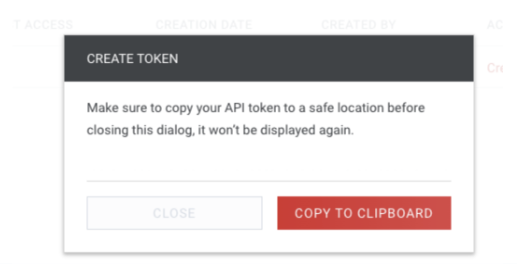
  1. Lookup for the Reporting API in the table and select Create Token.
  2. Copy and paste the token in the LevelPlay Platform to enable Ogury Network later.
The Create Token option on the Ogury API Tokens page.
Keep your token safely! If you lose your token, you'll need to revoke it and create it again. The old token will stop working immediately.

Activate Ogury on the LevelPlay Platform

  1. Log into your LevelPlay account and go to the LevelPlay side nav bar > Setup > Networks
  2. Select Manage Networks and select Ogury from the list of available ad networks. Enter the Reporting API token
  3. Next, select the app on which you'd like to run LevelPlay's Mediation with Ogury bidding.
  4. Select Ogury from the setup list of Ad Networks and select Setup.
  5. Insert the relevant information for Interstitial, Rewarded, Banner, and Native settings. Then select Save.
The network will be active for your app.

Add the Ogury Adapter to Your Build

Continue your integration using native adapters for Android and iOS. You are now all set to deliver Ogury within your application!