CSJ 集成
使用 LevelPlay SDK 将 CSJ 作为聚合网络集成到 React 本地 app程序中。
阅读时间3 分钟最后更新于 1 个月前
先决条件
CSJ 向中国用户提供广告服务(仅限 iOS,非竞价)。
创建 CSJ 帐户
要通过 LevelPlay 访问 CSJ 的广告库存,必须在 CSJ 中创建帐户。您可以在此处执行此操作。
在 CSJ 中创建应用程序
接下来,在 CSJ 帐户中添加 app。
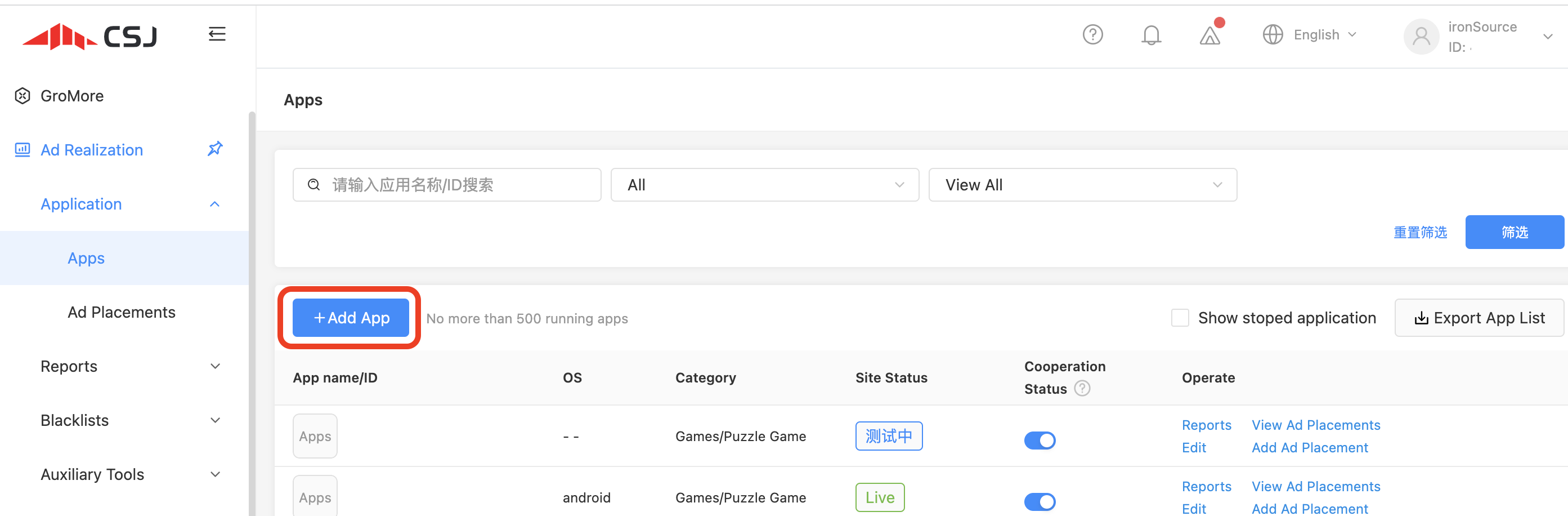
- 日志您的 CSJ 帐户。在控制面板上,悬停 Applications,然后选择 Add
- 添加 app 或选择要变现的现有 app。
在 LevelPlay 网络设置模块中激活 CSJ
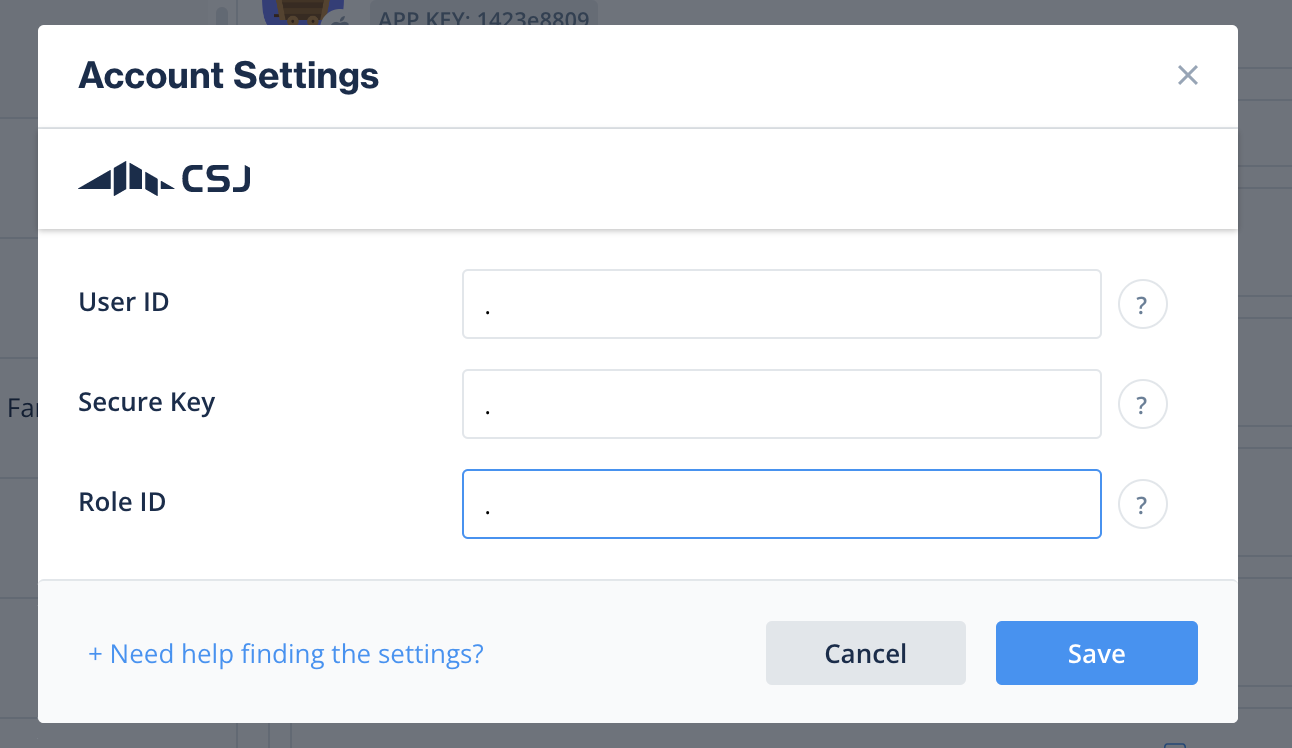
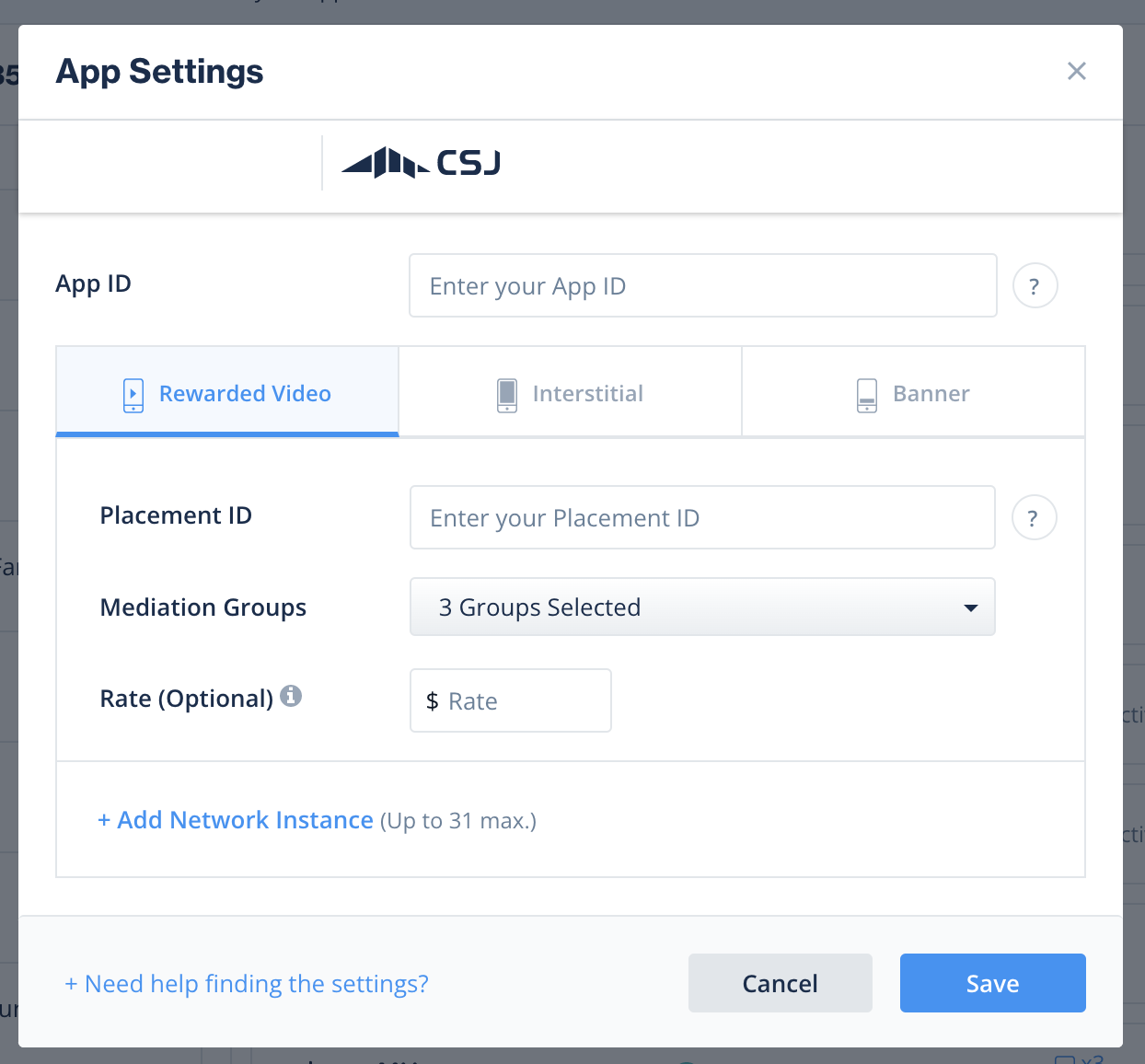
在 LevelPlay SDK Networks 设置页面上设置 CSJ 时,请登录 CSJ 帐户,并插入运行 CSJ Interstitials 和奖励视频所需的所有参数。
CSJ 帐户中的参数需要输入 LevelPlay 网络设置模块,以便 CSJ 能够与 LevelPlay 连接:
参数 | 描述 |
|---|---|
| 用户 ID | 在 CSJ 后台上分配给用户的唯一 ID。 |
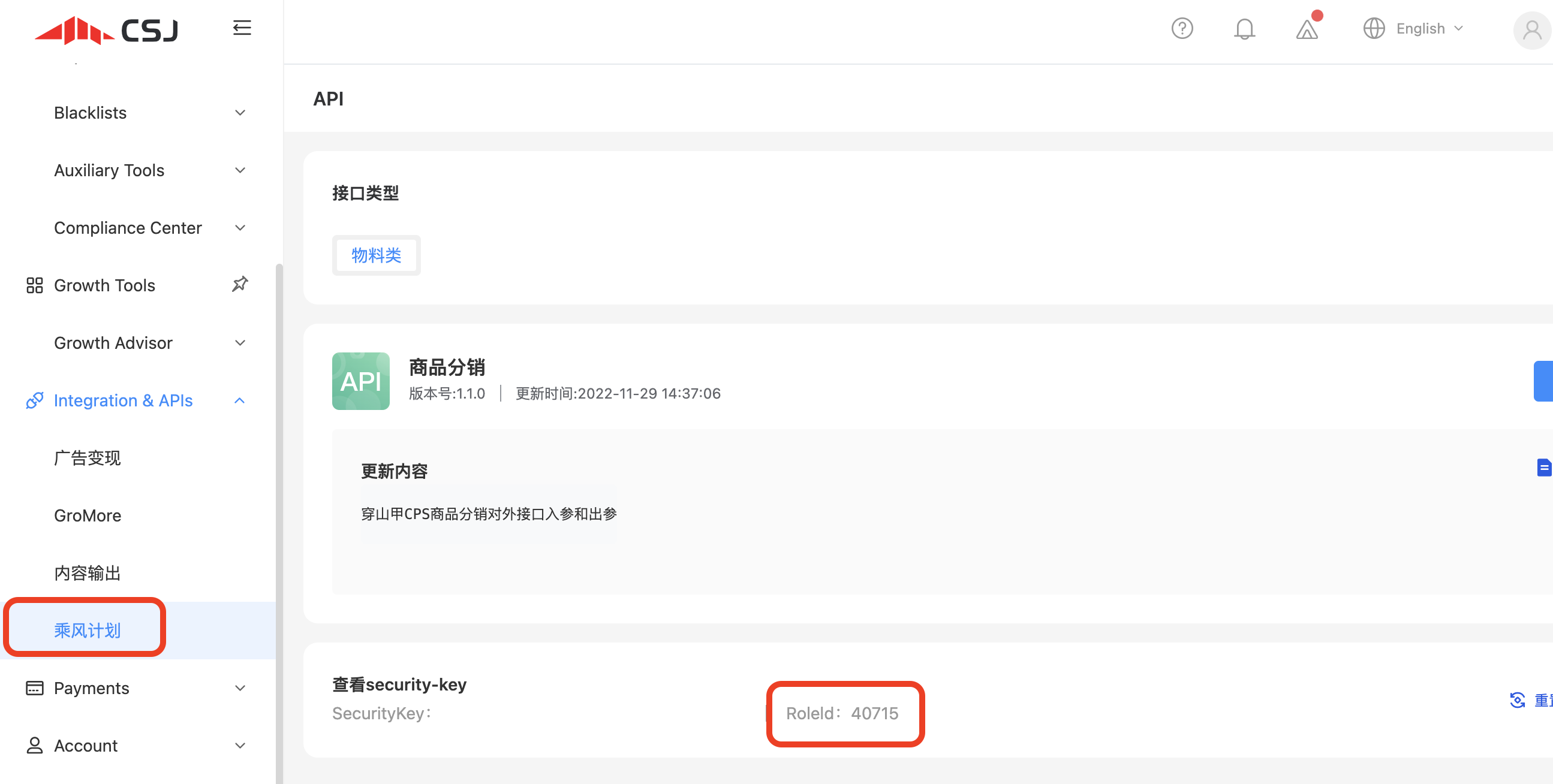
| API 密钥 | CSJ 为报告 API 目的生成的密钥(在 CSJ 平台中称为安全密钥) |
| Application ID | 在 CSJ 后台上分配给 app 的唯一 ID。 |
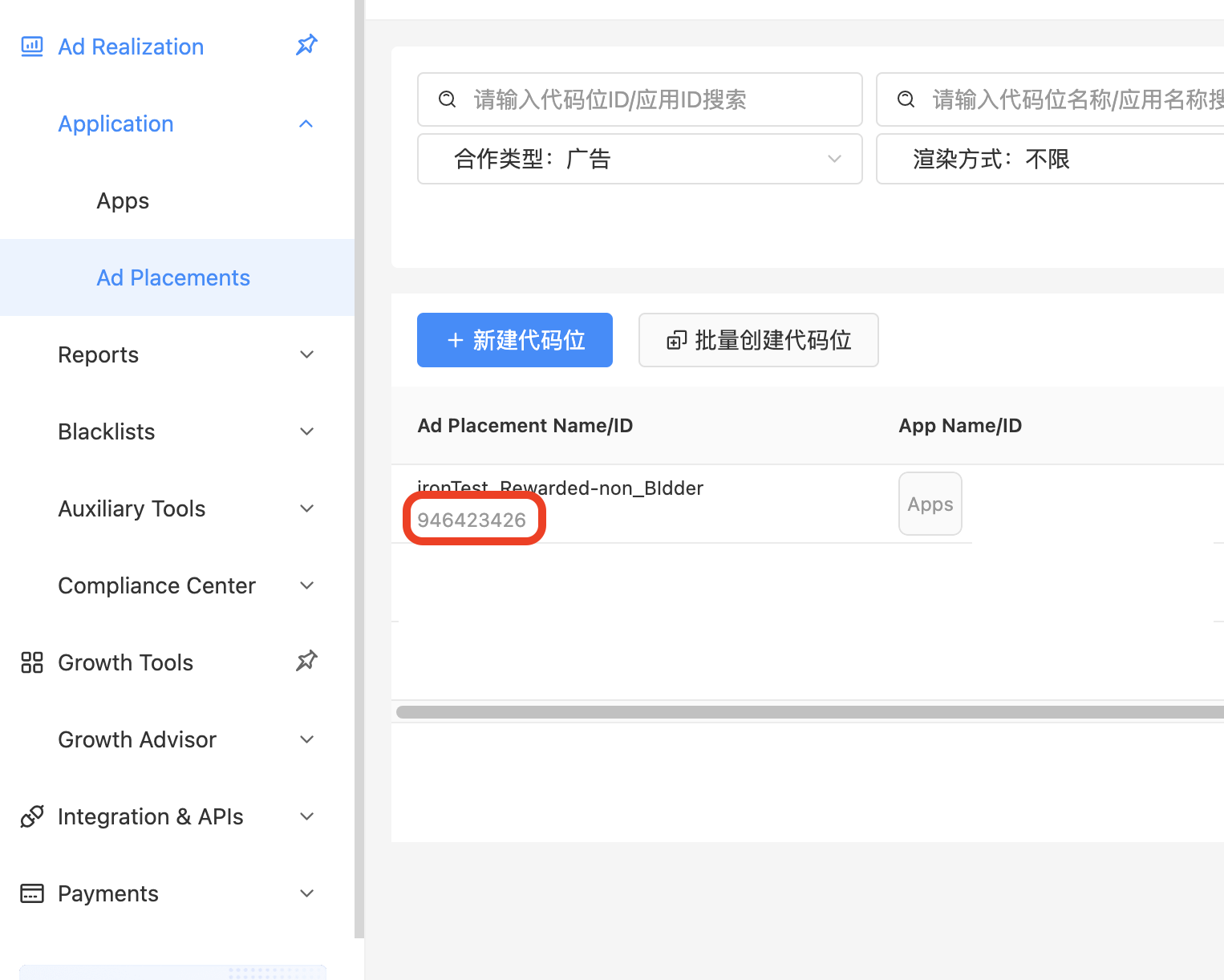
| Placement ID | 分配给在 CSJ 后台上创建的广告的唯一 ID。 |
获取此信息后,请在 LevelPlay 帐户中配置 CSJ 的参数。通过正确添加上述信息,您将能够充分利用 LevelPlay 平台上的 CSJ 广告库存和报告数据。
用户 ID
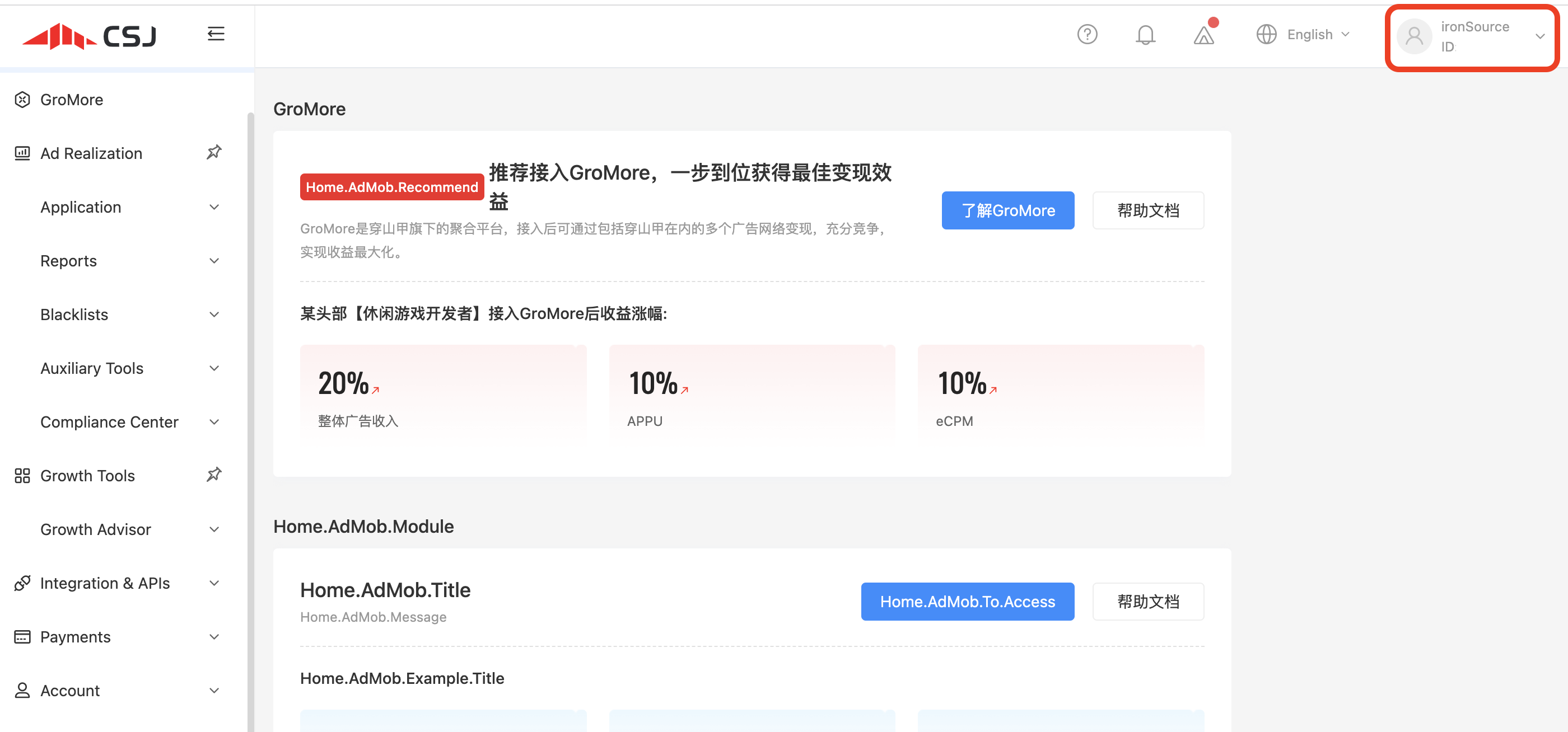
登录 CSJ 帐户后,您可以在控制面板的右上角找到您的用户 ID。
API 密钥
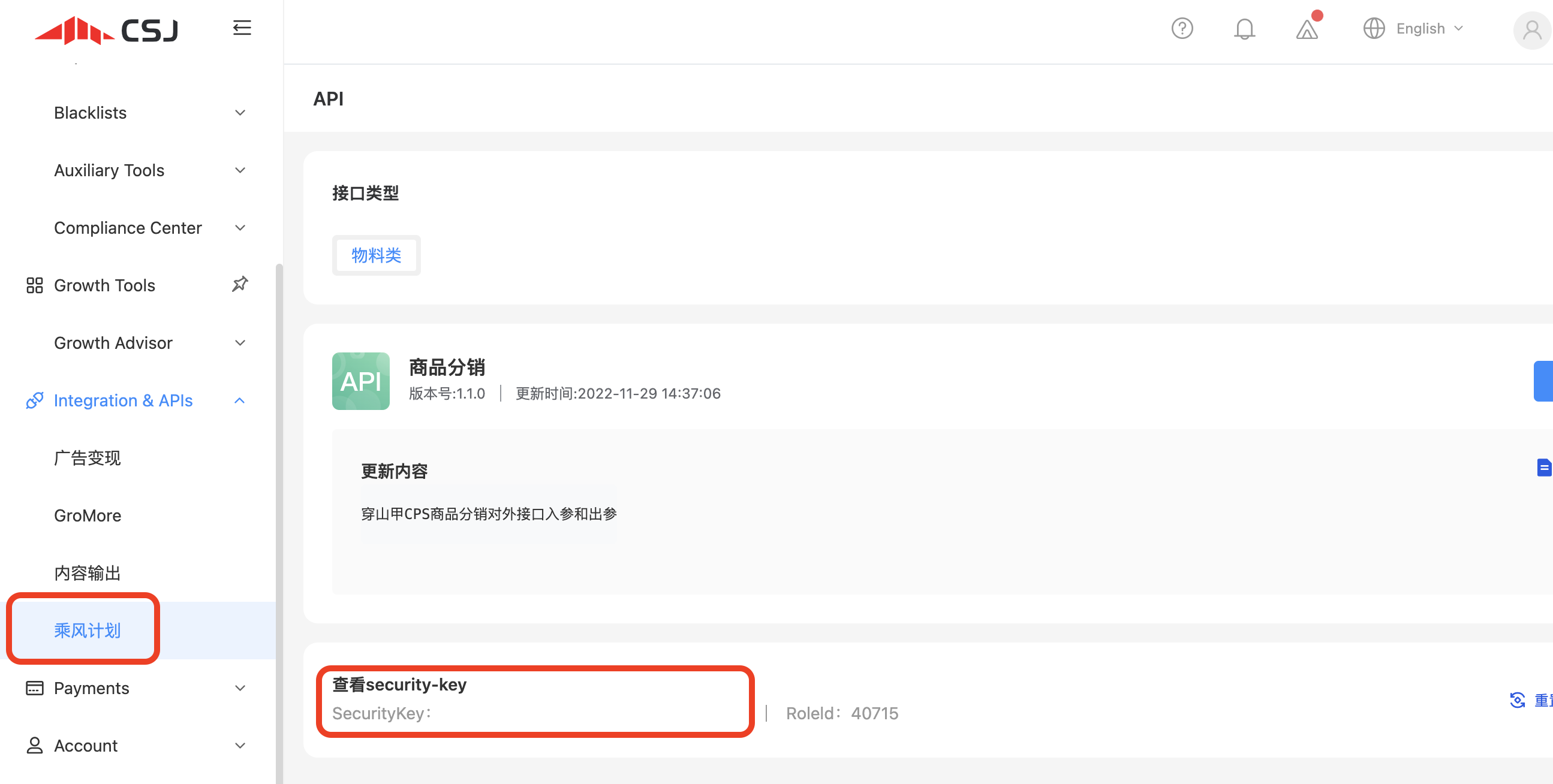
在 CSJ 帐户后台的帐户设置下找到。
Application ID
在 CSJ 后台中创建应用程序后(如步骤 2 中所述),将在 Apps 下找到您的 Application ID(悬停 Applications 并选择 Apps)。
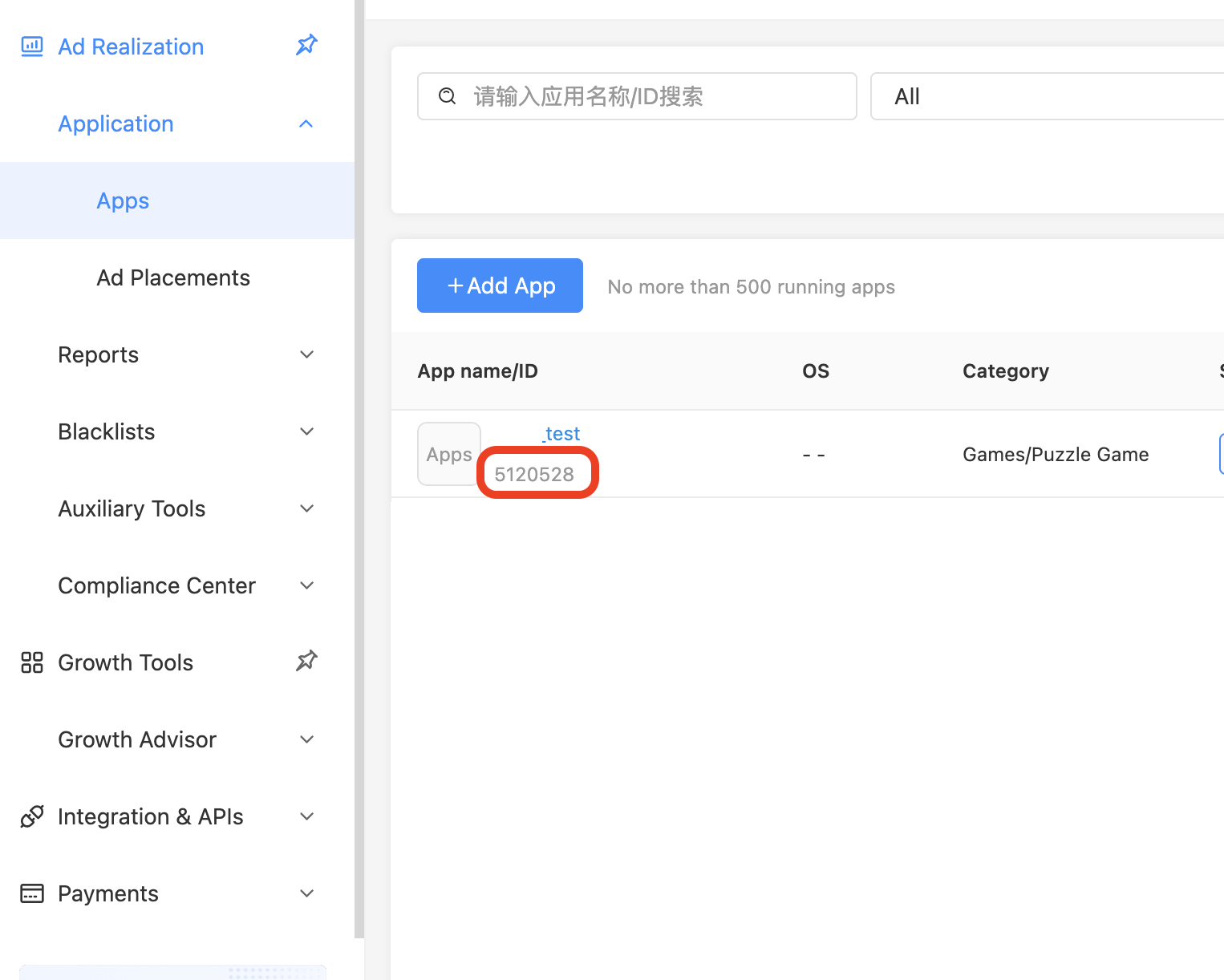
Placement ID
在 CSJ 后台中创建应用程序后,需要包含广告服务。将鼠标悬停在 Application 上,然后选择 Ad placements。手动添加放置/位置或选择现有放置/位置以获取其放置/位置 ID。
将 CSJ 适配器添加到构建中
使用 iOS 的原生适配器继续集成。
验证广告网络集成
LevelPlay SDK 提供了一种简单的方法来验证聚合集成是否已成功完成。要验证 LevelPlay 和其他广告网络的集成情况,请遵循本文档。
现在,您已全部设置为在应用程序中提供 CSJ!