Documentation

​
​

Development

User Acquisition

Monetization

Industry

LevelPlay SDK - React Native

Unity SDK

Android SDK

iOS SDK

Adobe AIR SDK

Flutter SDK

React Native SDK

LevelPlay SDK - React Native

Unity LevelPlay
​
​
React Native SDK
  • Get started
  • Regulations and settings
  • Ad formats
  • Mediated networks
    • Mediation networks for React Native
    • Mediation network guides
      • AppLovin
      • APS
      • BidMachine
      • BIGO Ads
      • Chartboost
      • CSJ
      • DT Exchange
      • Google Ad Manager
      • Google AdMob
      • Google Bidding
      • HyprMX
      • InMobi
      • Liftoff Monetize
      • LY Ads Network
      • Meta Audience Network
      • Mintegral
      • MobileFuse
      • Moloco
      • Ogury
      • Pangle
      • PubMatic
      • Smaato
      • SuperAwesome
      • Tencent
      • Unity Ads
      • Verve
      • VK Ad Network
      • Yandex Ads
    • Add SKAdNetwork IDs manually
  • Test your integration
  1. Grow your game
  2. Unity LevelPlay
  3. LevelPlay SDK
  4. LevelPlay SDK for React Native developers

VK Ad Network integration

Integrate VK Ad Network as a mediation network in your React Native app using the LevelPlay SDK.
Read time 2 minutes
Last updated 2 months ago

This guide will instruct you step-by-step on how to set VK Ad Network live as an ad network on LevelPlay.
Important
In the new VK Ad Network the Account Placement ID = Slot ID parameter

Prerequisites

The required Gradle Build Tool is 3.5.4+

Create a VK Ad Network Account

  1. To create an account in VK Ad Network, go here.
  2. When your account has been verified, login to your partner account here.

Create an Application in VK Ad Network

Follow these steps to create your VK Ad Network application:
  1. In your VK Ad Network account go to Apps > Add app
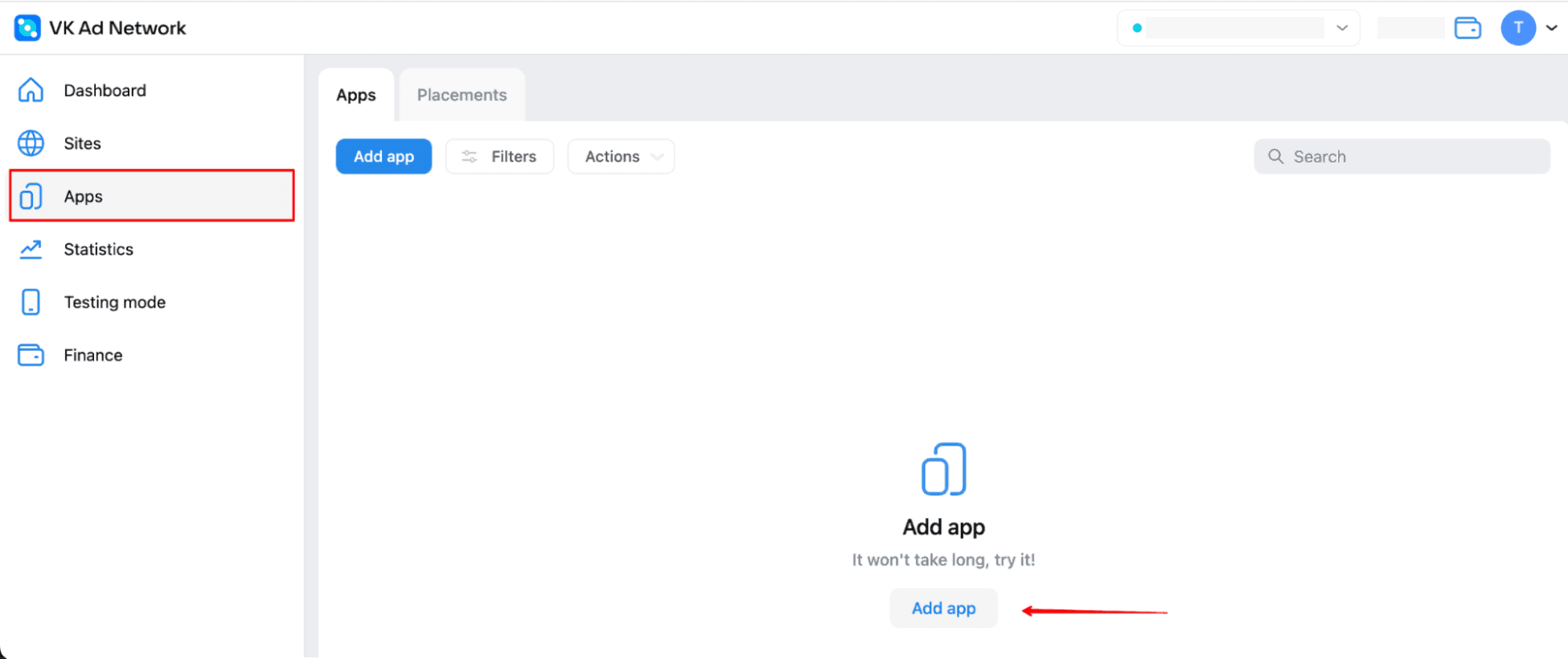
The Add app page in the VK Ad Network dashboard.
  1. When you set a new app, you'll be able to retrieve your Placement ID to set in LevelPlay.
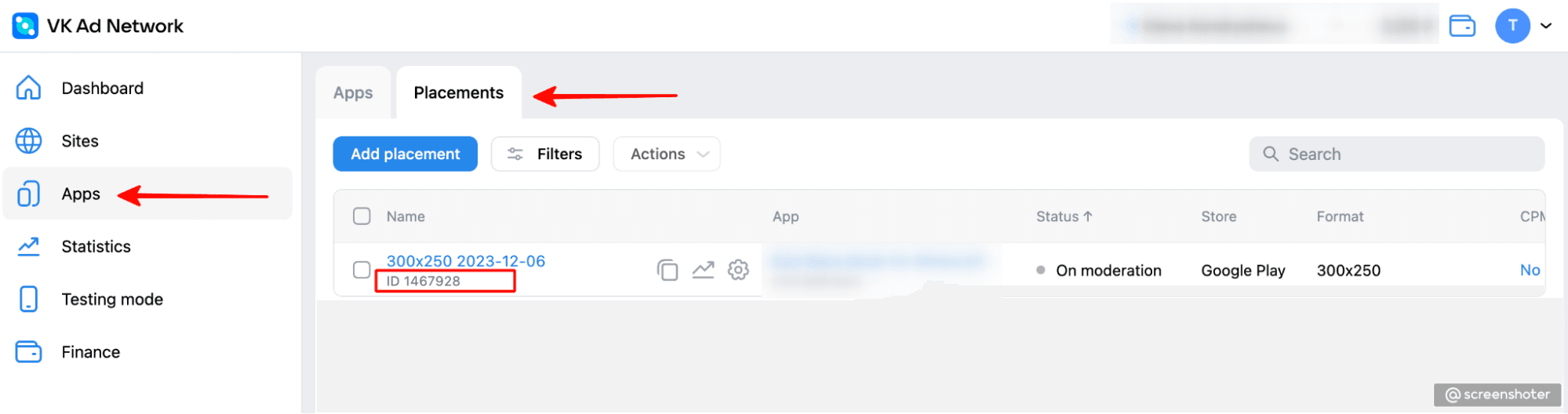
The Placement ID location in the VK Ad Network dashboard.

Retrieve Your VK Ad Network Access Key

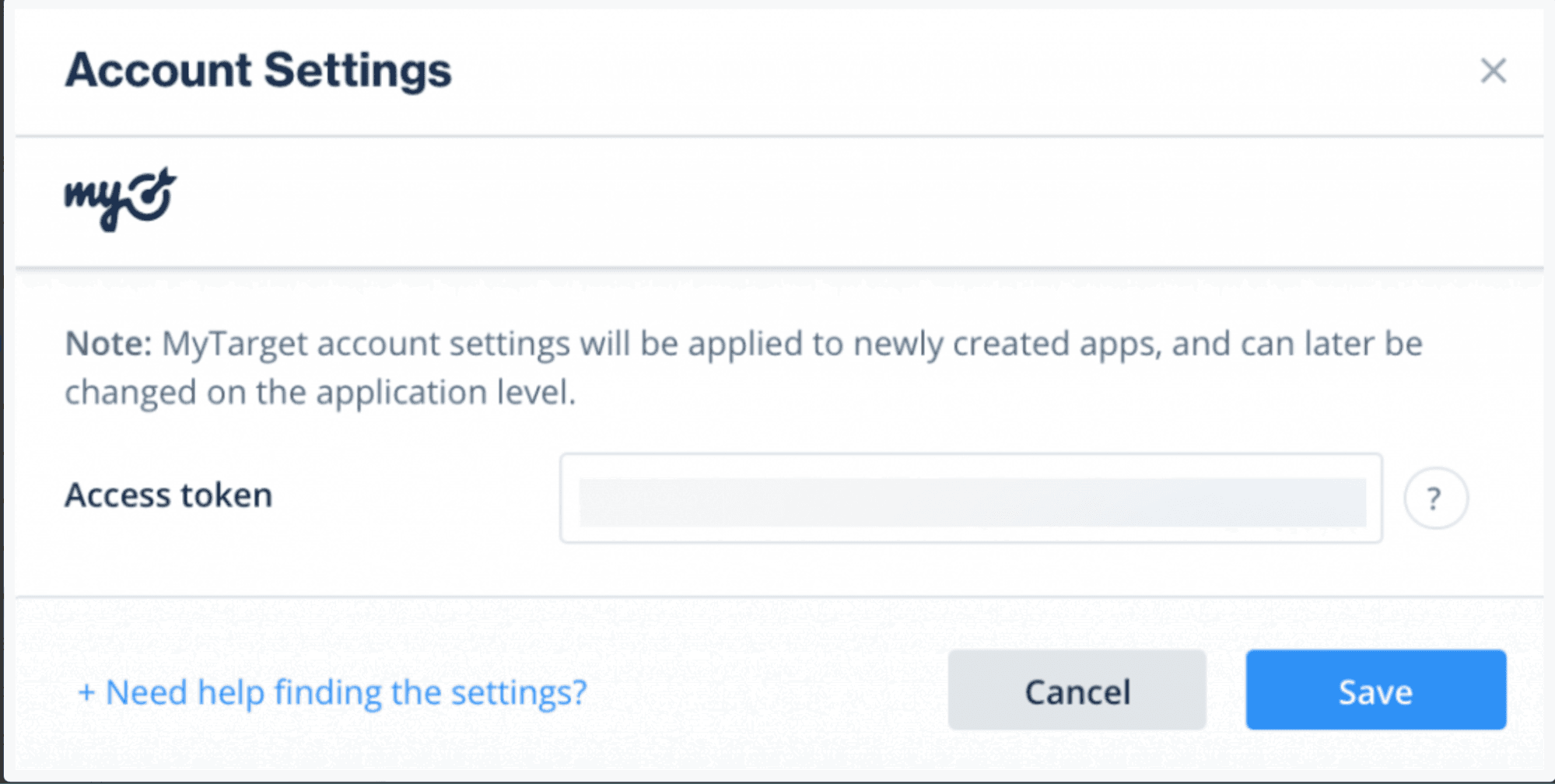
  1. In your VK Ad Network account go to Settings > General (scroll down)
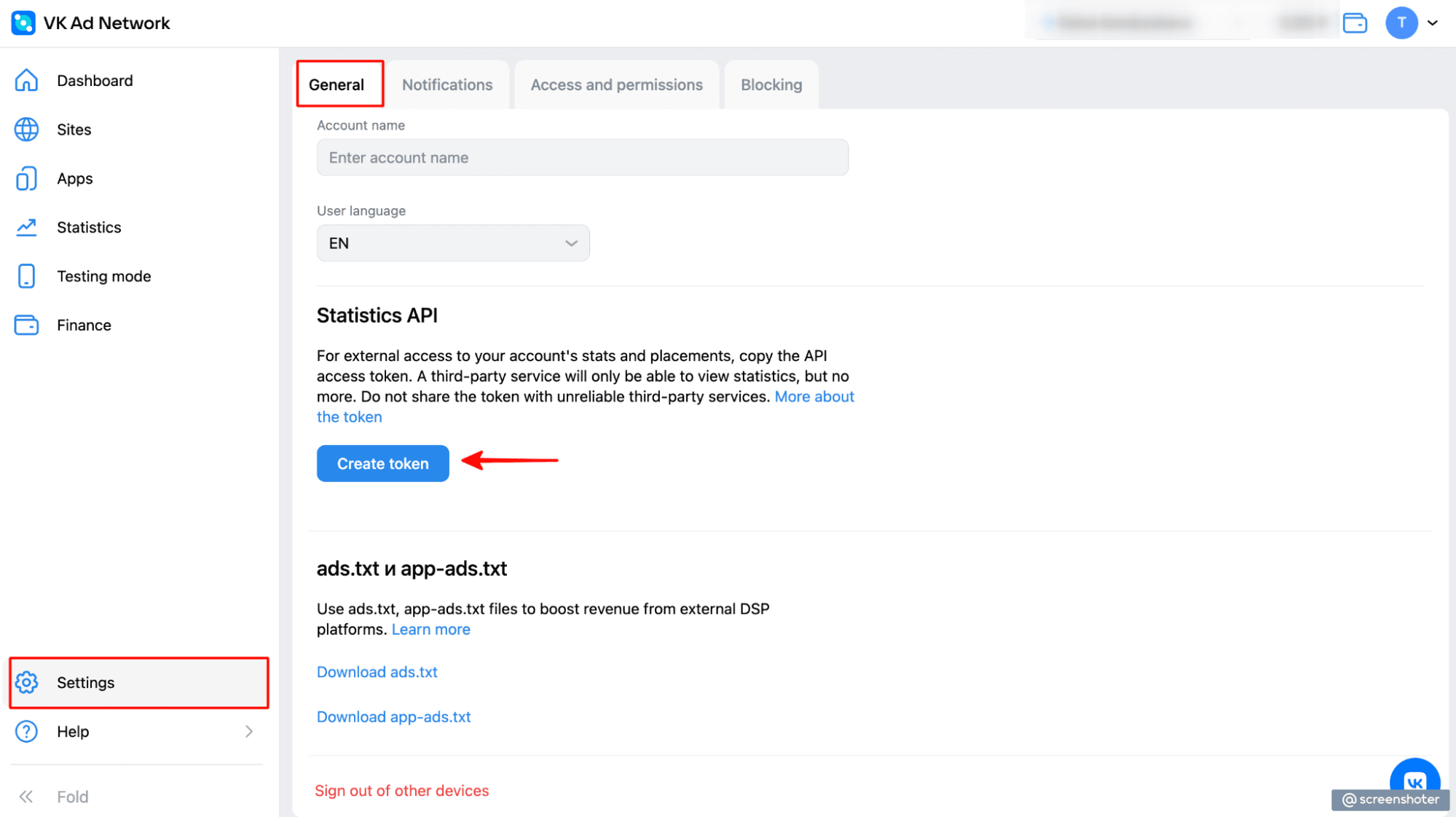
The General Settings page in the VK Ad Network dashboard.

Activate VK Ad Network in Your Mediation Setup Module

Inside LevelPlay platform, access the SDK Networks setup to configure VK Ad Network parameters into your LevelPlay account.
  1. In your LevelPlay account go to Monetize > Setup > SDK Networks
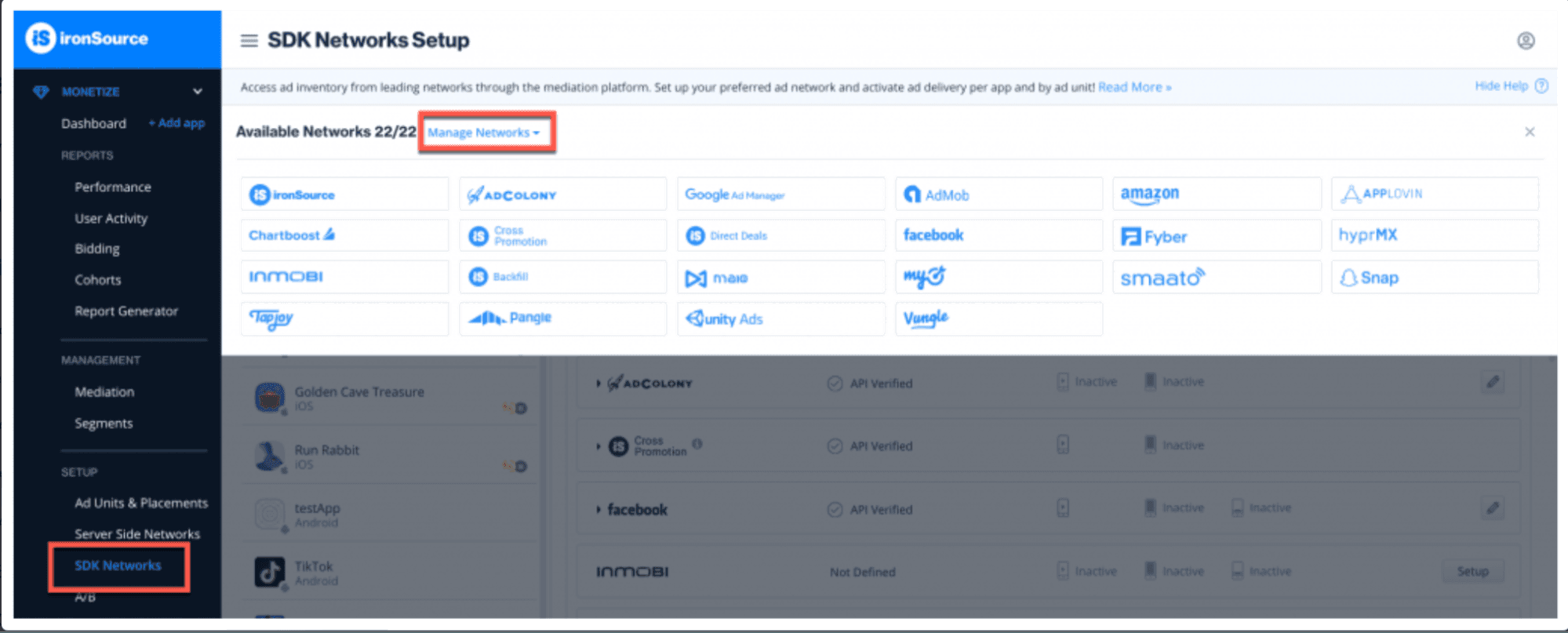
The LevelPlay SDK Networks page with VK Ad Network.
  1. Select VK Ad Network from the table of Available Networks, add the parameters, and select Activate. Then select Save.
The myTarget network selection in the LevelPlay SDK Networks page.
  1. Select VK Ad Network from the list of ad networks and select Setup.
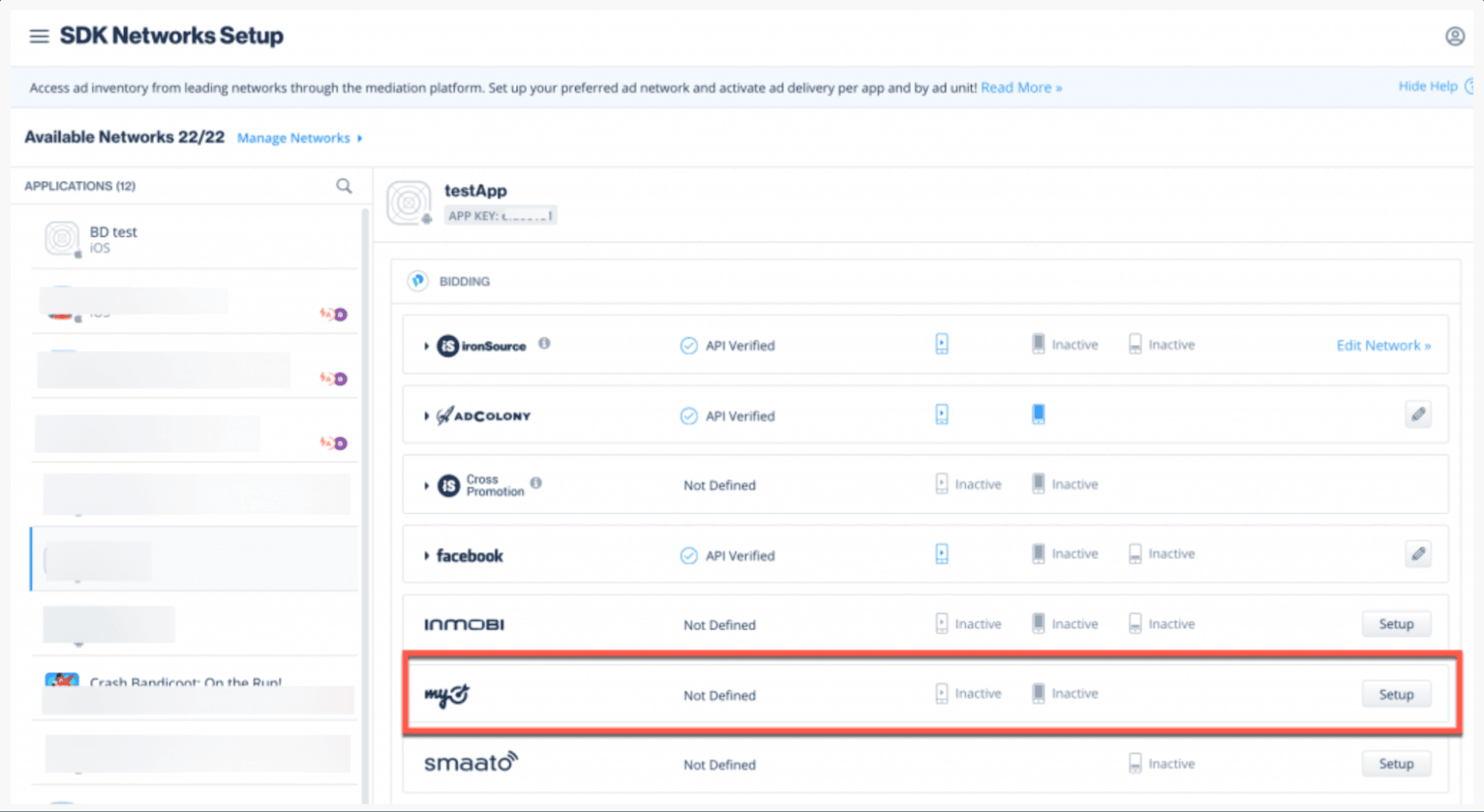
The myTarget network setup form in LevelPlay.
  1. Enter your VK Ad Network app's Generated token, then add for each ad unit the ID from Step 1 (point 2) twice. Set the status to Active and select Save. You'll see VK Ad Network listed as Active for Mediation on your Setup dashboard.

Integrate the LevelPlay Mediation Network Adapters

You are now all set to deliver VK Ad Network ads within your application!

Next steps

To leverage additional ad networks through LevelPlay Mediation, integrate the adapters and follow our integration guides.

Copyright © 2026 Unity Technologies
LegalPrivacy PolicyCookiesDocumentation Terms of UseDo Not Sell or Share My Personal InformationYour Privacy Choices (Cookie Settings)

"Unity", Unity logos, and other Unity trademarks are trademarks or registered trademarks of Unity Technologies or its affiliates in the U.S and elsewhere (more info here). Other names or brands are trademarks of their respective owners.

Some pages are machine-translated for convenience, and may contain inaccuracies. In the event of conflicting information, the English version is authoritative.

  • On this page
    • Prerequisites

    • Create a VK Ad Network Account

    • Create an Application in VK Ad Network

    • Retrieve Your VK Ad Network Access Key

    • Activate VK Ad Network in Your Mediation Setup Module

    • Integrate the LevelPlay Mediation Network Adapters

    • Next steps


Report a problem with this page