AppLovin integration
Set up AppLovin as an ad network in your React Native app through the LevelPlay mediation platform, including account creation and SDK integration.
Read time 1 minuteLast updated 7 months ago
This guide will instruct you step-by-step on how to set AppLovin live as an Ad Network on Unity LevelPlay.
Prerequisites
Ensure that you correctly integrate Rewarded ads, Interstitial ads, or Banner ads into your application. Refer to the following platform-specific guides for integration instructions:
Step 1. Create an AppLovin Account
- Create an account with AppLovin. You can do so here.
- After your account has been verified you can login at their partner login here.
Step 2. Retrieve Your AppLovin SDK and Report Keys
There are two pieces of data from the AppLovin account which need to be inserted into your LevelPlay Network Setup Module in order for AppLovin to work correctly in connection with LevelPlay:
- Report Key: This is a unique identifier for your AppLovin account, which allows Unity LevelPlay to import performance data from your AppLovin account to use in reporting & optimization.
- SDK Key: This is a unique identifier for your AppLovin account. This is used by the LevelPlay Mediation SDK to Init the AppLovin adapter for your apps.
After you obtain this information, you must configure the AppLovin parameters in your LevelPlay Account. By adding the above information correctly, you will be able to take full advantage of AppLovin's ad inventory and reporting data on LevelPlay's Mediation platform.
-
Report Key
To find the Report Key, go to the Account tab and select Keys from the left side menu.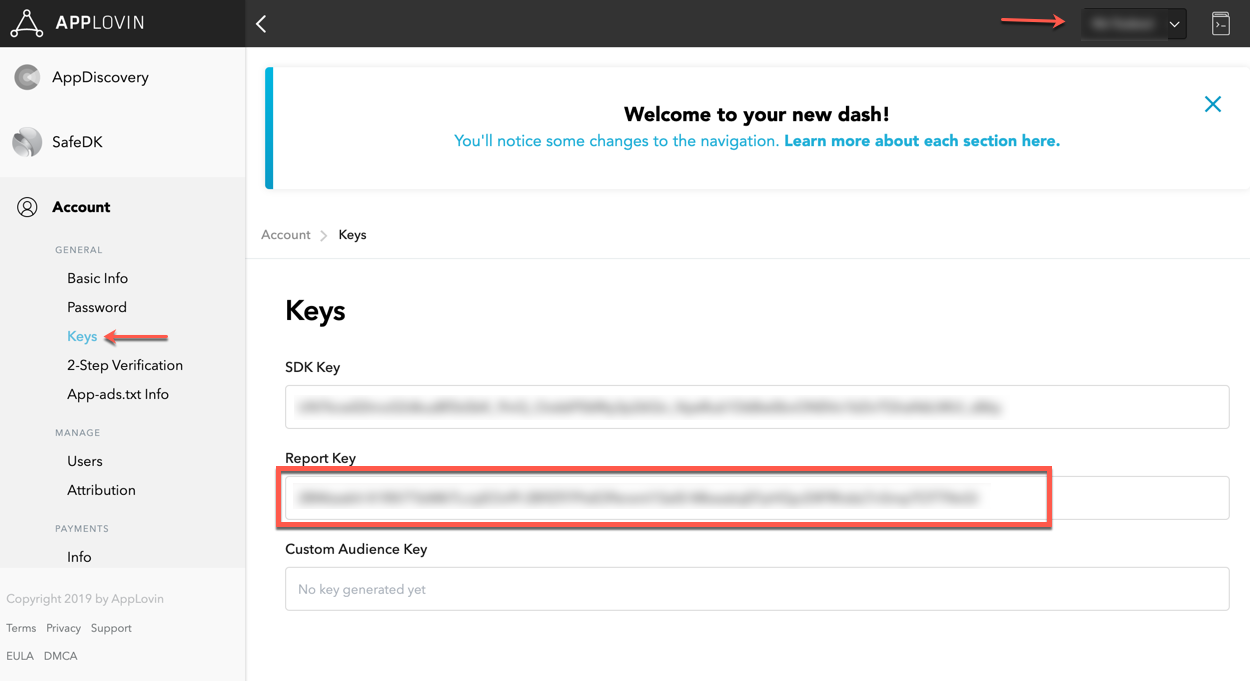
-
SDK Key
To find the SDK Key, go to the Account tab and select Keys from the left side menu.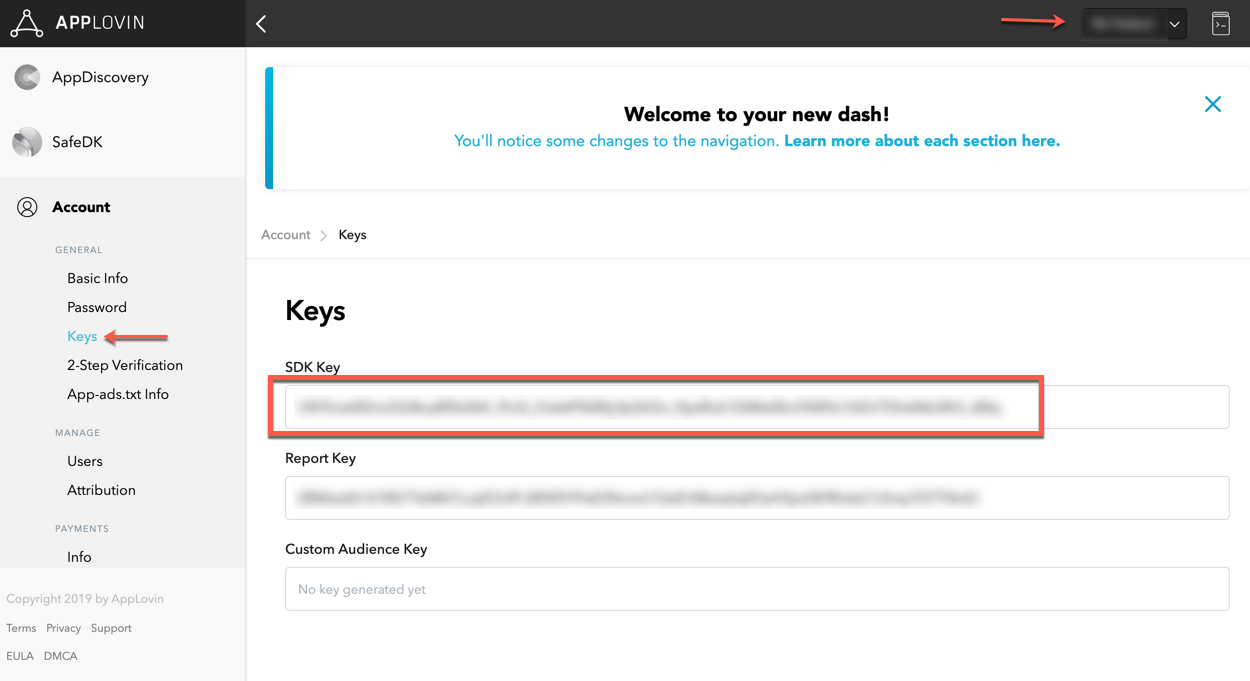
Step 3. Activate AppLovin on LevelPlay
-
Log into your LevelPlay account and go to the LevelPlay side nav bar > Setup > Networks.
-
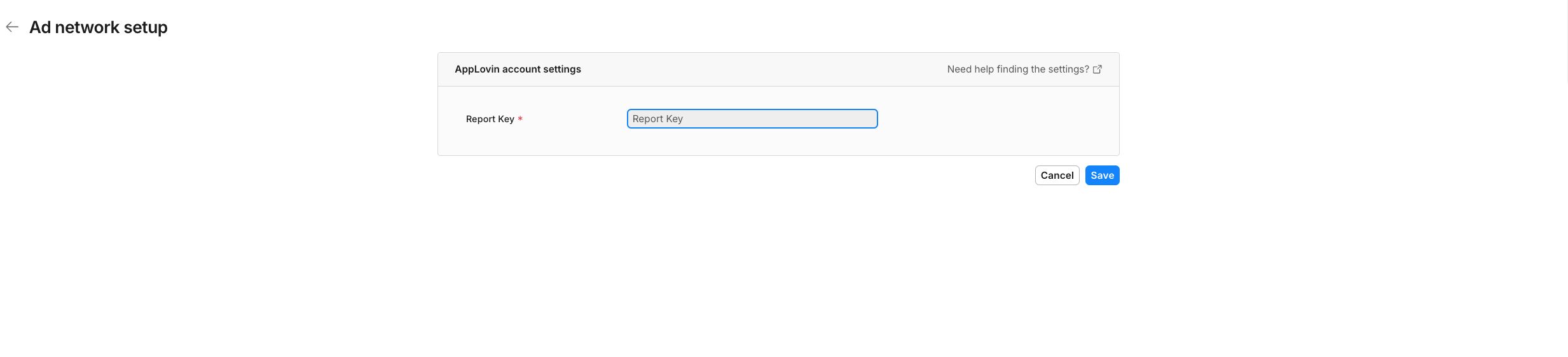
Select AppLovin from the list of available ad networks on the Manage Networks page. Then enter the Report Key on the Ad network setup page and select Save.
-
Next, go to the Instances page from the left side nav bar. At the top of the Instances page, select the app on which you'd like to run Unity LevelPlay's Mediation with AppLovin.
-
Select Applovin from the setup list of ad networks.

-
On the App settings page, insert the SDK key you retrieved in Step 2. Then, create an instance for each ad format (Interstitial, Rewarded ads, and Banner) you want to monetize with through Applovin. Select your preferred ad format and select Add instance at the bottom of the page. Enter the required info and then then select Save.
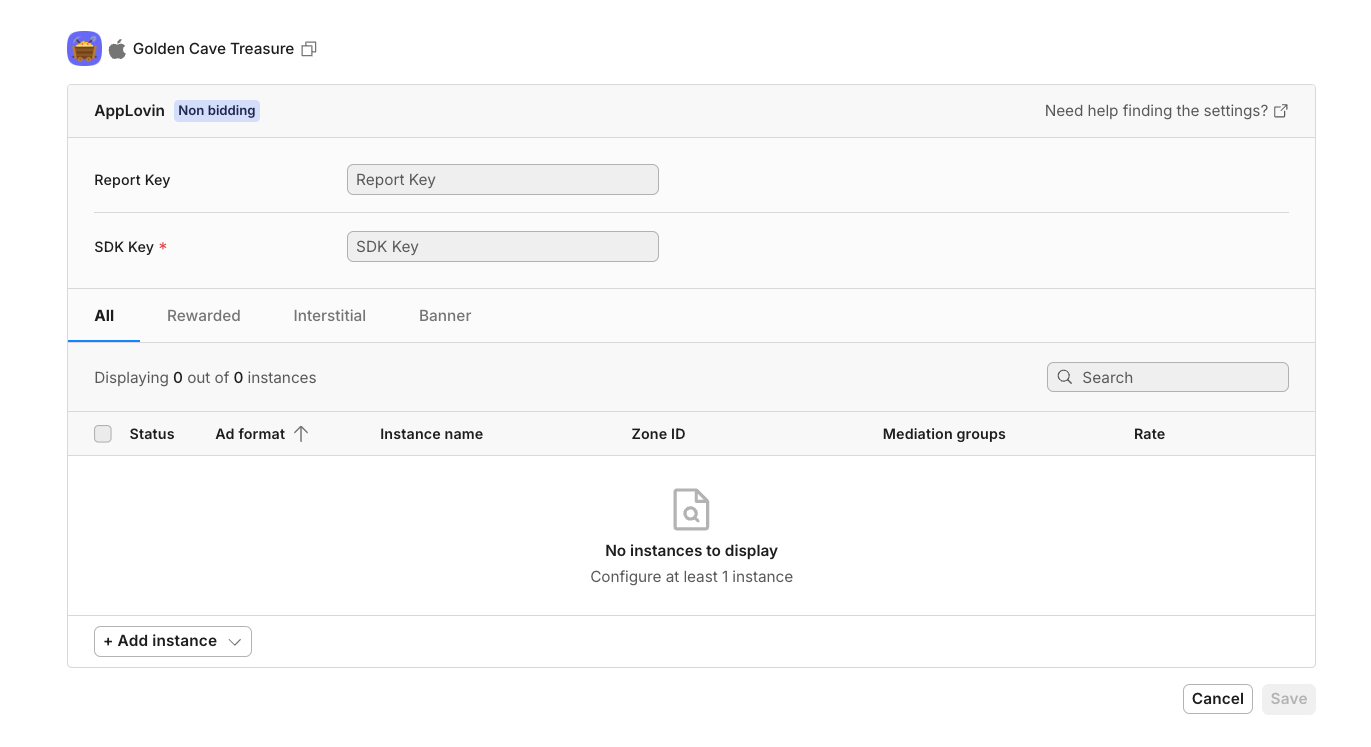
Your app is now monetizing through the AppLovin ad network.
Add the AppLovin Adapter to Your Build
Step 5. Configure Rewarded ads in AppLovin's Admin
After the AppLovin adapter has been added to your build, you need to enable the Rewarded ads functionality in the AppLovin Admin.
-
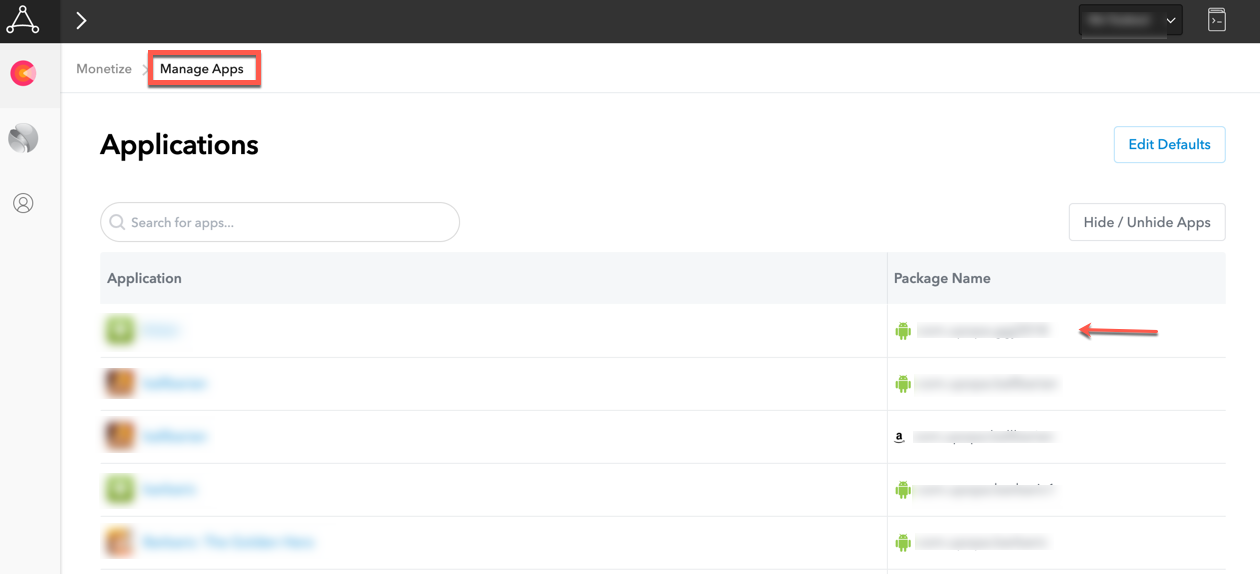
In the AppLovin Admin, go to Manage Apps and select the specific app you want to configure.
-
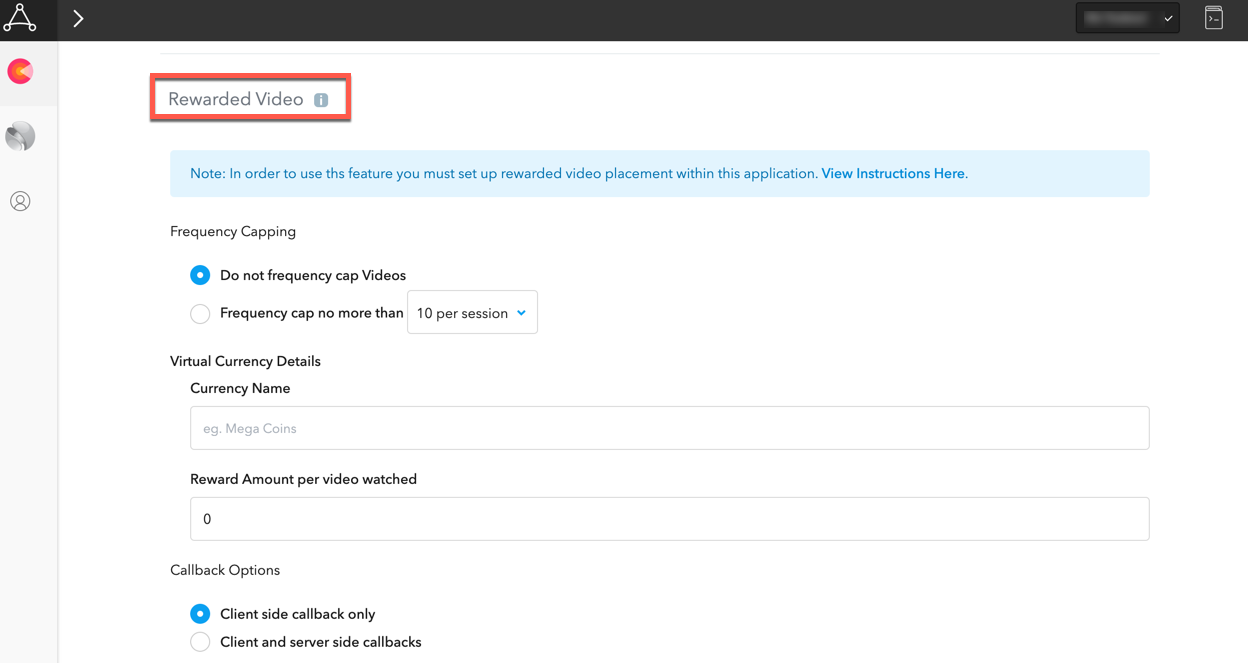
Scroll down to the Rewarded ads section and set the following toggles:
- Frequency Capping - Do not frequency cap Rewarded ads
- Virtual Currency Details - The Unity LevelPlay mediation adapter will set this, so you can leave the default values
- Display Pre-Video Modal - NO
- Display Post-Video Modal - NO
- Callback Options - Client-side callbacks only
-
When finished hit ‘Save’
Step 6. AppLovin Additional Settings
Verify Your Ad Network Integration
-
Verify your ad network integration with our Integration Helper. The LevelPlay SDK provides a tool to ensure you've successfully integrated our SDK as well as any additional network adapters.
-
Manage the debug logs for your integrated mediation ad networks with this booleanimport { LevelPlay } from 'unity-levelplay-mediation'await LevelPlay.setAdaptersDebug(true)When set to TRUE, this line of code will enable debug logs to help you troubleshoot issues with all of your mediation ad networks. Remove this code before your app goes live with our ad units! Supported for SDK versions 6.5.2 and up.
Next steps
To leverage additional ad networks through Unity LevelPlay, integrate the adapters and follow our integration guides.