Moloco integration
Set up Moloco as an ad network in your React Native app through LevelPlay's mediation platform.
Read time 1 minuteLast updated 7 months ago
This guide will instruct you step-by-step on how to set Moloco live as an Ad Network on Unity LevelPlay.
Prerequisites
-
Ensure that you correctly integrate Rewarded ads, Interstitial ads, or Banner ads into your application. Refer to the following platform-specific guides for integration instructions:
-
Moloco Supports devices using iOS 13+.
Step 1. Create a Moloco account
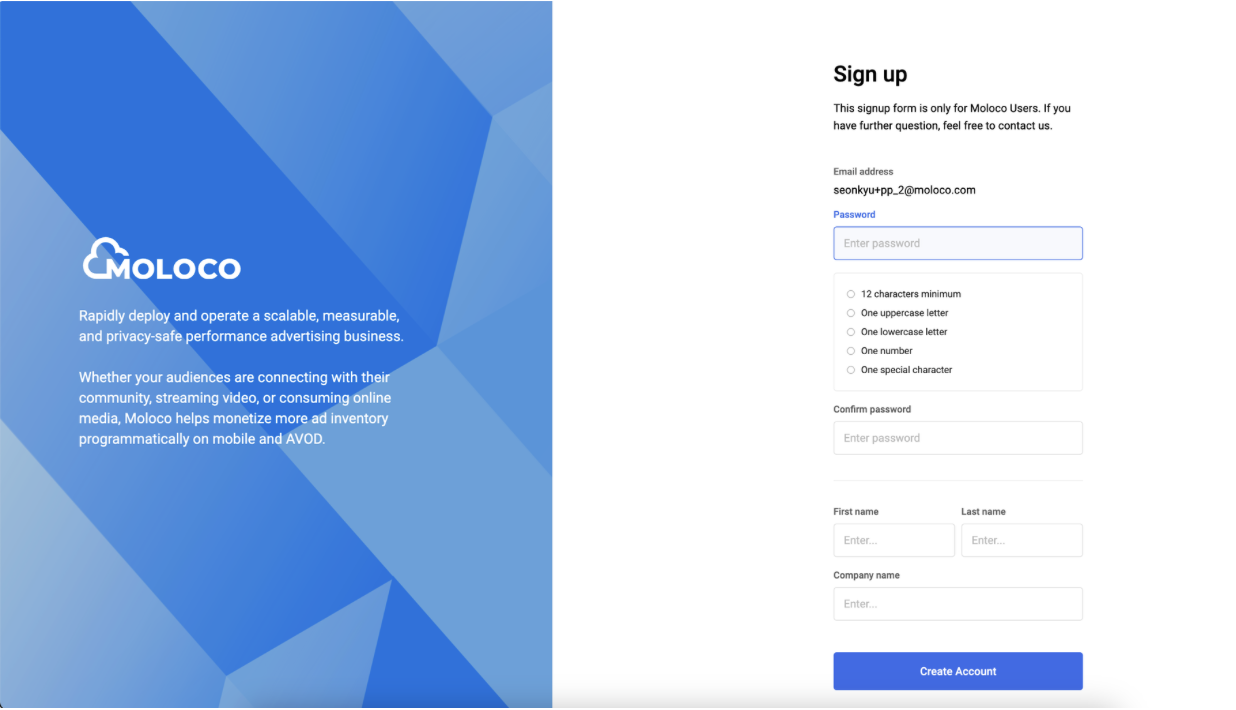
The Publisher portal is currently accessible on an invite basis only. To get access, reach out to your Moloco sales contact or submit a form here. After you receive an an invitation email, select the link(Create your password) in the email to complete creating an account.
Step 2. Create an app in Moloco
-
Login to the MolocoPublisher Dashboard here
-
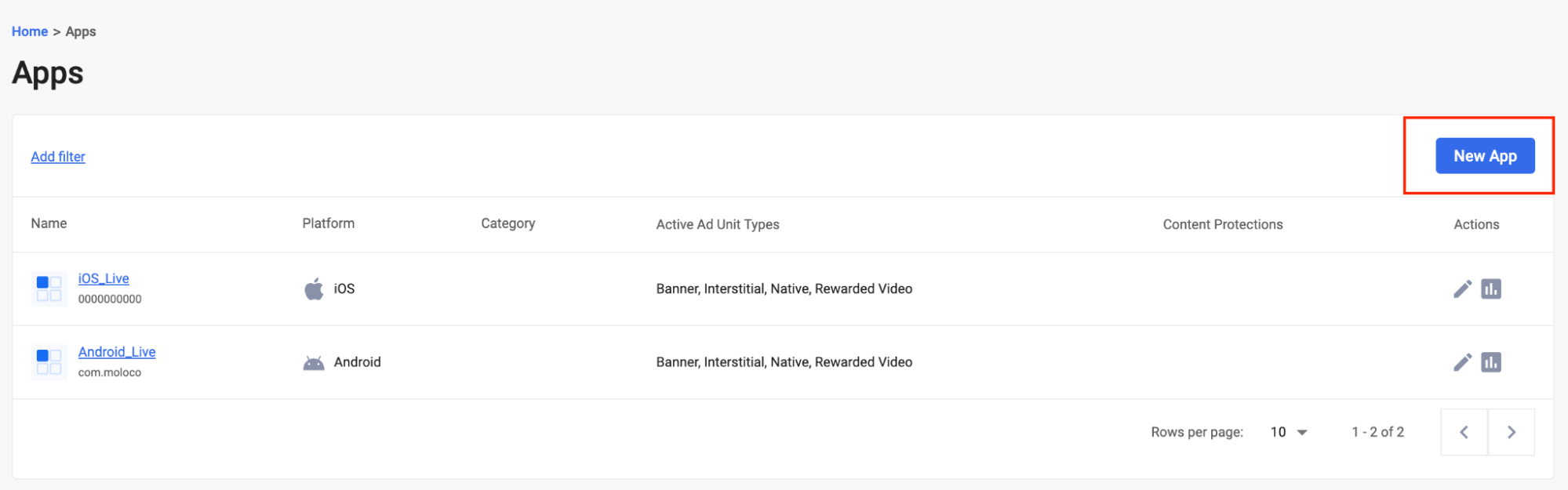
Create a new app by clicking New App from the apps page
-
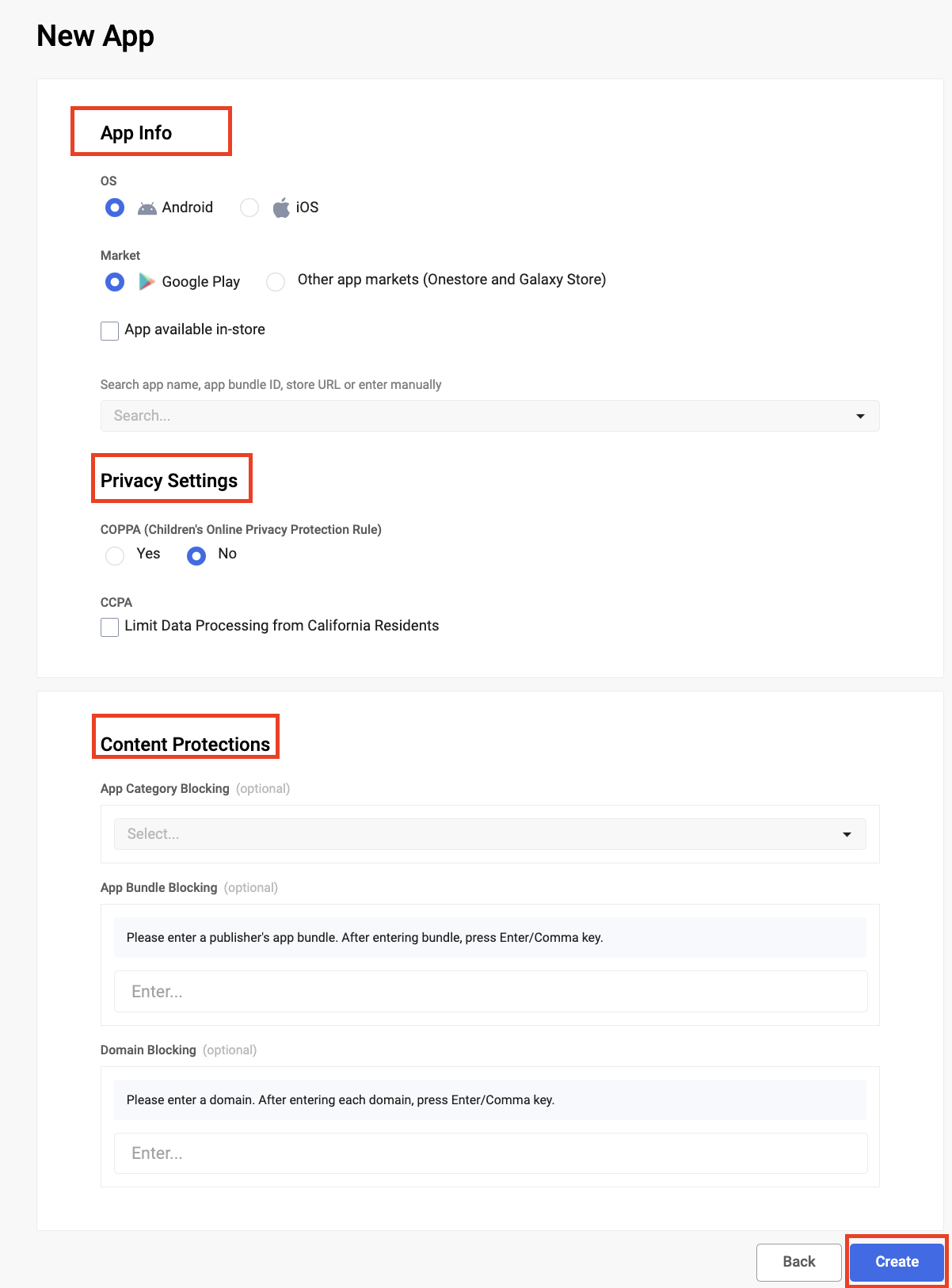
Enter your app details as follows:
- App info
- Select the OS type
- Select Type of Market
- Select “App is available in-store” if app is publicly available to download
- Search app name, app bundle ID, store URL or enter manually: after the app is located, App Title, App Market URL, Bundle ID, and IAB category will be populated automatically.
- App info
-
Content Protections: You can block certain types of ad using the content protections per app. There are three types of content protections:
- App Category blocking: based on categories defined by IAB
- App Bundle blocking: input the app bundle ID, for apps listed on Apple App store, use the numerical value
- Domain blocking
-
Tap “Create” to create the app
-
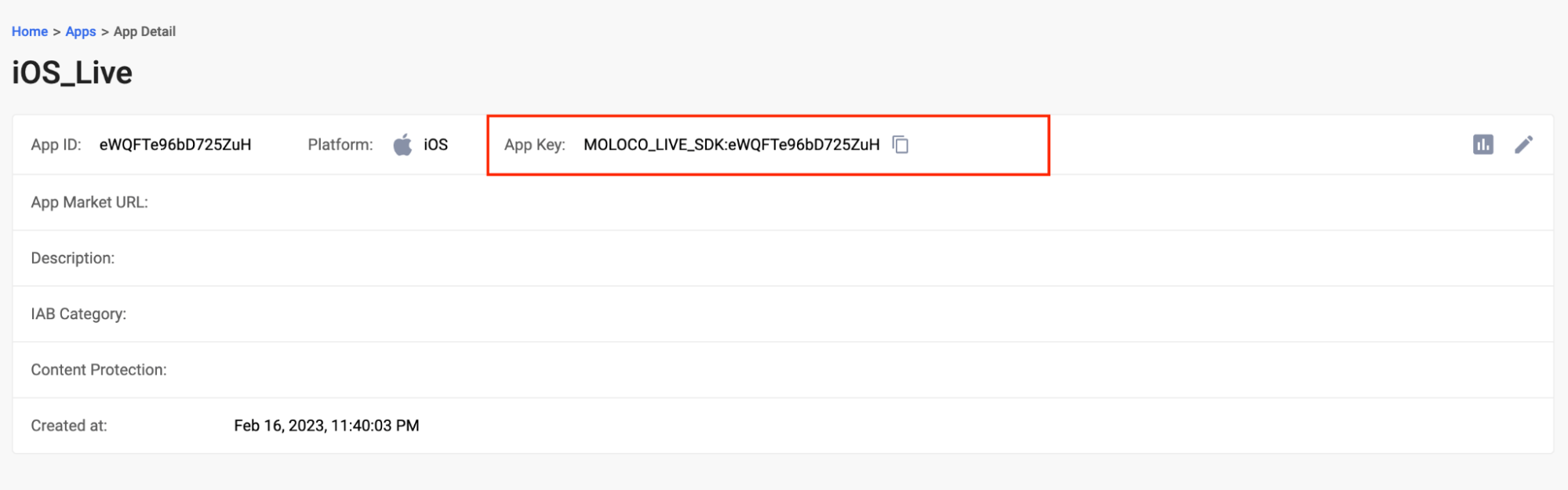
After the App is created, you will need the Moloco App Key in order to initialize Moloco SDK from your mediation platform:
- Navigate to the App section
- Select the App, which is highlighted in in blue
- On the App details page, the Moloco App Key will be shown.
- Copy and save the App Key ID for setup on the LevelPlay platform
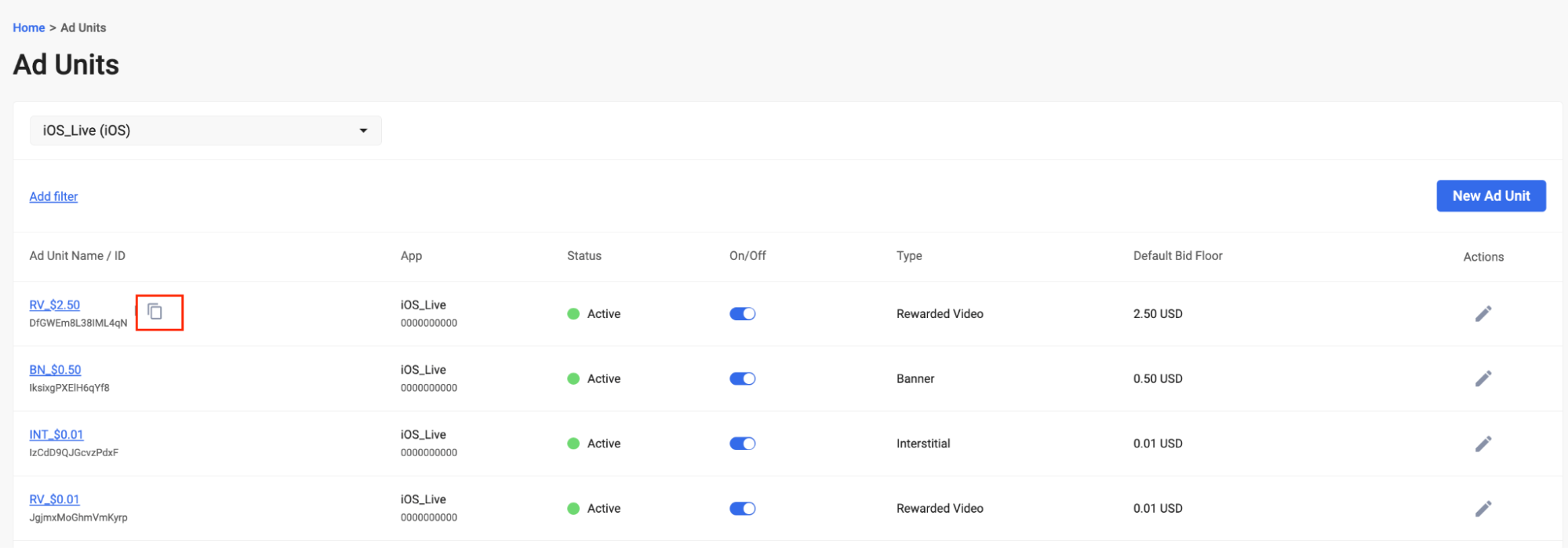
Step 3. Create an Ad Unit
Navigate to Ad Units section on the Moloco platform and then:
-
Select the app from the list
-
Select “New Ad Unit”

-
Input the name of the Ad Unit
-
Enter a description (optional)
-
Select auction type
- In-app bidding only supported
-
Select the Inventory type
-
Input Bid Floor: Moloco only supports Bid Floor in USD
-
Select Create to create the Ad Unit
Step 4. Activate Moloco on LevelPlay
-
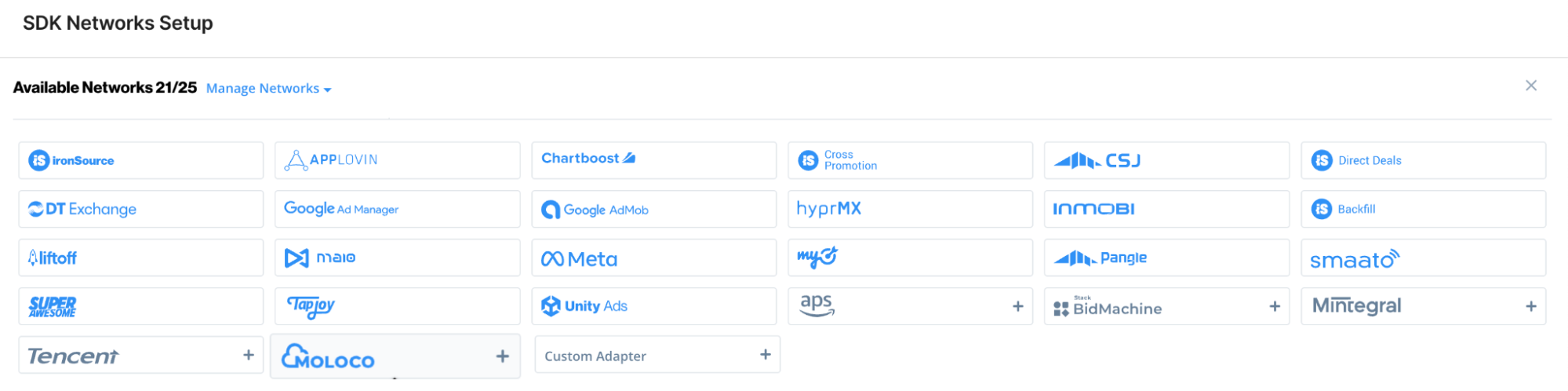
Log into your LevelPlay account and go to the LevelPlay side nav bar > Setup > SDK Networks
-
Select Manage Networks
-
Select Moloco from the list of available ad networks
-
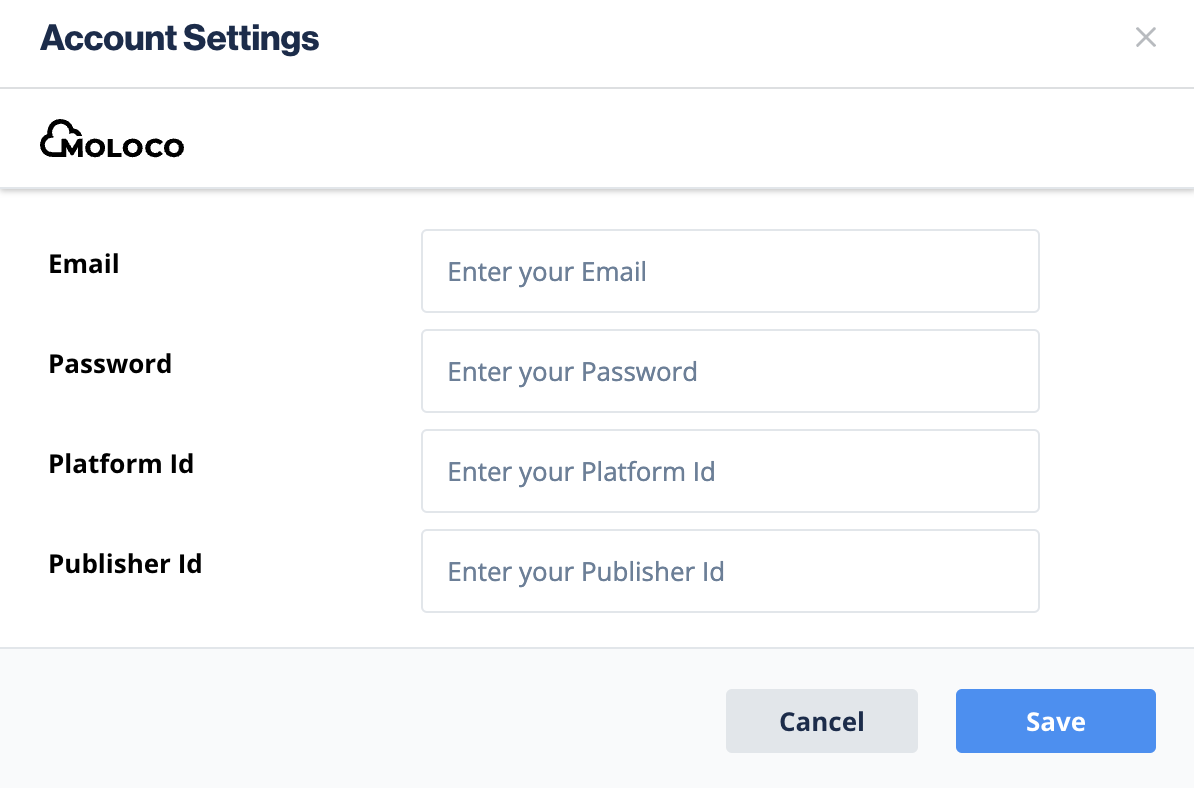
Enter in the relevant details in the Account Settings modal
- Password
- Platform ID
- Publisher ID
-
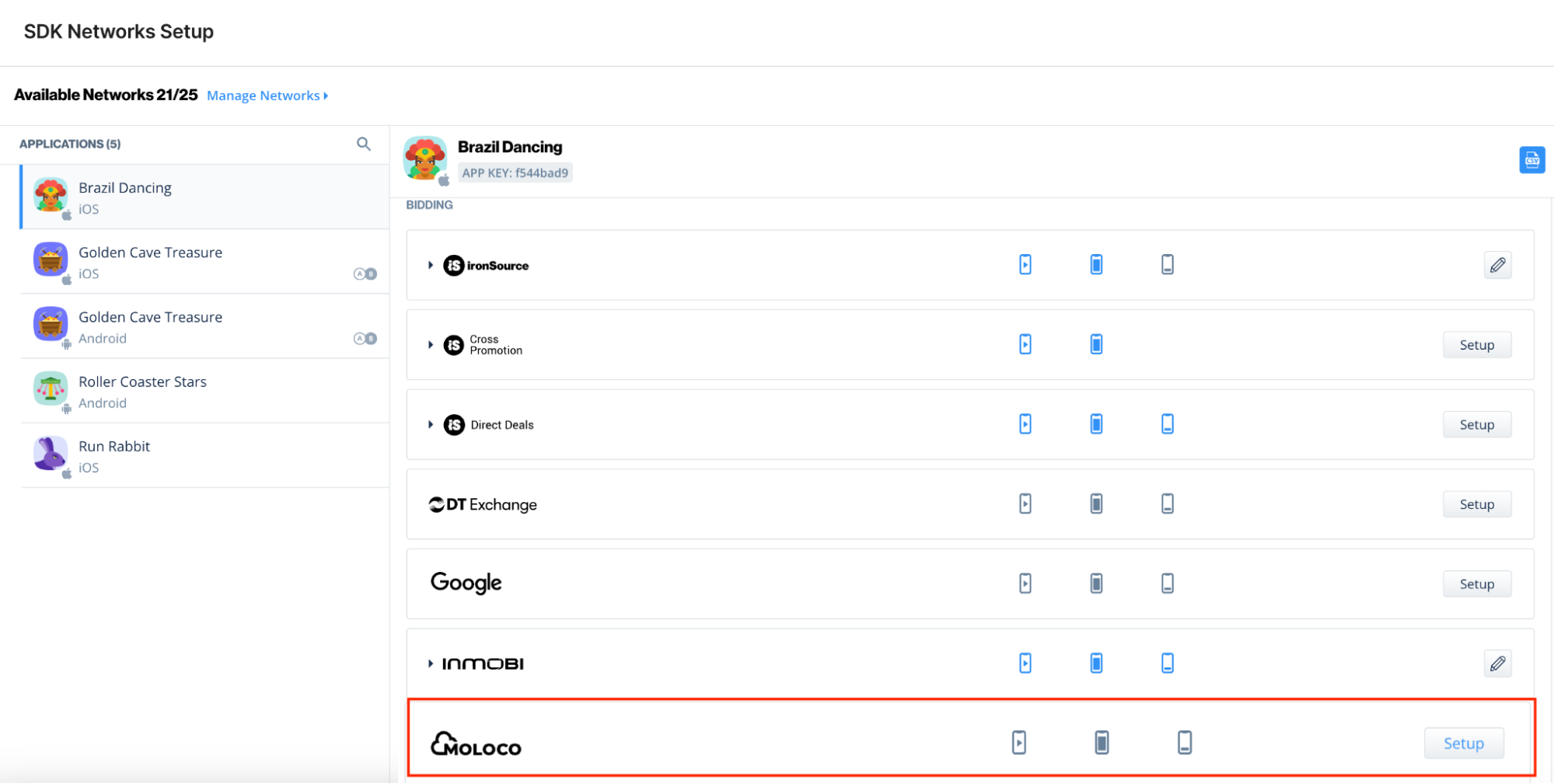
Next, select the app on which you’d like to run Unity LevelPlay’s Mediation with Moloco bidding.
-
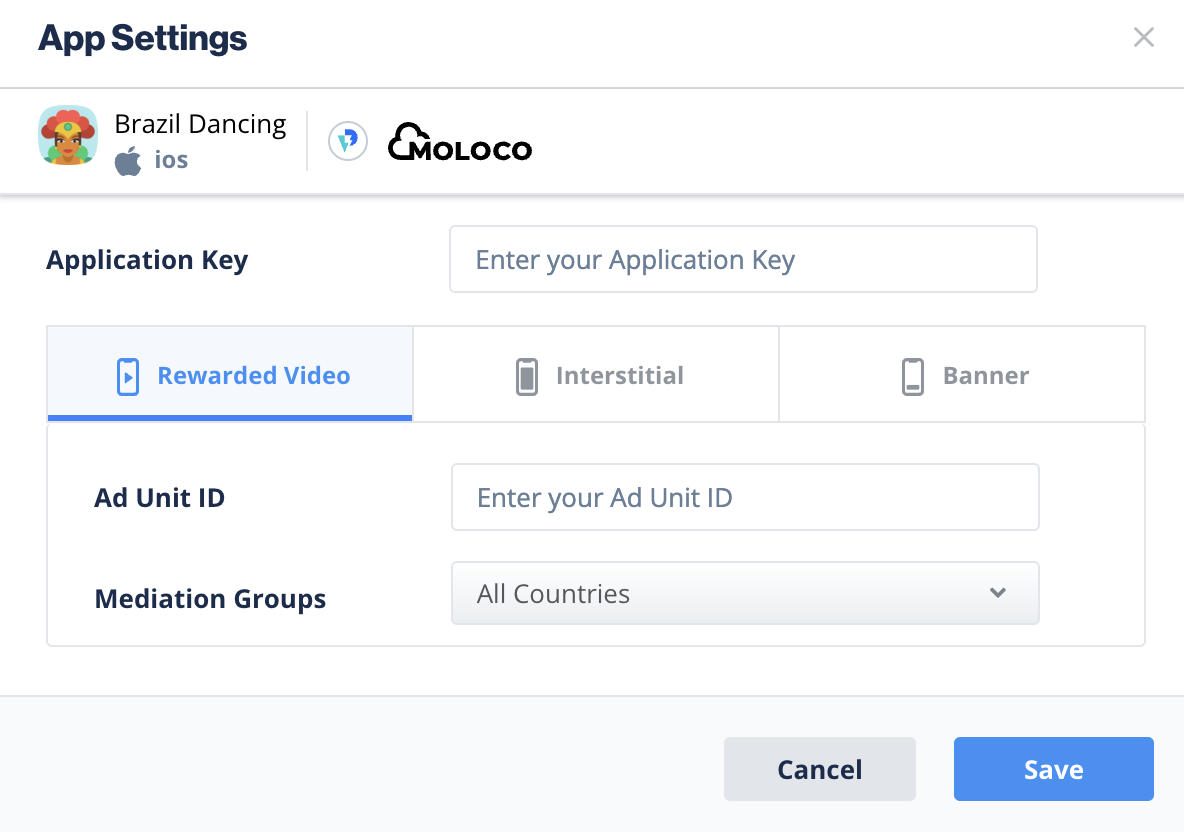
Select Moloco from the setup list of Ad Networks and select the tool Setup icon.
-
Then insert the Appliocation Key (step 3) and Ad Unit ID (step 4) under Interstitial, Rewarded ads or Banner Settings.
Step 5. Add the Moloco Adapter to Your Build
Step 6. Moloco Additional Settings
User-level COPPA
LevelPlay lets publishers communicate Moloco User-level COPPA settings directly to the Moloco network. This feature is enabled using LevelPlay SDK 8.0.0+, Moloco adapter 4.3.0+.
Use the following syntax, to set Moloco COPPA to true:
import { LevelPlay } from 'unity-levelplay-mediation'LevelPlay.setMetaData('Moloco_COPPA', ['true'])
Use the following syntax, to set Moloco COPPA to false:
import { LevelPlay } from 'unity-levelplay-mediation'LevelPlay.setMetaData('Moloco_COPPA', ['false'])
Call before initializing the LevelPlay SDK.
LevelPlay.setMetaDataYou can now deliver Moloco within your application.