HyprMX integration
Integrate HyprMX as a mediation network in your React Native app using the LevelPlay SDK.
Read time 2 minutesLast updated 3 months ago
This guide will instruct you step-by-step on how to set HyprMX live as an Ad Network on LevelPlay Mediation.
Prerequisites
- Make sure you have correctly integrated LevelPlay SDK's Rewarded Video or Interstitial into your application.
- In case you upgrade from lower adapter versions to 4.1.2 onwards, make sure you reconfigure your HyprMX parameters within the platform to new ones. To get HyprMX new parameters, you should contact integration@hyprmx.com.
Create an HyprMX Account
HyprMX provides a managed service. To create an account with them, contact them directly at integration@hyprmx.com. When your account is created, they will help you set up your application and retrieve the required parameters to activate HyprMX in your LevelPlay account.
Activate HyprMX in Your LevelPlay Network Setup Module
There are three pieces of data from the HyprMX account which need to be inserted into your LevelPlay Network Setup Module in order for HyprMX to work correctly in connection with LevelPlay:
Parameter | Description |
|---|---|
| API Key | This is the unique identifier of your account in the HyprMX system. |
| Distributor ID | This is the unique Application identifier which HyprMX will deliver ads to. |
| Placement Name | This is a unique identifier of your Placement with HyprMX. |
When you obtain this information, you must configure HyprMX's Parameters in your LevelPlay Account. By adding the above information correctly, you will be able to take full advantage of HyprMX's ad inventory and reporting data on LevelPlay Mediation.
Configure HyprMX's Parameters into LevelPlay Account
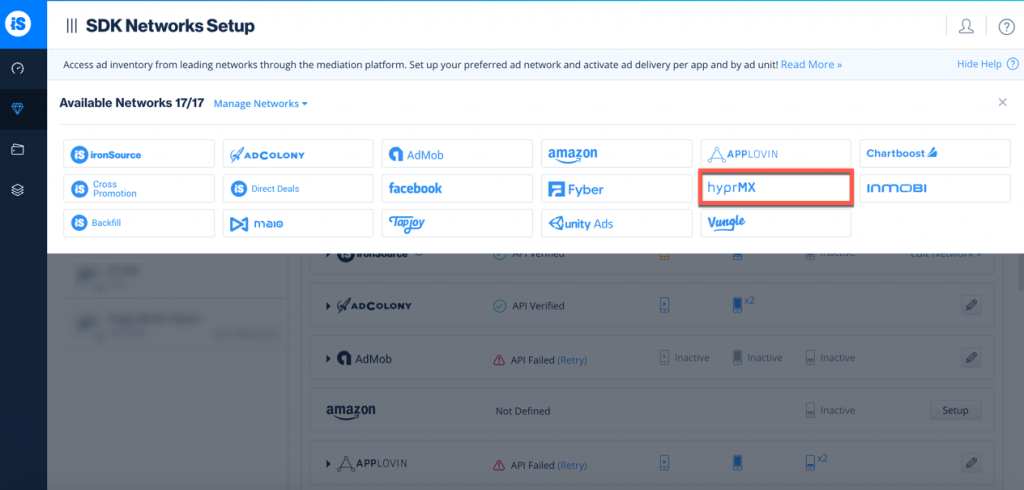
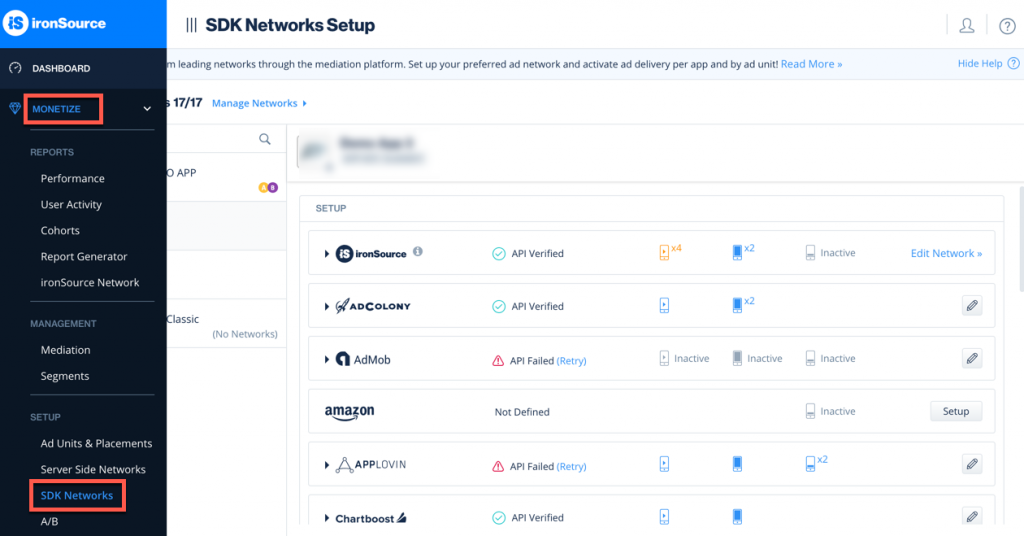
- When you obtain the above parameters, log in to your LevelPlay account and go to Monetize > SDK Networks.
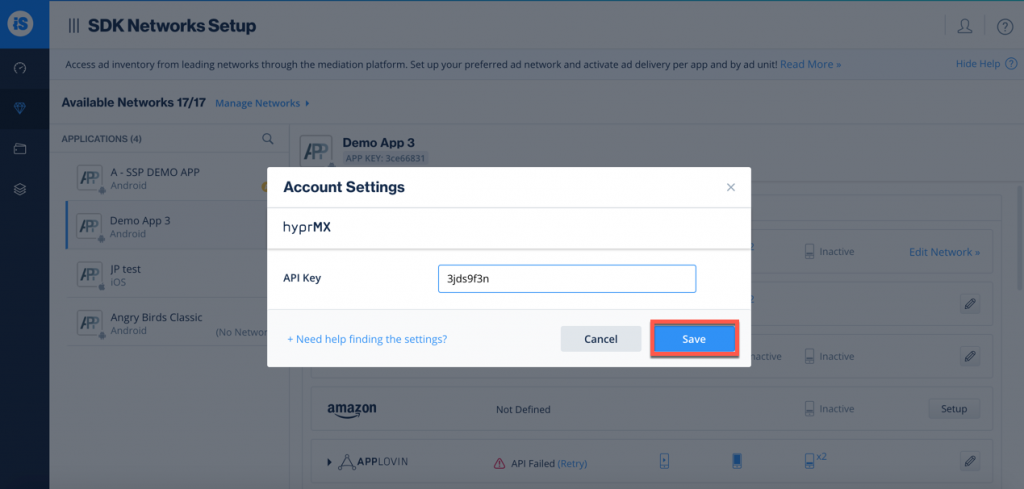
- Select HyprMX from the list of available Ad Networks and input the HyprMX API Key.
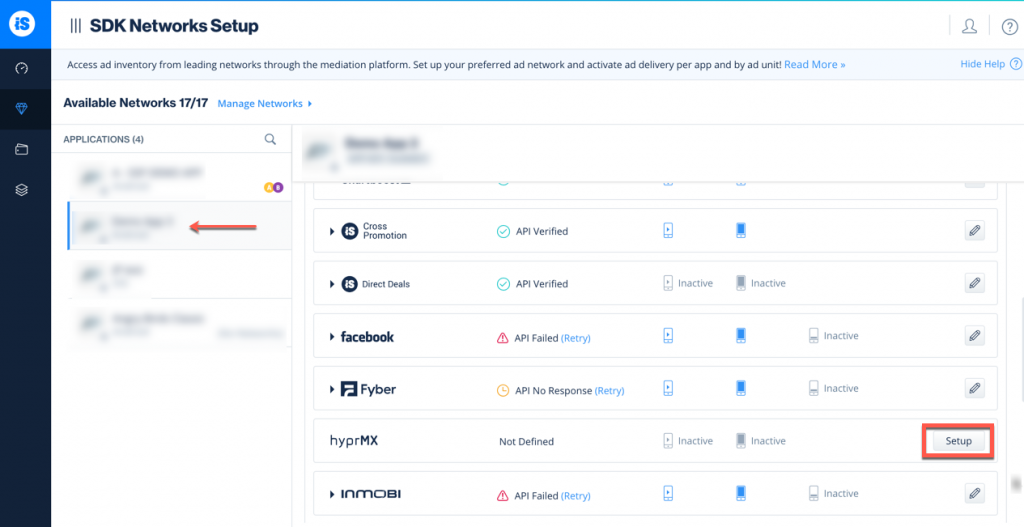
- Next, select the app on which you'd like to run LevelPlay Mediation with HyprMX and select Setup. Then enter the Distributor ID and Placement Name in the relevant fields.
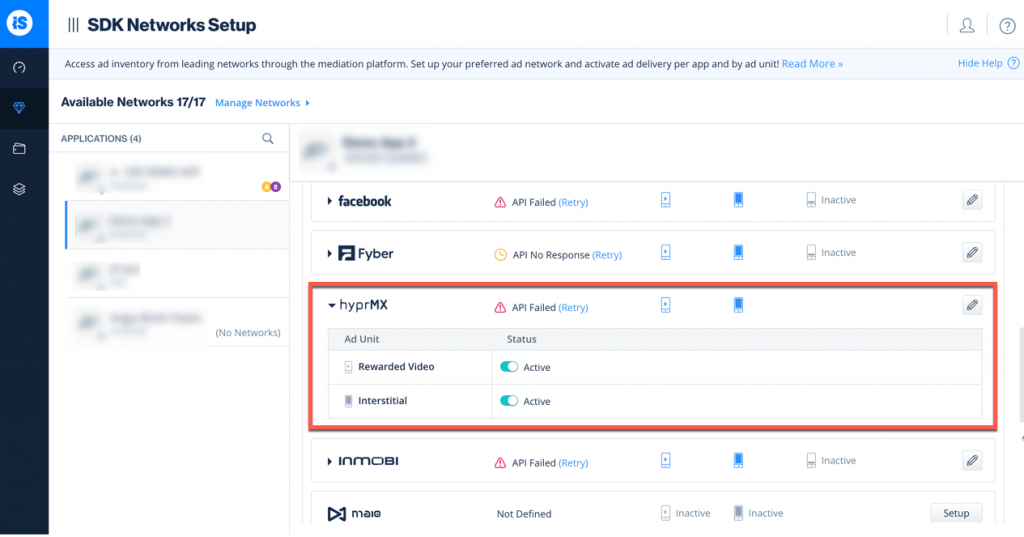
- You will then see HyprMX as Active for Mediation on the Setup dashboard.
Add the HyprMX Adapter to Your Build
You are now all set to deliver HyprMX within your application!
Next steps
To leverage additional ad networks through LevelPlay Mediation, integrate the adapters and follow our integration guides.