Google Ad Manager integration
Integrate Google Ad Manager as an ad network in your React Native app using LevelPlay's mediation platform.
Read time 3 minutesLast updated 7 months ago
Follow these instructions to set Google Ad Manager live as an ad network on the Unity LevelPlay mediation.
Prerequisites
-
Ensure that you correctly integrate Rewarded ads, Interstitial ads, or Banner ads into your application. Refer to the following platform-specific guides for integration instructions:
Step 1. Create a Google Ad Manager account
- To access Google Ad Manager ad inventory through Unity LevelPlay's mediation, create an Ad Manager account.
- In order to monetize with Google ad manager, Google AdSense account need to be created
- Connect your AdSense account to your Ad Manager account
Step 2. Create Inventory in Google Ad Manager
- Google AdManager guide can be found here
- Orders:
- Add at least one order
- Connect your AdSense as an Advertiser to the order
- Line Items
- Add a Line Item for each ad unit you are looking to monetize (Int / RV / BN / NTV BN)
- Select video Line item
- Line item type = Ad exchange
- Apps
- The application should be added automatically from your Admob account
- If not, create a new application (Inventory > Apps > Add app)
- Ad unit
- Add ad unit for each price point
Step 3. Activate Google Ad Manager in your LevelPlay account
Sign in to your Google account when setting up Ad Manager on the LevelPlay SDK Networks Setup page. This will ensure that all of the necessary parameters to run Ad Manager's interstitials, rewarded ads, and banners will be automatically retrieved.
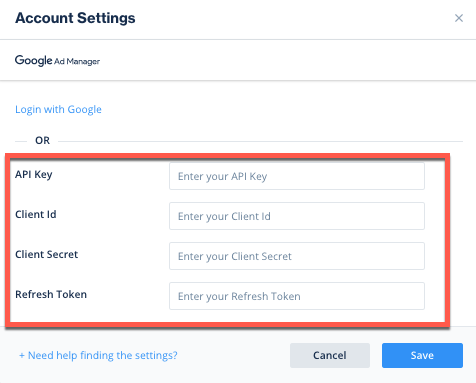
- In your Google Ad Manager account, obtain the following information:
App ID | The unique ID assigned to your app on the Ad Manager dashboard |
|---|---|
| API Key | The unique identifier for your Ad Manager account. This allows the Unity LevelPlay Mediation to import performance data from your Ad Manager account to use in reporting and optimization |
| Ad Unit ID | The unique ID assigned to your app's ad unit on the Ad Manager dashboard |
| Client ID | The unique identifier that specifies the relationship between your account and the ad unit |
| Client Secret | The secret key that pairs with the Client ID |
| Refresh Token | The refresh token the client application already received |
- Configure Google Ad Manager's parameters in your LevelPlay account.
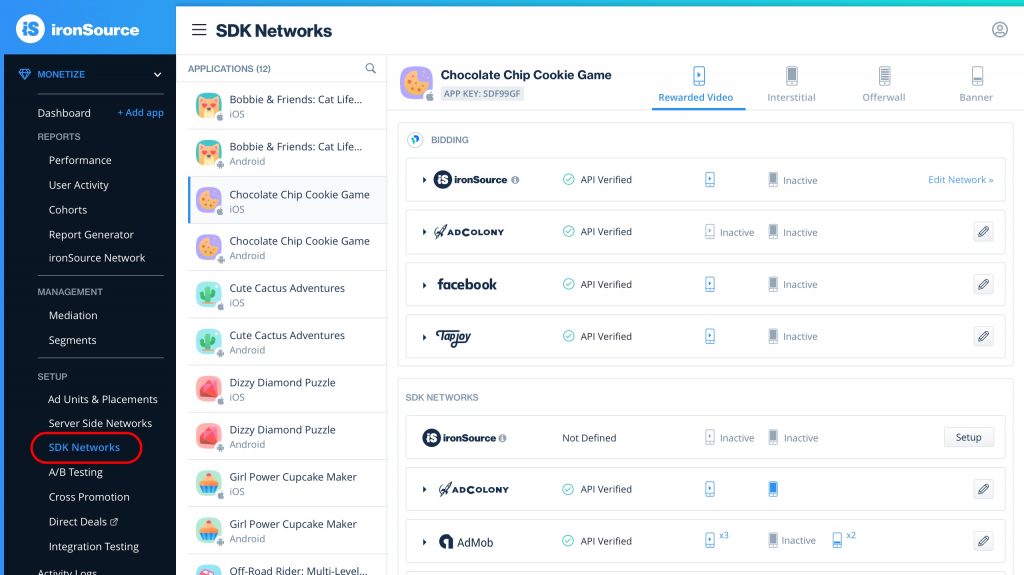
- Log in to your ironSource account and go to Monetize > SETUP > SDK Networks.
- Select Google Ad Manager from the list of Available Networks and enter the Ad Manager's API Key, Client ID, Client Secret, and Refresh Token; or select the Login with Google option.
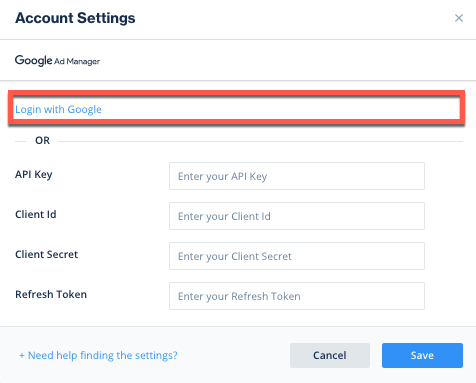
- Select Save. Ad Manager will be enabled and listed in the Available Ad Networks table.
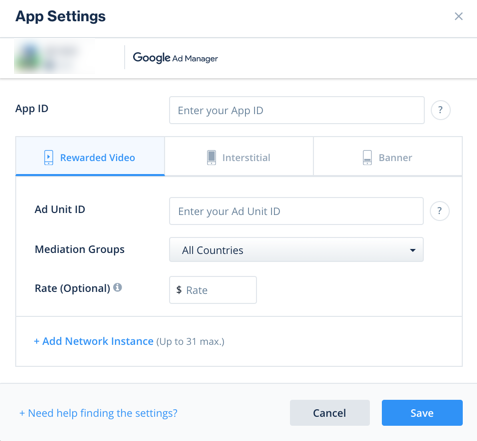
- Select Ad Manager from the setup list of ad networks and select the tool Define button. Insert the App ID and Ad Unit ID under interstitial, rewarded or banner settings.
- Verify your integration with the Reporting API. This column will check your integration through the Reporting API and return three possible responses: Verified, Failed, and No Response. If you do not see Verified, double check your integration and the information you entered, then select Retry until you see Verified.
Step 4. Add the AdMob Adapter to Your Build
Step 5. Additional Steps
Call before initializing the LevelPlay SDK when using the following options.
LevelPlay.setMetaDataChild-directed setting - COPPA
LevelPlay mediation lets publishers communicate AdMob Child-directed settings directly to the AdMob network. This feature is enabled using LevelPlay SDK 6.14.0+, AdMob adapter 4.3.9+ (Android) / 4.3.11+ (iOS).
Use the following syntax, to set AdMob setTagForChildDirectedTreatment with the parameter true:
import { LevelPlay } from 'unity-levelplay-mediation'LevelPlay.setMetaData('AdMob_TFCD', ['true'])
Use the following syntax, to set AdMob setTagForChildDirectedTreatment with the parameter false:
import { LevelPlay } from 'unity-levelplay-mediation'LevelPlay.setMetaData('AdMob_TFCD', ['false'])
To learn more about Child-directed settings under AdMob visit here.
Users under the age of consent - GDPR
LevelPlay mediation lets publishers communicate with the AdMob network a Tag For Users under the Age of Consent in Europe (TFUA) request. This feature is enabled using LevelPlay SDK 6.14.0+, AdMob adapter 4.3.9+ (Android) / 4.3.11+ (iOS).
Use the following syntax, to set setTagForUnderAgeOfConsent with true:
import { LevelPlay } from 'unity-levelplay-mediation'LevelPlay.setMetaData('AdMob_TFUA', ['true'])
Use the following syntax, to set setTagForUnderAgeOfConsent with false:
import { LevelPlay } from 'unity-levelplay-mediation'LevelPlay.setMetaData('AdMob_TFUA', ['false'])
To learn more about Users under the age of consent under AdMob visit here.
Ad Content filtering
LevelPlay mediation lets publishers communicate with the AdMob network the maximum ad content rating for all ad requests. This feature is enabled using LevelPlay SDK 7.12.0+, AdMob adapter 4.3.23+ (Android) / 4.3.28+ (iOS).
Use the following syntax, to set maxAdContentRating:
import { LevelPlay } from 'unity-levelplay-mediation'LevelPlay.setMetaData('AdMob_MaxContentRating', ['MAX_AD_CONTENT_RATING_G'])
The possible values for this property are based on digital content label classification as defined by Google:
- MAX_AD_CONTENT_RATING_G
- MAX_AD_CONTENT_RATING_PG
- MAX_AD_CONTENT_RATING_T
- MAX_AD_CONTENT_RATING_MA
To learn more about Ad Content Rating under AdMob visit here.
Content URL mapping support
LevelPlay supports Google's content mapping for apps, and allows you to share URLs using "Google_Content_Mapping" settings. This feature is enabled using LevelPlay SDK 7.7.0+, AdMob adapter 4.3.41+ (Android) / 4.3.51+ (iOS). Learn more about Google's content mapping here.
To pass a single-content URL:
import { LevelPlay } from 'unity-levelplay-mediation'LevelPlay.setMetaData('Google_Content_Mapping', ['https://www.example.com'])
To support multiple URLs, use the same key and share up to 4 URLs:
import { LevelPlay } from 'unity-levelplay-mediation'LevelPlay.setMetaData('Google_Content_Mapping', [ 'https://www.example.com', 'https://www.example2.com',])
Verify Your Ad Network Integration
The LevelPlay SDK provides an easy way to verify that your mediation integration was completed successfully. To verify your LevelPlay SDK and additional Ad Networks' integration, follow this document.
Next steps
To leverage additional mediation ad networks, integrate the adapters and follow our integration guides.