Pangle integration
Integrate Pangle as an ad network in your React Native app using LevelPlay's mediation platform.
Read time 1 minuteLast updated 7 months ago
This guide instructs you step-by-step on how to set Pangle live on Unity LevelPlay mediation.
Prerequisites
Pangle serves ads to users in: Japan, South Korea, Taiwan, Thailand, Philippines, Singapore, Cambodia, Vietnam, Malaysia, Saudi Arabia, United Arab Emirates, Egypt, Turkey, Indonesia, Canada, Argentina, Chile, Peru, Colombia, Brazil, Mexico, Belarus, Ukraine, Israel, Kazakhstan, Russia, Australia, New Zealand, South Africa, Pakistan, Kuwait, Iraq, Morocco, Qatar, Jordan, Oman, Bahrain, Uruguay, Ecuador, Lebanon, Kenya, Sri Lanka, Algeria, Azerbaijan, Serbia, Paraguay and Bolivia (iOS & Android, bidding & non-bidding)
Step 1. Create a Pangle account
To access Pangle's ad inventory through Unity LevelPlay, you must create an account with Pangle. You can do so here.
Step 2. Create an application in Pangle
Next, add the app in your Pangle account.
Add Your App
-
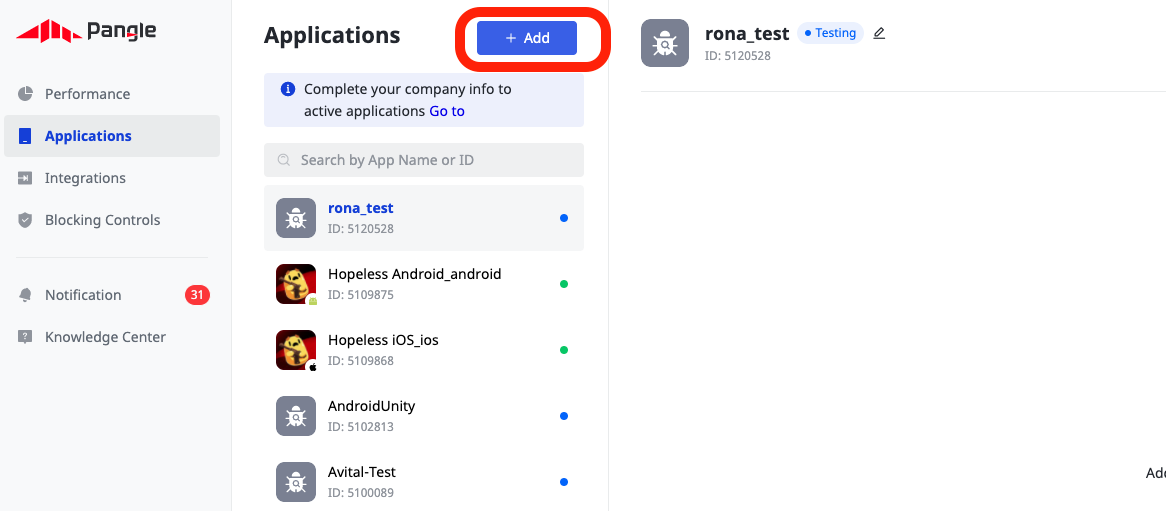
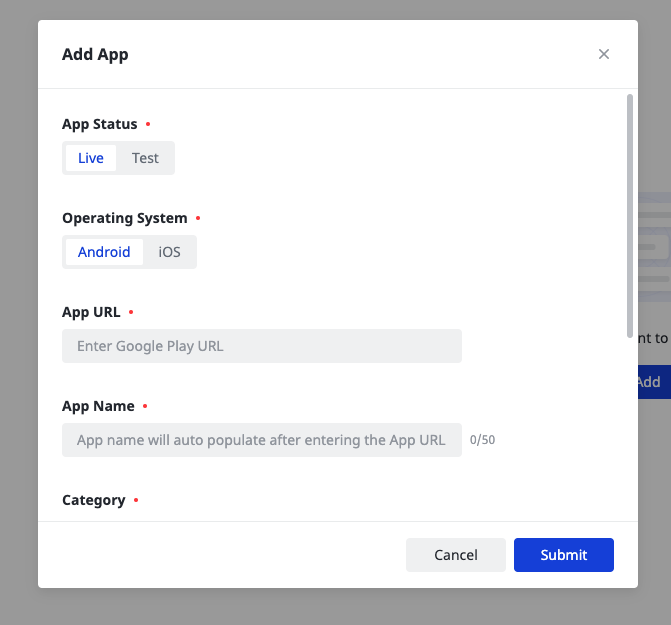
Log into your Pangle account. On your dashboard, hover Applications**'** and select Add2. Add your app or select an existing app to monetize.
Step 3. Activate Pangle in your LevelPlay Network Setup module
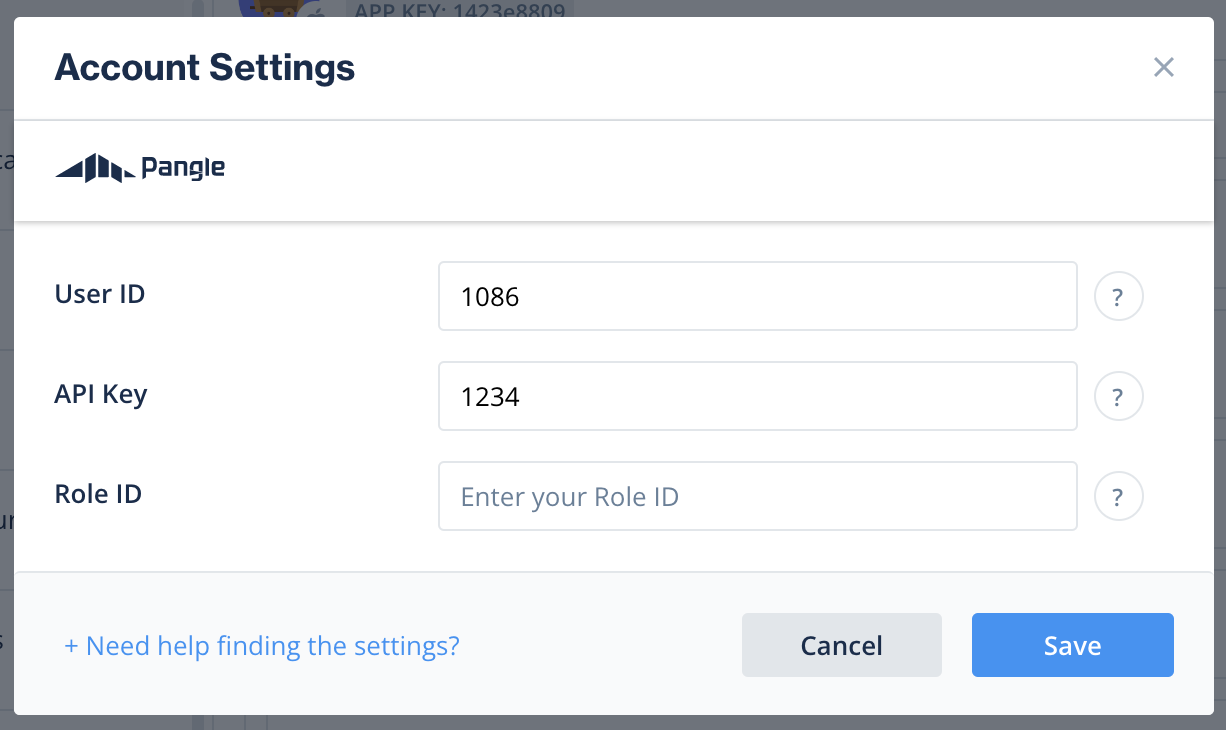
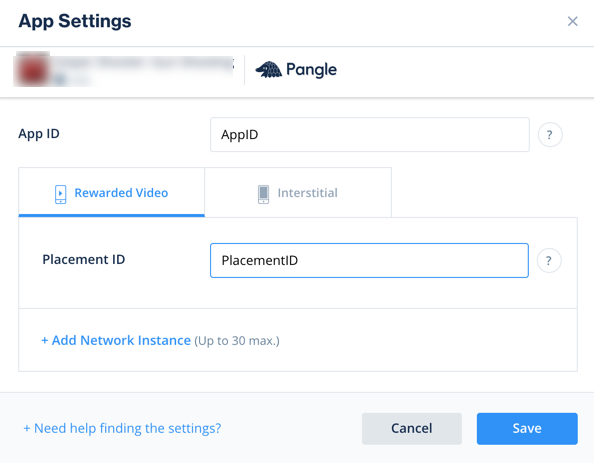
Serving Pangle's ads through the Unity LevelPlay has never been this easy. Sign in to your Pangle account when setting up Pangle on the LevelPlay SDK Networks setup page and insert all the necessary parameters to run Pangle Interstitials and Rewarded ads.
App Settings
User ID | The unique ID assigned to your user on Pangle's dashboard. |
|---|---|
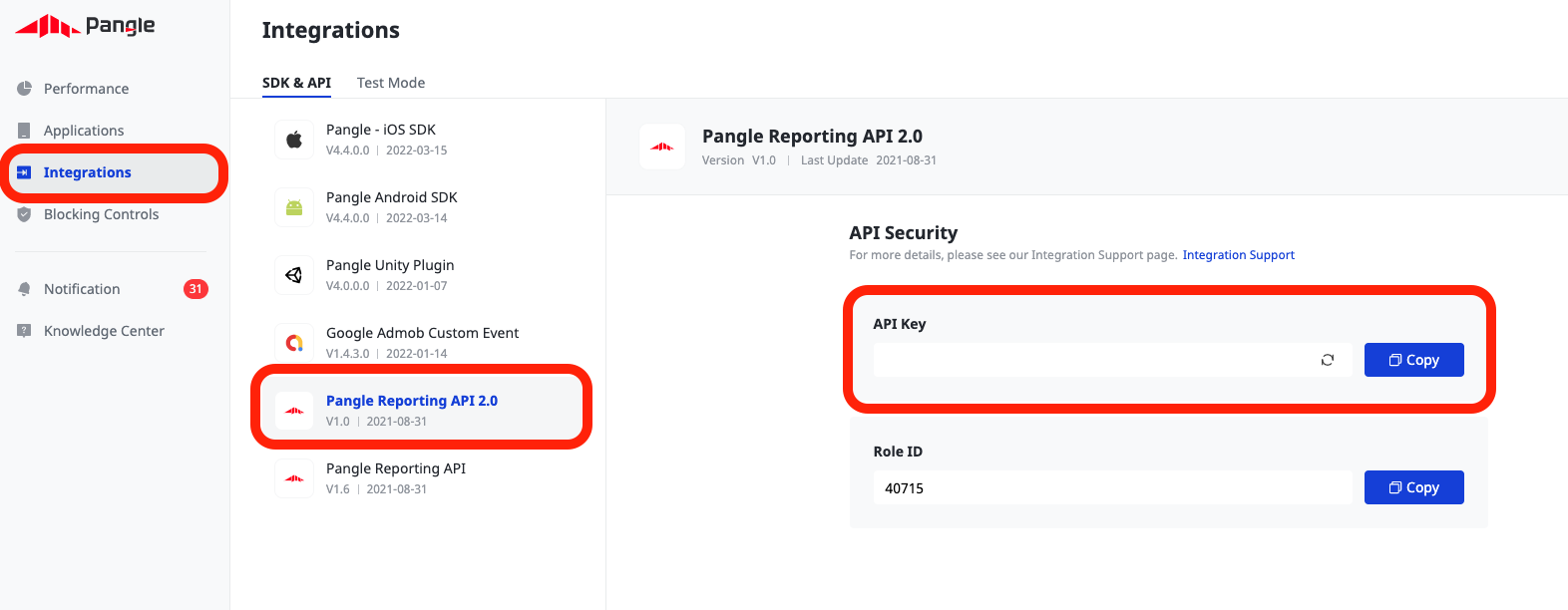
| API Key | Key generated by Pangle for reporting API purposes (Called API key in Pangle platform) |
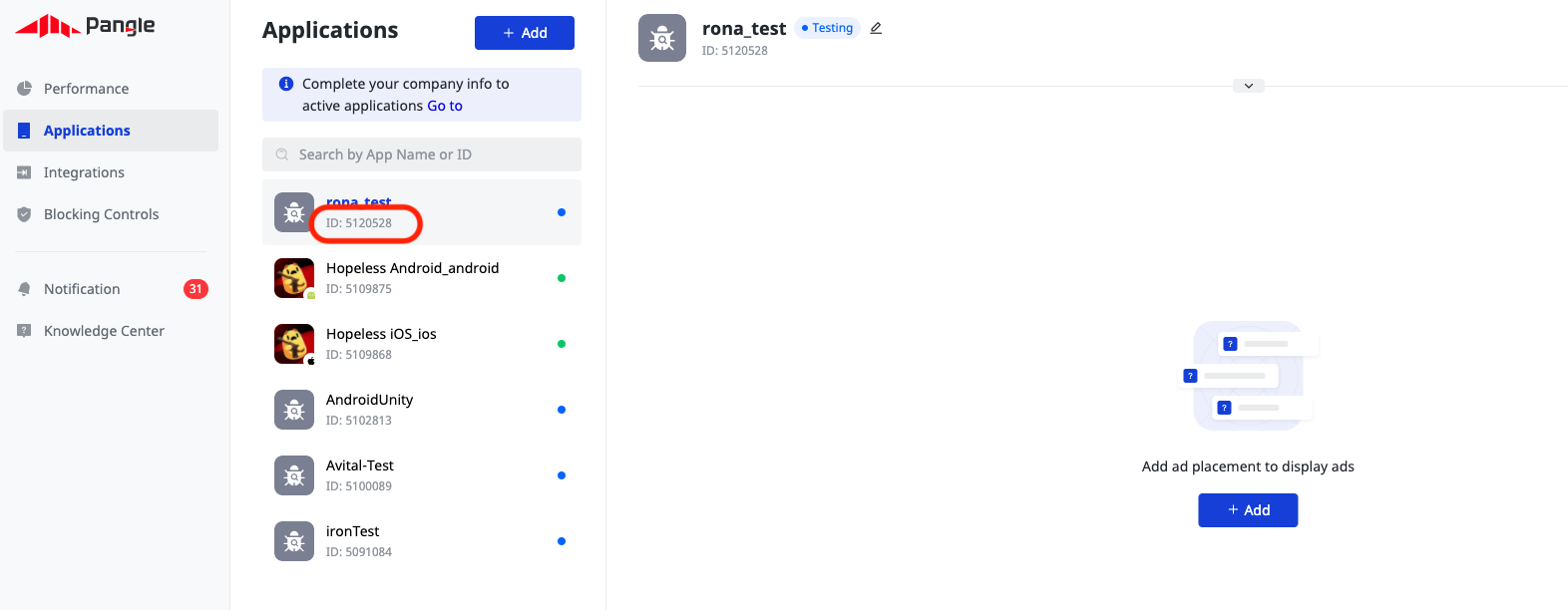
| Application ID | The unique ID assigned to your app on Pangle's dashboard. |
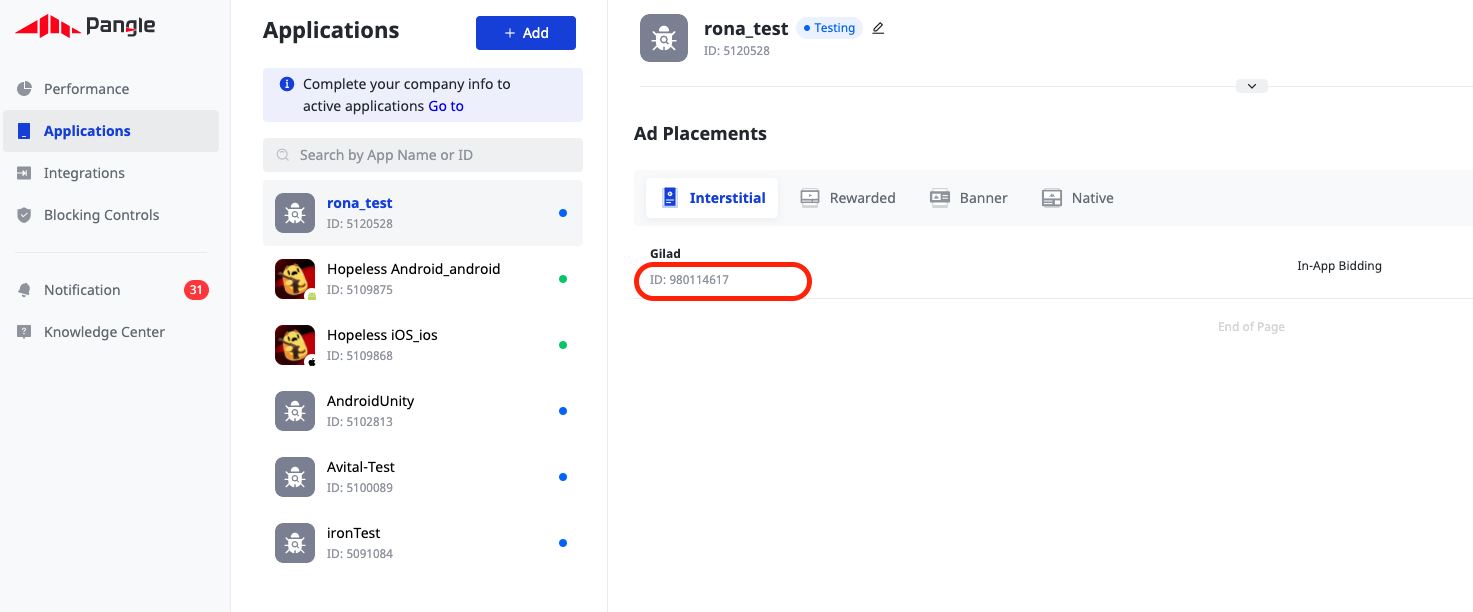
| Placement ID | The unique ID assigned to the ad you have created on Pangle's dashboard. |
After you obtain this information, configure Pangle's parameters in your LevelPlay account. By adding the above information correctly, you'll be able to take full advantage of Pangle's ad inventory and reporting data on the LevelPlay platform.
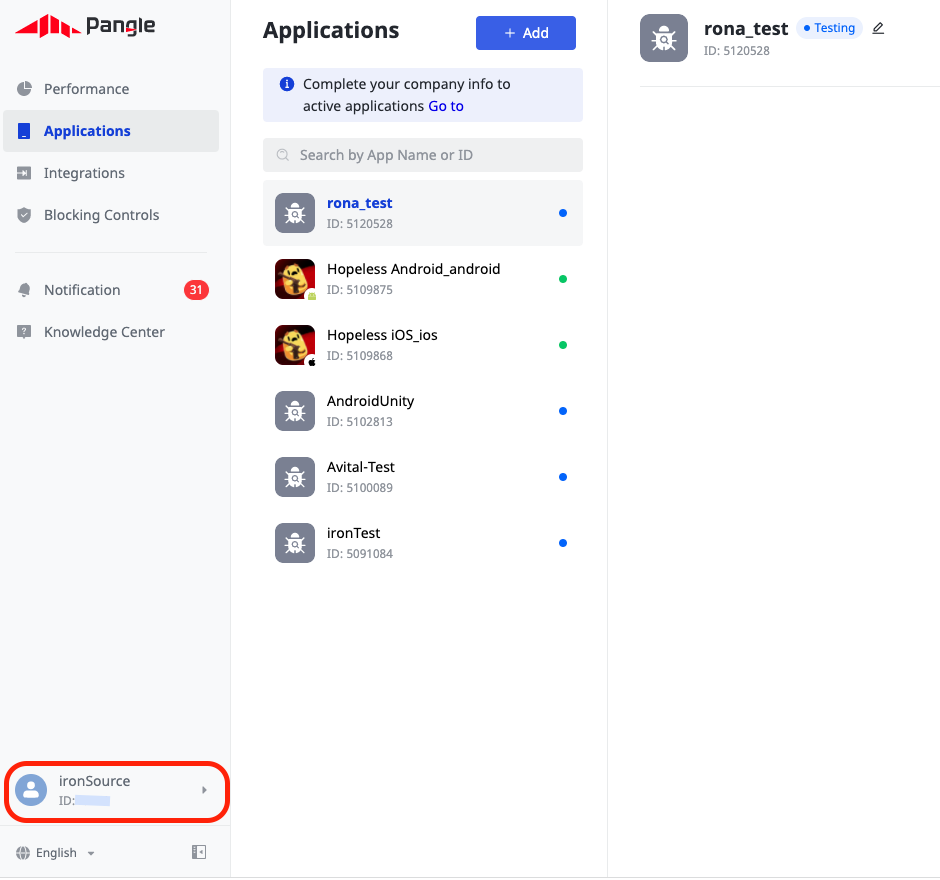
User ID
After you sign in to your Pangle account, you'll find your User ID on the top right corner of the dashboard
API key
Application ID
After you've created an application in the Pangle dashboard (as described in step 2), you'll find your Application ID under Apps (hover Applications**'** and select Apps).
Placement ID
After you've created an application in the Pangle dashboard, you'll need to include ads. Hover over Application**'** and select Ad placements**'**. Add your placement manually or select an existing placement to get its Placement ID.
Step 4. Add the Pangle adapter to your build
Step 5. Pangle Additional Settings
Set COPPA
LevelPlay lets publishers communicate Pangle COPPA settings directly to the Pangle network. This feature is enabled using LevelPlay SDK 6.17.0+, Pangle adapter 4.1.2+ (Android) / 4.1.5+ (iOS).
Use the following syntax, to set Pangle COPPA with the value 1, to report Child:
import { LevelPlay } from 'unity-levelplay-mediation'LevelPlay.setMetaData('Pangle_COPPA', ['1'])
Use the following syntax, to set Pangle COPPA with the value 0, to report Adult:
import { LevelPlay } from 'unity-levelplay-mediation'LevelPlay.setMetaData('Pangle_COPPA', ['0'])
Call before initializing the LevelPlay SDK.
LevelPlay.setMetaDataVerify your ad network integration
To verify your LevelPlay SDK and additional ad networks' integration, follow this document.
In development builds, enable adapter debug logs by calling the following method before initializing the LevelPlay SDK:
import { LevelPlay } from 'unity-levelplay-mediation'LevelPlay.setAdaptersDebug(true)
You can now deliver Pangle within your application.
Next steps
To leverage additional ad networks through Unity LevelPlay, integrate the adapters and follow our integration guides.