开始使用
Install and set up the Authentication Software Development Kit for Unreal Engine.
阅读时间5 分钟最后更新于 9 个月前
适用于 Unreal Engine 的 Authentication SDK 是适用于 Unreal Engine 的 Unity Gaming Services SDK 插件的一部分。要在 Unreal Engine 中使用 Unity Authentication,首先需要安装 Unity Gaming Services SDK。
要求需知
适用于 Unreal Engine 的 Authentication SDK 插件支持 Unreal Engine 版本 4.27 到 5.3。
下载 Authentication SDK
通过 Unreal Engine Marketplace
-

Unity Gaming Services SDK for Unreal Engine Marketplace 页面
-
选择 Open in Launcher(在启动器中打开)。
-
跳至通过 Epic Games Launcher 中的步骤 4。
通过 Epic Games Launcher
- 登录您的 Epic Games Launcher。
- 在 Epic Games Launcher 中搜索 Unity Gaming Services SDK for Unreal Engine。
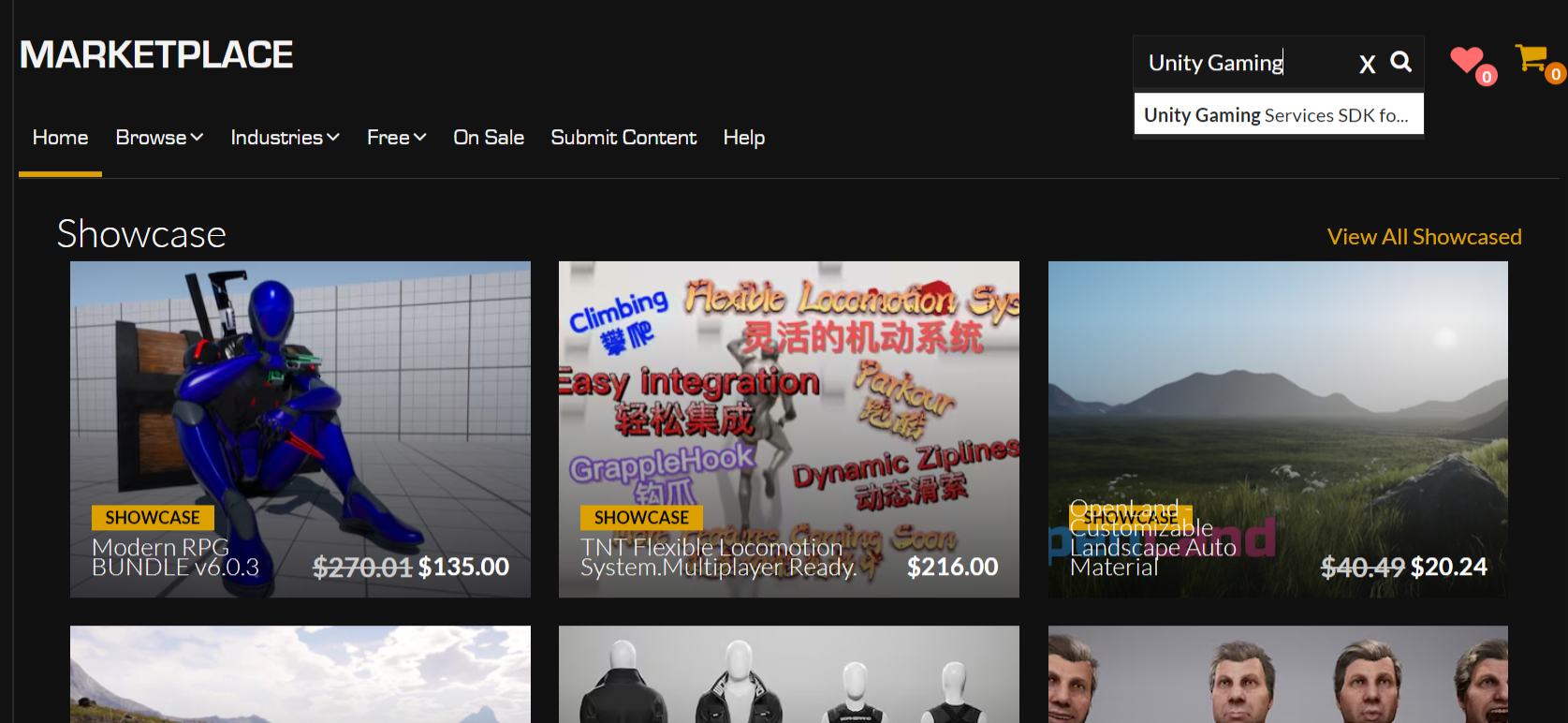
搜索 Unity Gaming Services SDK for Unreal Engine
- 访问 Unity Gaming Services SDK for Unreal Engine 页面,然后选择 Free(免费)。

Unity Gaming Services SDK for Unreal Engine Launcher 页面
- 在 Epic Games Launcher 中选择 Install to Engine(安装到引擎)。
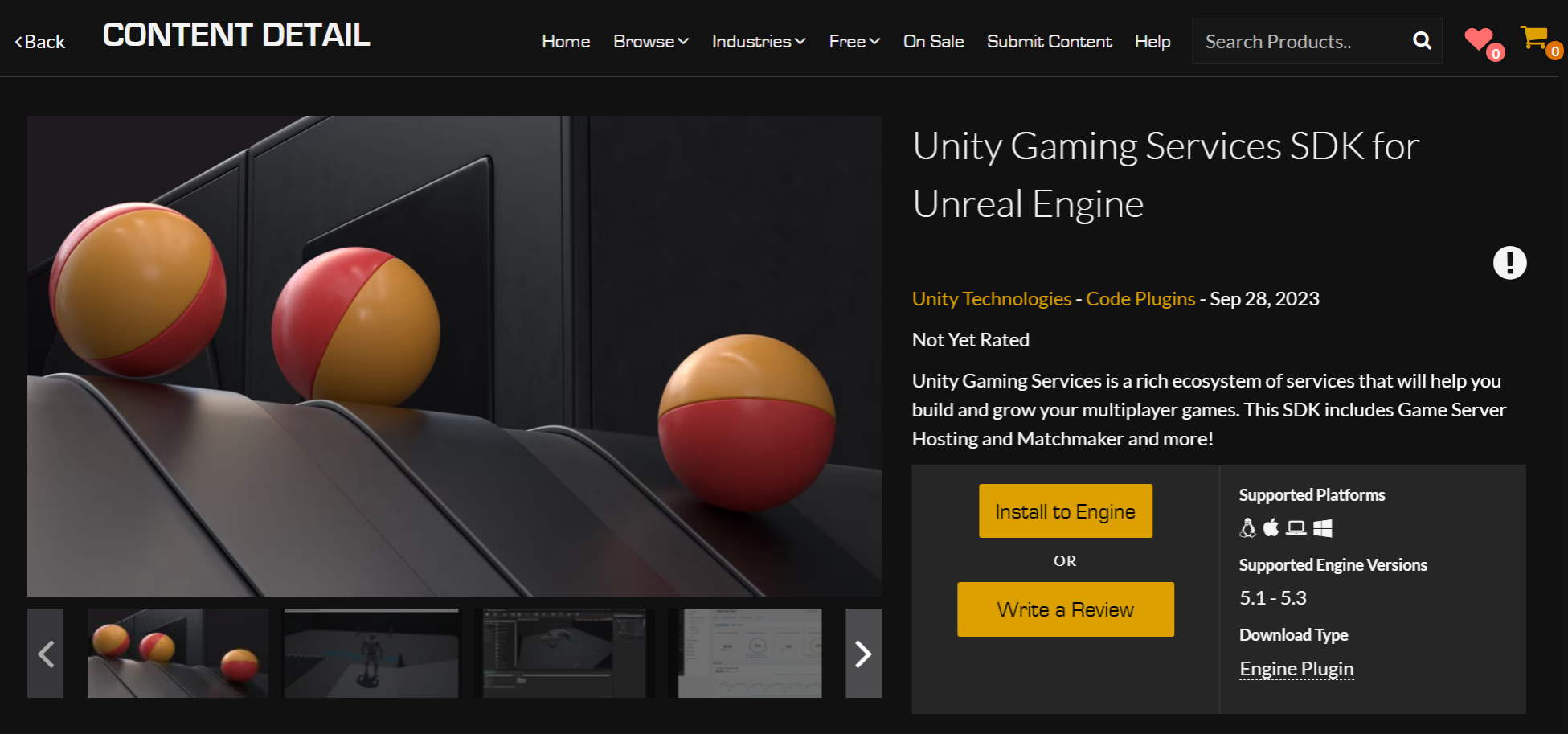
Unity Gaming Services SDK for Unreal Engine 安装按钮
- 打开一个新项目或现有项目。
- 导航到 Plugins(插件)窗口并选中 Unity Gaming Services SDK for Unreal Engine 旁边的复选框。

Unity Gaming Services SDK for Unreal Engine 插件窗口
- 重新启动 Unreal Engine。
配置 Authentication SDK
在开始使用 Authentication SDK 之前,您需要注册使用 Unity Gaming Services(Unity 游戏服务)并注册一个项目。
注册 UGS
如果您还没有 Unity 帐户,创建一个帐户并创建一个新项目,以注册使用 Unity Gaming Services(Unity 游戏服务):
- 登录 Unity Dashboard。
- 选择侧面板中的 Explore Services(探索服务)。
- 选择顶部横幅中的 **Sign Up(注册)**并按照说明操作。
关联您的项目
- 登录您的 Unity Dashboard。
- 选择标题栏项目名称旁边的齿轮图标来访问项目设置。
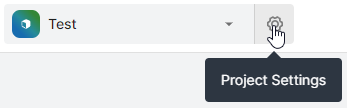
Project Settings(项目设置)齿轮图标。
- 在 General(常规)> **Project Details(项目详细信息)**下,有一个 Project ID 字段。复制该值。
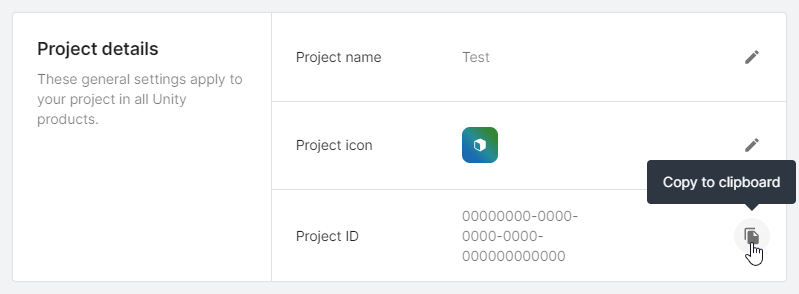
Project ID 的 Copy(复制)按钮。
- 在 Unreal Engine 编辑器中,转到 Edit(编辑)> Project Settings(项目设置)> Plugins(插件)> Unity Authentication > Unity Project Settings(Unity 项目设置)。
- 将复制的值粘贴到 Unity Project ID 字段中。
- 获取 Unity 环境。这是一个可选参数,用于指定您希望 Authentication SDK 与之交互的具体环境。
- 在 Unity Dashboard 中,转到 Environments(环境)> Your Environments(您的环境),然后选择您要使用的环境并复制其名称。这是我们用于环境的标识符。
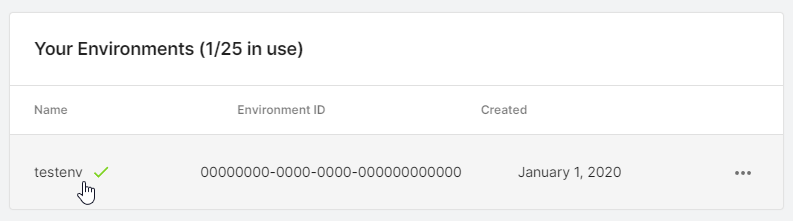
Unity Dashboard 的环境列表。
- 在 Unreal Engine 编辑器中,转到 Edit(编辑)> Project Settings(项目设置)> Plugins(插件)> Unity Authentication > Unity Project Settings(Unity 项目设置)。
- 将复制的值粘贴到 **Unity Environment Name(Unity 环境名称)**字段中。
复制这两个字段后,Unreal 编辑器中的项目设置应如下所示:
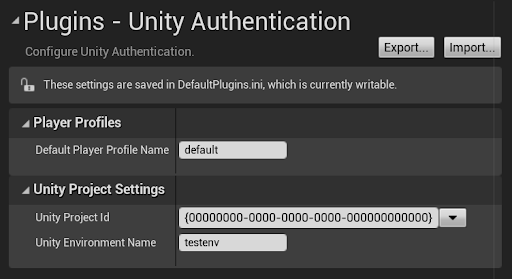
Unity Authentication 插件。
**Default Player Profile Name(默认玩家配置文件名称)**字段允许为默认 Authentication 玩家配置文件指定不同的名称。这个字段可以保持不变,或根据您的需要进行自定义。
请参阅玩家配置文件以详细了解 Authentication SDK 中的玩家配置文件。
下一步
继续进行以下集成之一: