Integration with Singular
Integrate Singular as your mobile measurement partner to share user engagement and campaign data with Tapjoy Offerwall.
Read time 2 minutesLast updated 3 months ago
This guide provides instructions on setting up a new Offerwall campaign in the Singular dashboard.
For additional guidance, refer to the Set-Up Guide for Tapjoy and General Instructions on how to set-up a Partner in the Singular documentation.
Tapjoy campaign configuration
- Log in to the Singular dashboard.
- Select Attribution > Partner Configuration on the left menu.
- Search for Tapjoy in the filter box.
- Select Add App Site.
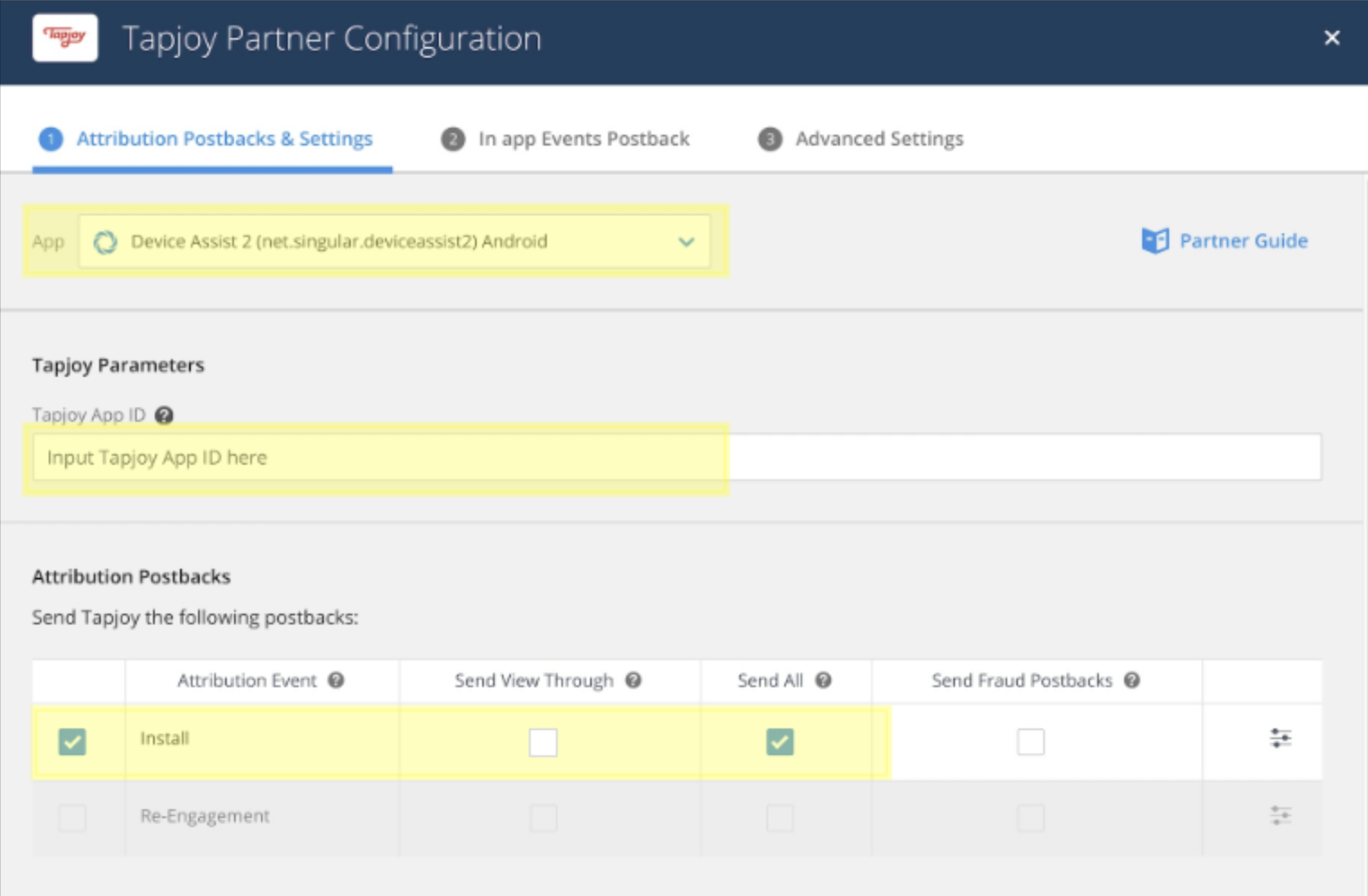
- In the dropdown, select the App you want to configure. NOTE: Each app is configured separately.
- Input the Tapjoy generated ID under the field.
Tapjoy App ID - Under , check the 'Install' Attribution Event.
Attribution Postback - To the right, check .
Send All - Select Next to continue to add your revenue events as described in the IAP and Ad Revenue Configuration section below.
IAP and ad revenue configuration for ROAS
Singular IAP setup
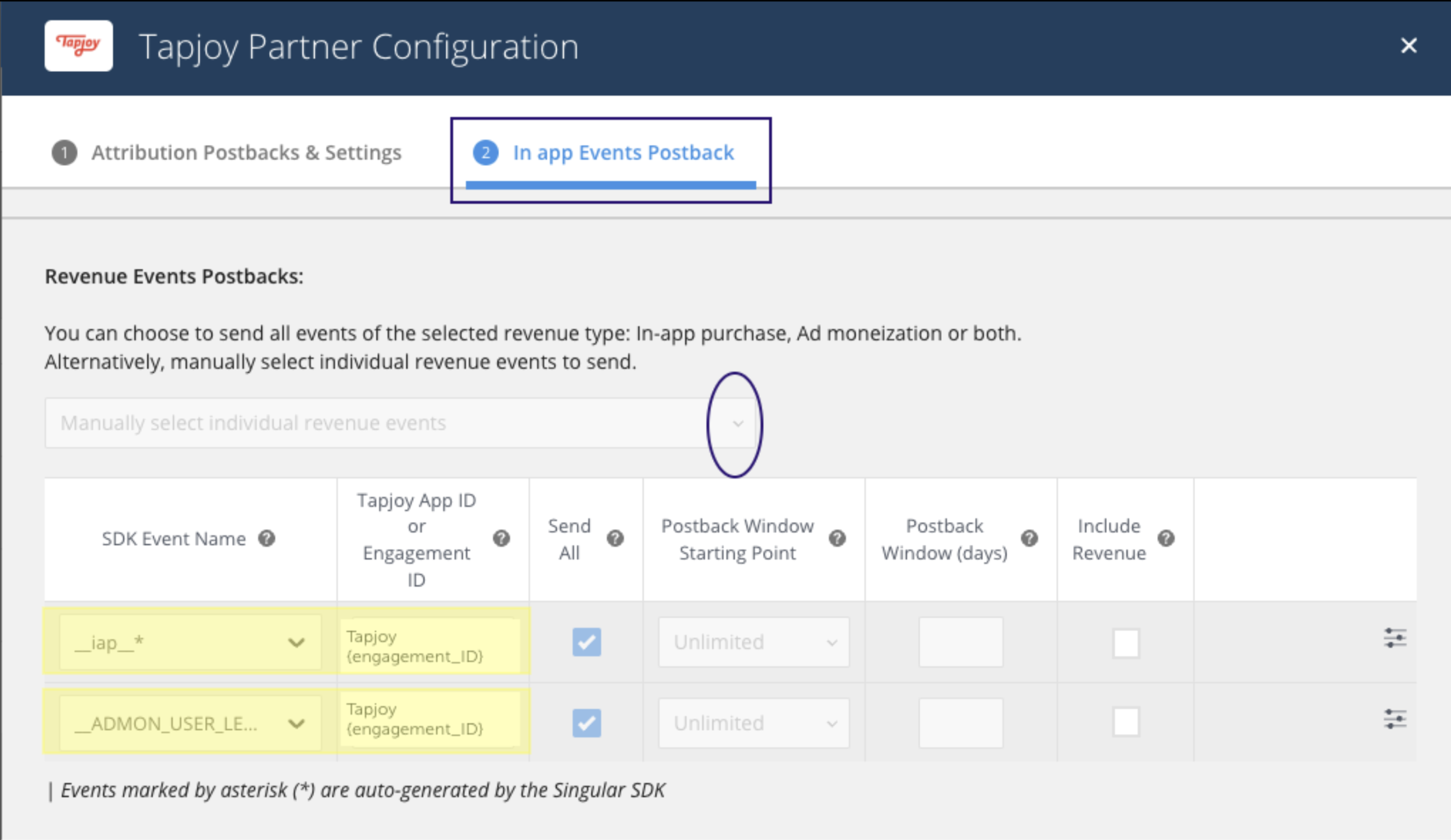
- Under the section, add your IAP event. We recommend using the event name
In app Event Postback.__ IAP__ - Add the corresponding Tapjoy Engagement ID in the column.
Tapjoy App ID or Engagement ID - Check .
Send All - Check the box.
Include Revenue - When all events are added and IDs are mapped, select Save.
For more information, refer to In-app events in the Singular documentation.
Singular ad revenue setup
- Under the section, add the ad revenue event using the event name
In app Event Postback.__ ADMON_USER_LEVEL_REVENUE__ - Add the corresponding Tapjoy Engagement ID in the column.
Tapjoy App ID or Engagement ID - Check .
Send All - Check the box.
Include Revenue - When all events are added and IDs are mapped, select Save.
For more information, refer to the Onboarding Guide for Ad Revenue Attribution in the Singular documentation.