Integrate Tenjin with Unity
Activate the Unity Ads integration in the Tenjin dashboard and enable full data-sharing.
Read time 4 minutesLast updated 2 months ago
Set up Tenjin as your Mobile Measurement Partner (MMP) for Unity Ads User Acquisition campaigns. Integration includes the following setup tasks:
- Copy credentials from the Unity Dashboard.
- Activate Unity Ads in the Tenjin dashboard.
- Configure data-sharing settings.
For the most up-to-date Tenjin integration information, consult the Tenjin Help Center.
Prerequisites
Before setup, ensure you meet the following requirements:
- Add at least one app in the Unity Ads User Acquisition dashboard.
- Enable Organization Owner or Organization Manager access in the Unity Dashboard. Refer to User types, roles and permissions for more information.
- Download the latest version of the Tenjin SDK.
Integrate Unity Ads with Tenjin
Complete the following steps to integrate Tenjin with your User Acquisition campaign:
Copy credentials from the Unity Dashboard
You need the following Unity account credentials to complete your Tenjin integration:
Game ID
To retrieve your Game ID from the Apps page of the User Acquisition dashboard, follow these steps:
- From the dashboard left navigation menu, go to Apps. The provided table lists each of your organization's apps. Following each app name, the dashboard displays the app platform and Game ID.
- Select the Copy symbol next to the ID to copy it to your clipboard.
- Optionally, hover over the app name to copy the Campaign Set ID and Store ID as well.
Activate Unity Ads in the Tenjin dashboard
To integrate Unity with Tenjin, follow these steps in the Tenjin dashboard:
- Go to the Configure tab and select Channels.
- Search for Unity Ads in the Marketing Channel Name field.
- In the New Marketing Channel setup for Unity Ads, enter the Unity account credentials you copied from the Unity dashboard and give your account a name.
- In the Tenjin navigation menu, go to the Campaigns tab and select Create Campaign.
- Select Unity Ads from the Marketing Account dropdown.
- Choose your app from the App dropdown and give your campaign a descriptive Name.
- When the system prompts you with a Callback to be created message, follow the provided link to continue and generate an attribution link.
Configure data-sharing settings
With Tenjin, configuring the data-sharing settings also maps your in-app events. To configure data-sharing settings and map events with Tenjin, do the following as you finish the activation workflow:
- After you follow the link in the Callback to be created message, select Unity Ads from the Channels and Partners dropdown.
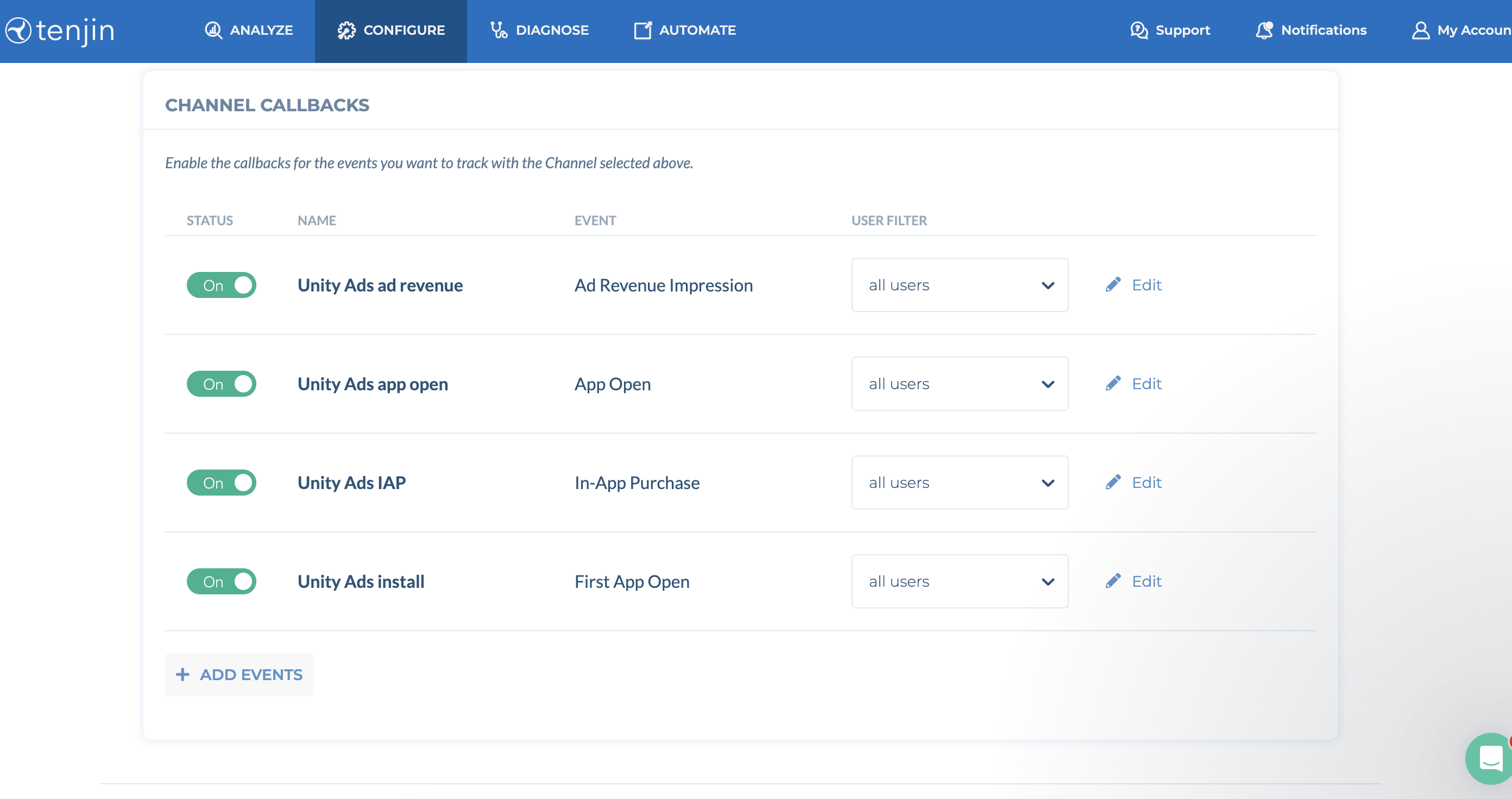
- In the Channel callbacks section, activate the following toggles:
- Unity Ads ad revenue
- Unity Ads app open
- Unity Ads IAP
- Unity Ads install
- For each event callback, select all users from the User filter dropdown.