Integrate Singular with Unity
Activate the Unity Ads integration in the Singular dashboard, enable full data-sharing, and map events.
Read time 5 minutesLast updated a month ago
Set up Singular as your Mobile Measurement Partner (MMP) for Unity Ads User Acquisition campaigns. Integration includes the following setup tasks:
- Activate Unity Ads in the Singular dashboard.
- Configure data-sharing settings.
- Map post-install events.
For the most up-to-date Singular integration information, consult the Singular Help Center.
Prerequisites
Before setup, ensure you meet the following requirements:
- Add at least one app in the Unity Ads User Acquisition dashboard.
- Retrieve your Game ID from the User Acquisition dashboard.
- Download the latest version of the Singular SDK.
Integrate Unity Ads with Singular
Complete the following steps to integrate Unity Ads in the Singular dashboard:
Activate Unity Ads in the Singular dashboard
- Go to Attribution Setup > Partner Configuration.
- Select Add a Partner. Search for and select Unity Ads.
- Enter your advertiser Game ID in the Unity Ads Game ID field. To copy your Game ID from the Unity Dashboard, refer to the following steps:
To retrieve your Game ID from the Apps page of the Unity Dashboard, follow these steps:
- Go to Apps from the left navigation menu. The provided table lists each of your organization's apps. Following each app name, the dashboard displays the app platform and Game ID.
- Select Copy (
 ) next to the ID to copy it to your clipboard.
Configure data-sharing settings
To configure data-sharing settings, follow these steps:
- In the Attribution Postbacks & Settings tab, go to the Attribution Postbacks table.
- Select the Install checkbox in the Attribution Event column.
- In the same row, select the following checkboxes:
- Send View Through
- Send All
- Send Fraud Postbacks
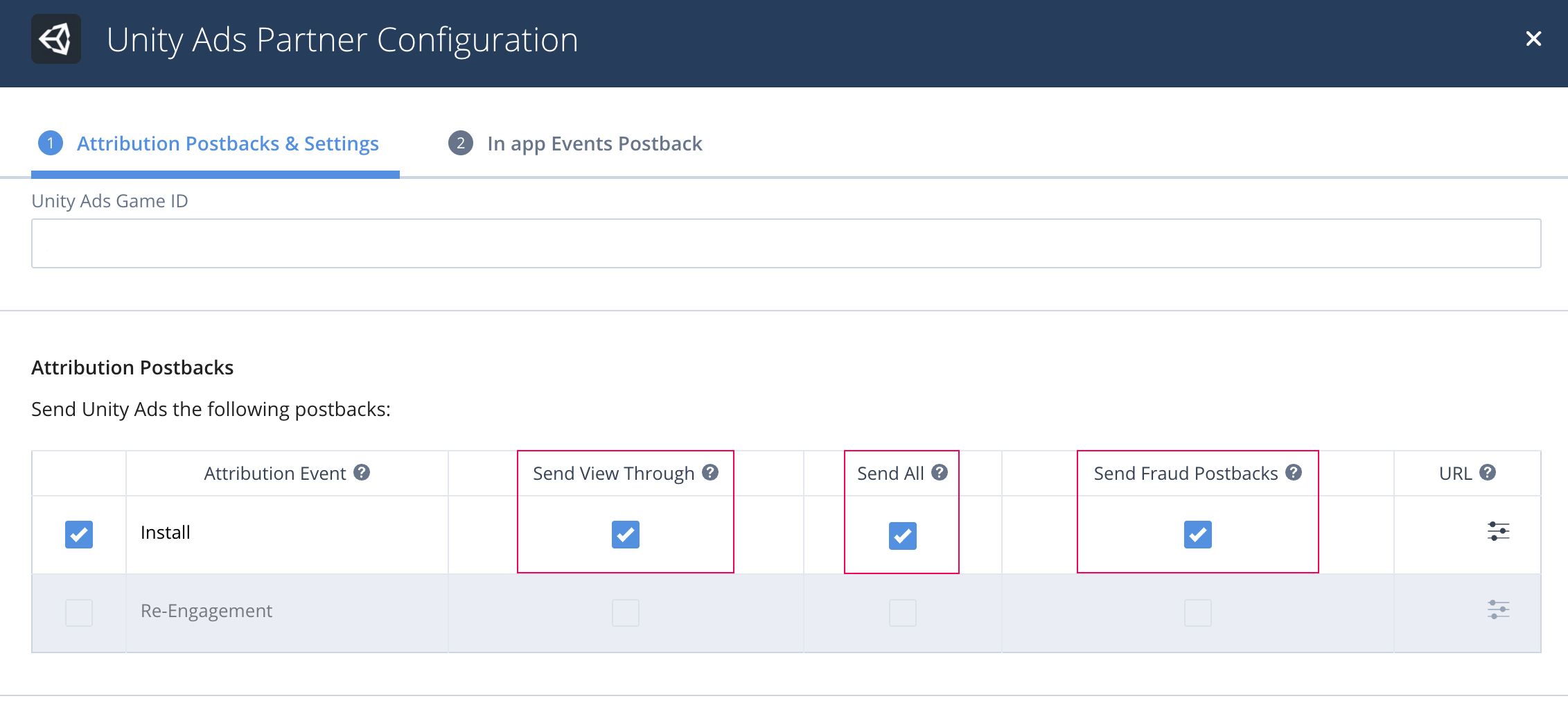
Install attribution
Map post-install events
Map Singular events based on whether they include revenue. Map events that include Revenue in the Revenue Events Postbacks section, and map events that don't include revenue in the Events Postbacks section:
Event type | Revenue values included | Mapping location |
|---|---|---|
| Yes | Revenue Events Postbacks |
| No | Events Postbacks |
Refer to the following tabs for mapping instructions:
To send ad revenue and in-app purchase event data, follow these steps in the Revenue Events Postbacks section of the In-app Events Postback tab:
- Select your Singular events in the SDK Event Name column and map them to Unity Ads events in the Event Name column as follows:
Event type | Singular SDK Event Name | Unity Ads Event Name | Mapping notes |
|---|---|---|---|
| In-app purchase (IAP) |
| | You can use either the default purchase name, __iap__, or enter a custom-defined name in the SDK Event Name field for in-app purchase events. |
| Ad revenue | __ADMON_USER_LEVEL_REVENUE__ | | Don't map revenue events to __REVENUE__. |
- To share data from your entire user base, select the Send all checkbox for each event.
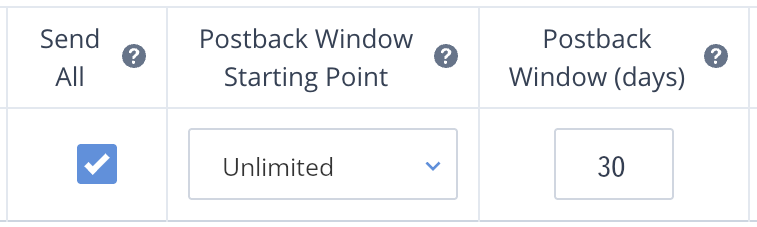
- In the Postback Window Starting Point column, select Unlimited for each event.
- If you have a Singular Enterprise account, set the Postback Window (days) to Unlimited . Otherwise, set the window to days.
30 - Select the Include Revenue checkbox for each event.
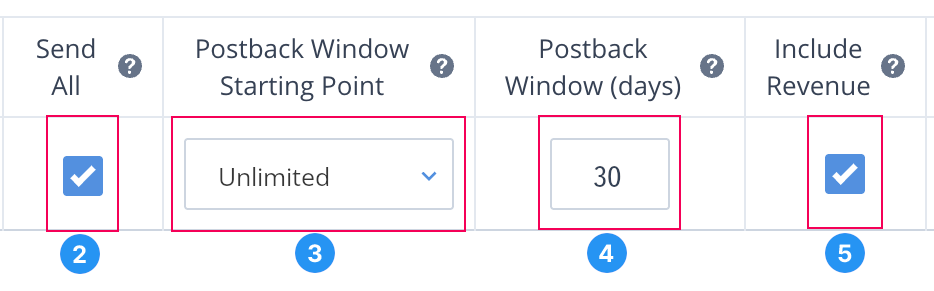
Revenue postback settings