ユースケースサンプル: 参加ロビー内のすべてのプレイヤーにレベルアップをアナウンスする
Announce a player's level up to all other players in joined lobbies through a push message.
読み終わるまでの所要時間 6 分最終更新 2日前
このユースケースサンプルは、プレイヤーが参加しているロビー内の他のすべてのプレイヤーにレベルアップをアナウンスするためにトリガーを使用する方法を示します。このサンプルでは、Cloud Save サービスが発行する
key-saved前提条件
まず、必要なアクセスロールを持つサービスアカウントを作成する必要があります。サービスアカウントを使用した認証
Triggers サービスを呼び出す前に、サービスアカウントを使用して認証する必要があります。- Unity Dashboard に移動します。
- Administration (管理) > Service Accounts (サービスアカウント) を選択します。
- New (新規) ボタンを選択し、サービスアカウントの名前と説明を入力します。
- Create (作成) を選択します。
- Manage product roles (製品ロールの管理) を選択します。
- 以下のロールをサービスアカウントに追加します。
- LiveOps ドロップダウンから、Triggers Configuration Editor (Triggers 設定編集者) および Triggers Configuration Viewer (Triggers 設定閲覧者) を選択します。
- Admin (管理者) ドロップダウンから Unity Environments Viewer (Unity 環境閲覧者) を選択します。
- LiveOps ドロップダウンから、Triggers Configuration Editor (Triggers 設定編集者) および Triggers Configuration Viewer (Triggers 設定閲覧者) を選択します。
- Save (保存) を選択します。
- Add Key (キーの追加) を選択します。
- base64 エンコードを使用して Key ID (キー ID) と Secret key (秘密鍵) をエンコードします。形式は "key_id:secret_key" です。この値をメモしておきます。
key-saved イベントを調べる
Cloud Save サービスは、Cloud Save キーが保存されたときにkey-savedイベントは、イベントペイロードをパラメーターとして Cloud Code に渡します。 詳細については、Cloud Save: キー保存 を参照してください。{ "id": "7LpyhpsIvEczGkDI1r8J6gHhHezL", "idType": "player", "key": "LEVEL", "value": 1, "valueIncluded": true, "writeLock": "7b8920a57912509f6b5cbb183eb7fcb0", "accessClass": "default", "modifiedDate": "2021-03-04T09:00:00Z"}
Cloud Code の設定
プレイヤーがレベルアップしたときにロビー内のすべてのプレイヤーにプッシュメッセージを送信するモジュールエンドポイントを定義します。 以下のようなコンテンツでAnnounceLevelUpモジュールをデプロイします。 モジュールのデプロイ方法を学習するには、Hello World のデプロイ を参照してください。using Microsoft.Extensions.DependencyInjection;using Microsoft.Extensions.Logging;using Unity.Services.CloudCode.Apis;using Unity.Services.CloudCode.Core;using Unity.Services.CloudCode.Shared;using Unity.Services.Lobby.Model;namespace AnnounceLevelUp;public class AnnounceLevelUp{ private const string ServiceId = "cloud-code"; private readonly ILogger<AnnounceLevelUp> _logger; public AnnounceLevelUp(ILogger<AnnounceLevelUp> logger) { _logger = logger; } [CloudCodeFunction("AnnounceLevelUp")] public async Task Announce(IExecutionContext ctx, PushClient pushClient, IGameApiClient gameApiClient, string id) { try { var playerList = await GetPlayersFromLobbies(ctx, gameApiClient, id); if (playerList.Count == 0) { _logger.LogInformation("The player {playerId} has not joined any lobbies", id); return; } await SendPushMessage(ctx, pushClient, playerList); } catch (ApiException e) { _logger.LogError("Failed to announce level up for player {playerId}. Error: {Error}", id, e.Message); throw new Exception($"Failed to announce level up for player {id}. Error: {e.Message}"); } } public async Task SendPushMessage(IExecutionContext ctx, PushClient pushClient, List<Player> lobbyPlayers) { foreach (var lobbyPlayer in lobbyPlayers) { try { var message = $"The player {lobbyPlayer.Id} has leveled up!"; _logger.LogInformation("Sending push notification to player {lobbyPlayer}", lobbyPlayer.Id); await pushClient.SendPlayerMessageAsync(ctx, message, "Level up!", lobbyPlayer.Id); } catch (ApiException e) { _logger.LogError("Failed to send push notification to player {playerId}. Error: {Error}", lobbyPlayer.Id, e.Message); } } } public async Task<List<Player>> GetPlayersFromLobbies(IExecutionContext ctx, IGameApiClient gameApiClient, string playerId) { var playersToNotify = new List<Player>(); try { var lobbyList = await gameApiClient.Lobby.GetJoinedLobbiesAsync(ctx, ctx.ServiceToken, ServiceId,playerId ); foreach (var lobby in lobbyList.Data) { var players = await GetLobbyData(ctx, gameApiClient, lobby); playersToNotify.AddRange(players); } return playersToNotify; } catch (Exception e) { _logger.LogError("Failed to get players from lobbies. Error: {Error}", e.Message); throw new Exception($"Failed to get players from lobbies. Error: {e.Message}"); } } public async Task<List<Player>> GetLobbyData(IExecutionContext ctx, IGameApiClient gameApiClient, string lobbyId) { try { var response = await gameApiClient.Lobby.GetLobbyAsync(ctx, ctx.ServiceToken, lobbyId, "cloud-code"); return response.Data.Players; } catch (Exception e) { _logger.LogError("Failed to get players from lobby: {lobbyId}. Error: {Error}", lobbyId, e.Message); throw new Exception($"Failed to get players from lobby: {lobbyId}. Error: {e.Message}"); } } public class ModuleConfig : ICloudCodeSetup { public void Setup(ICloudCodeConfig config) { config.Dependencies.AddSingleton(GameApiClient.Create()); config.Dependencies.AddSingleton(PushClient.Create()); } }}
トリガーの設定
Cloud Code リソースを Cloud Savekey-savedkey_id:secret_keyサンプルトリガーは、プレイヤーが値をcurl 'https://services.api.unity.com/triggers/v1/projects/<PROJECT_ID>/environments/<ENVIRONMENT_ID>/configs' \--header 'Content-Type: application/json' \--header 'Authorization: Basic <SERVICE_ACCOUNT_CREDENTIALS_ENCODED>' \--data '{ "name": "announce-level-up", "eventType": "com.unity.services.cloud-save.key-saved.v1", "actionType": "cloud-code", "actionUrn": "urn:ugs:cloud-code:AnnounceLevelUp/AnnounceLevelUp", "filter": "data[\"idType\"] == \"player\" && data[\"key\"] == \"LEVEL\""}'
LEVELLobby の設定
サンプルに従うには、Lobby を作成 する必要があります。これを達成するには、Unity Dashboard でヘルパー Cloud Code スクリプトを使用します。JavaScript
ロビー ID をメモします。const { LobbyApi } = require("@unity-services/lobby-1.2");module.exports = async ({ params, context, logger }) => { const lobbyApi = new LobbyApi(context); const serviceId = "cloud-code"; try { // Create a private lobby without any initial players. const { data: lobby } = await lobbyApi.createLobby(serviceId, null, { name: "sample-lobby", maxPlayers: 4, }); return lobby.id; } catch (err) { logger.error(`Error while calling out to Lobby: ${JSON.stringify(err.message)}`); throw err; }};
プレイヤーのロビーへの追加
以下の Cloud Code スクリプトを実行して、Unity Dashboard で作成したロビーにプレイヤーを追加できます。すべてのテスト実行でプレイヤー ID トークンを再生成して、新しいプレイヤーを追加します。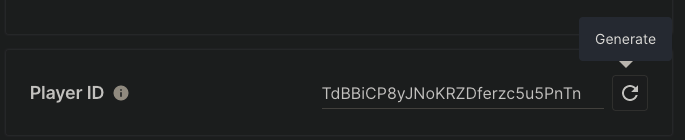
lobbyIdJavaScript
const { LobbyApi } = require("@unity-services/lobby-1.2");module.exports = async ({ params, context, logger }) => { const lobbyApi = new LobbyApi(context); const serviceId = "cloud-code"; try { await lobbyApi.joinLobbyById(params.lobbyId, serviceId, context.playerId); } catch (err) { logger.error("Failed to join lobby", { "error.message": err.message }, { lobbyId: params.lobbyId }); throw err; }};
結果の検証
結果を検証するには、プッシュメッセージをサブスクライブする Unity プロジェクトを設定し、前に作成したプレイヤーを追加する Cloud Code スクリプト を使用して、認証済みプレイヤーをロビーに参加させます。前提条件
プッシュメッセージをサブスクライブするには、Cloud Code SDK をインストールし、Unity Gaming Services プロジェクト を Unity エディターにリンクする必要があります。プロジェクトのリンク
Unity Gaming Services プロジェクト を Unity エディターにリンクします。UGS プロジェクト ID は Unity Dashboard にあります。- Unity エディターで、Edit (編集) > Project Settings (プロジェクト設定) > Services (サービス) の順に選択します。
-
プロジェクトをリンクします。
プロジェクトに Unity プロジェクト ID がない場合:- Create a Unity Project ID (Unity プロジェクト ID の作成) > Organizations (組織) の順に選択し、ドロップダウンから組織を選択します。
- Create project ID (プロジェクト ID を作成) を選択します。
既存の Unity プロジェクト ID がある場合:- Use an existing Unity project ID (既存の Unity プロジェクト ID を使用) を選択します。
- ドロップダウンから組織とプロジェクトを選択します。
- Link project ID (プロジェクト ID をリンク) を選択します。
UnityEditor.CloudProjectSettings.projectIdSDK のインストール
Unity エディターの最新の Cloud Code パッケージをインストールするには、以下を行います。- Unity エディターで、Window (ウィンドウ) > Package Manager (パッケージマネージャー) を開きます。
- Package Manager で、Unity Registry (Unity レジストリ) のリストビューを選択します。
- を検索するか、リストから Cloud Code パッケージを探します。
com.unity.services.cloudcode - このパッケージを選択し、Install を選択します。
Monobehaviour スクリプトの作成
プレイヤーレベルのメッセージをサブスクライブするには、MonobehaviourMonoBehaviourusing System;using System.Threading.Tasks;using Newtonsoft.Json;using Unity.Services.Authentication;using Unity.Services.CloudCode;using Unity.Services.CloudCode.Subscriptions;using Unity.Services.Core;using UnityEngine;namespace CloudCode{ public class CloudCodePushExample : MonoBehaviour { async void Start() { await UnityServices.InitializeAsync(); await AuthenticationService.Instance.SignInAnonymouslyAsync(); Debug.Log(AuthenticationService.Instance.PlayerId); await SubscribeToPlayerMessages(); } // This method creates a subscription to player messages and logs out the messages received, // the state changes of the connection, when the player is kicked and when an error occurs. Task SubscribeToPlayerMessages() { // Register callbacks, which are triggered when a player message is received var callbacks = new SubscriptionEventCallbacks(); callbacks.MessageReceived += @event => { Debug.Log(DateTime.Now.ToString("yyyy-MM-dd'T'HH:mm:ss.fffK")); Debug.Log( $"Got player subscription Message: {JsonConvert.SerializeObject(@event, Formatting.Indented)}"); }; callbacks.ConnectionStateChanged += @event => { Debug.Log( $"Got player subscription ConnectionStateChanged: {JsonConvert.SerializeObject(@event, Formatting.Indented)}"); }; callbacks.Kicked += () => { Debug.Log($"Got player subscription Kicked"); }; callbacks.Error += @event => { Debug.Log( $"Got player subscription Error: {JsonConvert.SerializeObject(@event, Formatting.Indented)}"); }; return CloudCodeService.Instance.SubscribeToPlayerMessagesAsync(callbacks); } }}
Monobehaviourロビーへの参加
前に作成したプレイヤーを追加する Cloud Code スクリプト を使用して、認証済みプレイヤーをロビーに参加させることができます。前に作成したロビー ID をlobbyIdplayerIdCloud Save での Level キーの更新
以下のスクリプトを実行すると、Cloud Save キーを更新して、Cloud Code モジュールをトリガーできます。 これは文字列パラメーターplayerIdlevel
以前にロビーに追加したプレイヤーの 1 人のプレイヤー ID を使用します。こうすると、Unity プロジェクトで認証されたプレイヤーが同じロビーにいるため、確実にメッセージを受け取ります。
JavaScript
const { DataApi } = require("@unity-services/cloud-save-1.4");module.exports = async ({ params, context, logger }) => { const cloudSaveApi = new DataApi(context); try { await cloudSaveApi.setItem(context.projectId, params.playerId, { key: "LEVEL", value: params.level, }); result = await cloudSaveApi.getItems(context.projectId, params.playerId); return result.data; } catch (err) { logger.error("Error while calling out to Cloud Save", { "error.message": err.message }); throw err; }};
結果の検証
Unity プロジェクトが実行しており、Unity プロジェクトで認証されたプレイヤーがロビーにいることを確認し、Cloud Save でLEVELGot player subscription Message:{ "data_base64": <BASE64-ENCODED-DATA>, "time": "2023-11-13T16:21:35.102058117Z", "message": "The player Z96pNb4wfgdaMLqMQfWpwXEclaRZ has leveled up!", "specversion": "1.0", "id": <ID>, "source": "https://cloud-code.service.api.unity.com", "type": "com.unity.services.cloud-code.push.v1", "projectid": <PROJECT-ID>, "environmentid": <ENVIRONMENT-ID>, "correlationid": <CORRELATION-ID>, "messagetype": "Level up!",}