エラー処理
Handle errors in your scripts using error codes and custom error-handling logic.
読み終わるまでの所要時間 6 分最終更新 6ヶ月前
スクリプト内でエラーを処理する方法を説明します。
エラーコード
Cloud Code は、スクリプトが例外をスローした場合に ステータスエラーを返します。
422エラー処理ロジックでは、Cloud Code API エラーレスポンスから返されるエラーメッセージのかわりにエラーコードまたはエラータイプを使用します。エラーメッセージは将来変更される可能性がありますが、エラーコードとタイプは同じままになります。
エラーのラップ
エラーを処理するにはコードを ブロックにラップします。エラーが発生した場合は、それをログに記録し、クライアントにエラーを返すことができます。
try/catch例えば、ラップされない関数を使用できます。
JavaScript
const { CurrenciesApi } = require("@unity-services/economy-2.4");module.exports = async ({ params, context, logger }) => { const { projectId, playerId } = context; const { currencyId } = params; const currencies = new CurrenciesApi(context); const setBalance = await currencies.setPlayerCurrencyBalance({ projectId, playerId, currencyId, currencyBalanceRequest: { balance: 100 } }); const decrement = await currencies.decrementPlayerCurrencyBalance({ projectId, playerId, currencyId, currencyModifyBalanceRequest: { amount: 50 } }); const increment = await currencies.incrementPlayerCurrencyBalance({ projectId, playerId, currencyId, currencyModifyBalanceRequest: { amount: 10 } }); const result = await currencies.getPlayerCurrencies({ projectId, playerId }); return result.data;}
ラップされていない関数は、いずれかの API 呼び出しが失敗した場合にエラーを返します。一方、API 呼び出しをラップした場合は、エラーメッセージからログアウトし、エラーの詳細を取得できます。
JavaScript
const { CurrenciesApi } = require("@unity-services/economy-2.4");module.exports = async ({ params, context, logger }) => { const { projectId, playerId } = context; const { currencyId } = params; const currencies = new CurrenciesApi(context); try { const setBalance = await currencies.setPlayerCurrencyBalance({ projectId, playerId, currencyId, currencyBalanceRequest: { balance: 100 } }); const decrement = await currencies.decrementPlayerCurrencyBalance({ projectId, playerId, currencyId, currencyModifyBalanceRequest: { amount: 50 } }); const increment = await currencies.incrementPlayerCurrencyBalance({ projectId, playerId, currencyId, currencyModifyBalanceRequest: { amount: 10 } }); const result = await currencies.getPlayerCurrencies({ projectId, playerId }); return result.data; } catch (err) { logger.error("Failed to increment currency", {"error.message": err.message}, {"currencyId" : currencyId}); throw err; }}
ログを確認して詳細を表示するには、Unity Dashboard を開き、Products (製品) > Cloud Code > Logs (ログ) を選択します。
ロギング
loggerCloud Code では、、、 などの属性がログに自動的に追加されるため、それらをログメッセージに追加する必要はありません。
playerIdenvironmentIdprojectIdJavaScript
logger.debug(message, ...logAttributes)logger.info(message, ...logAttributes)logger.warning(message, ...logAttributes)logger.error(message, ...logAttributes)logger.fatal(message, ...logAttributes)
カスタムログ属性を追加して、ログメッセージついてより多くのコンテキストを持つことができます。例えば、Economy の呼び出しが失敗した場合、 をログメッセージに追加できます。
currencyIdJavaScript
logger.error("Failed to increment currency", {"error.message": err.message}, {"currencyId" : params.currencyId});
Unity Dashboard に移動し、Cloud Code > Logs (ログ) を選択して、ログの表示とフィルター処理を行います。
詳細については、ログの発行 を参照してください。
Unity Dashboard でのデバッグ
Unity Dashboard を使用してスクリプトをデバッグできます。
Cloud Code > Scripts (スクリプト) に移動し、デバッグするスクリプトを選択します。
Response (レスポンス) タブとスクリプトエディターは、エラーが発生した場所を示すのに役立ちます。
Response (レスポンス) タブには、エラーの行と列が表示されます。デバッガーは、この情報を使用し、注釈を追加して、エラーが発生した場所を Script Code (スクリプトコード) セクションで視覚的に示します。
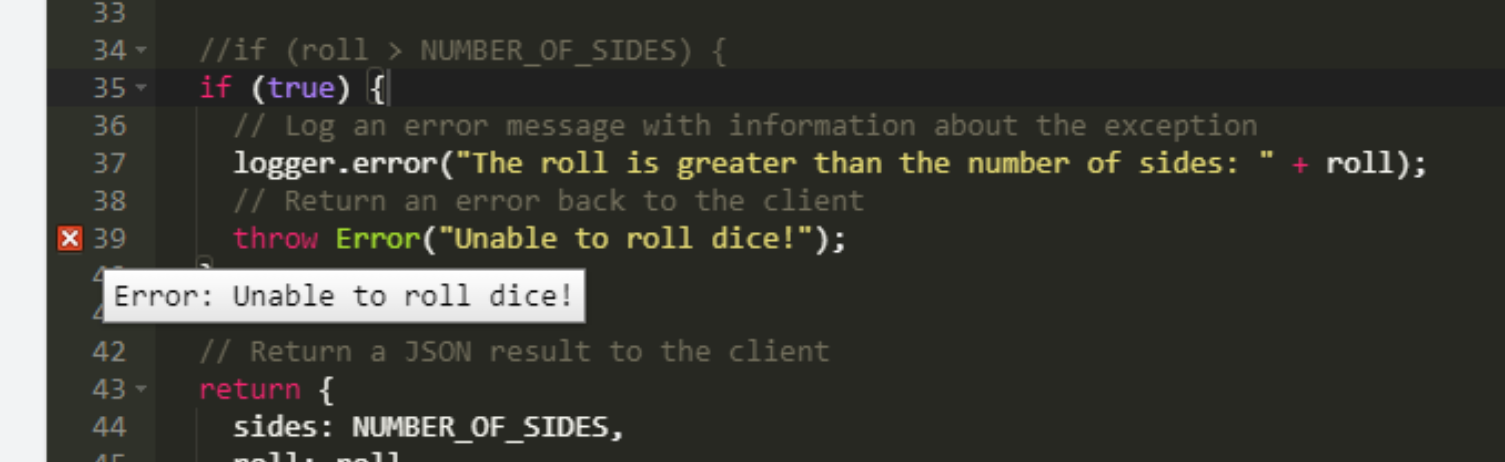
エラーの注釈は、スクリプトに編集を行うか、スクリプトを再度実行するまで表示されたままになります。
以下は、エラーを処理およびスローする方法の例です。
JavaScript
const { CurrenciesApi } = require("@unity-services/economy-2.4");module.exports = async ({ params, context, logger }) => { const { playerId, projectId } = context; const { currencyId } = params; const currencies = new CurrenciesApi(context); try { const setBalance = await currencies.setPlayerCurrencyBalance({ projectId, playerId, currencyId, currencyBalanceRequest: { balance: 100, } }); } catch (err) { if (err.response) { logger.error("Failed to set currency", { "error.response": err.response }, {"currencyId": currencyId}); } else { logger.error("Failed to set currency", { "error.message": err.message }, {"currencyId": currencyId}); } throw Error('oops'); }}