Mute and unmute audio with the toggle element.
Use a toggle to mute and unmute an audio source.
읽는 시간 3분최근 업데이트: 8달 전
Use this example to understand how to mute and unmute a scene's audio using a toggle.
Create a toggle in your UI Canvas
- Select UI Canvas in the Hierarchy panel.
- Right-click the UI Canvas and select UI > Toggle to create a new toggle.
- Expand the toggle object in the Hierarchy panel. The toggle's child objects show.
- Select the Label child object.
- In the Inspector window, in the Text field, type . Your toggle's label updates.
Mute
Add audio to your scene
- Find an audio clip in your My Assets folder or select Add Assets to import one.
- Drag the audio into the scene. Unity Studio creates an Audio Source GameObject.
Create a Logic script
- In the Project panel, select the My Logic folder.
- Select Add (+).
- Select Script. Unity Studio creates a new Logic script in the folder.
- Enter a name for your script and press Enter.
Add the script to a GameObject
- Select a GameObject in the Hierarchy panel.
- From the Inspector panel, select Add Component.
- Choose your Logic script from the list.
Set up the initial logic in the Logic Editor
- In the Project panel, double-click the Logic script to open the Logic Editor.
- Drag a When event listener into the Logic Editor.
- Add a Play starts event inside the When node.
- Create the following variables:
- Unique name : , Type :
toggleToggle - Unique name : , Type :
background_musicAudio Source
Create the toggle listener
- Drag the variable into the script, expand it, and choose onValueChanged > AddListener to create a listener that detects user interaction.
toggle - Add a Set variable value node inside the listener.
- Drag the variable into the script, expand it, and choose mute to create a Boolean node, and place it in the first socket of the Set variable value node.
background_music
Bind toggle state to mute
- Duplicate the Set variable value node (right-click > Duplicate).
- Drag another variable into the script, expand it, and choose isOn to create a toggle > isOn Boolean node.
toggle - Place the isOn node in the second socket of the duplicated Set variable value node.
- Move the duplicated node into the When node to sync the mute state when the scene starts.
Connect the listener for interaction and finalize the setup
- Move the original Set variable value node (with empty second socket) into the toggle > onValueChanged > AddListener node.
- Click and drag the evtBoolNode from the listener (which creates a copy) into the node’s second socket so the mute updates on interaction.
- Drag this listener group into the When node.
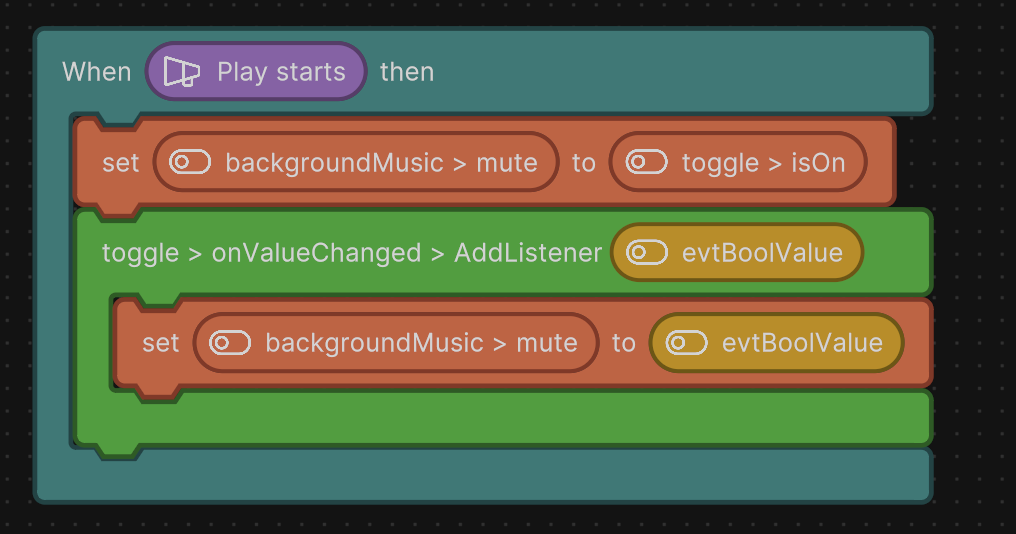
Example Logic script to change the audio source's mute state on toggle.
- Close the Logic Editor.
Connect your Toggle and Audio Source references
- In the Hierarchy panel, select the GameObject with the attached Logic script.
- Drag your toggle from the Hierarchy panel into the toggle variable reference in your script component.
- Drag your Audio Source object from the Hierarchy panel into the background_music variable reference in your script component.