기술 자료

​
​

Development

User Acquisition

Monetization

산업 분야

Unity Studio

Open Unity Studio

Unity Studio

이 페이지는 선택한 언어로 제공되지 않습니다.
​
​
Unity Studio
  • What's new in Unity Studio
  • Introduction to Unity Studio
  • Launch Unity Studio
  • Create your first Unity Studio project
  • Develop with Unity Studio
    • The Unity Studio interface
    • Save your progress
    • GameObjects
    • Assets
    • Materials
    • Scene settings
    • Logic
      • Introduction to Logic
      • Create a Logic script
      • The Logic Editor interface
      • Methods, variables, and parameters
      • Nodes
      • Logic examples
        • Use a button to transform a GameObject
        • Hide or show a User Interface (UI) element
        • Trigger an animation on key press
        • Adjust scene lighting with a button
        • Interact with an asset after an event
        • Display the name of a GameObject on hover
        • Enable or disable a property on a GameObject
        • Play audio when you click an object
        • Mute and unmute audio with the toggle element
        • Use sliders to change a material's color
    • The UI Creator
    • Animation
    • AI features
  • Collaborate in Unity Studio
  • Export drafts to the Unity Editor
  • Publish and share
  • Troubleshooting Unity Studio issues
  • Report bugs and share feedback
  • Manage your analytics and marketing preferences
  1. Unity Studio
  2. Develop with Unity Studio
  3. Logic
  4. Logic examples

Enable or disable a property on a GameObject

Learn how to use a Logic script to enable or disable properties on a GameObject.
읽는 시간 2분
최근 업데이트: 2달 전

This example shows you how to set up a script that enables or disables the gravity of a GameObject. You can also use these steps to alter different properties.
1

Create a button in your UI Canvas

  1. Select UI Canvas in the Hierarchy panel.
  2. Right-click and select UI > Button to create a new button.
2

Create a Cube in your scene

  1. Right-click in the Hierarchy panel and select Primitives > Cube to create a new Cube GameObject.
  2. Select the cube. The Inspector window for that cube opens.
  3. Within the Physics component, disable Use Gravity.
3

Create a new Logic script

  1. In the Project panel, select the My Logic folder.
  2. Select Add (+).
  3. Select Script. Unity Studio creates a new Logic script in the folder.
  4. To rename your script, right click the script and select Rename. Make sure the name doesn't contain spaces.
4

Add the script to the Cube

  1. Select the Cube from the Hierarchy panel.
  2. From the Inspector window, select Add Component.
  3. Choose your Logic script from the list.
5

Set up the logic in the Logic Editor

  1. In the Project panel, double-click the Logic script to open the Logic Editor.
  2. Create the following variables:
  • Unique name :
    Cube_Rigidbody
    , Type :
    Rigidbody
  • Unique name :
    Button
    , Type :
    Object
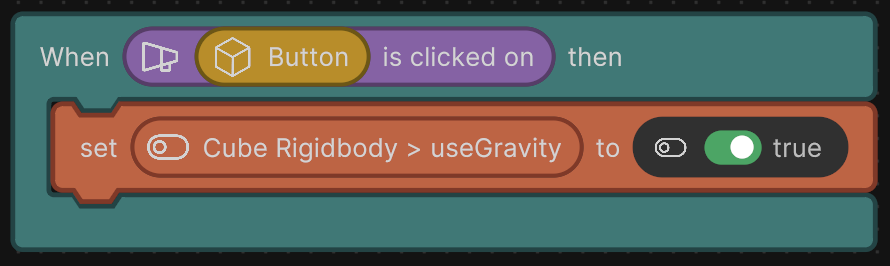
  1. Set up the following logic to enable the gravity when the user clicks the button:
  • Drag a When event listener into the Logic Editor.
  • Place a Clicked on node in the When node's Event socket.
  • Drag the
    Button
    variable in the Clicked on node.
  • Drag a Set variable value action into the When node.
  • In the variables, expand the
    Cube_Rigidbody
    properties. Drag the useGravity property to the first socket of the Set variable value node. Set its value to
    True
    .
Example Logic script to set the cube to be non-interactive.

Example Logic script to enable or disable a property of a GameObject.

6

Connect your script references

  1. In the Hierarchy panel, select the GameObject that has your Logic script attached.
  2. Drag the cube from the Hierarchy panel into the
    Cube_Rigidbody
    variable references in your script component.
  3. Drag the button from the Hierarchy panel into the
    Button
    variable reference in your script component.
  4. Press Play to test your scene. When you click on the button, it activates gravity on the cube.
팁
Follow the same steps to enable or disable a collider:
  • Change the variable type from
    Rigidbody
    to
    Collider
    .
  • Expand the
    Collider
    properties and use the
    enabled
    property.

Additional resources

  • Introduction to Logic
  • The Logic Editor interface
  • Create a Logic script
  • Methods and variables
  • Nodes
  • Logic examples

Copyright © 2026 Unity Technologies
법률 정보개인정보 처리방침쿠키Documentation Terms of Use개인 정보 판매 또는 공유 금지개인정보 보호 선택(쿠키 설정)

'Unity', Unity 로고 및 기타 Unity 상표는 미국 및 기타 지역 내 Unity Technologies 또는 그 계열사의 상표 또는 등록상표입니다(자세한 내용은 여기에서 확인하세요). 기타 명칭 또는 브랜드는 해당 소유자의 상표입니다.

일부 페이지는 편의를 위해 기계 번역되었으며 부정확한 내용이 있을 수 있습니다. 정보가 상충되는 경우, 영어 버전을 우선으로 참조하세요.

  • 보고 있는 페이지
    • Additional resources


이 페이지의 문제 보고