Interact with an asset after an event
Learn how to interact with a GameObject based on a specific event, such as a button click.
읽는 시간 3분최근 업데이트: 3달 전
Use this example to learn how to interact with a GameObject based on a specific event, such as a button click.
Create a button in your UI Canvas
- Select UI Canvas in the Hierarchy panel.
- Right-click and select UI > Button to create a new button.
Create a Cube in your scene
- Right-click in the Hierarchy panel and select Primitives > Cube to create a new Cube GameObject.
Create an Animation
- Select the Cube in the Hierarchy panel.
- Add an Animation component to your Cube from the Inspector.
- Create your animation and give it a name. For more information, refer to Animate a GameObject with the Animation component.
Create a New Logic script
- In the Project panel, select the My Logic folder.
- Select Add (+).
- Select Script. Unity Studio creates a new Logic script in the folder.
- Enter a name for your script and press Enter.
Add the script to the Cube
- Select the Cube from the Hierarchy panel.
- From the Inspector panel, select Add Component.
- Choose your Logic script from the list.
Set up the logic in the Logic Editor
-
In the Project panel, double-click the Logic script to open the Logic Editor.
-
Create the following variables:
- with an Object type.
Cube - with a Bool type.
Cube_Interactive - with an Animation type.
Cube_Animation - with an Object type.
Button
-
Set the cube to be non-interactive at the start.
- Drag a When event listener into the Logic Editor.
- Place a Play Starts node in the socket. This triggers the logic when the application starts.
- Drag a Set variable value action into the When node.
- In the first socket, add your Cube_Interactive Bool variable.
- Set its value to false.
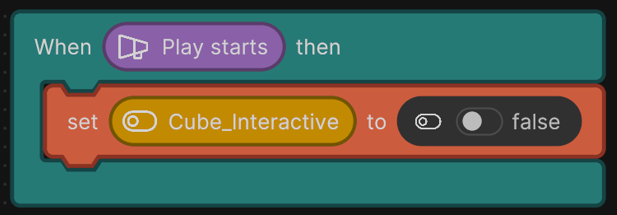
Example Logic script to set the cube to be non-interactive.
-
Enable interactivity When Button is Clicked:
- Drag a When event listener into the Logic Editor.
- Place a Clicked On event in the socket.
- Add your Button variable in the Clicked On socket.
- Drag a Set variable value action into the When node.
- In the first socket, add your Cube_Interactive Bool variable.
- Set its value to true.
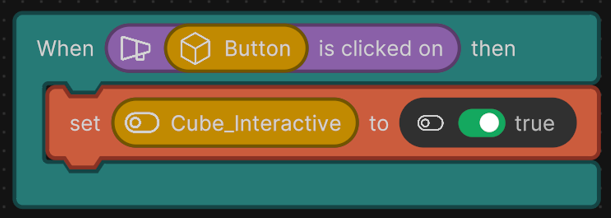
Example Logic script to enable interactivity when a button is clicked.
-
Trigger the Cube's animation:
- Drag a When event listener into the Logic Editor.
- Place a Clicked On event in the socket.
- Add your Cube variable in the Clicked On socket.
- Drag an If Else flow control node inside the When event listener.
- Drag an Equal operator node into the If socket,
- In the first socket of Equal, add your Cube_Interactive Bool variable.
- Set second socket of Equal to true.
- Inside the If branch, drag a Play Animation action.
- Type the animation name in the first socket.
- Drag the Cube_Animation variable into the second socket.
- Inside the Else branch, drag a Return node and leave it empty.
- Close the Logic Editor.
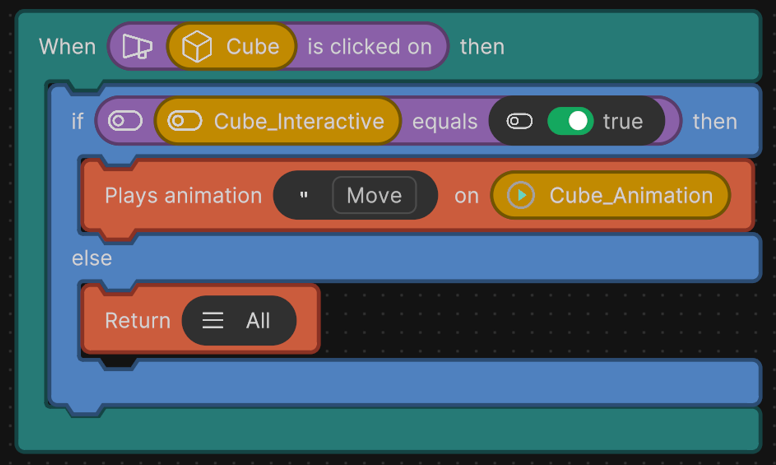
Example Logic script to trigger an animation.
Connect your script references
- In the Hierarchy panel, select the GameObject that has your Logic script attached.
- Drag the Cube from the Hierarchy panel into the Cube and Cube_Animation variable references in your script component.
- Drag the Button from the Hierarchy panel into the Button variable reference in your script component.
Press Play to test your scene. The Cube becomes interactive when you click the button.