Display the name of a GameObject on hover
Learn how to display the name of a GameObject when the user hovers over it with their cursor.
읽는 시간 2분최근 업데이트: 3달 전
Use this example to learn how to display the name of a GameObject when the user hovers over it with their cursor.
Add a Text element to your UI Canvas
- Select UI Canvas in the Hierarchy panel.
- Right-click and choose UI > Text to create a new Text element.
Create a New Logic script
- In the Project panel, select the My Logic folder.
- Select Add (+).
- Select Script. Unity Studio creates a new Logic script in the folder.
- Enter a name for your script and press Enter.
Add the script to a GameObject
- Select or create a GameObject from the Hierarchy panel.
- From the Inspector panel, select Add Component.
- Choose your Logic script from the list.
- Select the field at the top of the Inspector panel to rename the object.
Show the name when hovered
- In the Project panel, double-click the Logic script to open the Logic Editor.
- Drag a While event listener into the Logic Editor.
- Add a Mouse Over event inside the While node.
- Drag the Me variable into the Object socket of the Mouse Over event.
- Add a Set Text action inside the While block.
- Create a new variable for the Text UI element with a type of Object.
- Drag the Text variable into the Set Text action’s socket.
- In the variable panel, expand the Text variable and drag the Name property of Me into the value socket for the Set Text node.
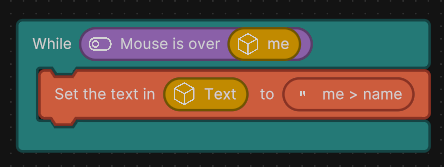
Example Logic script to display the GameObject name on hover.
Hide the name when not hovered
- Right-click the first Logic block and select Duplicate.
- In the Node Library panel’s search bar, look for Not.
- Drag the Not node into the Logic Editor.
- Drag the Mouse is over Me output from your duplicated logic block into the Not node’s socket.
- Drag the combined Not node into the condition socket of the duplicated While event listener.
- In the Set Text node, remove the me > name property and leave it empty.
- Close the Logic Editor.
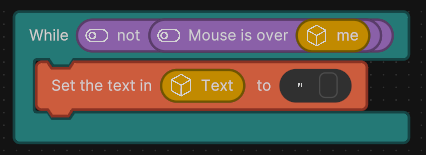
Example Logic script to hide the GameObject name when not hovered.
Connect your script references
- In the Hierarchy panel, select the GameObject that has your Logic script attached.
- Drag the Text UI element from the Hierarchy panel into the Text variable reference in your script component.
Press Play to test your scene. The UI text displays the name of the GameObject when you hover over it with your cursor.