Play audio when you click an object
Play audio when the user clicks on an object.
읽는 시간 3분최근 업데이트: 8달 전
In this example, you set up a Logic script to play audio when the user clicks on an object. Use these steps to set up similar interactions with audio in your scene. For example, you can play audio when the user clicks to open a door or play music on a radio.
Add an interactive object to your scene
- In the Hierarchy panel, select Add (+) and choose an object to add to your scene. For example, a cube or sphere.
- Select the object in the Hierarchy panel to open the Inspector panel.
- In the Inspector panel, make sure the object has a Collider component to detect user interaction. For example, a Box Collider or Sphere Collider.
- If the object doesn't have a collider, select Add Component and add the appropriate collider.
Add audio to your object
- In your object's Inspector window, select Add Component > Audio Source. This adds an Audio Source component to your object, which plays audio clips in your scene.
- Find an audio clip in the My Assets folder or select Add Assets to import one.
- Drag your audio clip into your object's Audio Source component in the Audio Clip field.
- Disable Play On Awake so the audio doesn't play immediately when the scene starts.
Create and attach a Logic script to your object
- In the Hierarchy panel, select your object.
- Select Add Component (+).
- In the New Logic field, enter a name for your script and press Create and Edit. Unity Studio creates a new Logic script and automatically attaches it to your object. The Logic Editor opens so you can build your script.
Set up the initial logic in the Logic Editor
- In the Logic Editor, drag in a When node.
- Add a Clicked On event inside the When node's socket.
- Drag the variable into the Clicked On node's socket. This variable references the object the script is attached to, so the event listens for clicks on this object.
me
Play the audio on click
- Drag an If node inside the When node.
- Move a Not node into the first socket of the If node.
- Drag the variable into the Logic Editor, expand it, and choose Get Component > Audio Source > isPlaying. This creates a Boolean node that checks if the audio is currently playing.
me - Drag the new me > Audio Source > isPlaying node into the Not node's socket.
- Add another variable into the Logic Editor, expand it, and choose Get Component > Audio Source > Play.
me - Place the me > Audio Source > Play node inside the If node.
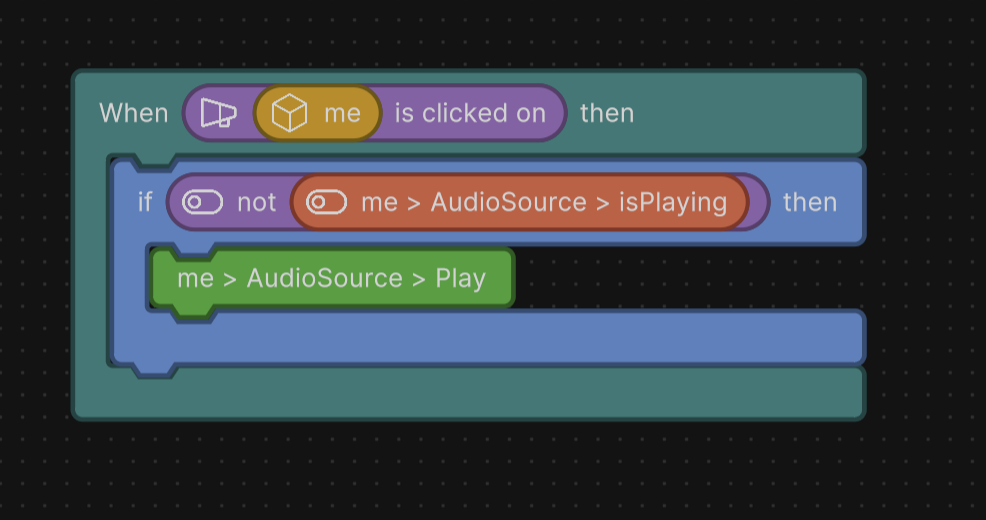
Example Logic script to play audio on click.
This logic checks if the audio isn't currently playing when the user clicks the object, and if so, it plays the audio.
7. Close the Logic Editor.