Introduction to Logic
Use the Logic Editor to add behaviors and interactivity to your application.
읽는 시간 2분최근 업데이트: 8달 전
Logic is Unity Studio's visual scripting system. It lets you use nodes to design the logic of your application, so you don't need to write code. You can use nodes to create interactive scenes, set up reactions to user actions, and control how your objects behave.
With Logic, you can:
- Trigger actions based on events (for example, when a user clicks a button or selects an object).
- Start, pause, or stop animations.
- Enable or disable GameObjects (show or hide objects in the scene).
- Create conditions (for example, if this happens, then do that).
- Combine multiple actions to create more complex behaviors.
The system is designed to be flexible and approachable, so you can experiment and build the interactions you need.
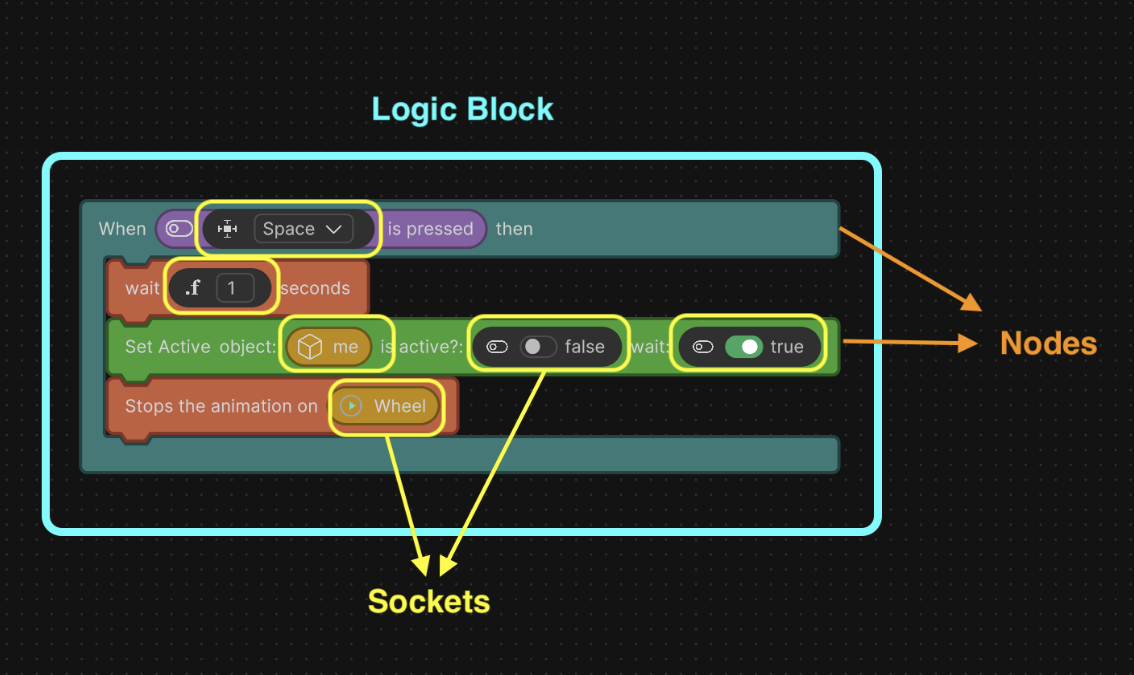
An example of a Logic block, made up of multiple nodes and sockets.
Logic script
A Logic script is where you create and manage your nodes and build the behaviors you need for a GameObject. You can create multiple Logic scripts in your project, and you can attach each script to most GameObjects in your scene.
For instructions on how to create a Logic script, refer to Create a Logic script.
Nodes
A node is a building block you can drag into your Logic scripts. Nodes represent actions, events, values, or functions that you use to build your logic.
For a full list of nodes available in Unity Studio and what they do, refer to Nodes.
Sockets
A socket is a placeholder or input area on a node which you can:
- Drag another node into.
- Insert a variable.
- Directly set a value (such as a number or a text).
Some node sockets ask for a specific type of input, such as a number, text, or a GameObject.
Logic block
A logic block is a group or arrangement of nodes that work together to perform a specific task or behavior. It's like a small program made up of several nodes that work together.
Video tutorial
The following video tutorial explains how to:
- Create Logic scripts.
- Assign scripts to your objects.
- Work with variables, methods, and nodes.
Unity Studio - Creating Logic