使用の準備
Install and set up the Authentication Software Development Kit for Unreal Engine.
読み終わるまでの所要時間 8 分最終更新 9ヶ月前
Unreal Engine 用 Authentication SDK は、Unreal Engine 用 Unity Gaming Services SDK プラグインの一部です。Unreal Engine 内で Unity Authentication を使用するには、まず Unity Gaming Services SDK をインストールする必要があります。
要件を把握する
Unreal Engine 用 Authentication SDK プラグインは、Unreal Engine バージョン 4.27 から 5.3 までをサポートしています。
Authentication SDK をダウンロードする
Unreal Engine Marketplace ウェブサイトから
-
Unreal Engine Marketplace にサインインします。
-

Unity Gaming Services SDK for Unreal Engine Marketplace ページ
-
Open in Launcher (ランチャーで開く) を選択します。
-
Epic Games Launcher から のステップ 4 までスキップします。
Epic Games Launcher から
- Epic Games Launcher にサインインします。
- Epic Games Launcher で、Unity Gaming Services SDK for Unreal Engine (Unreal Engine 用 Unity Gaming Services SDK) を検索します。
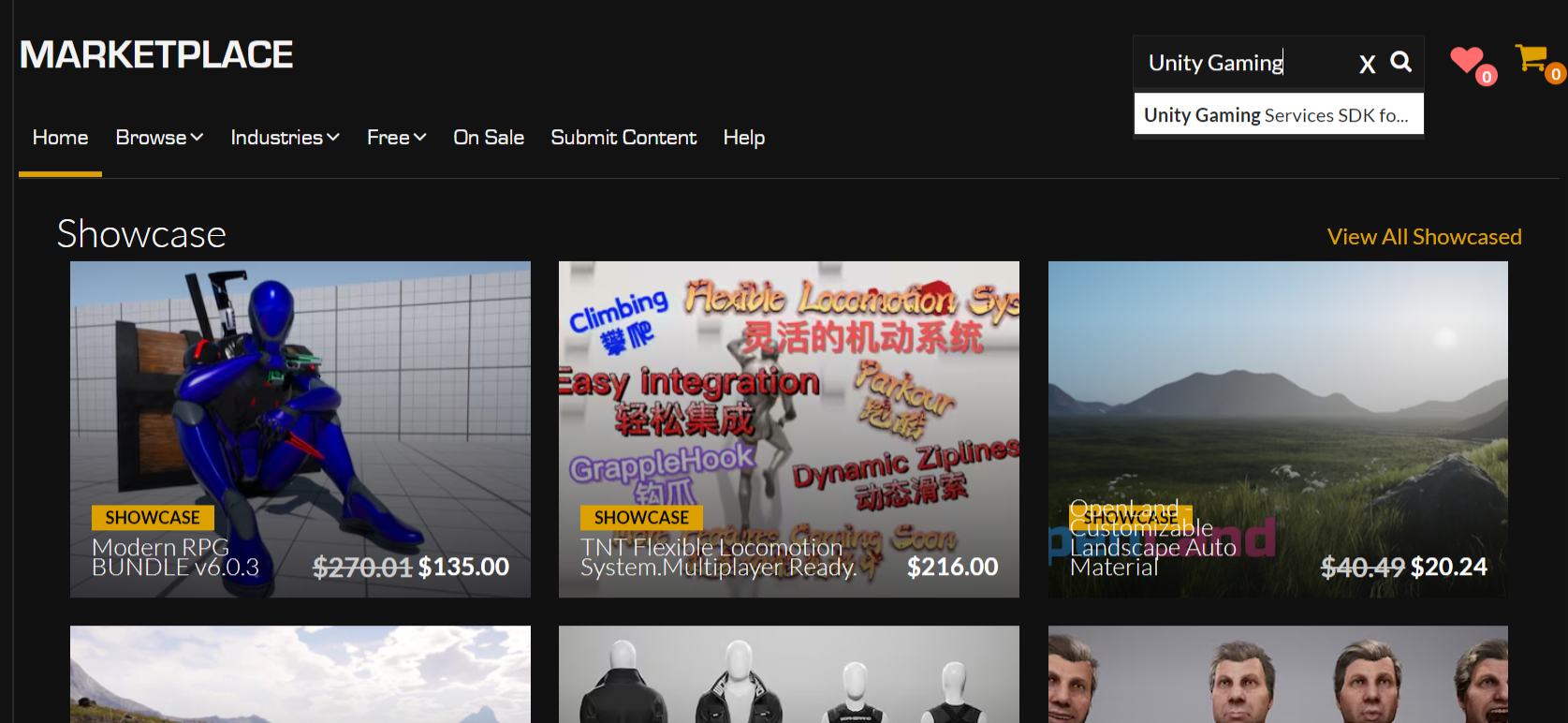
Unity Gaming Services SDK for Unreal Engine を検索します
- Unity Gaming Services SDK for Unreal Engine ページにアクセスし、Free (無料) を選択します。

Unity Gaming Services SDK for Unreal Engine Launcher ページ
- Epic Games Launcher で Install to Engine (エンジンにインストール) を選択します。
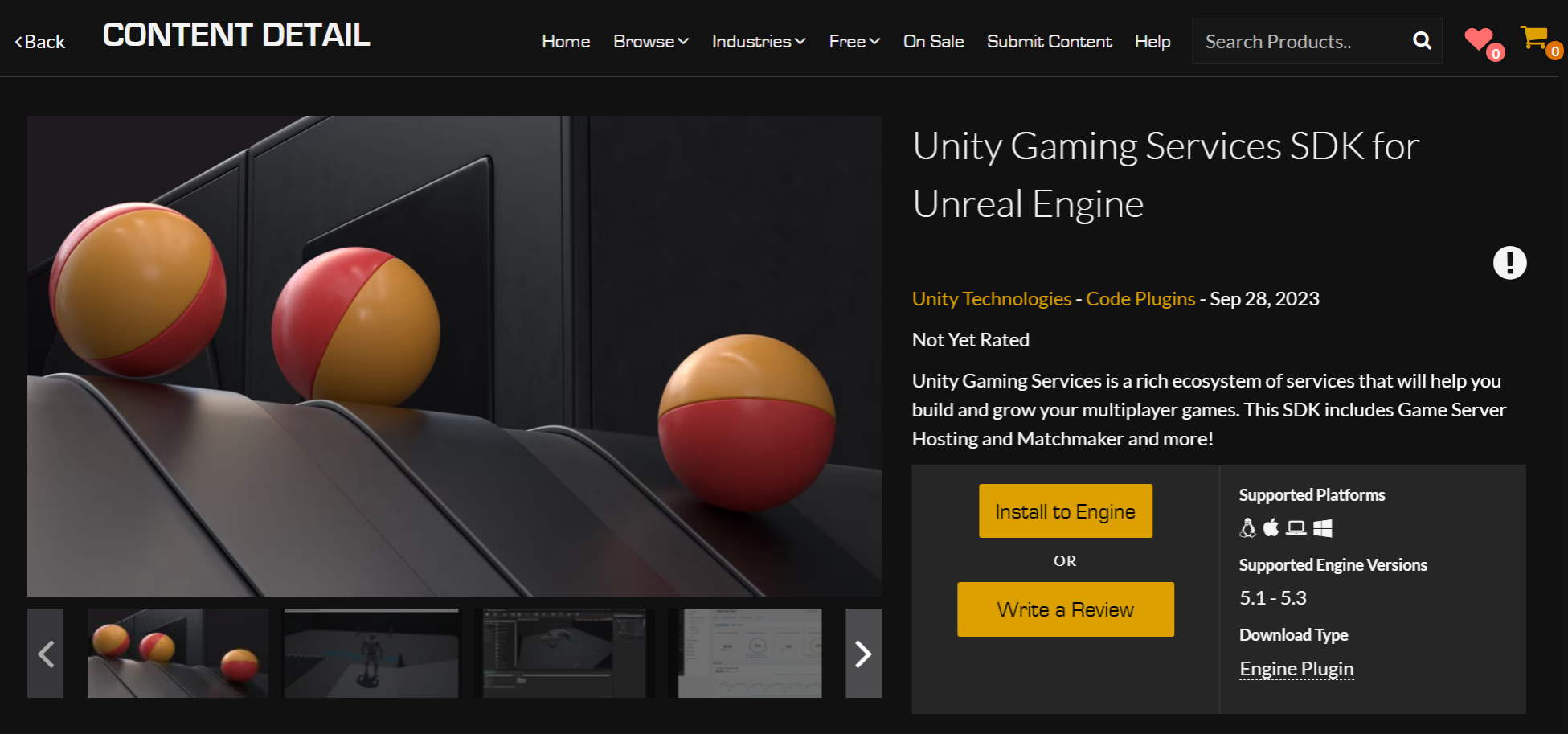
Unity Gaming Services SDK for Unreal Engine のインストールボタン
- 新しいプロジェクトまたは既存のプロジェクトを開きます。
- Plugins (プラグイン) ウィンドウに移動し、Unity Gaming Services SDK for Unreal Engine の横のチェックボックスをオンにします。

Unity Gaming Services SDK for Unreal Engine プラグインウィンドウ
- Unreal Engine を再起動します。
Authentication SDK を設定する
Authentication SDK を使用する前に、Unity Gaming Services にサインアップしてプロジェクトを登録する必要があります。
UGS にサインアップする
Unity アカウントをお持ちでない場合は、アカウントを作成し、新しいプロジェクトを作成 してから、Unity Gaming Services にサインアップしてください。
- Unity Dashboard にサインインします。
- サイドパネルの Explore Services (サービスを探す) を選択します。
- 上部のバナーの Sign Up (サインアップ) を選択し、その後の指示に従います。
プロジェクトのリンク
- Unity Dashboard にサインインします。
- ヘッダーでプロジェクト名の横にある歯車アイコンを選択して、プロジェクトの設定にアクセスします。
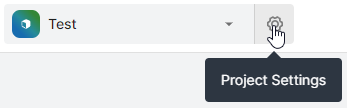
プロジェクト設定の歯車アイコン。
- General (全般) > Project Details (プロジェクト詳細) に Project ID (プロジェクト ID) フィールドがあります。この値をコピーします。
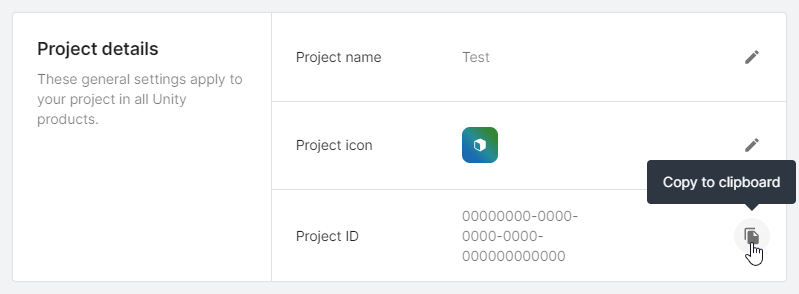
プロジェクト ID のコピーボタン。
- Unreal Engine エディターで、Edit (編集) > Project Settings (プロジェクト設定) > Plugins (プラグイン) > Unity Authentication > Unity Project Settings (Unity プロジェクト設定) に移動します。
- コピーした値を Unity Project ID (Unity プロジェクト ID) フィールドに貼り付けます。
- Unity Environment を取得します。これは、Authentication SDK と相互作用させたい特定の環境を指定するためのオプションのパラメーターです。
- Unity Dashboard で、Environments (環境) > Your Environments (自分の環境) に移動し、使用する環境を選択してその名前をコピーします。これは環境の識別子として使用されます。
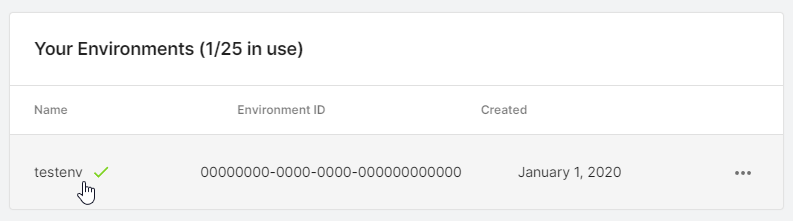
Unity Dashboard の環境リスト。
- Unreal Engine エディターで、Edit (編集) > Project Settings (プロジェクト設定) > Plugins (プラグイン) > Unity Authentication > Unity Project Settings (Unity プロジェクト設定) に移動します。
- コピーした値を Unity Environment Name (Unity 環境名) フィールドに貼り付けます。
両方のフィールドをコピーすると、Unreal エディターのプロジェクト設定は以下のようになります。
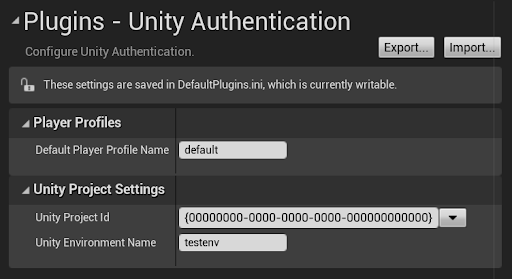
Unity Authentication プラグイン。
Default Player Profile Name (デフォルトのプレイヤープロファイル名) フィールドでは、デフォルトの Authentication プレイヤープロファイルに別の名前を付けることができます。この名前はそのままにしておいてもよいですし、必要であればカスタマイズしてもかまいません。
プレイヤープロファイルの詳細については、Authentication SDK 内の Player Profiles を参照してください。
次のステップ
次のいずれかのインテグレーションに進んでください。