OpenID Connect
Set up custom sign-in with OpenID Connect providers to enable players to authenticate with external identity systems.
Read time 5 minutesLast updated 10 months ago
A custom sign-in creates a new player for the game session with input from the player (for example, sign-in credentials like an email and password) and links a player to your custom ID provider account. Use custom ID providers to enable existing authentication systems account sign-ins in your game, such as PlayFab, Firebase, Epic Online Services, among others.
If the player signs in with a custom identity provider account, the APIs are called to authenticate the players or create new players.
SignInWithMinimum SDK version: 2.2.0
Check your SDK version; OIDC is supported from 2.2.0+.
This article guides you through the following scenarios to set up authentication for players in your game with a custom ID provider using OpenID Connect:
- Set up custom OpenID Connect ID sign-in.
- Sign in a returning user or create new user.
- Updating a user from an anonymous sign-in to a platform sign-in via your custom ID provider.
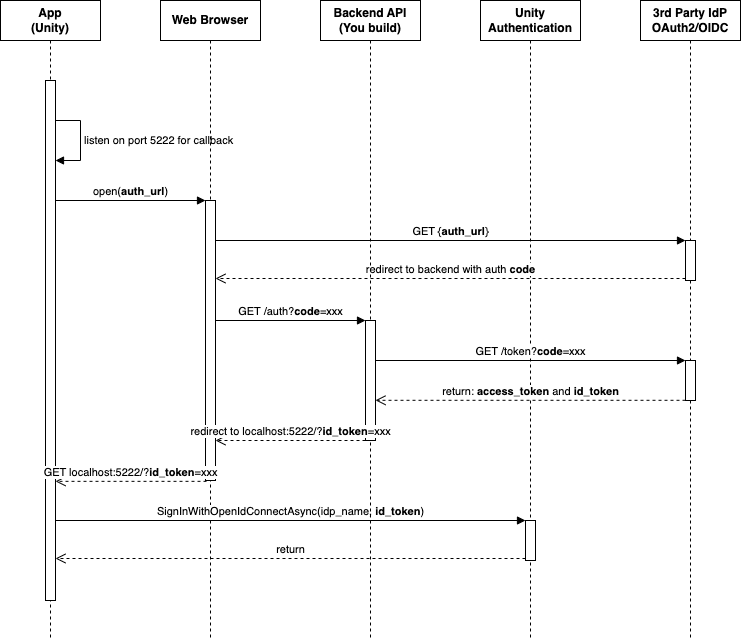
Below is a UML sequence diagram with a typical integration between the third party IdP, Unity Gaming Services, and the Unity app/game.
Set up custom OpenID Connect ID sign-in
OpenID is an identity layer over the OAuth2.0 protocol. You can verify the identify of the player based on the authentication performed by an authorization server. Use OpenID to connect to clients such as web-based, JavaScript, and mobile clients, to get information on end users and authentication sessions.
-
Configure an OpenID Connect ID Provider for Unity Authentication:
- In the Unity Editor menu, go to Edit > Project Settings…, then select Services > Authentication from the navigation menu.
- Set ID Providers to OpenID Connect, then select Add.
- Enter the ID provider name in the Oidc Name text field (the ID provider name is an arbitrary text between 6 and 20 characters (including )).
oidc- - Enter the issuer URL in the Issuer(URL) text field (must start with https://). Refer to the following format for some identity providers:
AWS Cognito: Keycloak:
https://cognito-idp.<Region>.amazonaws.com/<userPoolId>Firebase:https://<keycloak-domain>/realms/<realm>https://securetoken.google.com/<projectId> - Select Save.
Sign in a returning user or create new user
You can use the method to either:
SignInWithOpenIdConnectAsync- Create a new Unity Authentication player with the Open ID Connect credentials.
- Sign in an existing player using the Open ID Connect credentials.
If no Unity Authentication player in your project is associated with the credentials, then will create a new player. If a Unity Authentication player in your project is associated with the credentials, then will sign into that player's account. This function doesn't take into consideration the cached player, and will replace the cached player.
SignInWithOpenIdConnectAsyncSignInWithOpenIdConnectAsyncSignInWithOpenIdConnectAsyncasync Task SignInWithOpenIdConnectAsync(string idProviderName, string idToken){ try { await AuthenticationService.Instance.SignInWithOpenIdConnectAsync(idProviderName, idToken); Debug.Log("SignIn is successful."); } catch (AuthenticationException ex) { // Compare error code to AuthenticationErrorCodes // Notify the player with the proper error message Debug.LogException(ex); } catch (RequestFailedException ex) { // Compare error code to CommonErrorCodes // Notify the player with the proper error message Debug.LogException(ex); }}
Updating a player from anonymous to a custom ID provider account
After you’ve set up anonymous authentication, the player can upgrade from being anonymous to creating a custom ID provider account and sign in using it to get the ID token. Then, call the API to link the player to their account.
LinkWithOpenIdConnectAsyncIf a cached player exists on the SDK, then you have the option of linking the cached player to the Open ID Connect Account.
- Sign into the cached player's account using .
SignInAnonymouslyAsync - Link the cached player's account to the Open ID Connect account with .
LinkWithOpenIdConnectAsync
For more information about cached players, read the Sign In a Cached Player section.
async Task LinkWithOpenIdConnectAsync(string idProviderName, string idToken){ try { await AuthenticationService.Instance.LinkWithOpenIdConnectAsync(idProviderName, idToken); Debug.Log("Link is successful."); } catch (AuthenticationException ex) when (ex.ErrorCode == AuthenticationErrorCodes.AccountAlreadyLinked) { // Prompt the player with an error message. Debug.LogError("This player is already linked with another account. Log in instead."); } catch (AuthenticationException ex) { // Compare error code to AuthenticationErrorCodes // Notify the player with the proper error message Debug.LogException(ex); } catch (RequestFailedException ex) { // Compare error code to CommonErrorCodes // Notify the player with the proper error message Debug.LogException(ex); }}
When the player wants to sign-in using their account in your own custom ID provider, call the following API:
async Task SignInWithOpenIdConnectAsync(string idProviderName, string idToken){ try { await AuthenticationService.Instance.SignInWithOpenIdConnectAsync(idProviderName, idToken); Debug.Log("SignIn is successful."); } catch (AuthenticationException ex) { // Compare error code to AuthenticationErrorCodes // Notify the player with the proper error message Debug.LogException(ex); } catch (RequestFailedException ex) { // Compare error code to CommonErrorCodes // Notify the player with the proper error message Debug.LogException(ex); }}
Unlink OpenID account
Use the API so your players can unlink their OpenID account. Once unlinked, if their account isn’t linked to any additional identity, it transitions to an anonymous account.
UnlinkOpenIdConnectAsyncasync Task UnlinkOpenIdConnectAsync(string idProviderName){ try { await AuthenticationService.Instance.UnlinkOpenIdConnectAsync(idProviderName); Debug.Log("Unlink is successful."); } catch (AuthenticationException ex) { // Compare error code to AuthenticationErrorCodes // Notify the player with the proper error message Debug.LogException(ex); } catch (RequestFailedException ex) { // Compare error code to CommonErrorCodes // Notify the player with the proper error message Debug.LogException(ex); }}