Ogury integration
Integrate Ogury as an ad network on Unity LevelPlay by creating an account, adding your app, and setting up ad units.
Read time 1 minuteLast updated a month ago
This guide will instruct you step-by-step on how to set Ogury live as an ad network on Unity LevelPlay.
Prerequisites
Ensure that you correctly integrate Rewarded ads, Interstitial ads, or Banner ads into your application. Refer to the following platform-specific guides for integration instructions:
Step 1. Create an Ogury account
Before activating Ogury ad inventory through Unity LevelPlay Mediation, you need to have an approved monetization account with Ogury. If you do not have an account, sign up at the Ogury site or contact app-all@ogury.co
Step 2. Create your Assets and Ad Units in Ogury dashboard
If you already have ad units created in your Ogury monetization dashboard, skip to Step 3 to activate Ogury in your UnityLevelPLay ad units.
- Add Your App
You can either register your asset directly in Ogury Monetization dashboard or reach out to your publisher manager to create it for you.
-
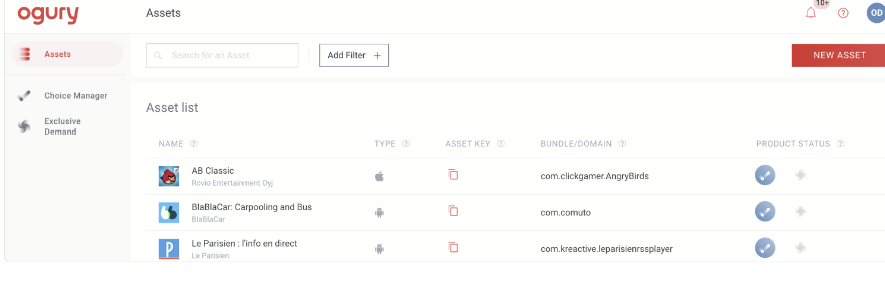
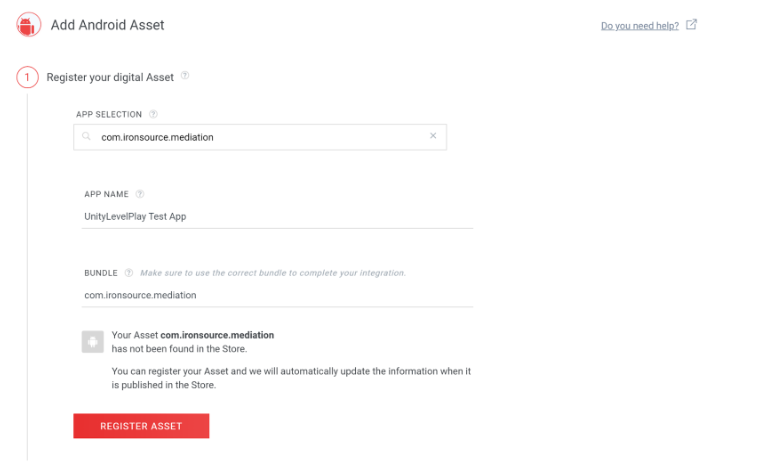
To create it on your own, select "NEW ASSET" on the top right corner of your screen, Select Android or iOS App- Search for or type your application name in the APP SELECTION field, and type the package name and bundle name for your application in the APP NAME and BUNDLE fields.
-
Select REGISTER ASSET.
-
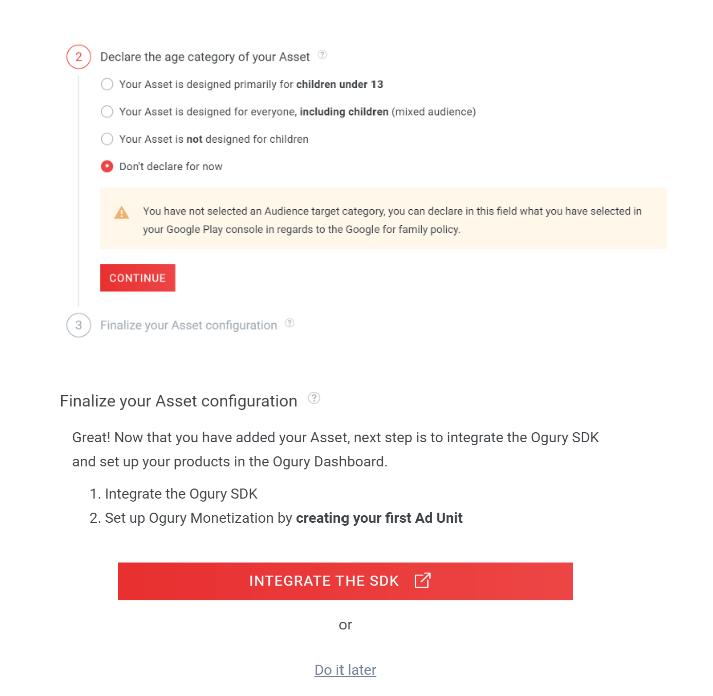
For Android apps, you can declare the age category of your asset (this can be done later), select CONTINUE.
-
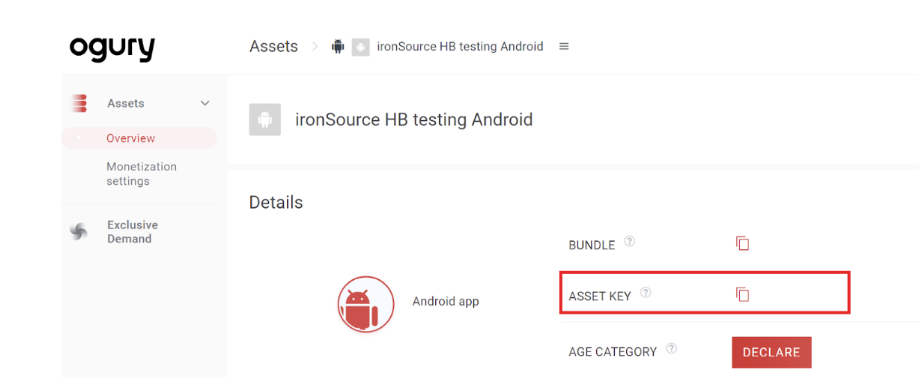
You can retrieve the Asset Key from the Assets > Overview section of your Ogury Monetization dashboard.This information will be needed to enable Ogury network later in Unity LevelPlay platform.
- Create your Ad Units
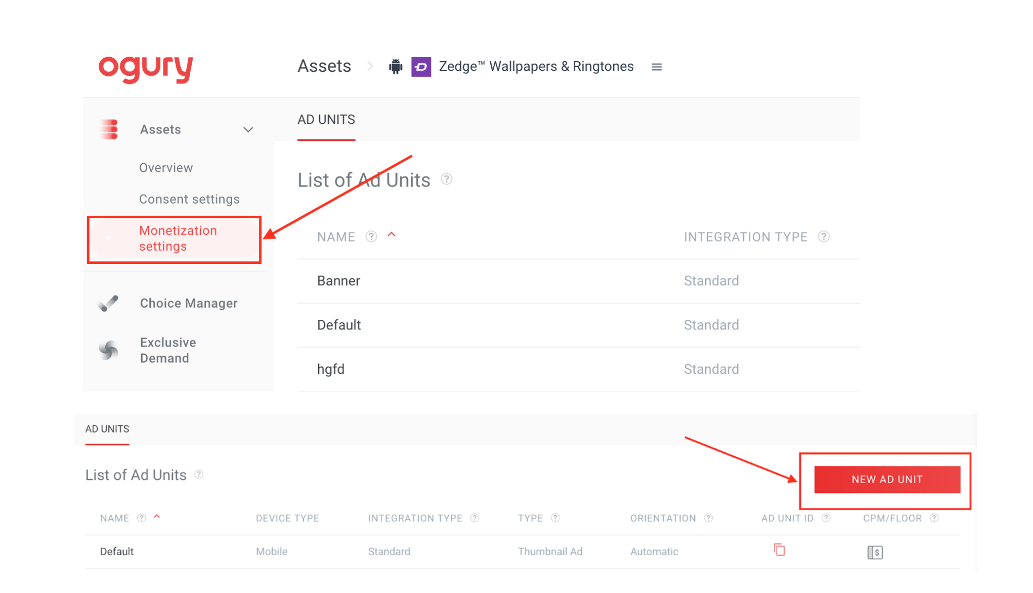
- Go on Ogury's publishers platform and select the asset you are setting up
- Select "Monetization Settings" on the menu on the left side of your screen
- Select NEW AD UNIT at the upper-right of the screen
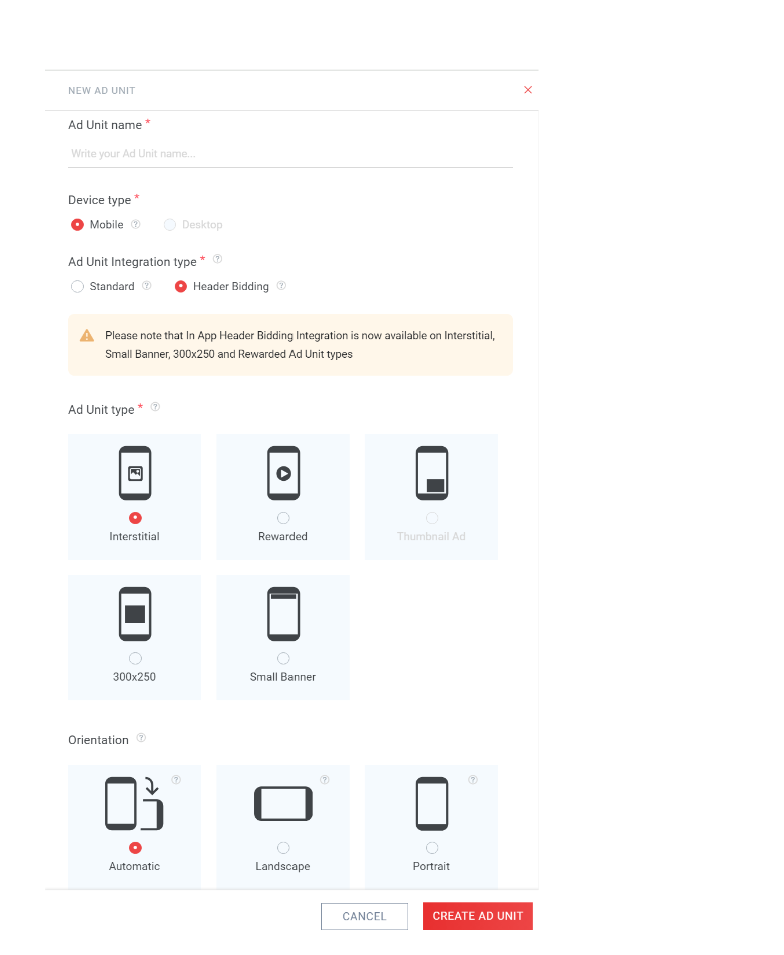
- You will see a pop-up expand in the right of your screen and you will be able to add the required information:
- ad unit name
- integration type
- ad unit type (type of format)
- fixed(Landscape/Portrait) or flexible orientable
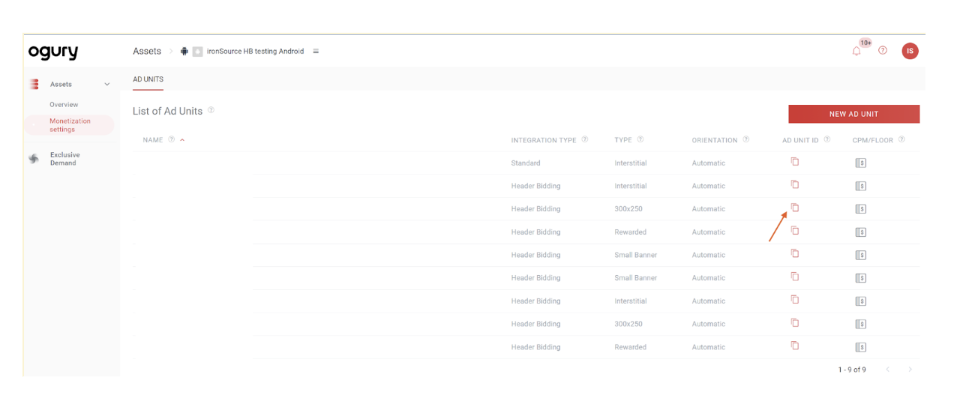
- After the ad units are created, you can view a summary of those ad units from your Ogury Monetization dashboard.
- You can retrieve an ad unit ID from the Assets > Monetization settings section of your Ogury Monetization dashboard. To do so, select the ⎘ icon in the AD UNIT ID column associated with the ad unit whose ID you want to retrieve. This information will be needed to enable the Ogury network later in the Unity LevelPlay platform.
- Create your Reporting API Token
-
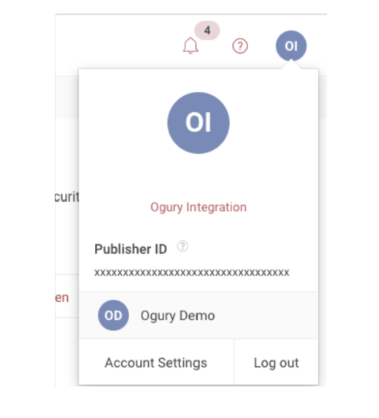
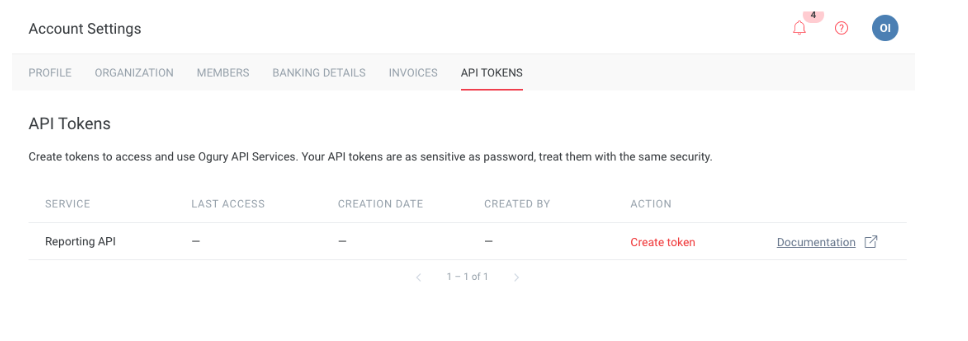
Go to your Ogury Publisher Dashboard. Select your name top right corner and open the Account Settings
-
Go to API Tokens
-
Lookup for the Reporting API in the table and select Create Token.
-
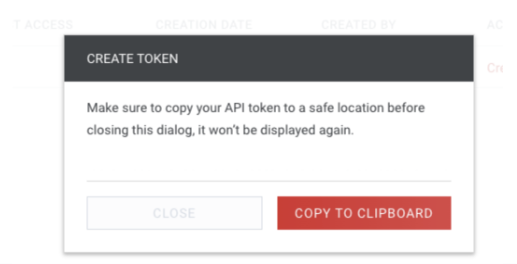
Copy and paste the token in the UnityLevelPlay Platform to enable Ogury Network later.
-
Keep your token safely! If you lose your token, you'll need to revoke it and create it again. The old token will stop working immediately.
Step 3. Activate Ogury on the LevelPlay platform
- Log into your LevelPlay account and go to the LevelPlay side nav bar > Setup > Networks
- Select Manage Networks and select Ogury from the list of available ad networks. Enter the Reporting API token
- Next, select the app on which you’d like to run Unity LevelPlay’s Mediation with Ogury bidding.
- Select Ogury from the setup list of Ad Networks and select the tool Setup button.
- Insert the relevant information for Interstitial, Rewarded ads, Banner, and Native settings. Then select Save.
The network will be active for your app.
Step 4. Add the Ogury Adapter to Your Build
LevelPlay Unity Network Manager (Recommended)
After you’ve completed SDK integration, you can download Ogury Adapter, using the LevelPlay Network Manager.
In your Unity Development platform, go to Ads Mediation > Network Manager.
Step 5. Advanced settings
User-level COPPA
Unity LevelPlay lets publishers communicate Ogury User-level COPPA settings. This feature is enabled using LevelPlay SDK 9.0.0+, Ogury Android Adapter 5.0.0+, Ogury iOS Adapter 5.8.0+.
Use the following syntax, to set Ogury COPPA with the parameter True:
LevelPlay.SetMetaData("LevelPlay_ChildDirected","true");
Use the following syntax, to set Ogury COPPA with the parameter False:
LevelPlay.SetMetaData("LevelPlay_ChildDirected","false");
You can now deliver Ogury within your application.