Integrate LY Ads Network with LevelPlay
Learn how to integrate LY Ads Network with your LevelPlay-enabled app.
Read time 1 minuteLast updated 5 months ago
This guide explains how to integrate LY Ads Network (formerly LINE Ads Network) with your LevelPlay-enabled app.
Prerequisites
Register for a business account at the LY Ads Network site.
Create an application
To add your app, complete the following steps:
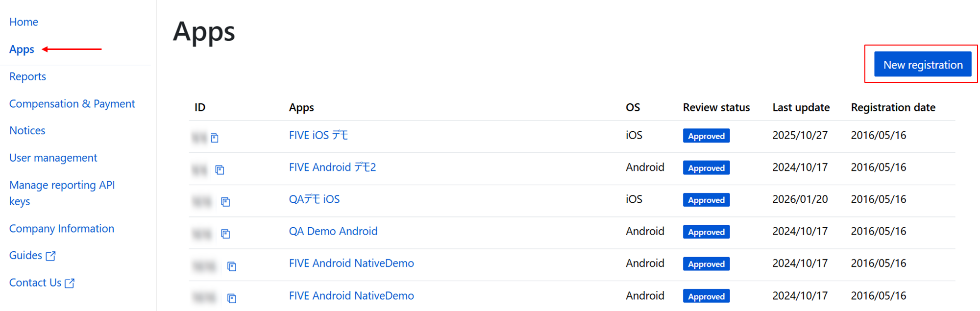
- Sign in to the LY Ads Network Dashboard.
- In the left navigation menu, select Apps.
- Select New registration.
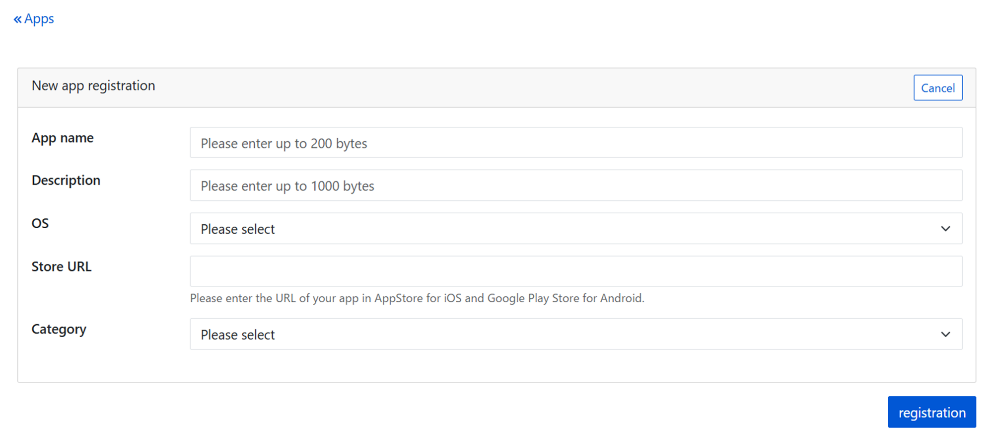
- In the New app registration panel, configure the following app settings:
- App name: Enter the name of your app.
- Description: Enter a description of your app.
- OS: Select iOS or Android.
- Store URL: Enter the store URL.
- Category: Select an app category.
- Select registration to add your app.
Create a slot
To add a slot, complete the following steps:
- Select the name of the app you want to add a slot for.
- Select Add.

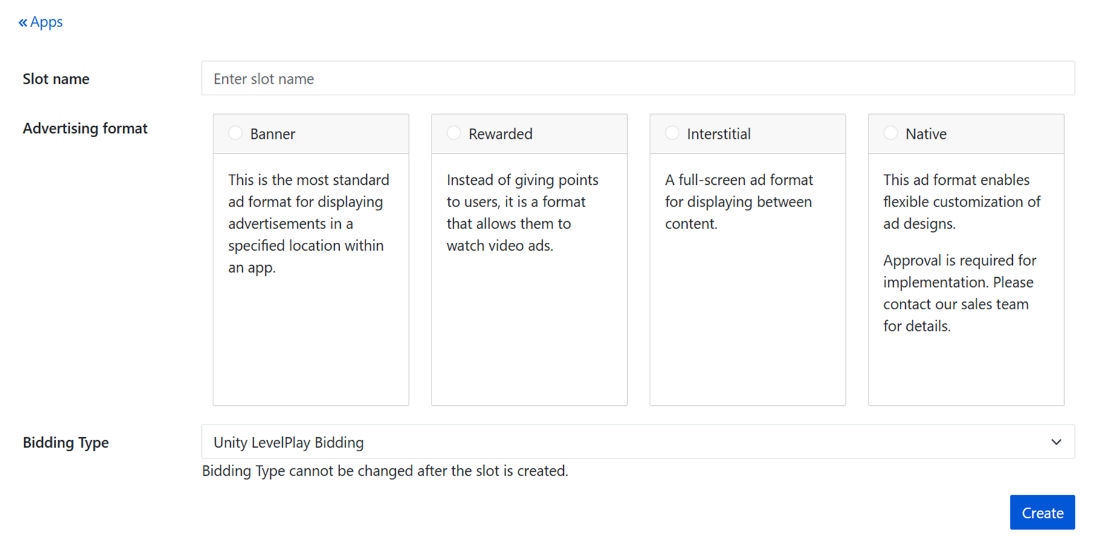
- Set the following slot settings:
-
Slot name: Enter a name for the slot.
-
Advertising format: Choose a slot format from the following list.
- Rewarded
- Interstitial
-
Bidding Type: Select Unity LevelPlay Bidding.
-
- Select Create to add your slot.
Set a CPM floor price
To set a cost per mille (CPM) floor price, complete the following steps:
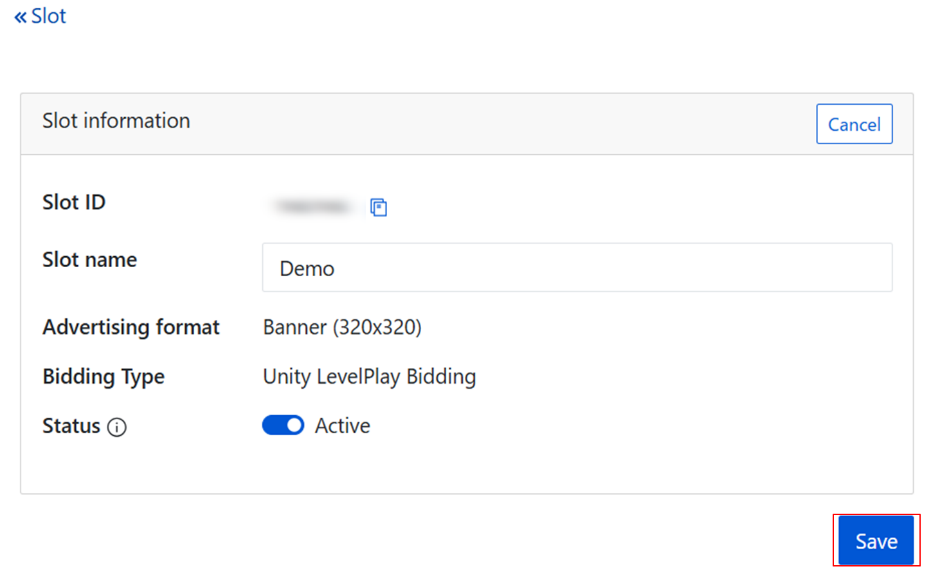
- Go to the Slot information page.
- Select Edit.

- Enter the CPM.
- Select Save.
Submit your slot for approval
After you create your first slot, select Review to request approval from LY Corporation.
If you have any questions about the approval process, contact your LY Corporation representative.
Get your App ID and Slot ID
To obtain your App ID and Slot ID, complete the following steps:
- On the LY Dashboard, select Apps.
- Select the name of the app for which you want to retrieve your App ID and Slot ID.
- Go to the app details page and locate the App ID and Slot ID for the specified app.
Add the LY Ads Network Adapter to Your Build
LevelPlay Unity Network Manager (Recommended)
After you’ve completed SDK integration, you can download LY Ads Network Adapter, using the LevelPlay Network Manager.
In your Unity Development platform, go to Ads Mediation > Network Manager.
You can now deliver LY Ads Network within your application.