Error handling
Handle errors in your scripts using error codes and custom error-handling logic.
Read time 4 minutesLast updated 5 months ago
Learn how to handle errors in your scripts.
Error codes
Cloud Code returns a status error if your script throws an exception.
422Use the error code or error type for your error-handling logic, instead of the error message returned from the Cloud Code API error response. Error messages can change in the future, but the error codes and type remain the same.
Error wrapping
Wrap your code in blocks to handle errors.
If an error occurs, you can log it and return an error to the client.
try/catchFor example, you can use a non-wrapped function:
JavaScript
const { CurrenciesApi } = require("@unity-services/economy-2.4");module.exports = async ({ params, context, logger }) => { const { projectId, playerId } = context; const { currencyId } = params; const currencies = new CurrenciesApi(context); const setBalance = await currencies.setPlayerCurrencyBalance({ projectId, playerId, currencyId, currencyBalanceRequest: { balance: 100 } }); const decrement = await currencies.decrementPlayerCurrencyBalance({ projectId, playerId, currencyId, currencyModifyBalanceRequest: { amount: 50 } }); const increment = await currencies.incrementPlayerCurrencyBalance({ projectId, playerId, currencyId, currencyModifyBalanceRequest: { amount: 10 } }); const result = await currencies.getPlayerCurrencies({ projectId, playerId }); return result.data;};
The non-wrapped function returns an error if any of the API calls fail.
However, if you wrap your API calls, you can log out the error message and get more details about the error:
JavaScript
const { CurrenciesApi } = require("@unity-services/economy-2.4");module.exports = async ({ params, context, logger }) => { const { projectId, playerId } = context; const { currencyId } = params; const currencies = new CurrenciesApi(context); try { const setBalance = await currencies.setPlayerCurrencyBalance({ projectId, playerId, currencyId, currencyBalanceRequest: { balance: 100 } }); const decrement = await currencies.decrementPlayerCurrencyBalance({ projectId, playerId, currencyId, currencyModifyBalanceRequest: { amount: 50 } }); const increment = await currencies.incrementPlayerCurrencyBalance({ projectId, playerId, currencyId, currencyModifyBalanceRequest: { amount: 10 } }); const result = await currencies.getPlayerCurrencies({ projectId, playerId }); return result.data; } catch (err) { logger.error("Failed to increment currency", { "error.message": err.message }, { currencyId: currencyId }); throw err; }};
To check the logs and view the details in the Unity Dashboard:
- In the Unity Dashboard, go to Development > Products.
- Select Cloud Code.
- Select Logs.
Logging
You can use the object to log errors and warnings to help you debug your scripts.
You can log messages at different levels of severity. These levels can help you query logs in the Unity Dashboard.
loggerCloud Code automatically adds attributes such as , and to the logs, so you don't need to add them to your log messages.
playerIdenvironmentIdprojectIdJavaScript
logger.debug(message, ...logAttributes);logger.info(message, ...logAttributes);logger.warning(message, ...logAttributes);logger.error(message, ...logAttributes);logger.fatal(message, ...logAttributes);
You can add custom log attributes to have more context about the log message. For example, you can add the to the log message when a call to Economy fails:
currencyIdJavaScript
logger.error("Failed to increment currency", { "error.message": err.message }, { currencyId: params.currencyId });
To view and filter the logs, do the following:
- In the Unity Dashboard, go to Development > Products.
- Select Cloud Code.
- Select Logs.
Refer to Emit logs for more information.
Debugging on the Unity Dashboard
You can debug your scripts through the Unity Dashboard.
To select the script you want to debug, do the following:
- In the Unity Dashboard, go to Development > Products.
- Select Cloud Code.
- Select Scripts.
- Select the script you want to debug.
The Response tab and the script editor help indicate where errors have occurred.
The Response tab shows the line and column of an error. The debugger uses this information and adds an annotation to visually indicate where the error occurred in the Script Code section.
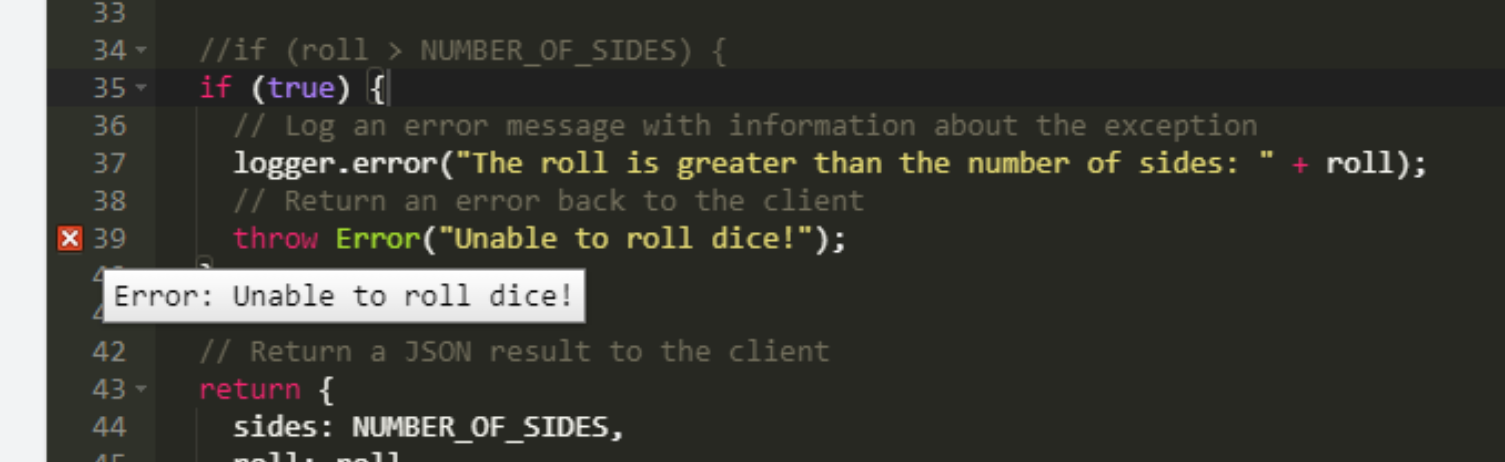
An example of error annotation in the Response tab.
The error annotation stays visible until you edit the script or when you run the script again.
The following is an example of how to handle and throw an error.
JavaScript
const { CurrenciesApi } = require("@unity-services/economy-2.4");module.exports = async ({ params, context, logger }) => { const { playerId, projectId } = context; const { currencyId } = params; const currencies = new CurrenciesApi(context); try { const setBalance = await currencies.setPlayerCurrencyBalance({ projectId, playerId, currencyId, currencyBalanceRequest: { balance: 100, }, }); } catch (err) { if (err.response) { logger.error("Failed to set currency", { "error.response": err.response }, { currencyId: currencyId }); } else { logger.error("Failed to set currency", { "error.message": err.message }, { currencyId: currencyId }); } throw Error("oops"); }};