Create a unit test project
Set up a unit test project in JetBrains Rider or Microsoft Visual Studio.
Read time 1 minuteLast updated 9 months ago
Before you create a unit test, first set up a unit test project. This page describes how to set up a project in the following IDEs:
JetBrains Rider
- Select File > New....
- Select a Unit Test Project, making sure that you select the right template for either .Net Core or .Net Framework (this must be match your module project).
- Name the test project.
- Select Create.
Microsoft Visual Studio
- Right-click the solution, then Add > New Project....
- Select .NET > NUnit Library Project.
- Select Next.
- Name the test project.
- Select Create.
Exclude unit tests from publishing
Exclude your test projects from publishing to prevent size issues and
inefficiencies with your modules. You can exclude test projects in the following ways:
Remove from solution release configuration
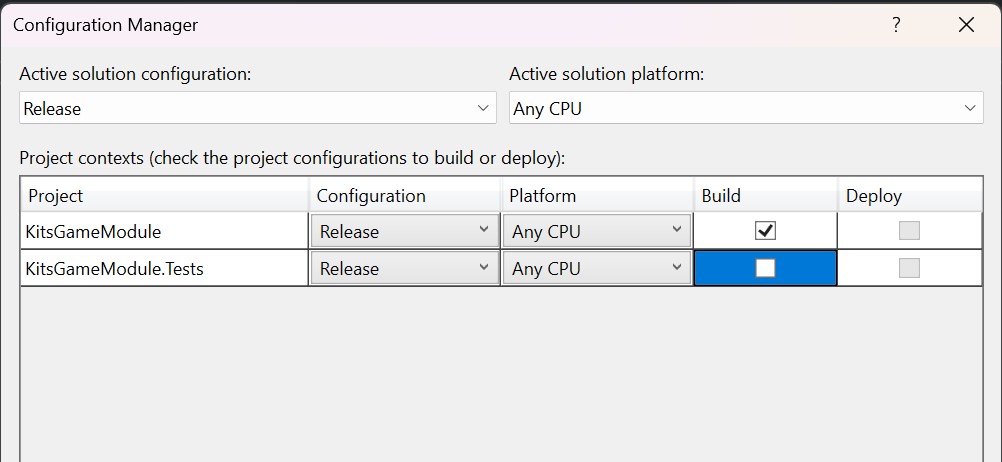
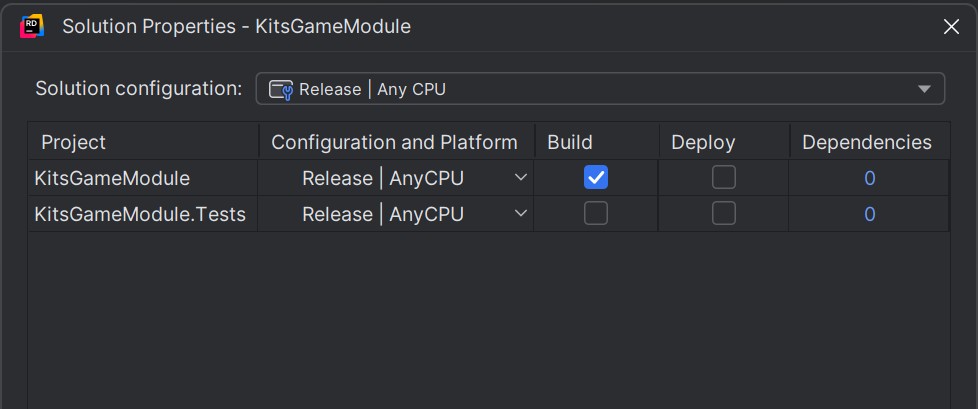
In your IDE, open the solution configuration and remove the test project from the
release configuration. They should not be enabled for build.
Examples for Visual Studio and Rider below:
Rider Solution Config Management
VS Solution Config Management
Set IsPublishable to false
In your unit test project properties, set to false:
IsPublishable<PropertyGroup> ... <IsPublishable>false</IsPublishable> .... </PropertyGroup>