Get started
Install and set up the Authentication Software Development Kit for Unreal Engine.
Read time 4 minutesLast updated 4 months ago
The Authentication SDK for Unreal Engine is a part of the Unity Gaming Services SDK plugin for Unreal Engine. To use Unity Authentication inside the Unreal Engine, you’ll first need to install the Unity Gaming Services SDK.
Understand the requirements
The Authentication SDK plug-in for Unreal Engine supports the Unreal Engine versions 4.27 to 5.3.
Download the Authentication SDK
From the Unreal Engine Marketplace website
-
Sign in to the Unreal Engine Marketplace.
-

Unity Gaming Services SDK for Unreal Engine Marketplace page
-
Select Open in Launcher.
-
Skip to Step 4 in From the Epic Games Launcher.
From the Epic Games Launcher
-
Sign in to your Epic Games Launcher.
-
Search for Unity Gaming Services SDK for Unreal Engine in your Epic Games Launcher.
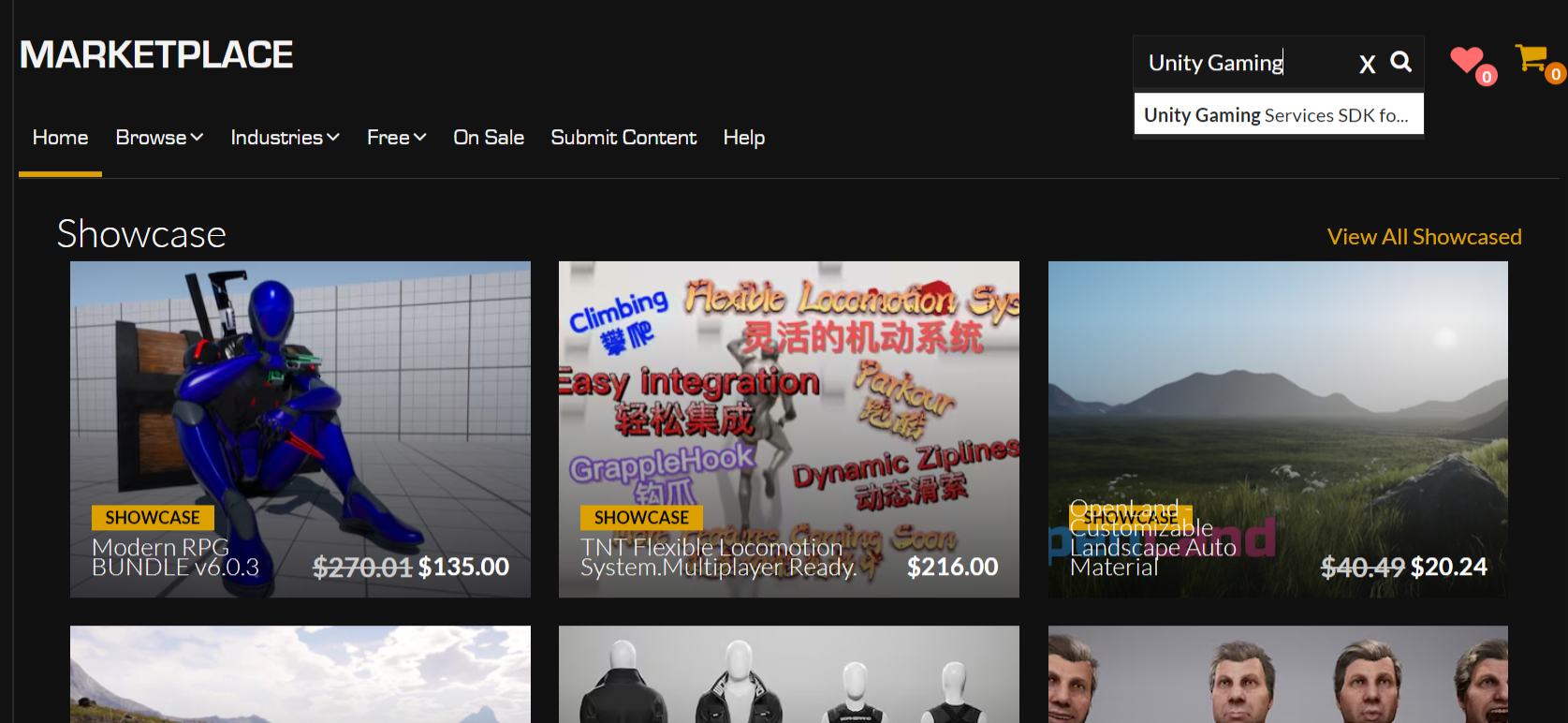
Search for Unity Gaming Services SDK for Unreal Engine
-
Access the Unity Gaming Services SDK for Unreal Engine page and select Free.

Unity Gaming Services SDK for Unreal Engine Launcher page
-
Select Install to Engine in your Epic Games Launcher.

Unity Gaming Services SDK for Unreal Engine install button
-
Open a new project or an existing one.
-
Navigate to the Plugins window and check the box next to the Unity Gaming Services SDK for Unreal Engine.

Unity Gaming Services SDK for Unreal Engine plugins window
-
Restart Unreal Engine.
Configure the Authentication SDK
Before you begin using the Authentication SDK, you need to sign up for Unity Gaming Services and register a project.
Sign up for UGS
If you don't have a Unity account, create one and create a new project to sign up for Unity Gaming Services:
- Sign into the Unity Dashboard.
- Select Explore Services in the side panel.
- Select Sign Up in the top banner and follow the instructions.
Link your project
-
Sign in to your Unity Dashboard.
-
Select the gear icon next to the project name in the header to access your project's settings.
-
Under General > Project Details, there is a Project ID field. Copy this value.
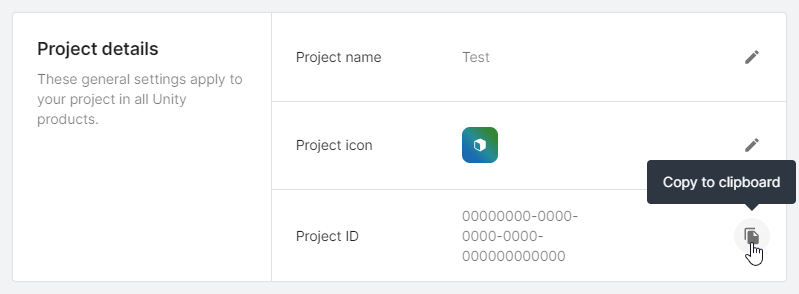
The Copy button for the Project ID.
-
In the Unreal Engine editor, go to Edit > Project Settings > Plugins > Unity Authentication > Unity Project Settings.
-
Paste the copied value into the Unity Project ID field.
-
Retrieve the Unity Environment. This is an optional parameter that specifies the specific environment you’d like the Authentication SDK to interact with.
-
In the Unity Dashboard, go to Environments > Your Environments and select the Environment you want to use and copy its Name. This is the identifier we use for the environment.
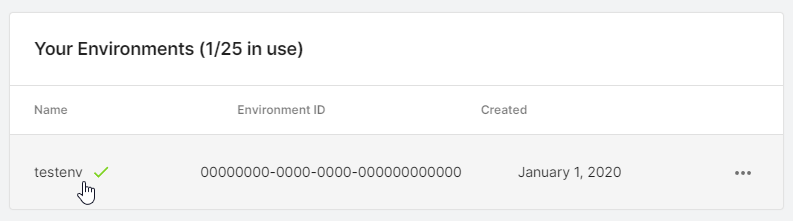
The Unity Dashboard list of your environments.
-
In the Unreal Engine editor, go to Edit > Project Settings > Plugins > Unity Authentication > Unity Project Settings.
-
Paste the copied value into the Unity Environment Name field.
After you copy both fields, the project settings in the Unreal Editor should look like the following:
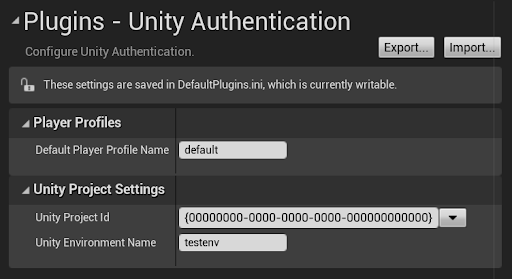
The Unity Authentication plugin.
The Default Player Profile Name field grants a different name to be given to the default Authentication player profile. This can be left alone, or customized according to your needs.
See Player Profiles to read more about Player Profiles inside the Authentication SDK.
What's next?
Proceed with either integrations: