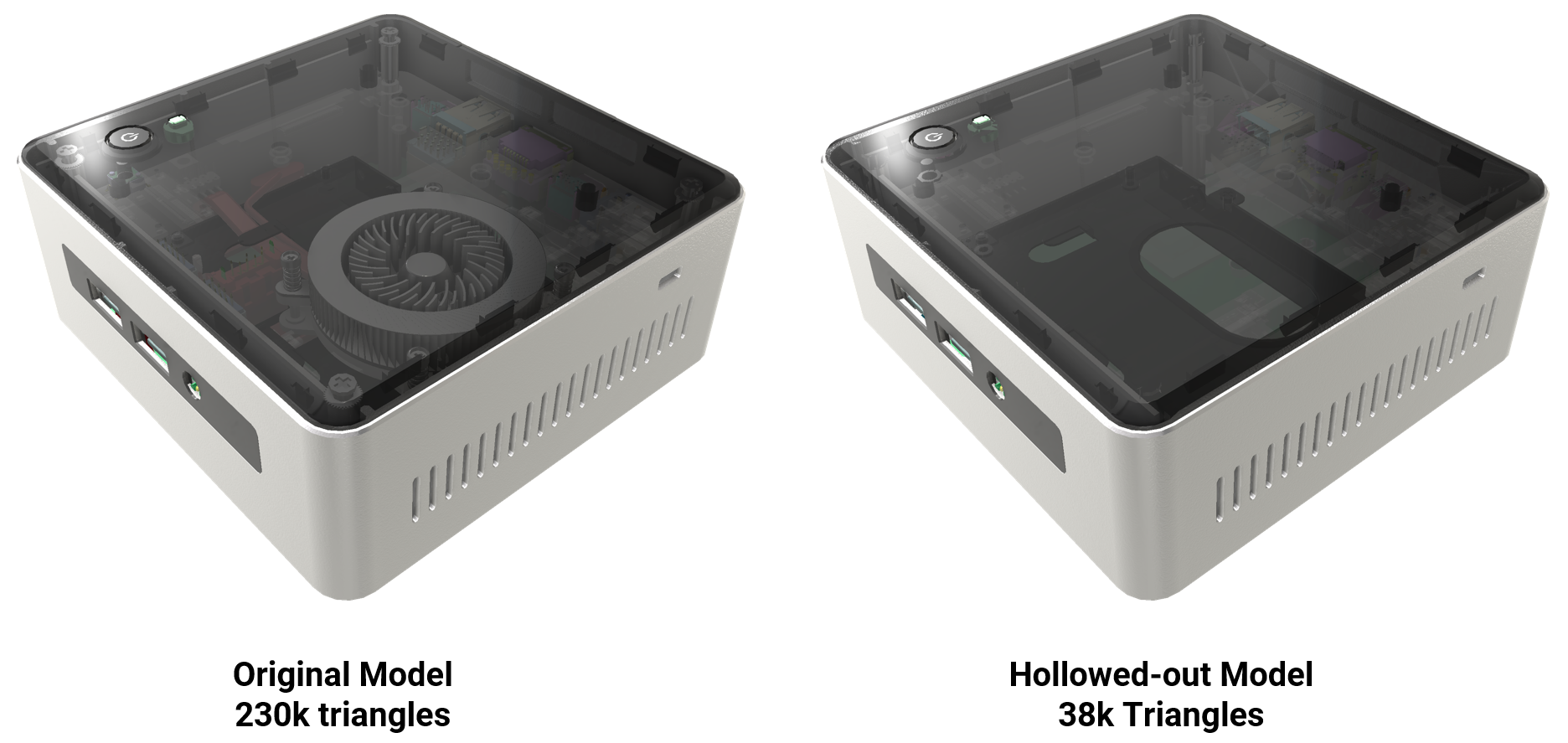
Remove occluded geometries – advanced processing
Use this feature to delete occluded parts of 3D models in an advanced manner, providing enhanced options for mesh simplification and visibility optimization in asset transformation workflows.
Read time 3 minutesLast updated 8 months ago
API function: algo.removeOccludedGeometriesAdvanced
To reduce the polygon count of mesh models and optimize them for exterior and interior viewing, you can delete geometries that can’t be viewed from various viewpoints:
- The outside of models
- Interior spaces, such as cockpits and house interiors
For example, some parts may be completely concealed by others. You can delete these parts without affecting the appearance of models from the outside or interior spaces.
This processing proves particularly efficient on these models:
- Models that have internal parts
- Models that have been designed as solids
- Models that have been designed using CAD software
Smart processing takes longer than standard processing, but is more precise. You can better preserve meshes, especially self-occluding meshes and highly detailed meshes.
The more detailed the processing, the better the final quality, but the longer the scene takes to process and the less the polygon count decreases.
To reduce the polygon count while preserving visual quality, you can set various parameters:
- The granularity level at which to process the scene – namely parts, patches, or polygons
- Whether to optimize the scene for exterior viewing, interior viewing, or both
- The minimum volume of interior spaces to be preserved
- Camera parameters, such as the number of cameras and the image resolution
- Whether to preserve the neighboring polygons of captured polygons, to avoid apparent gaps
- Whether to preserve geometries that can be viewed through transparent materials, such as windows
Parameters
Occurrences
You can process the whole scene or part of it.
You don't need to process the areas that hide others, because these are already taken into account as potential occluders.
By definition, geometries whose property is set to aren't processed.
VisibleFalseGeometries whose property is set to are processed as follows:
VisibleTrue- Selected geometries can be deleted and are used to determine the placement of cameras.
- Unselected and selected geometries are all potential occluders.
Granularity level
Choose the granularity level at which to process the scene:
Type | Use |
|---|---|
| Part | For clean optimization, that is, to avoid apparent gaps, process the scene at the level of parts. |
Patch Polygon | To focus on reducing the polygon count, process the scene at the level of patches or polygons. |
Minimum volume of interior spaces
You can set the minimum volume of interior spaces that you want to preserve. The smaller the value, the more viewpoints there are, but the longer the processing.
For example, to preserve furniture in a room but delete the inside of furniture, specify a volume that's slightly lower than the room volume.
Cameras
Placement
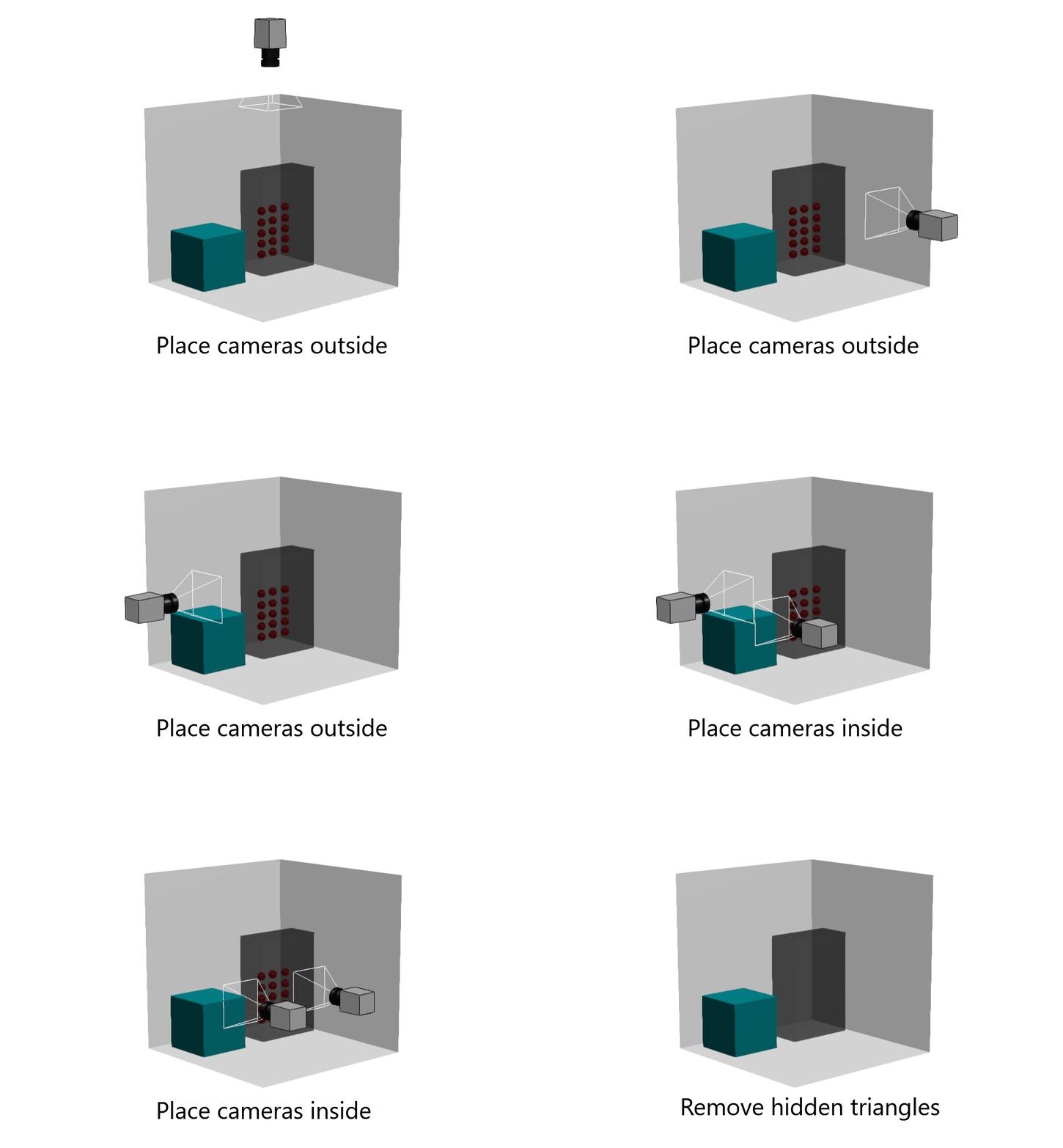
To simulate a 360° virtual tour, virtual cameras capture the scene according to its topology. The geometries that can’t be captured are deleted.
The selected meshes are voxelized and one camera is placed per voxel face.
The geometries whose Visible property is set to False are ignored so that cameras are placed only around the geometries to be rendered.
This example illustrates how this feature captures the scene to delete occluded geometries without damaging outer surfaces:
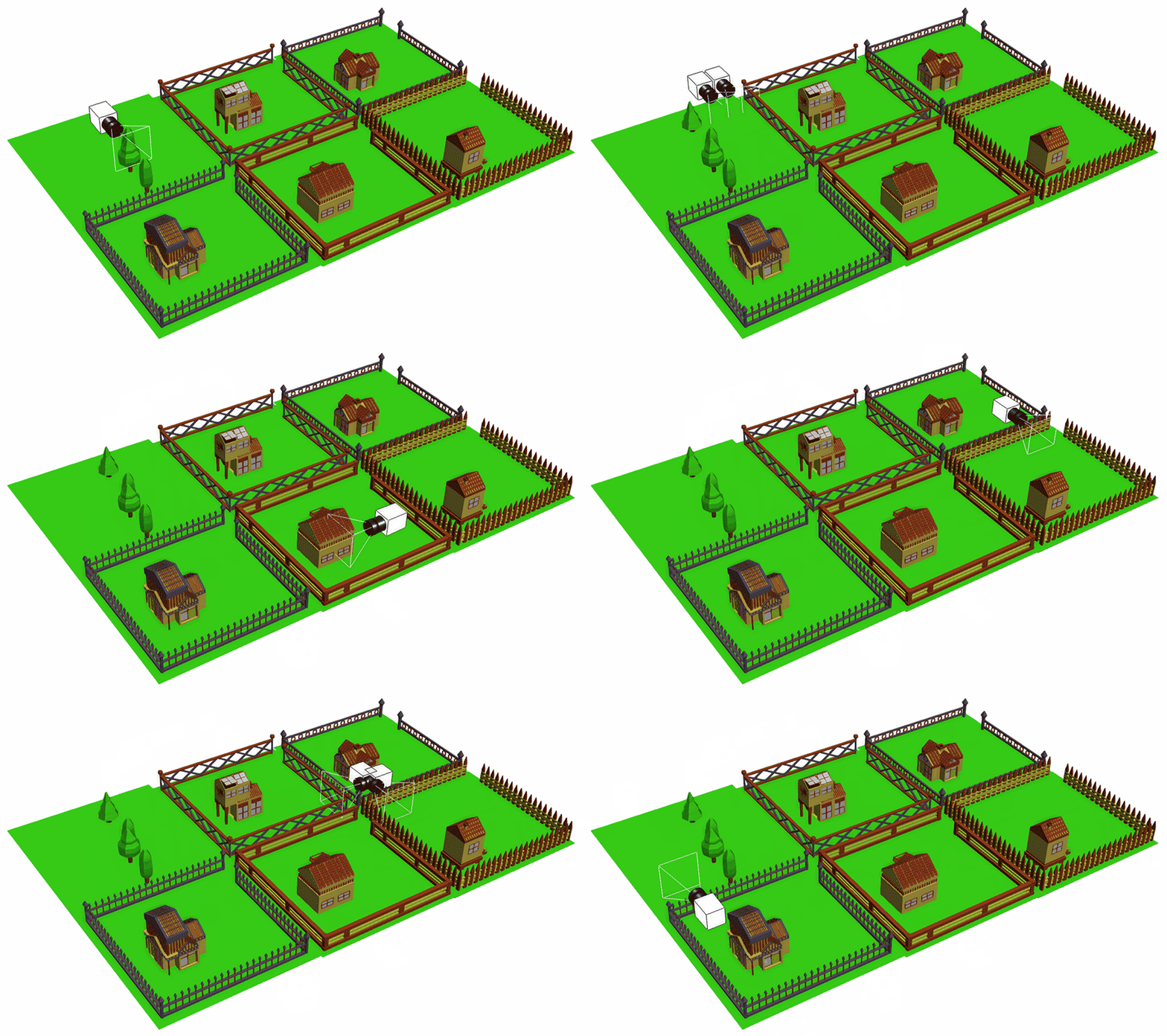
This example illustrates the placement of cameras on voxel faces:
This example illustrates voxelization with different voxel sizes:
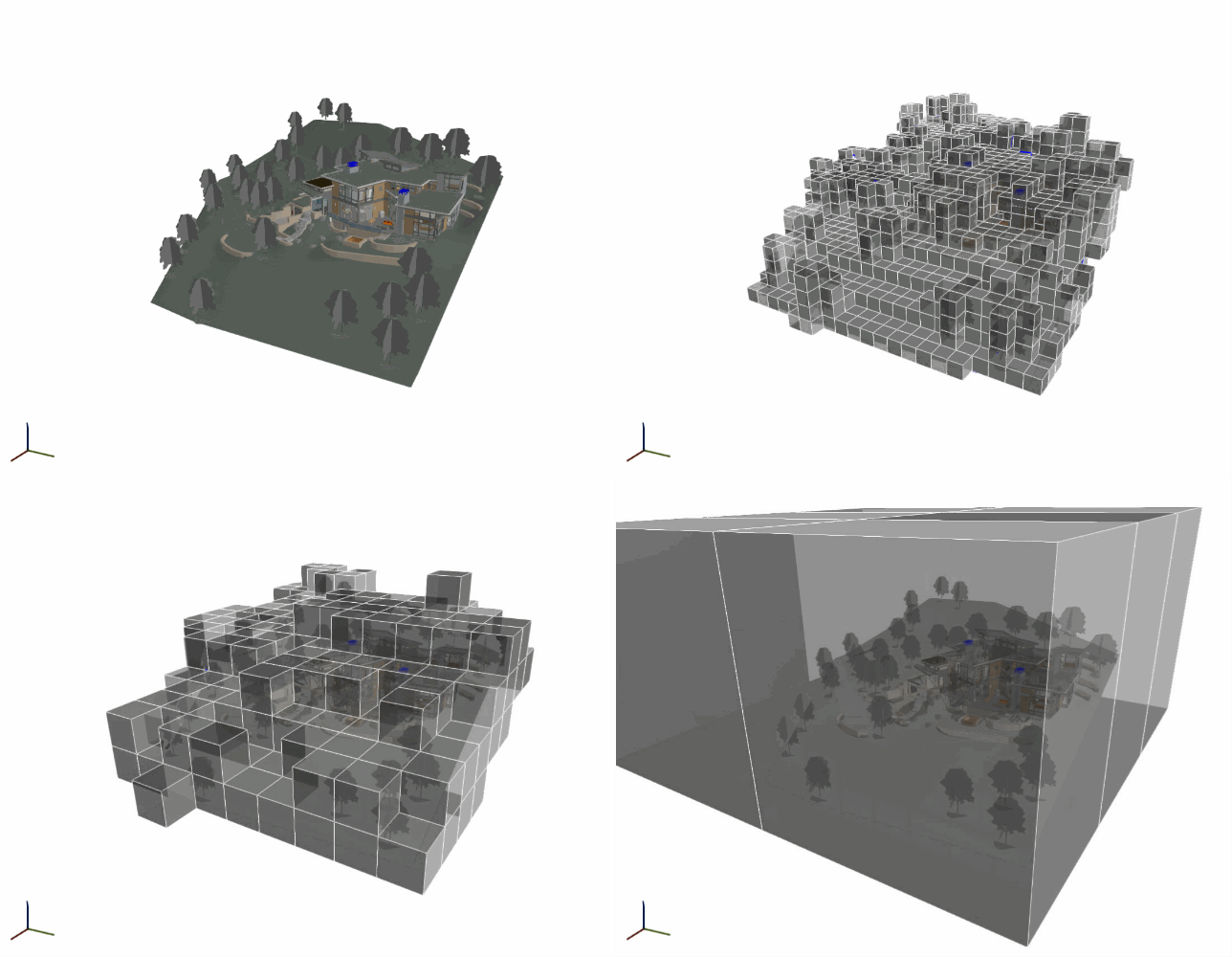
The smaller the voxel, the more precise the results, but the longer the processing time. The voxel size equals the distance between cameras, because one camera is placed per voxel face.
We recommend that you test different voxel sizes using the occluded geometries selection feature before deleting occluded geometries.
This example illustrates a car model that's voxelized with small voxels. Small interior spaces are identified behind bumpers and around wheels:
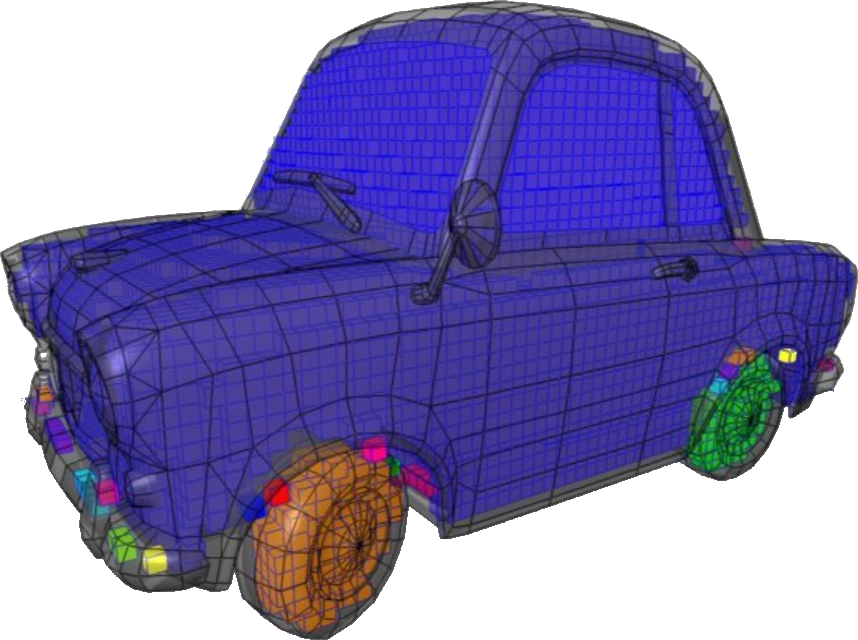
Each color represents a different cavity
Resolution
Image resolution also affects how geometries are captured by cameras. The higher the resolution, the longer the processing time, but the more pixels are generated. As a result, smaller polygons are captured and preserved.
If viewers get close to the model, increase the resolution to preserve visual quality from up close. If viewers are far from the model, use low resolution.
For smart processing, because cameras are close to the mesh, you can use a low resolution of 256 pixels.
Neighboring polygons
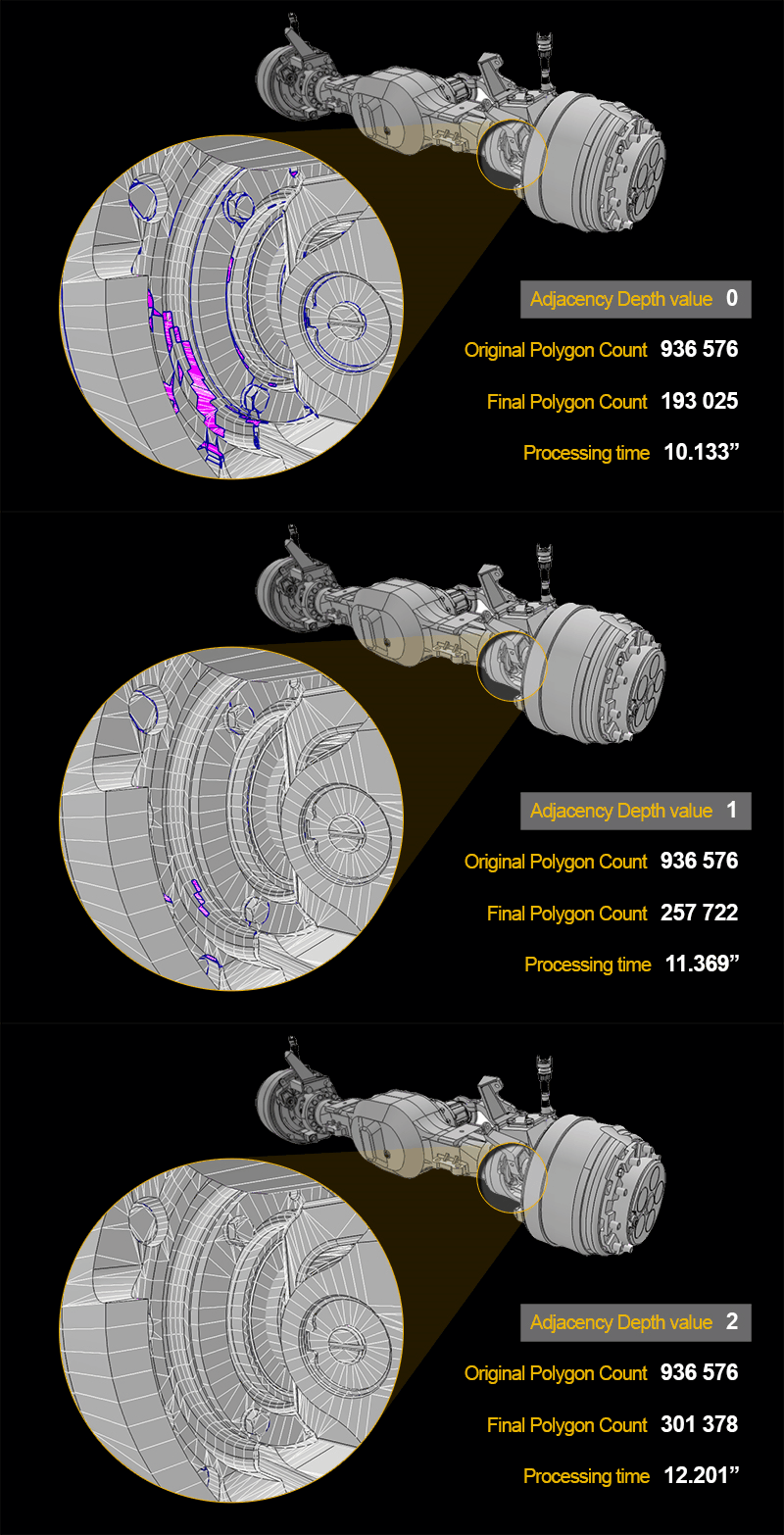
If you process the scene at the polygon level, you can preserve the neighboring polygons of captured polygons, to avoid apparent gaps. This table shows the most common options:
Adjacency depth | Neighboring polygons that are preserved | Example of use |
|---|---|---|
| 0 | None | Viewers are far from the model. You want to focus on reducing the polygon count. |
| 1 | Adjacent polygons | Viewers get closer to the model. You want to avoid apparent gaps. |
| 2 | Adjacent polygons and their adjacent polygons | Viewers get closer to the model. You want to avoid apparent gaps. |
This example illustrates how this parameter affects meshes:
Transparency
You can preserve geometries that can be viewed through transparent materials, such as windows and windshields.