将 PubMatic 与 LevelPlay 集成
了解如何将 PubMatic 与已启用 LevelPlay 的 iOS app 集成
阅读时间1 分钟最后更新于 1 个月前
了解如何将 PubMatic 与已启用 LevelPlay 的 iOS app 集成。此部分将介绍 LevelPlay 中的帐户设置、app 配置、广告单元创建和适配器安装。请按照以下步骤操作,确保为 PubMatic 竞价正确配置广告位。
先决条件
创建 PubMatic 帐户
- 访问 PubMatic 网站并创建帐户。
- 等待您的帐户获得批准。
- 登录 PubMatic Monetization 后台。
创建 app 和广告单位
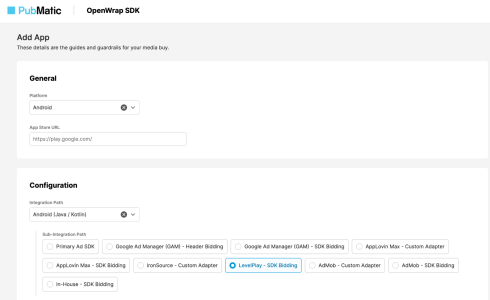
添加 app
添加 app 并在 PubMatic 后台中配置广告单位,然后才能在 LevelPlay 中激活 PubMatic。
- 登录 PubMatic Monetization 后台。
- 选择 Set Up(设置)> Apps(应用)。
- 选择 Add app(添加应用)。

- 在 General(常规)部分中:
- 选择目标平台(iOS 或 Android)。
- 输入有效的 App Store 或 Google 播放网址。
- 查看或编辑自动生成的 app 名称。
- 在 Configuration 部分中:
- 选择您的集成路径。
- 将 Sub-Integration Path 设置为 LevelPlay – SDK Bidding。
- 在高级部分中:
- 确保货币设置为 USD。
- 选择 Add app(添加应用)。
创建广告单位
添加 app 后,创建 LevelPlay 在竞价期间会请求的广告单位。
- 选择 Set Up > Ad Units。
- 选择app程序以查看其广告单位。
- 选择 Create Ad Unit(创建广告单元)。

- 输入广告单元 ID。
- 选择广告格式并填写所有必填字段。
- 选择 Save 或 Save & Create Another。
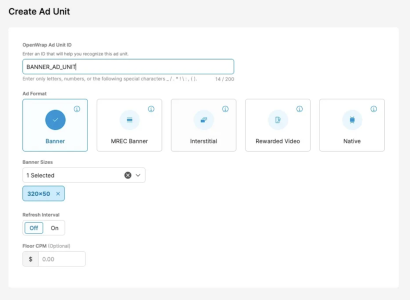
PubMatic 会生成一个广告单位 ID,显示在 Ad Unit 部分中。
管理出价合作伙伴
查看哪些出价合作伙伴有权访问您的广告单位。
- 选择 Set Up > Bidder Partners。
- 选择您的app。
- 使用开关为每个出价合作伙伴启用或禁用广告单位。
在 LevelPlay 设置中激活 PubMatic
在 PubMatic 中配置您的 app 和广告单位后,在 LevelPlay 中激活 PubMatic 网络以将 PubMatic 凭据连接到您的广告位。
- 在 LevelPlay 中,打开 Monetize > Setup > SDK Networks。
- 从可用网络列表中选择 PubMatic。
- 输入所需参数,选择 Activate,然后保存。
- 从配置的网络中再次选择 PubMatic,然后选择 Setup。
- 从 PubMatic 后台输入以下值:
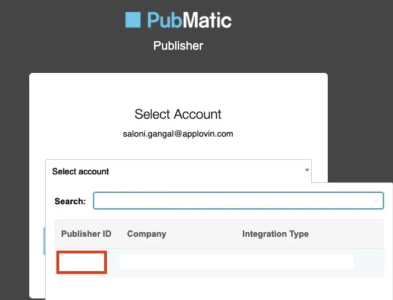
- Publisher ID:在 PubMatic 发布者帐户中找到
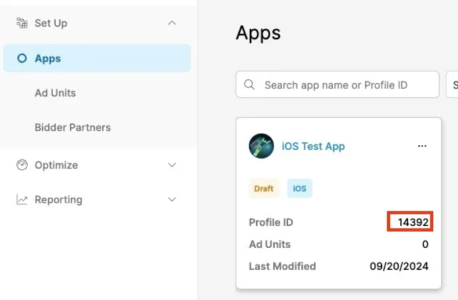
- 配置文件 ID:在 Apps 页面上找到
- 广告单位 ID:在 Ad Units 部分中找到
- 将状态设置为 激活 并选择 保存。
PubMatic 现在在 Setup(设置)后台上显示为激活的聚合。
添加 PubMatic 适配器
要完成投标人集成,请将 PubMatic SDK 和 LevelPlay PubMatic 适配器添加到 iOS 项目中。有两种方法:使用 CocoaPods 或手动将 SDK 和适配器集成到项目中。
与 CocoaPods 集成(推荐)
将以下行添加到 Podfile 可将 PubMatic 适配器集成到 LevelPlay:
pod 'LevelPlayPubMaticAdapter', '5.0.0.0'
运行以下代码来安装适配器和 SDK:
pod 安装 --repo-update
手动集成
- 下载最新的 PubMatic SDK for iOS。
- 将所有必需的 .xcframework 文件和捆绑包添加到项目中。
- 下载最新的 LevelPlay PubMatic 适配器。
处理用户同意
为了符合 GDPR 和其他隐私框架,请确保 app 向 PubMatic SDK 提供正确的同意信息。
- PubMatic SDK 使用 IAB TCF 2.0 标准通过共享偏好或用户默认值(理想情况下是通过 CMP SDK)检索 GDPR 值。
- PubMatic 还支持用于检索 GPP 同意信号的 IAB GPP 标准。
- 有关传递同意值的信息,请参阅 PubMatic SDK 高级主题。