Code-Link
Provide a Code Link sign-in option to enable account linking by sharing unique codes between devices.
읽는 시간 3분최근 업데이트: 10달 전
최소 SDK 버전: 3.0.0
게임에서 Code-Link를 사용해 플레이어의 인증을 설정하는 다음 시나리오를 참조하십시오.
- Code-Link를 설정합니다.
- Code-Link를 사용하여 로그인합니다.
Code-Link 설정
- Unity Authentication의 ID 제공업체를 Code-Link로 설정합니다.
- Unity 에디터 메뉴에서 Edit > Project Settings... 로 이동한 후, Services > Authentication을 선택합니다.
- ID Providers를 Code-Link로 설정한 후, Add를 선택합니다.
- Save를 선택합니다.
Code-Link를 사용하여 로그인
다음과 같은 Code-Link 기능을 사용하여 플레이어로 로그인합니다.
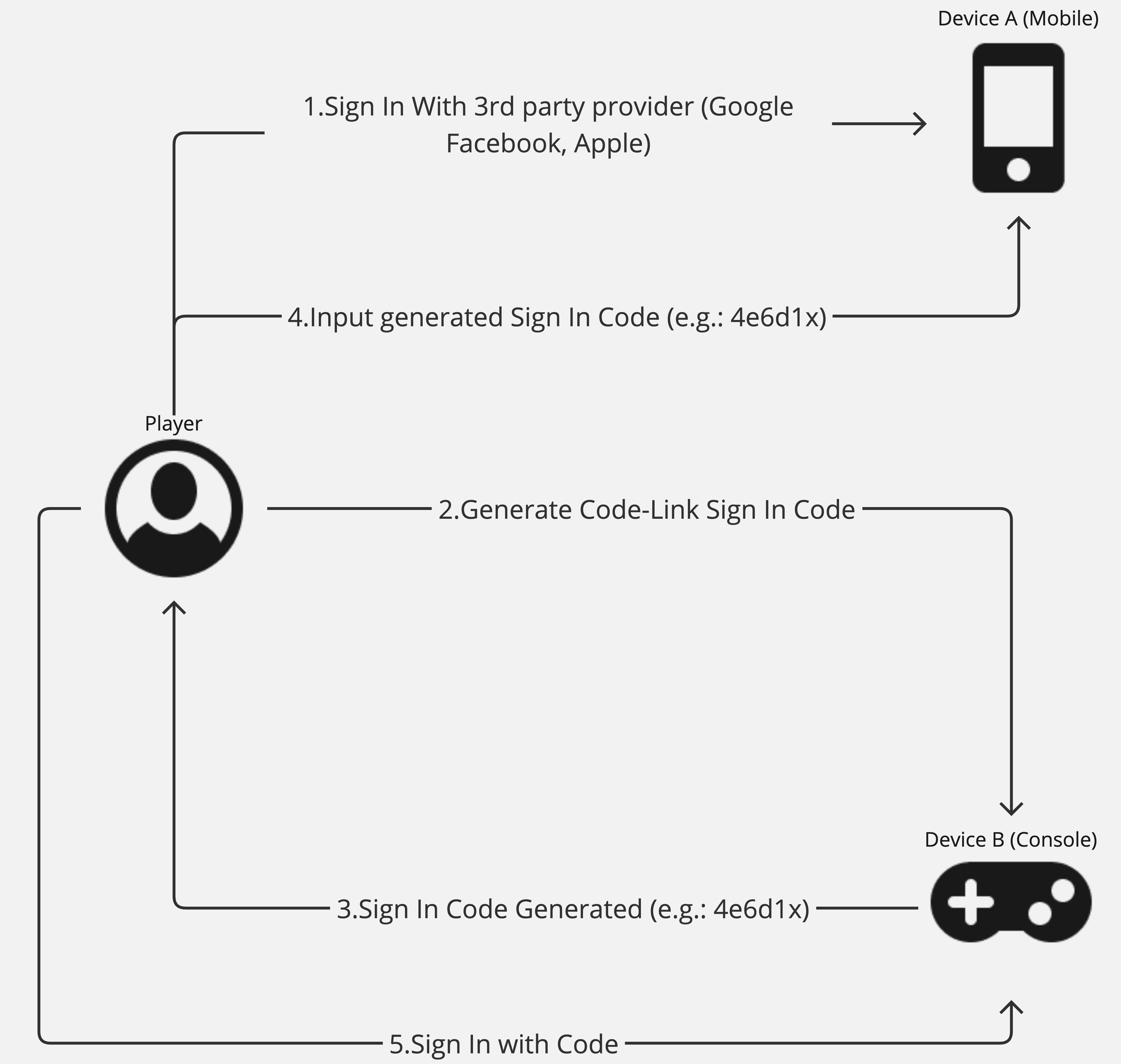
- 플레이어가 익명으로 또는 지원되는 ID 제공업체를 이용하여 기기 A에 로그인합니다.
- 플레이어가 기기 B(로그인되지 않음)에 동일한 계정을 사용하기로 결정하고, 로그인 코드를 생성하도록 기기 B에 요청합니다.
- 플레이어가 로그인 코드를 받으면 기기 A에 코드를 입력하여 코드가 승인되었음을 확인합니다.
- 플레이어가 기기 B로 돌아가 코드로 로그인할 것을 요청합니다.
- 기기 B가 기기 A와 동일한 계정으로 인증됩니다.
Code-Link를 사용하여 로그인하려면 다음 단계를 따릅니다.
-
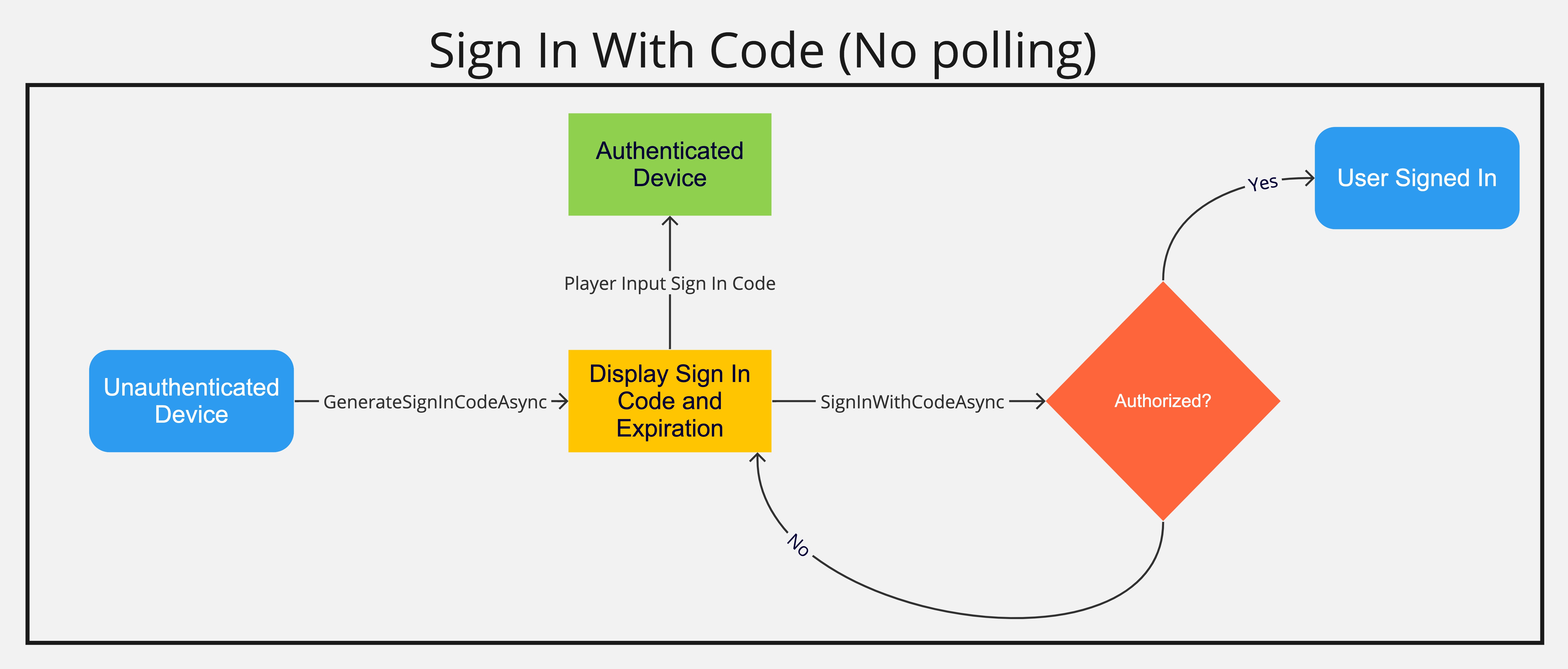
인증하고자 하는 미인증 기기에서메서드(식별자 전달은 선택 사항이지만 로그인 코드를 생성한 기기를 식별하기 위해 권장됨)를 사용하여 로그인 코드를 생성합니다.
GenerateSignInCodeAsync -
생성된 SignInCode와 만료 시점을 플레이어에게 표시합니다.async Task GenerateCodeAsync(string identifier){ try { var codeInfo = await AuthenticationService.Instance.GenerateSignInCodeAsync(identifier); // Display code, and expiration and identifier to the player } catch (Exception e) { // Notify the client something went wrong generating the code }}
-
이미 인증된 두 번째 기기에 SignInCode를 입력할 수 있는 액세스 권한을 플레이어에게 부여합니다.
-
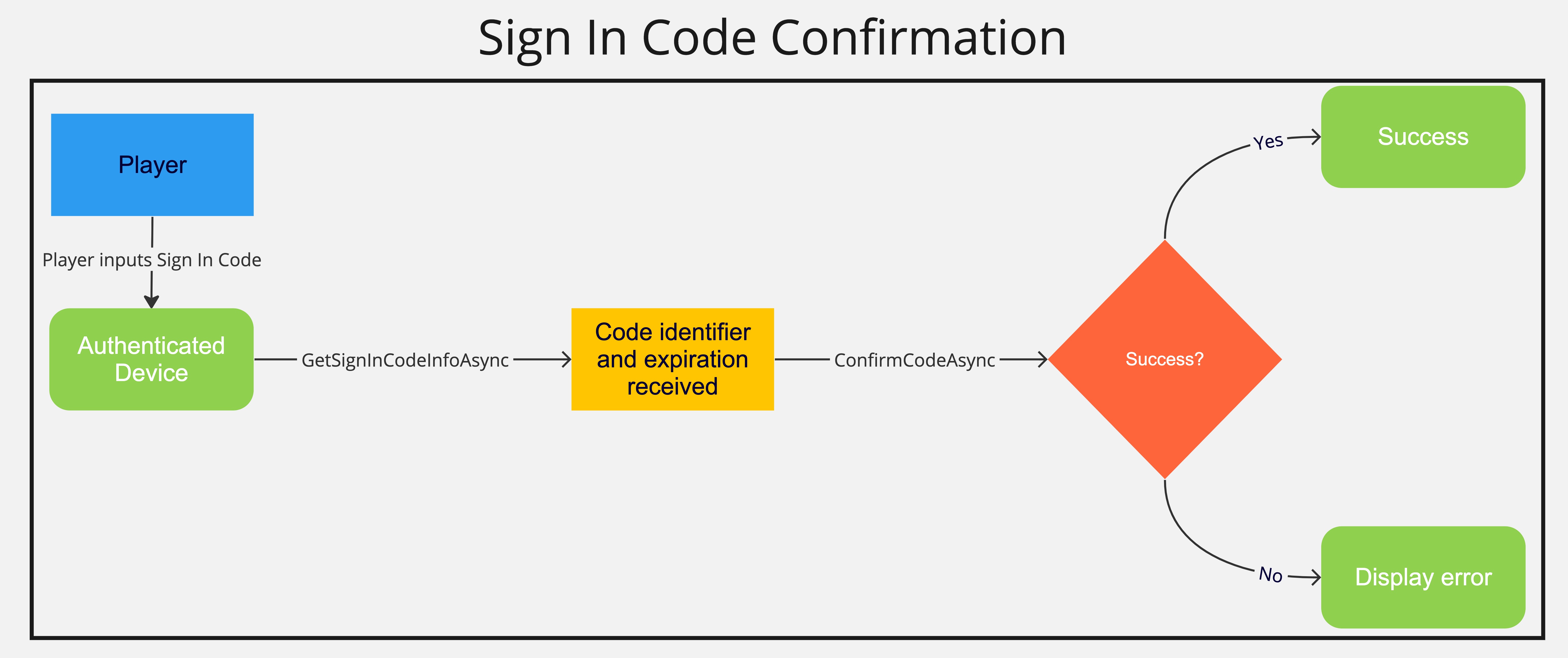
(선택 사항)를 통해 플레이어가 제공한 SignInCode를 사용하여 SignInCode 정보를 가져온 다음 플레이어에게 표시합니다. 이렇게 하면 플레이어가 두 기기의 식별자를 비교하여 자신이 올바른 기기를 승인하고 있는지 확인할 수 있습니다.
GetSignInCodeInfoAsync -
를 사용하여 Code-Link 로그인을 승인합니다.
ConfirmCodeAsyncasync Task GetCodeInfoAsync(string signInCode){ try { var codeInfo = await AuthenticationService.Instance.GetSignInCodeInfoAsync(signInCode); // Display code, and expiration and identifier to the player and ask them to authorize the code-link sign in } catch (Exception e) { // Notify the client something went wrong getting the code information }}async Task ConfirmCodeAsync(string signInCode){try{ await AuthenticationService.Instance.ConfirmCodeAsync(signInCode); // Display a confirmation that the device should be authorized}catch (Exception e){ // Notify the client something went wrong with the code confirmation}} -
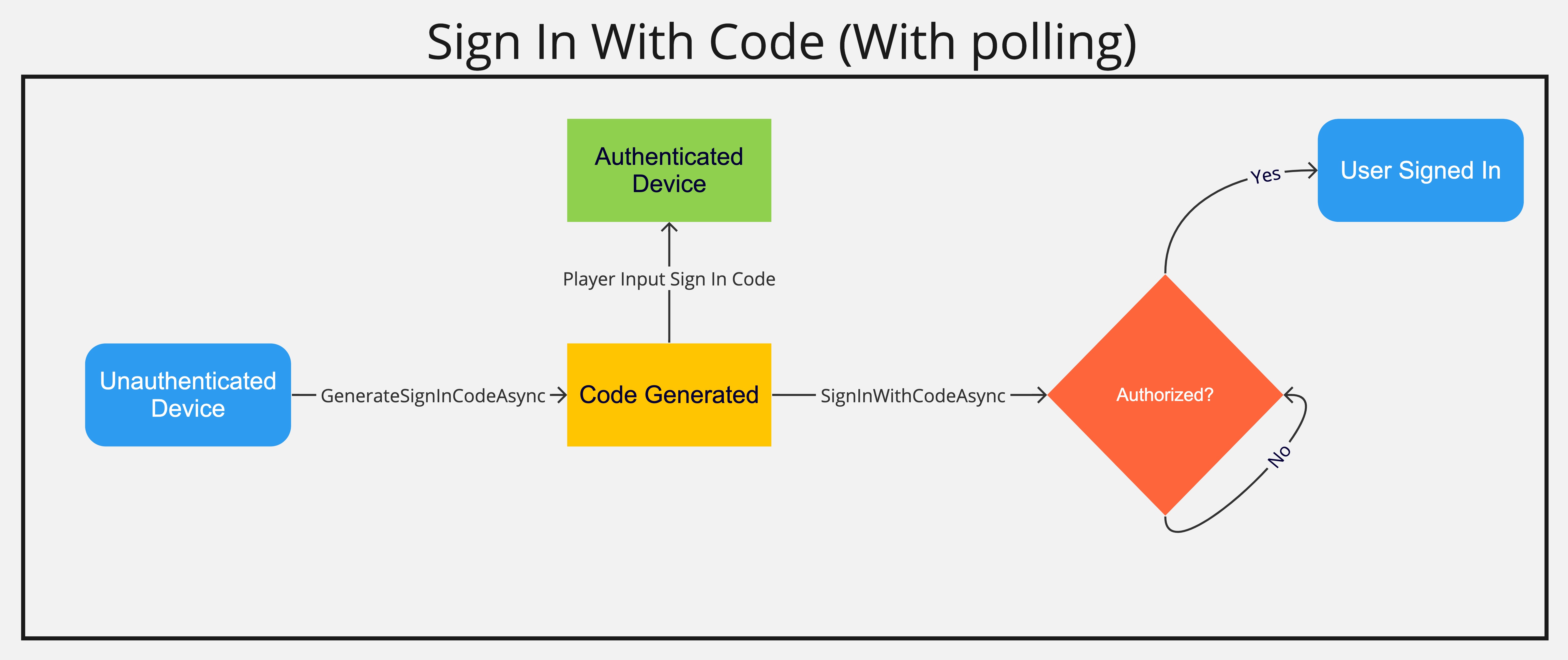
를 호출하여 SignInCode를 생성한 것과 동일한 기기에서 플레이어를 로그인시킵니다. Code-Link 로그인을 검증하기 위한 자격 증명은 메모리에 저장되므로 SignInWithCodeAsync를 호출하기 전에 GenerateSignInCodeAsync를 호출해야 합니다. 그러지 않으면 예외가 발생합니다. 코드가 승인되지 않은 경우에도 이 메서드는 성공하지만 플레이어는 로그인되지 않습니다. SignedIn 이벤트를 찾아 로그인이 성공했는지 확인하십시오.
SignInWithCodeAsyncpublic async Task SignInWithCodeAsync(){ try { AuthenticationService.Instance.SignedIn += UserHasSignedIn await AuthenticationService.Instance.SignInWithCodeAsync(); } catch (Exception e) { // Notify the client something went wrong signing in the player } finally { AuthenticationService.Instance.SignedIn -= UserHasSignedIn }}public void UserHasSignedIn() { // Notify the client the user signed in successfully.}
<Note>**참고**: `SignInWithCodeAsync` 메서드는 자동 폴링(5초마다)도 허용하므로 코드가 승인되면 기기에서 자동으로 플레이어를 로그인시키고, 코드가 만료되면 예외를 발생시킵니다. 또한 이 메서드는 폴링을 취소할 수 있는 `CancellationToken`도 허용합니다.```csCancellationTokenSource CodeLinkCancellationTokenSource;</Note>public async Task PollSignInWithCodeAsync()\{ try \{ CodeLinkCancellationTokenSource = new CancellationTokenSource(); await AuthenticationService.SignInWithCodeAsync(true, CodeLinkCancellationTokenSource.Token); } catch (Exception e) \{ // Notify the client something went wrong with Polling for Code Confirmation }}public void CancelSignInWithCode()\{ CodeLinkCancellationTokenSource.Cancel();}