Custom actions
Create and configure custom moderation actions to respond to player incidents.
Read time 3 minutesLast updated 7 days ago
On top of the built-in actions moderators can take, you can craft custom actions to fit your game. These actions can be anything from banning a user from a specific game mode or removing points or currency from an account.
To create a custom action:
- Create the action in the Safe Text dashboard.
- Update a Cloud Code Script with the behavior the action will trigger.
Create a custom action
To create the custom action, navigate to the Moderation actions page in the Unity Dashboard: Vivox > Safe Text > Moderation action.
- On the Moderation actions page, select Create custom action.
- Fill in the required information on the Custom action page.
- After adding the information, select Save.
The custom action you created will appear with the listed actions on the Moderation actions page.
Custom action settings
When creating or editing a custom action, you can change multiple conditions of the action:
- Action name and ID: What the action is called and how it’s referred to in code.
- Type: Is the action time-based or a one-time action?
- Classification: Define if the action is positive or negative for the player.
- Duration: How long will the action apply?
You can also toggle event settings from the editing page or whether the action is enabled or disabled.
You can edit a custom action after it’s been created.
Cloud Code script
To have an action take effect in your game's backend, you must set up a Cloud Code Script to execute any necessary actions For example, if you want a player banned from Competitive mode, you need to establish this action within the script to hit your game’s webhooks which would carry out the ban.
There is a default template script available from Cloud Code. The Moderation actions page directs you to this default template in the Cloud Code dashboard. Update the script with the desired behavior of your custom actions. Define each custom action you create in one script file.
This script uses events to trigger specific actions through Cloud Code. You need to define a JSON parameter called ‘event’ in the script. You can do this from the Cloud Code product page under the Scripts section. Then select the Details tab of the script you are using and select Add.
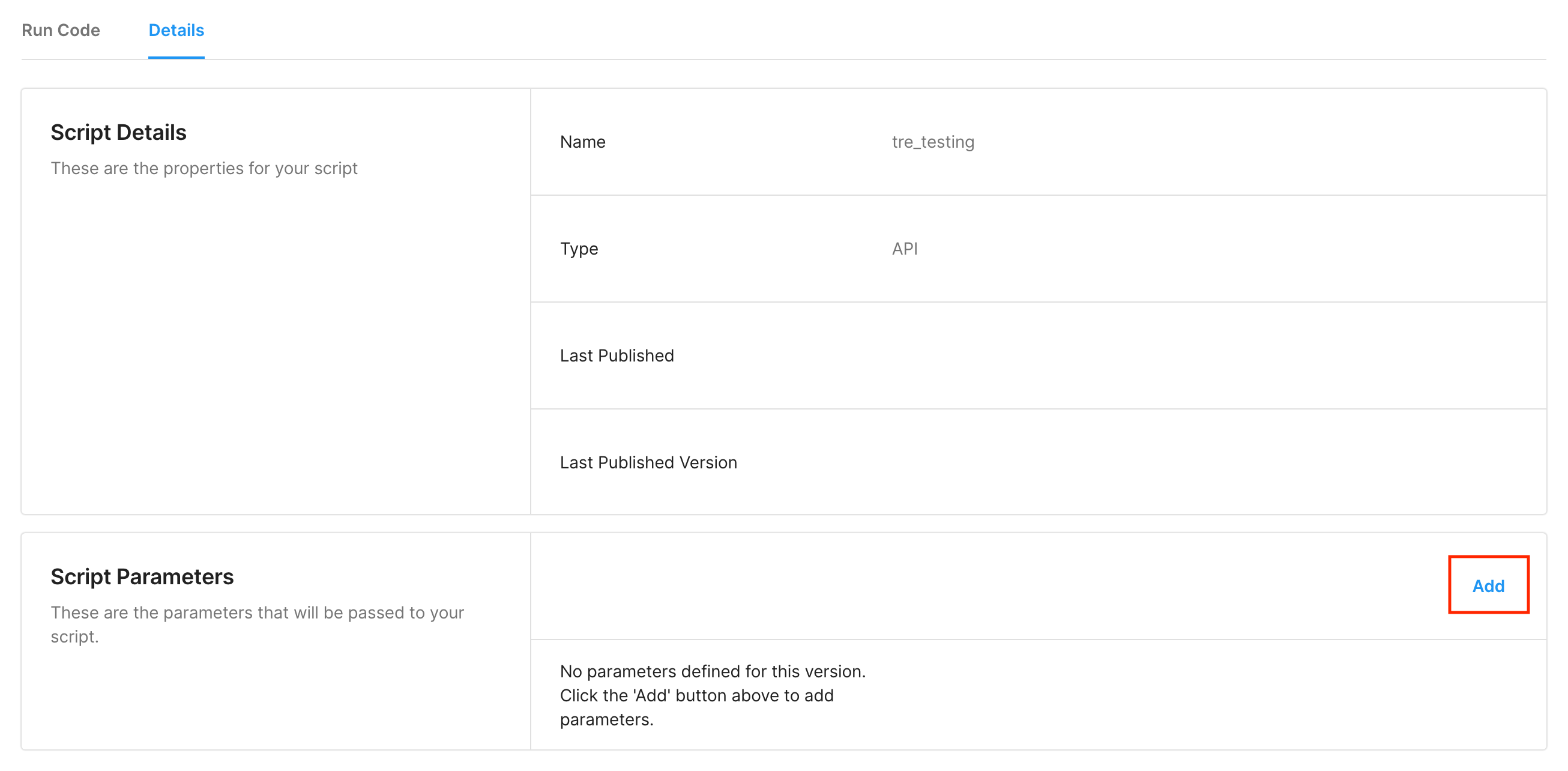
Fill in the parameter fields with:
- Parameter name: event
- Type: JSON
- Required: True
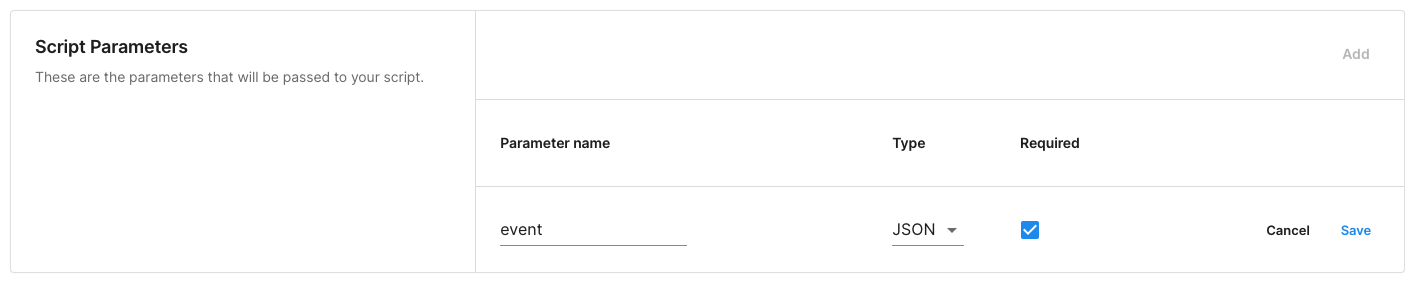
Set the script on the Moderation action page. When moderators use the customize action the script will trigger.
Learn more about Cloud Code and script templates in the Cloud Code documentation.
Use a custom action
Select the custom action from the list of actions when responding to an incident.