Integrate PubMatic with LevelPlay
Learn how to integrate PubMatic with your LevelPlay-enabled Android app
Read time 1 minuteLast updated 3 months ago
Learn how to integrate PubMatic with your LevelPlay-enabled Android app through account setup, app configuration, ad unit creation, adapter installation, and network activation in LevelPlay. Follow the steps below to ensure your ad placements are correctly configured for PubMatic bidding.
Prerequisites
Make sure you have correctly integrated LevelPlay's Rewarded Video, Interstitial or Banner into your application.
Create a PubMatic account
- Go to the PubMatic website and create an account.
- Wait for your account to be approved.
- Sign in to the PubMatic monetization dashboard.
Create an app and ad units
Add your app
Add your app and configure your ad units in the PubMatic dashboard before you can activate PubMatic in LevelPlay.
- Log in to the PubMatic monetization dashboard.
- Select Set Up > Apps.
- Select Add App.

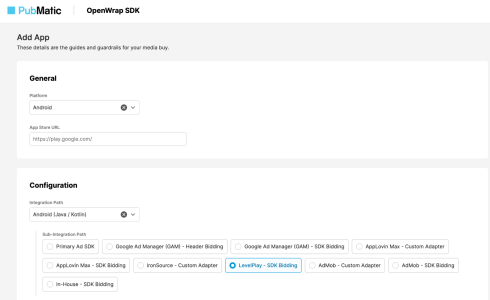
- In the General section:
- Select your target platform (iOS or Android).
- Enter a valid App Store or Google Play URL.
- Review or edit the auto-generated app name.
- In the Configuration section:
- Select your Integration Path.
- Set Sub-Integration Path to LevelPlay – SDK Bidding.
- In the Advanced section:
- Ensure the currency is set to USD.
- Select Add App.
Create ad units
After adding your app, create individual ad units that LevelPlay will request during bidding.
- Select Set Up > Ad Units.
- Select your app to view its ad units.
- Select Create Ad Unit.

- Enter an ad unit ID.
- Select an ad format and complete any required fields.
- Select Save or Save & Create Another.
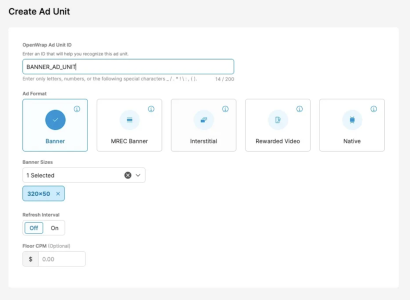
PubMatic generates an ad unit ID, which appears in the Ad Units section.
Manage bidder partners
Review which bidder partners have access to your ad units.
- Select Set Up > Bidder Partners.
- Select your app.
- Enable or disable ad units for each bidder partner using the toggles.
Activate PubMatic in your LevelPlay setup
After configuring your app and ad units in PubMatic, activate the PubMatic network inside LevelPlay to connect your PubMatic credentials to your placements.
- In LevelPlay, open Monetize > Setup > SDK Networks.
- Select PubMatic from the list of available networks.
- Enter the required parameters, select Activate, then Save.
- Select PubMatic again from your configured networks and select Setup.
- Enter the following values from your PubMatic dashboard:
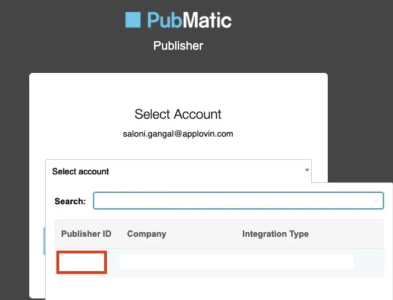
- Publisher ID: found in your PubMatic publisher account
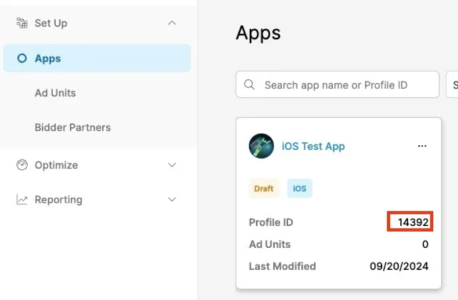
- Profile ID: found on the Apps page
- Ad Unit ID: found in the Ad Units section
- Set the status to Active and select Save.
PubMatic now appears as active for mediation on your Setup dashboard.
Add the PubMatic adapter (Android)
To complete the integration, add the PubMatic SDK and the LevelPlay PubMatic adapter to your Android project.
Add the PubMatic Maven repository
Add the following repository to the allprojects > repositories block of your project-level build.gradle file:
allprojects { repositories { maven { url "https://repo.pubmatic.com/artifactory/public-repos" } }}
Add the adapter dependencies
Add these dependencies to your app module’s build.gradle file (the adapter name will be finalized by the LevelPlay team):
dependencies { implementation 'com.unity3d.ads-mediation:pubmatic-adapter:1.0.0' implementation 'com.pubmatic.sdk:openwrap:4.10.+'}
Handle user consent
To comply with GDPR and other privacy frameworks, ensure your app provides the correct consent information to the PubMatic SDK.
- PubMatic SDK retrieves GDPR values using the IAB TCF 2.0 standard through shared preferences or user defaults, ideally via a CMP SDK.
- PubMatic also supports the IAB GPP standard for retrieving GPP consent signals.
- Refer to the PubMatic SDK Advanced Topics for information on passing consent values.